
Request Policy Configuration
Configure session persistence, retry budgets, channel health checks, and auto-disable rules as Root. Learn how settings are saved together and how request decisions are logged.
- Only Root can access these settings. Go to Admin → System Settings in the sidebar, then select a section under Request Policy in the left navigation.
- Configure session persistence, retry budgets, channel health checks, and auto-disable rules. You can also review the rules for writing request decision logs.
- Both sections write to the same request policy configuration, which is validated as a whole on save. See Saving and Applying Changes.
Tip
- Session Persistence replaces the former term Channel Affinity. Some confirmation dialogs and logs still use the old term, including “Confirm Clearing All Channel Affinity Cache” and “Channel Affinity: Upstream Cache Hit”.
- The Max Retries: N badge next to the channel list title shows the current Maximum Retry Count. Root can click the badge, which has a Retry Settings tooltip, to open Session and Retry. Admin can only see the value.
- When editing a channel, the Auto-Disable on Error switch displays Eligible for Auto-Disable or Ineligible for Auto-Disable beneath it, along with Source: …. If the global settings cannot be read, it displays “Both global auto-disable and this channel’s switch must be enabled.” The Request Policy link that follows is visible only to Root and opens Channel Health.
- When editing an API key in the
autogroup, the Cross-Group Retry switch appears. The Request Policy link at the end of its description is visible only to Root and opens Session and Retry.
Request Policy Configuration Overview
The request policy determines which channel a request tries first, whether to retry after a failure, and when to automatically disable or recover a channel. Switch between the two sections under Request Policy in the left navigation. Session and Retry opens by default.
Sections
| Section | Purpose | Tabs |
|---|---|---|
| Session and Retry | Session persistence, session rules, and retry budgets. | — |
| Channel Health | Periodic channel tests, automatic disabling, and automatic recovery. | — |
Tip
- If retries do not occur, a channel is automatically disabled or fails to recover, or the cache entry count stays at 0, see the FAQ.
Configuration Sections
Each section has its own save button and submits changes separately. Both sections write to the same request policy configuration. For validation and write behavior, see Saving and Applying Changes.
Session and Retry
- Request Policy – Session and Retry
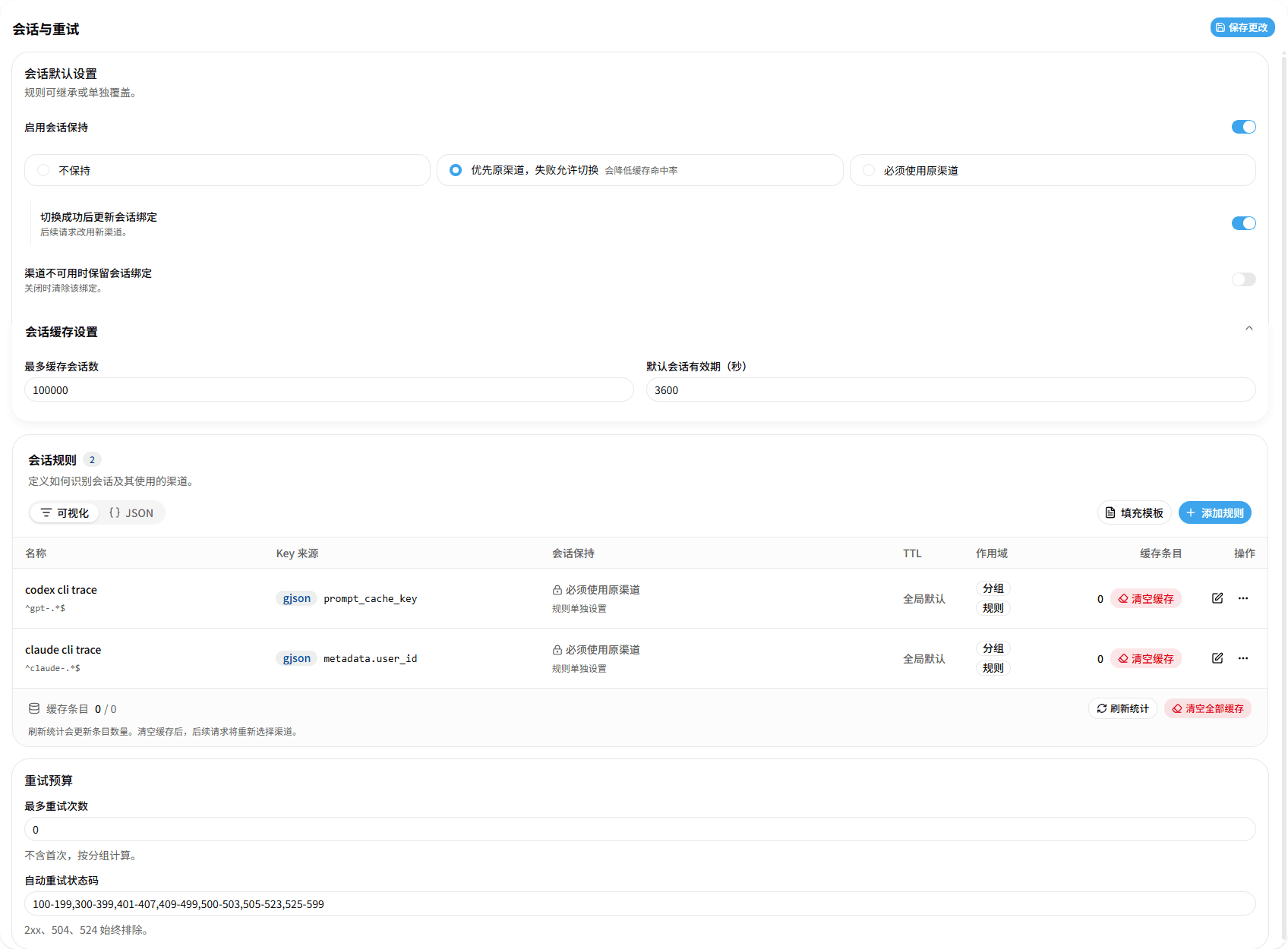
This section contains three cards, Session Defaults, Session Rules, and Retry Budget. Click Save Changes in the page header once to submit changes to all three cards together. The screenshot shows Session Cache Settings expanded. It is collapsed by default. Cache Entries in the footer shows 0 / 0 because the screenshot was taken in an environment that uses Redis.
Configure session persistence
- In Session Defaults, confirm that Enable Session Persistence is on. New rules default to Inherit Global Default for Session Persistence, so choose a global mode that enables persistence. Save any changes here in step 3.
- Click Add Rule → Blank Rule, enter a Name, a Model Regex, and at least one Key Source, then click Save in the dialog. See Add or Edit a Rule below for field descriptions. The new rule appears at the end of the table.
- Rules are matched in list order. Make sure your conditions do not overlap with earlier rules, which would match the request first. See Rule Matching below. To reorder rules, use JSON mode.
- The Codex CLI and Claude CLI templates match the two built-in rules listed below. Use the templates to restore the built-in rules if you deleted them.
- Click Save Changes in the page header. The “Saved successfully” message confirms submission. For validation errors, see Saving and Applying Changes.
Tip
- For a rule added using the steps above, a binding is written only when a request meets all the rule’s conditions, uses a Key value with no existing binding, and succeeds with an HTTP status code below 400. Requests pinned to a channel bypass session rules.
- The Cache Entries column and footer count stay the same as requests come in. Click Refresh Statistics in the footer to update them. Saving changes to session rules also refreshes the counts automatically.
- To check whether subsequent requests used the binding, see “Does the ✦ next to the channel ID mean the session binding is active?” in the FAQ.
Session Defaults
The card subtitle is “Rules can inherit or override these settings.” Turning off Enable Session Persistence grays out both binding switches. You can still change the Session Persistence radio selection, but it only takes effect when the main switch is on. Expand Session Cache Settings, which is collapsed by default, to see the two cache fields.
Session Persistence Modes
| Mode | Behavior When a Rule Matches |
|---|---|
| No Persistence | The rule still matches and its parameter override template still applies. Channel selection proceeds normally, with no session bindings read or written. |
| Prefer Original Channel, Allow Switching on Failure | The first attempt prefers the channel already bound to the session. If that attempt fails, the normal retry process can switch to another channel. |
| Require Original Channel | If there is no binding yet, the request selects a channel normally and creates a binding on success. Once a rule matches, any failure ends the request without a retry, even if the session has no channel binding yet. If a binding exists and its channel is unavailable, the request immediately returns HTTP 503 with the error strict_session_binding_unavailable. |
Session Defaults Settings
| Setting | Definition | Requirements and Limits | Default |
|---|---|---|---|
| Enable Session Persistence | Main switch. Turning it off disables session rule matching, session binding reads and writes, and application of rule parameter override templates. | Boolean | On |
| Session Persistence (single selection) | The three unlabeled radio cards below Enable Session Persistence are referred to as Session Persistence in this document. This global default mode applies only to rules set to Inherit Global Default. Prefer Original Channel, Allow Switching on Failure displays the note “May reduce the cache hit rate”. | No Persistence / Prefer Original Channel, Allow Switching on Failure / Require Original Channel | Unset, displayed as Prefer Original Channel, Allow Switching on Failure |
| Update Session Binding After a Successful Switch | Subsequent requests use the new channel. When on, the binding is updated to the channel that succeeded. When off, the binding keeps the channel first assigned. | Boolean. Displayed as an indented option below the radio cards. Grayed out when Enable Session Persistence is off. | On |
| Keep Session Binding When the Channel Is Unavailable | When off, the binding is cleared. When on, the binding is kept if the bound channel is disabled or no longer applies to the current group and model. | Boolean. Grayed out under the same condition as above. | Off |
| Maximum Cached Sessions | Located in the collapsible Session Cache Settings section. Sets the in-memory cache capacity. A value of 0 is treated as 100000. Changes take effect after a restart. Redis ignores this setting. | Nonnegative integer | 100000 |
| Default Session TTL (seconds) | Located in the collapsible Session Cache Settings section. Used when a rule’s TTL is 0. A value of 0 is treated as 3600. | Nonnegative integer | 3600 |
Session Rules
The card subtitle is “Define how sessions are identified and which channels they use.” The rule count appears next to the title. Session rules define how to identify requests from the same session and how to keep using that session’s channel after a match. The system selects the channel normally before binding it to the session.
Each session binding occupies one cache entry. Cache Entries is the number of bindings currently stored. Clearing the cache removes those bindings, so subsequent requests select channels again.
Caution
Save in the rule dialog only updates the draft on the page. After adding, editing, or deleting rules, applying templates, or making changes in JSON mode, click Save Changes in the page header to submit them. Leaving the page discards unsubmitted changes without warning.
Card Layout
- You can switch between Visual and JSON modes. In JSON mode, Apply Templates and Add Rule are unavailable, and the message below the editor reads “Switch to Visual mode to add rules or apply templates.” If the JSON is invalid or is not an array, you cannot switch back to Visual mode. The editor displays “Rule JSON must be an array” or “Invalid rule JSON format”.
- When there are no rules, the card displays “No rules yet” and “Apply CLI templates or add a blank rule”, along with an Apply Templates button.
- The card footer shows Cache Entries in “used / capacity” format. If the count cannot be read, it displays “Unavailable”. With Redis, the capacity is shown as
0. The right side of the footer has Refresh Statistics and Clear All Cache buttons. The note below reads “Refreshing statistics updates the entry count. After you clear the cache, subsequent requests will select channels again.”
Built-In Rules
Two built-in rules are available by default. Both include a parameter override template for forwarding request headers.
| Rule Name | Model Regex | Path Regex | Key Source | Session Persistence |
|---|---|---|---|---|
codex cli trace | ^gpt-.*$ | /v1/responses | gjson → prompt_cache_key | Require Original Channel (rule override) |
claude cli trace | ^claude-.*$ | /v1/messages | gjson → metadata.user_id | Require Original Channel (rule override) |
Caution
Both built-in rules and rules created through Apply Templates or Add Rule → Codex CLI / Claude CLI default to Require Original Channel. If a request matches one of these rules and fails, it is never retried.
To allow switching channels after a failure, edit the rule and set Session Persistence to Prefer Original Channel, Allow Switching on Failure. You can also select Inherit Global Default if the global mode allows switching or is set to No Persistence. Click Save in the dialog, then click Save Changes in the page header.
Rule List Columns
| Column | Display |
|---|---|
| Name | The rule name, with its model regex patterns listed below. An empty model regex displays as All Models. |
| Key Source | The source type and the key name or path. |
| Session Persistence | The effective mode and where it comes from (Rule Override, Inherited Global Default, or Disabled Globally). |
| TTL | N seconds or Global Default. |
| Scope | Group, Model, and Rule badges correspond to Include Group, Include Model, and Include Rule Name when enabled on the rule. |
| Cache Entries | The number of cache entries for the rule, with a Clear Cache button next to it. If Include Rule Name is off, the column displays Not Applicable. If the statistics have no entry for the rule, it displays —. When the button is disabled, hovering over it shows the reason. “This rule uses a shared cache and cannot be cleared individually.” “Cache statistics are temporarily unavailable. Refresh and try again.” “Save this rule before clearing its cache.” |
| Actions | Edit the rule. Delete Rule is available in the ⋯ menu. |
Rule Actions
| Action | Effect | Description |
|---|---|---|
| Add Rule → Blank Rule / Codex CLI / Claude CLI | Draft | Opens the rule dialog. Selecting a template prepopulates its fields. |
| Apply Templates | Draft | Appends the Codex CLI and Claude CLI rules and automatically renames them if names conflict. If rules already exist, the Apply Codex CLI / Claude CLI Templates confirmation dialog opens first and displays “This will append 2 template rules (Codex CLI and Claude CLI) to the existing rule list.” When the action finishes, it displays “Templates appended”. |
| Edit Rule / Delete Rule | Draft | Deletion requires confirmation. The prompt reads “Delete session rule ‘…’? This takes effect after you save your changes.” |
| Switch Between Visual and JSON | Draft | Changes only the editing mode. |
| Refresh Statistics | Read-only | Reloads the cache entry count and capacity. Saving changes to session rules also refreshes these statistics automatically. |
| Clear All Cache | Takes effect immediately | The confirmation dialog is titled “Confirm Clearing All Channel Affinity Cache” and asks “Clear all cached session bindings? Subsequent requests will select channels again.” On success, it displays “Channel affinity cache cleared”. This action is independent of Save Changes. |
| Clear Cache (Individual Rule) | Takes effect immediately | Available in the rule row’s Cache Entries column. The Confirm Clearing This Rule’s Cache dialog includes the rule name in its message and has a Clear Cache button. The button is unavailable if Include Rule Name is off, cache statistics cannot be read, or the rule has yet to be saved. |
Add or Edit a Rule
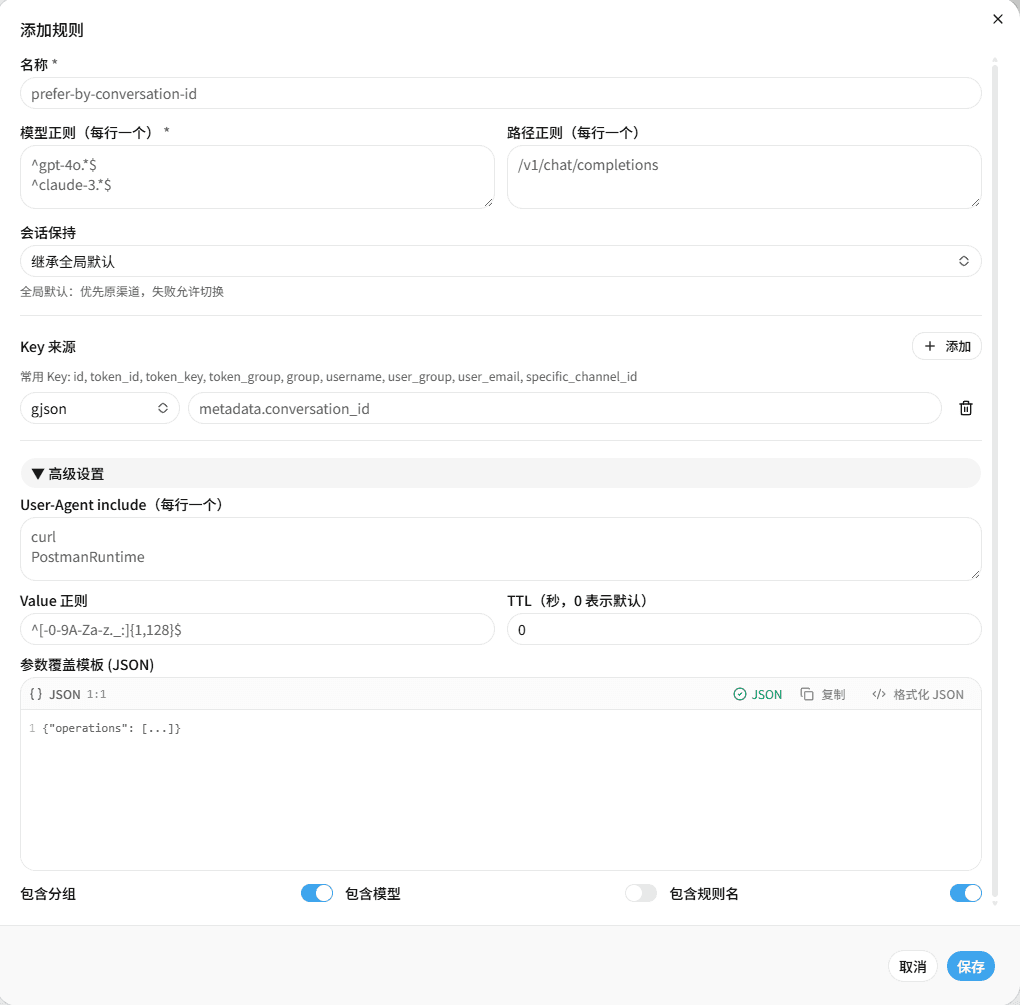
Click Add Rule and select Blank Rule, Codex CLI, or Claude CLI, or click the edit button in a rule row to open the dialog. The dialog is titled Add Rule or Edit Rule, with Cancel and Save buttons at the bottom. The screenshot below shows a blank rule with Advanced Settings expanded. Gray text in input fields is placeholder text. The 0 in the TTL field, the Session Persistence dropdown selection, the gjson Key source type, and the three Include… switches show the actual defaults. The Default columns in the following three tables show the initial values for a blank rule.
- Request Policy – Add Session Rule
Basic Parameters
| Setting | Definition | Requirements and Limits | Default |
|---|---|---|---|
Namename | Identifies the rule. It also becomes part of the cache key when Include Rule Name is on. Use a distinct name for each rule. | Required. If left empty, clicking Save keeps the dialog open without displaying a message. | Empty |
Model Regex (one per line)model_regex | Matches the requested model name against Go regular expressions. A match on any line is sufficient. Use ^ and $ when a full match is required, as in ^gpt-4o.*$. | At least one line is required. Leaving it completely empty behaves the same as leaving Name empty. Entering only whitespace displays “At least one model regex pattern is required”. | Empty |
Path Regex (one per line)path_regex | Matches the request URL path against regular expressions. A match on any line is sufficient. Leave empty to accept any path. | Optional | Empty |
Session Persistencesession_mode | The “Global Default: …” note below the field displays the current global mode. | Inherit Global Default / No Persistence / Prefer Original Channel, Allow Switching on Failure / Require Original Channel | Inherit Global Default |
Key Sourceskey_sources | Values used to identify requests from the same session. Click Add on the right to add a source, and use the button at the end of a row to remove it. The rule uses only the first nonempty value in source order. Common keys are listed below the heading: id, token_id, token_key, token_group, group, username, user_group, user_email, specific_channel_id. | At least one valid source is required. Otherwise, the dialog displays “At least one valid key source is required”. | One gjson row with an empty value |
Key Source Types
| Type | Input | Description |
|---|---|---|
context_int | A request context key such as token_id | Reads a positive integer from the request context and converts it to a string. If the value is missing or is less than or equal to 0, the rule tries the next source. |
context_string | A request context key such as username | Reads a string from the request context and trims leading and trailing whitespace. If the value is empty, the rule tries the next source. |
request_header | A request header name such as X-Session-ID | Reads the specified request header and trims leading and trailing whitespace. The client must send the header. |
gjson | A GJSON path in the JSON body, such as metadata.conversation_id | Extracts a value from the request body. If the path does not exist or the result is empty, the rule tries the next source. |
Advanced Settings
| Setting | Definition | Requirements and Limits | Default |
|---|---|---|---|
User-Agent Include (one per line)user_agent_include | Performs a case-insensitive substring match on the request’s User-Agent. A match on any line is sufficient, for example curl. Values are treated as literal strings. Leave empty to accept any User-Agent. If set, requests without a User-Agent never match the rule. | Optional | Empty |
Value Regexvalue_regex | Validates the extracted Key value using a Go regular expression. The value is used as extracted. If validation fails, the entire rule is skipped. | Optional | Empty |
TTL (seconds, 0 uses the default)ttl_seconds | 0 uses Default Session TTL (seconds). A positive value sets the lifetime of bindings created by this rule. | Nonnegative integer. If a negative value is entered in JSON mode, the backend rejects the save with negative affinity TTL. | 0 |
Parameter Override Template (JSON)param_override_template | When a rule matches, its template is merged with the selected channel’s parameter overrides. For ordinary keys present in both, the channel value takes precedence. The operations arrays are merged with rule template operations first, followed by channel operations. For the full syntax, see the Parameter Override System. | Must be a JSON object. Invalid input displays “Invalid JSON in the parameter override template” or “The parameter override template must be a JSON object”. | Empty |
Cache Key Settings
| Setting | Definition | Requirements and Limits | Default |
|---|---|---|---|
Include Groupinclude_using_group | Adds the active group to the cache key, so identical Keys in different groups have separate bindings. | Boolean | On |
Include Modelinclude_model_name | Adds the requested model name to the cache key, so identical Keys for different models have separate bindings. | Boolean | Off |
Include Rule Nameinclude_rule_name | Adds the rule name to the cache key. Per-rule statistics and cache clearing rely on this setting. When off, different rules can share a binding if all other cache key components match. | Boolean | On |
Rule Matching
- Rules are checked in list order. The first rule that meets both conditions below applies, even if the session has no binding yet. Later rules are skipped.
- The model, path, and User-Agent conditions all match.
- A nonempty Key is found and passes Value Regex validation.
- With multiple Key sources, only the first nonempty value is used. If that value fails Value Regex validation, the entire rule is skipped, including any remaining Key sources in that rule.
- A rule with an empty model regex matches no requests, even if it displays as All Models in the table. The dialog requires at least one line, so a rule like this can only be entered in JSON mode.
- If a session persistence mode has never been set for a rule, as with the two built-in rules and rules carried over from older versions, the legacy
skip_retry_on_failurefield determines the displayed mode. A value oftruedisplays Require Original Channel. Otherwise, it displays Prefer Original Channel, Allow Switching on Failure. Both show Rule Override as the source. The dialog preselects the same mode and writes it explicitly when you save. - Cancel in the dialog discards the current edit. Save only updates the draft, as described in the Session Rules caution above.
- On submission, the backend compiles the model, path, and Value Regex patterns for all rules. Any invalid pattern causes the entire save to fail with an error of the form
rule "<规则名>": error parsing regexp: ….
Retry Budget Settings
| Setting | Definition | Requirements and Limits | Default |
|---|---|---|---|
| Maximum Retry Count | Excludes the initial attempt and is counted per group. See item 2 under Retry Rules below. The default of 0 disables retries after a failure. | Integer from 0–99. The backend only requires a value of at least 0. | 0 |
| Auto-Retry Status Codes | Always excludes 2xx, 504, and 524. The placeholder reads “e.g., 401, 403, 429, 500-599”. Adjacent ranges are merged on save. See Saving and Applying Changes. | Comma-separated status codes or inclusive ranges within 100–599. Invalid input displays “Invalid status code rule”. Leave empty to disable status-code-based retries. | 100-199,300-399,401-407,409-499,500-503,505-523,525-599 |
Retry Rules
- The total number of attempts is 1 plus Maximum Retry Count. Each retry selects a channel again and moves down one channel priority level. Once the lowest level is reached, retries stay at that level and may select the same channel again. If the initial attempt used a session-bound channel, the first retry starts at the highest priority.
- If the API key’s group is
autoand Cross-Group Retry is on, each group has its own retry budget. When the current group’s budget runs out, the request moves to the next group and starts at its highest priority. - After each failure, the following conditions are checked in order. The first match stops retries.
- The request matches a Require Original Channel rule.
- The request is pinned to a channel.
- The error is marked as non-retryable.
- The retry budget is exhausted.
- The status code is 2xx, 504, or 524, or the upstream response body cannot be parsed.
- The status code is absent from Auto-Retry Status Codes.
- Two exceptions apply.
- For channel errors, whose error codes start with
channel:, only conditions 1 and 2 are checked before retrying. Examples include a channel with no available keys, an invalid key, an invalid parameter override configuration, and a model mapping error. Maximum Retry Count still limits the total number of attempts. - If the status code falls outside
100–599, the request retries after passing checks 1–4 and skips checks 5 and 6.
- For channel errors, whose error codes start with
- Asynchronous task submissions, such as video generation, use built-in rules and ignore Auto-Retry Status Codes. They retry on 429, 307, and all 5xx status codes except 504 and 524. They skip retries on 2xx, 400, 408, 504, and 524. For all other status codes, local errors end the request and upstream errors trigger a retry, including upstream 401, 403, and 404 responses. Maximum Retry Count, channel pinning, and Require Original Channel also apply.
Channel Health
- Request Policy – Channel Health
Status messages
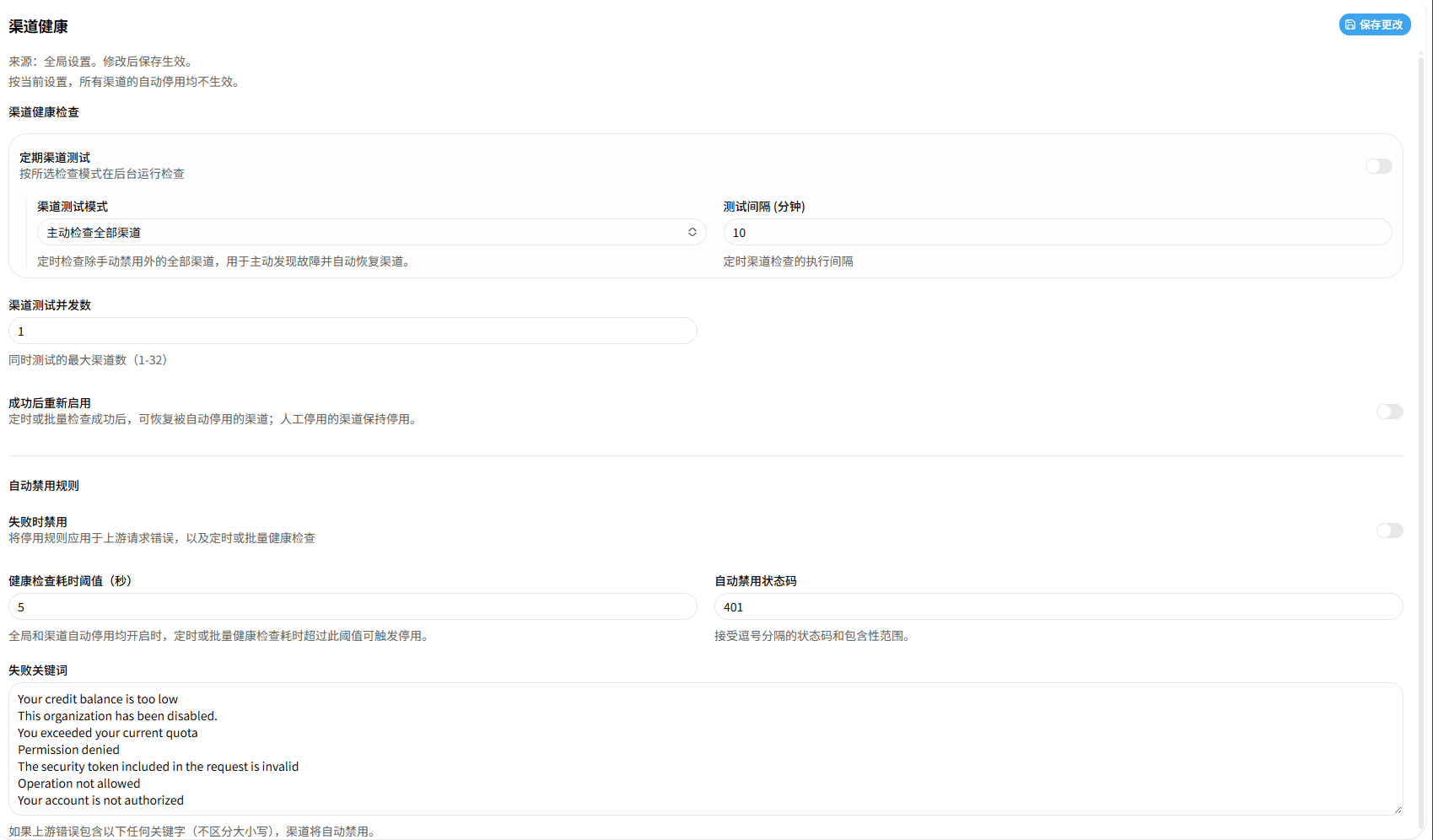
- The page always displays “Source: Global settings. Save changes to apply them.”
- When “Disable on Failure” is on, the page displays “Each channel must also have Auto-Disable enabled for the global disable rules to apply.” When it is off, the page displays “With the current settings, automatic disabling is inactive for all channels.” “Auto-Disable” refers to the “Auto-Disable on Error” toggle in the channel editor. The editor also labels it “Auto-Ban” in the “Routing Policy” section.
- When “Re-enable on Success” is on and “Periodic Channel Testing” is off, the page also displays “Scheduled recovery is inactive. Batch tests can still recover automatically disabled channels.”
Channel health checks
“Channel Test Mode” and “Test Interval (minutes)” are nested under “Periodic Channel Testing.” With the toggle off, both settings remain editable and can be saved. Scheduled tests run only when the toggle is on. “Channel Test Concurrency” and “Re-enable on Success” operate independently of this toggle and also apply to “Test All Channels” on the Channel Management page.
Channel test modes
| Mode | Test Scope | Can Disable | Can Recover |
|---|---|---|---|
| Proactively Check All Channels | Checks all channels except manually disabled ones to detect failures proactively and recover channels automatically. | Yes | Yes |
| Proactively Check Channels with Auto-Disable Enabled | Checks only channels that have “Auto-Disable on Error” enabled and excludes manually disabled channels. | Yes | Yes |
| Check Only Automatically Disabled Channels | Rechecks only channels that the system automatically disabled and re-enables them once they recover. | No | Yes |
Tip
- “Channel Test Mode” determines the scope of scheduled tests only. “Test All Channels” always checks every channel except manually disabled ones.
- Manually disabled channels stay disabled until re-enabled manually.
Channel health check settings
| Setting | Definition | Requirements and Limits | Default |
|---|---|---|---|
| Periodic Channel Testing | Runs background health checks using the selected mode. | Boolean | Off |
| Channel Test Mode | The description below the setting changes with the selected mode. | Choose one of the three options under “Channel test modes” above. | Proactively Check All Channels |
| Test Interval (minutes) | The interval between scheduled channel checks. If you select “Check Only Automatically Disabled Channels,” the description changes to “How often the system checks whether automatically disabled channels can be recovered.” | Integer of at least 1. Otherwise, the page displays “The interval must be at least 1 minute.” | 10 |
| Channel Test Concurrency | The maximum number of channels tested simultaneously (1–32). | Integer from 1 to 32. Otherwise, the page displays “Channel test concurrency must be between 1 and 32” or “Enter a positive integer.” | 1 |
| Re-enable on Success | A successful scheduled or batch check can recover automatically disabled channels. Manually disabled channels remain disabled. | Boolean | Off |
Automatic disable rules
| Setting | Definition | Requirements and Limits | Default |
|---|---|---|---|
| Disable on Failure | Applies disable rules to upstream request errors and to scheduled or batch health checks. The channel must also have “Auto-Disable on Error” enabled. | Boolean | Off |
| Health Check Duration Threshold (seconds) | If automatic disabling is enabled both globally and for the channel, a scheduled or batch health check that exceeds this threshold can trigger disabling. Enter 0 or leave the field empty to disable duration-based checks. The threshold applies only to health checks. | A non-negative number or an empty value. The validation message is in English: Enter a non-negative number or leave empty | 5 |
| Auto-Disable Status Codes | Accepts a comma-separated list of individual status codes and inclusive ranges, such as 401,403,500-503. | Uses the same format as “Auto-Retry Status Codes.” The page displays “Invalid status code rule: …” for invalid input and “Normalized: …” when the input differs from its normalized form. | 401 |
| Failure Keywords | Automatically disables the channel if the upstream error contains any of the listed keywords (case-insensitive). | Multiline text | 7 built-in keywords, one per line |
Tip
The built-in failure keywords are Your credit balance is too low, This organization has been disabled., You exceeded your current quota, Permission denied, The security token included in the request is invalid, Operation not allowed, and Your account is not authorized.
When automatic disabling is triggered
| Scenario | Criteria | Notes |
|---|---|---|
| Live request failure | Channel errors, “Auto-Disable Status Codes,” and “Failure Keywords” | Request duration is ignored. Errors marked as non-retryable do not trigger disabling unless they are channel errors. |
| Scheduled test or “Test All Channels” | The same criteria as above, plus “Health Check Duration Threshold (seconds)” | “Check Only Automatically Disabled Channels” mode leaves channel disabling inactive. |
| Single-channel test | — | Leaves channel status unchanged. |
- Automatic disabling requires both the global “Disable on Failure” toggle and the channel’s “Auto-Disable on Error” toggle to be on.
- For a multi-key channel, the system disables only the key that encountered the error. It marks the entire channel as automatically disabled once all keys are disabled.
Automatic recovery and notifications
- To recover automatically, a channel must be in the automatically disabled state, “Re-enable on Success” must be on, and the channel must pass a scheduled test or “Test All Channels.” If the global “Disable on Failure” toggle is on, the test duration must also be at or below the “Health Check Duration Threshold (seconds).” Recovery is limited to automatically disabled channels tested through a scheduled or batch test.
- Automatic disabling and recovery both send notifications. Enabled administrators with the Admin or Root role receive them if they turn on “Channel Notifications.” If the toggle has never been set, only Root receives notifications by default. Each administrator can toggle “Channel Notifications” in their Profile.
- For each administrator, notifications for the same channel and status are limited to 2 within 10 minutes by default. The
NOTIFY_LIMIT_COUNTenvironment variable controls the count (default2), andNOTIFICATION_LIMIT_DURATION_MINUTEcontrols the window in minutes (default10, with values of 0 or less treated as 10). These limits are configured through environment variables only.
Runtime requirements
- Periodic tests run only on the Master instance. Nodes with
NODE_TYPE=slaveskip them. Tests are queued at the configured interval, and a new round starts only after the previous one finishes. - Environment variables override the settings on this page. Setting
CHANNEL_TEST_FREQUENCYto a positive integer forces periodic testing on, sets the interval to that number of minutes, and locks the mode to “Proactively Check All Channels.” SettingCHANNEL_TEST_ENABLEDto a Boolean value forces the “Periodic Channel Testing” toggle to that value.CHANNEL_TEST_ENABLEDis applied afterCHANNEL_TEST_FREQUENCY, sofalseturns periodic testing off even when a frequency is set. - All three periodic test settings on the page remain editable and can be saved when these variables are set. Runtime behavior follows the environment overrides. New API reads both variables only at startup, so restart it after changing either one.
Request Decision Records
Request Policy records routing and retry decisions for each request to help with troubleshooting.
- To find the record, open an entry in Usage Logs and go to “Details” → “Request Policy Decisions.” Only Admin and Root can see it, and it appears only when “All” is selected in the upper-right corner of the page.
- The record shows the selected channel, the matched session rule, the reason for failure, the decision to retry or stop and the source of that decision, the elapsed time, the group, the status code, and how channel health was handled, step by step.
- Decision records for successful requests are written to usage logs. This requires “Log Quota Usage” to be enabled in Operations Settings. It is on by default.
- Decision records for failed attempts are written to error logs only when
ERROR_LOG_ENABLED=trueis set. The default isfalse. Configure it through the environment and restart New API after changing it. If the request ultimately fails, the failed-attempt entries are the only records written. - Requests that match “Must Use Original Channel” and return HTTP 503 immediately because the bound channel is unavailable leave no decision record.
Saving and Applying Changes
For instructions on saving changes, see System Settings Overview. For information about when changes take effect and how they synchronize across instances, see Scope and Multi-Instance Synchronization. Unless otherwise specified, the node handling the save request starts using the new values immediately. Other nodes usually pick them up through system settings synchronization within about 3 seconds and within one synchronization cycle at the latest (60 seconds by default). The SYNC_FREQUENCY environment variable sets the cycle in seconds. New API reads all environment variables mentioned on this page at startup, so restart it after changing any of them. The tables below show when each setting is read.
Retries and session affinity
| Setting | How to Save | When It Takes Effect |
|---|---|---|
| Max Retries, Auto-Retry Status Codes | Click “Save Changes” at the top of the page. All three cards are saved together. | The new values are read after each request failure when deciding whether to retry. |
| Session affinity toggle, mode, and session rules | Click “Save Changes” at the top of the page. | Applies the next time a request is evaluated against the rules. Existing session bindings survive the save and remain until they expire or are cleared. |
| Default Session TTL (seconds) | Click “Save Changes” at the top of the page. | Applies to newly created bindings. |
| Max Cached Sessions | Click “Save Changes” at the top of the page. | Restart the service to change the in-memory cache capacity. This setting applies only to the in-memory cache. |
| Clear All Caches, Clear Cache for a Single Rule | Runs immediately after confirmation without using the save button. | Removes the corresponding session bindings immediately after confirmation. In multi-instance deployments without Redis, this clears only the cache on the node handling the request. |
Channel testing and automatic disabling
| Setting | How to Save | When It Takes Effect |
|---|---|---|
| Periodic Channel Testing | Click “Save Changes” at the top of the page to save the settings together. | The Master instance checks about every 15 seconds. Once enabled, a test starts at the next check if the time since the previous test finished exceeds the interval. Tests already in progress continue. |
| Test Interval (minutes) | Click “Save Changes” at the top of the page to save the settings together. | The new interval is used starting with the next check. |
| Channel Test Mode, Channel Test Concurrency | Click “Save Changes” at the top of the page. | The new values are read when the next test round starts. Tests already in progress keep their original settings. |
| Disable on Failure, Auto-Disable Status Codes, Failure Keywords | Click “Save Changes” at the top of the page. | The new values are read the next time a request fails or a channel test result is evaluated. |
| Health Check Duration Threshold (seconds), Re-enable on Success | Click “Save Changes” at the top of the page. | The new values are read during the next scheduled or batch channel test. |
Additional notes
- Saving settings together. The page submits only the settings that changed in the section. The backend merges the submitted values into the full request policy, validates it as a whole, and saves the changes in a single transaction. On success, the page displays “Saved successfully.” A single invalid setting prevents all changes in that submission from being saved. Settings areas such as “Security and Limits” save each setting individually.
- No changes. If nothing has changed, the page displays “No changes to save.”
- Validation messages. The frontend validates most fields and blocks submission if a value is invalid. If backend validation fails, a toast displays the original English error from the backend. This most often happens when editing rule regular expressions or making changes in JSON mode. “Sessions and Retries” also displays the error in red below the card. If that section has unsaved changes and contains an invalid value, the footer displays “Fix invalid settings before saving.”
- Merging ranges. When you save changes to “Auto-Retry Status Codes” or “Auto-Disable Status Codes,” the frontend merges adjacent ranges before submitting them. For example,
409-499,500-503becomes409-503and covers the same status codes. - Concurrent edits and unsaved changes. Request Policy saves are last-write-wins, with no version conflict detection. Leaving the page discards unsaved changes without prompting.
Important Notes
- Failed requests that match built-in CLI rules are not retried. The two built-in rules and rules generated from templates default to “Must Use Original Channel.” See Sessions and Retries.
- Each retry runs channel selection again. Once the available priority levels are exhausted, the same channel may be selected again. “Max Retries” defaults to
0, which disables retries. See Sessions and Retries. - “Test All Channels” can disable or recover channels. It tests all channels except manually disabled ones and applies the automatic disable and recovery rules in Channel Health.
- Environment variables override periodic test settings. If
CHANNEL_TEST_FREQUENCYorCHANNEL_TEST_ENABLEDis set, the periodic test settings on the page may have no effect. See Channel Health. - Decision records for failed attempts require an environment variable. These records are written only when
ERROR_LOG_ENABLED=trueis set. See Request Decision Records.
Frequently Asked Questions
Related Documentation
- System Settings Overview — how changes take effect, how they synchronize across instances, and how to verify them.
- Channel Management — channel priorities, the “Auto-Disable on Error” toggle, multi-key channels, and “Test All Channels.”
- API Keys — the
autogroup and cross-group retries. - Usage Logs — viewing request details.
- Model Settings — global model behavior and provider compatibility.
- Security and Limits Settings — rate limiting, SSRF protection, and Token limits.
- Environment Variables — deployment parameters such as
ERROR_LOG_ENABLED,CHANNEL_TEST_FREQUENCY, andSYNC_FREQUENCY.
How is this guide?
Last updated on