
Model Configuration
Root configures global model behavior, provider protocol adapters, and io.net model deployment.
- Only Root can access these settings. In the sidebar, go to “Admin” → “System Settings”, then select a section under “Model” in the left navigation.
- Use these settings to configure global model behavior, protocol adapters for Gemini, Claude, and Grok, and io.net model deployment.
- These settings apply site-wide. Configure individual Channels in Channel Management.
Tip
- The former “Routing Reliability” and “Channel Affinity” sections have moved to Request Policies under “Sessions and Retries”. See Sessions and Retries.
Model Configuration Overview
There are five sections under “Model” in the left navigation. “Global Model Configuration” opens by default.
Sections at a Glance
| Section | Purpose | Tabs |
|---|---|---|
| Global Model Configuration | Request passthrough, thinking suffix exemptions, ChatCompletions conversion, and streaming heartbeats. | — |
| Gemini | Gemini and Vertex conversion defaults and thinking adaptation. | — |
| Claude | Claude request header overrides, default output limits, and thinking adaptation. | — |
| Grok | Additional fees for usage policy violations. | — |
| Model Deployment | Enablement and credentials for io.net managed deployments. | — |
Tip
- If a field stays unchanged after saving, a save is rejected, or the deployment page reports that the service is disabled, see the FAQ.
Configuration Sections
The sections below follow the order in the left navigation. For the save button and effective timing of each setting, see Saving and Applying Changes.
Global Model Configuration
- Model → Global Model Configuration
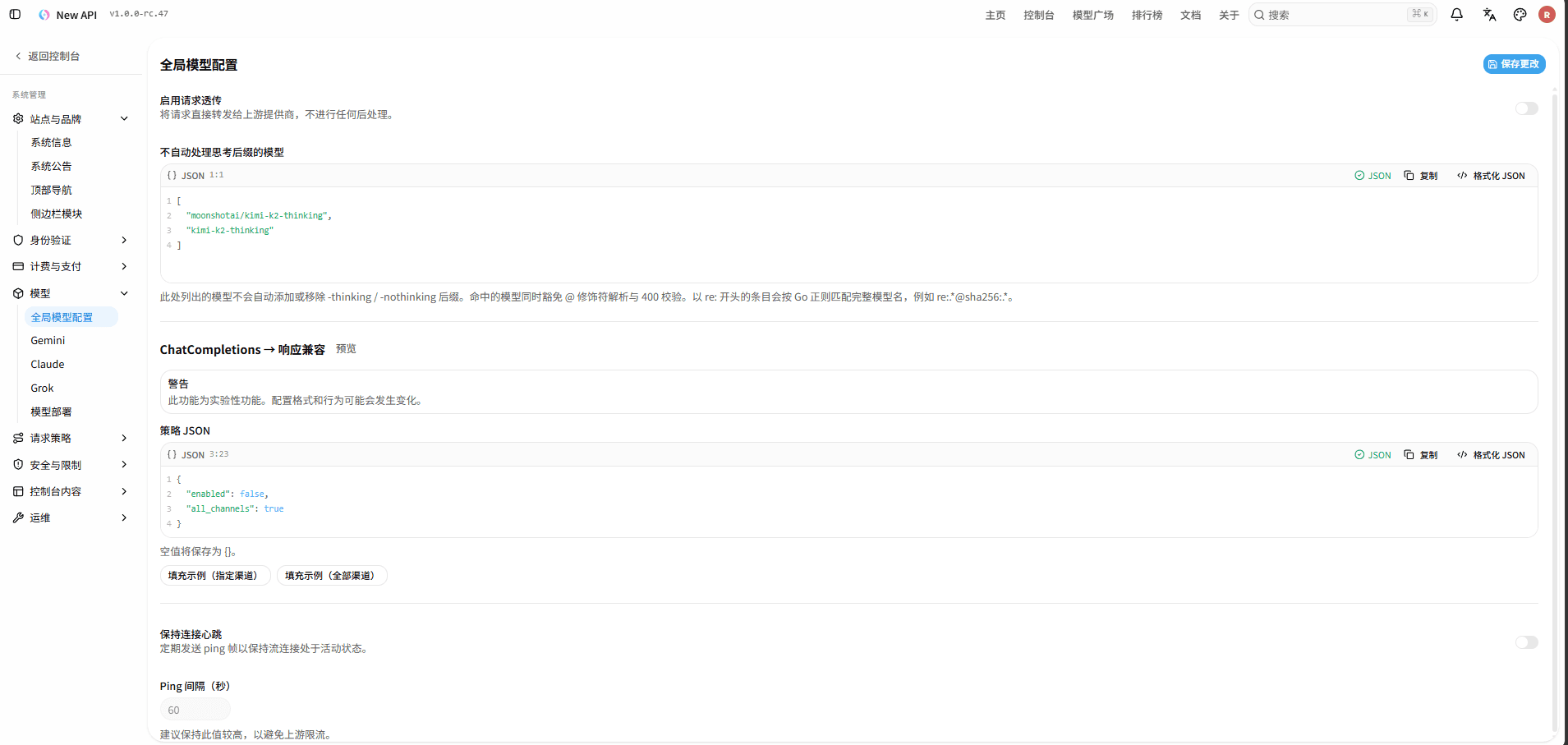
Dividers separate the fields into three groups covering request passthrough and thinking suffixes, “ChatCompletions → Responses Compatibility” (marked “Preview”), and keep-alive heartbeats.
Configuration Steps
- Turn on “Enable Request Passthrough” as needed.
- In “Models Exempt from Automatic Thinking Suffix Handling”, enter the models you want to exempt.
- Enter the conversion policy in “Policy JSON”. To populate an example, click “Fill Example (Specific Channels)” or “Fill Example (All Channels)”.
- Turn on “Keep-Alive Heartbeat” as needed and set “Ping Interval (Seconds)”.
- Click “Save Changes” at the top of the page.
Caution
- “ChatCompletions → Responses Compatibility” is experimental. The interface displays the following warning. “This feature is experimental. The configuration format and behavior may change.”
- Requests bypass this conversion when global request passthrough or request body passthrough on the target Channel is enabled.
- When request passthrough is enabled, instances configured for the “Before Format Conversion” and “Before Sending” stages are skipped. See Request Processing.
Policy JSON Fields
| Field | Purpose |
|---|---|
enabled | Master switch. When disabled, the other fields have no effect. |
all_channels | When true, all Channels are eligible for matching. |
channel_ids | When all_channels is false, matches by Channel ID. Any matching ID is sufficient. |
channel_types | When all_channels is false, matches by numeric Channel type. Any matching type is sufficient. |
model_patterns | Array of regular expressions. Conversion runs only if the requested model matches at least one pattern. |
Configuration Fields
The table lists the fields in the order they appear in the section.
| Setting | Definition | Requirements and Constraints | Default |
|---|---|---|---|
| Enable Request Passthrough | Forwards requests directly to the upstream provider without post-processing. The system sends the original client request body upstream and skips steps such as request body conversion, field removal, system prompt merging, and parameter overrides. | Toggle. | Off |
| Models Exempt from Automatic Thinking Suffix Handling | The system leaves the -thinking and -nothinking suffixes unchanged for listed models. Matching models also bypass @ modifier parsing and the validation that can return a 400 error. | JSON string array. Entries beginning with re: use Go regular expressions to match against the full model name, as in re:.*@sha256:.*. Invalid input displays “Invalid JSON format”. Saving a blank field stores an empty array. | moonshotai/kimi-k2-thinking, kimi-k2-thinking |
| Policy JSON | Conversion policy for “ChatCompletions → Responses Compatibility”. The request must match both the Channel criteria and a model regular expression. See “Policy JSON Fields” above. | JSON object. Saving a blank field stores {}. | {"enabled":false,"all_channels":true} |
| Keep-Alive Heartbeat | Sends periodic ping frames to keep streaming connections active. | Toggle. | Off |
| Ping Interval (Seconds) | Interval between heartbeats. | Minimum 1. Use a longer interval to avoid upstream rate limits. This field is editable only when “Keep-Alive Heartbeat” is on. | 60 |
Gemini
- Model → Gemini
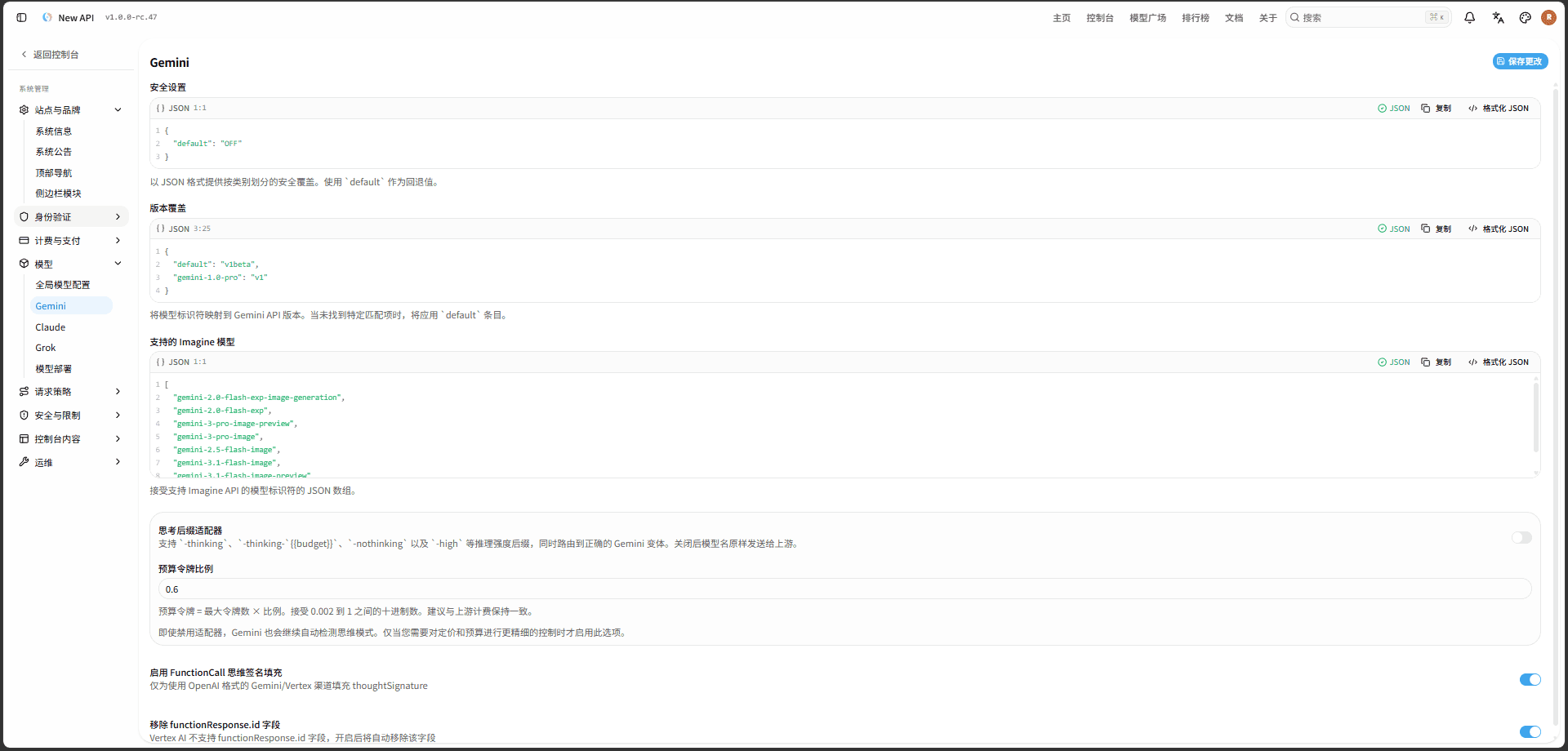
The Gemini section controls instance-level defaults for Gemini and some Vertex conversion paths.
Configuration Steps
- Configure the safety settings, version overrides, and supported Imagine models as needed.
- Turn on the thinking suffix adapter as needed and set the budget token ratio.
- Turn the two FunctionCall toggles on or off as needed.
- Click “Save Changes” at the top of the page.
Tip
- “Supported Imagine Models” changes only the output modality during conversion. It leaves the model list, pricing, and Channel capabilities unchanged. Enter the upstream model names produced by model mapping.
- When the thinking suffix adapter is off, the following message appears below “Budget Token Ratio”. “Gemini continues to detect thinking mode automatically even when the adapter is disabled. Enable this option only if you need finer control over pricing and budgets.”
Conversion Defaults
| Setting | Definition | Requirements and Constraints | Default |
|---|---|---|---|
| Safety Settings | Provides per-category safety overrides in JSON. Use default as the fallback. | JSON string-to-string map. The server validates thresholds. See the FAQ for allowed values. | {"default":"OFF"} |
| Version Overrides | Maps model identifiers to Gemini API versions. The default entry applies when there is no specific match. | JSON string-to-string map. | {"default":"v1beta","gemini-1.0-pro":"v1"} |
| Supported Imagine Models | Accepts a JSON array of model identifiers that support the Imagine API. | JSON string array. | 7 built-in models |
Thinking Adaptation and FunctionCall Settings
| Setting | Definition | Requirements and Constraints | Default |
|---|---|---|---|
| Thinking Suffix Adapter | Supports -thinking, -thinking-{{budget}}, -nothinking, and reasoning effort suffixes such as -high. Routes requests to the appropriate Gemini variant. When disabled, it sends the model name upstream unchanged. | Toggle. | Off |
| Budget Token Ratio | Budget tokens = maximum tokens × ratio. Use a ratio consistent with upstream billing. | Accepts decimal values from 0.002 to 1. | 0.6 |
| Enable FunctionCall Thought Signature Filling | Populates thoughtSignature only for Gemini and Vertex Channels using the OpenAI format. | Toggle. | On |
| Remove the functionResponse.id Field | Automatically removes functionResponse.id, which Vertex AI does not support. | Toggle. | On |
Claude
- Model → Claude
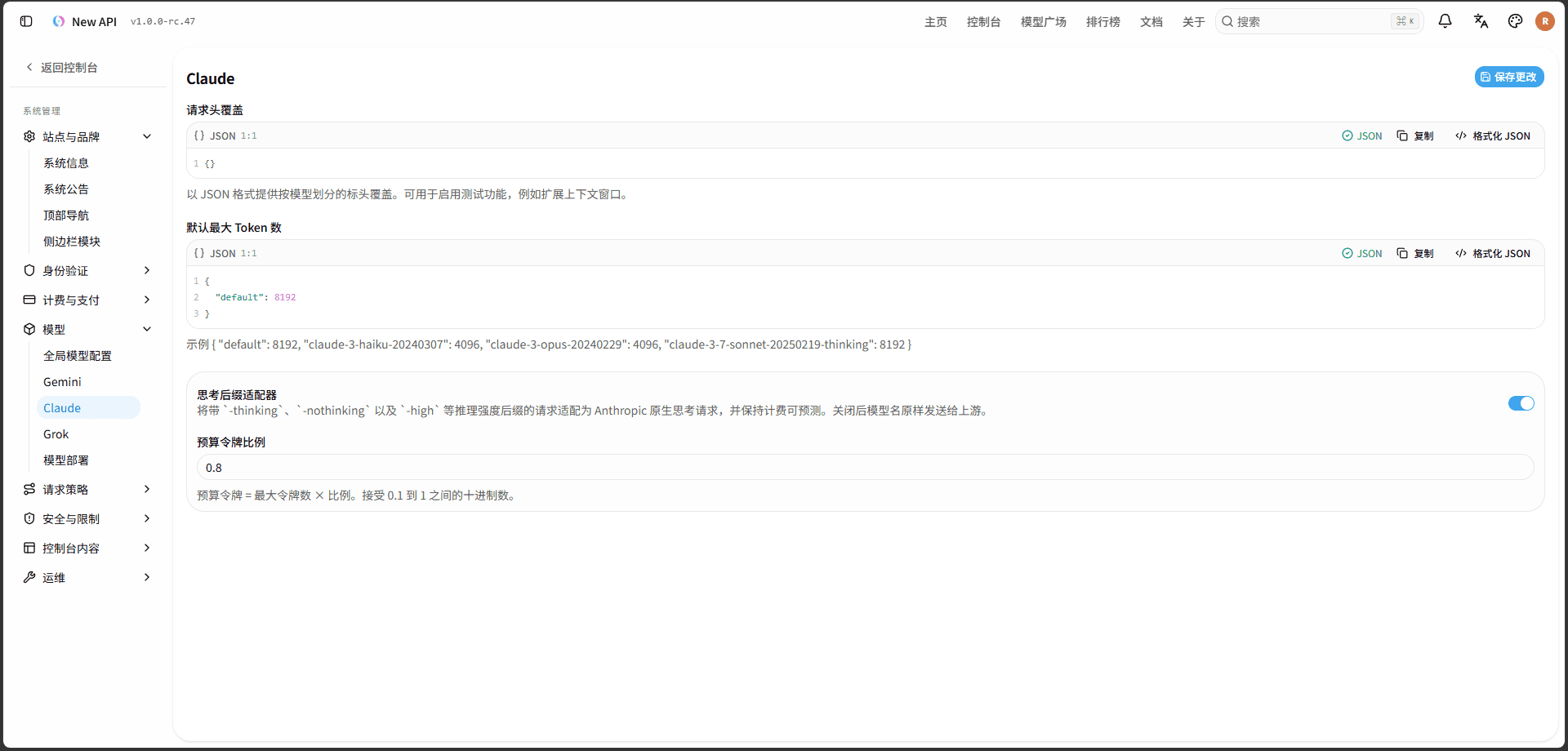
Configuration Steps
- Configure request header overrides and the default maximum token count as needed.
- Turn on the thinking suffix adapter as needed and set the budget token ratio.
- Click “Save Changes” at the top of the page.
Configuration Fields
| Setting | Definition | Requirements and Constraints | Default |
|---|---|---|---|
| Request Header Overrides | Provides per-model header overrides in JSON. Use these overrides to enable beta features such as extended context windows. For matching models, the system merges the overrides with existing outbound headers of the same name and removes duplicate values. | JSON object mapping model names to header names and their arrays of values. | {} |
| Default Maximum Tokens | Applies when max_tokens is missing or set to 0. | JSON object with non-negative integer values. If default is missing, the fallback is 8192. Example { "default": 8192, "claude-3-haiku-20240307": 4096, "claude-3-opus-20240229": 4096, "claude-3-7-sonnet-20250219-thinking": 8192 } | {"default":8192} |
| Thinking Suffix Adapter | Converts requests with -thinking, -nothinking, or reasoning effort suffixes such as -high to Anthropic’s native thinking request format and keeps billing predictable. When disabled, it sends the model name upstream unchanged. | Toggle. | On |
| Budget Token Ratio | Budget tokens = maximum tokens × ratio. Used to estimate the thinking budget. | Accepts decimal values from 0.1 to 1. | 0.8 |
Grok
- Model → Grok
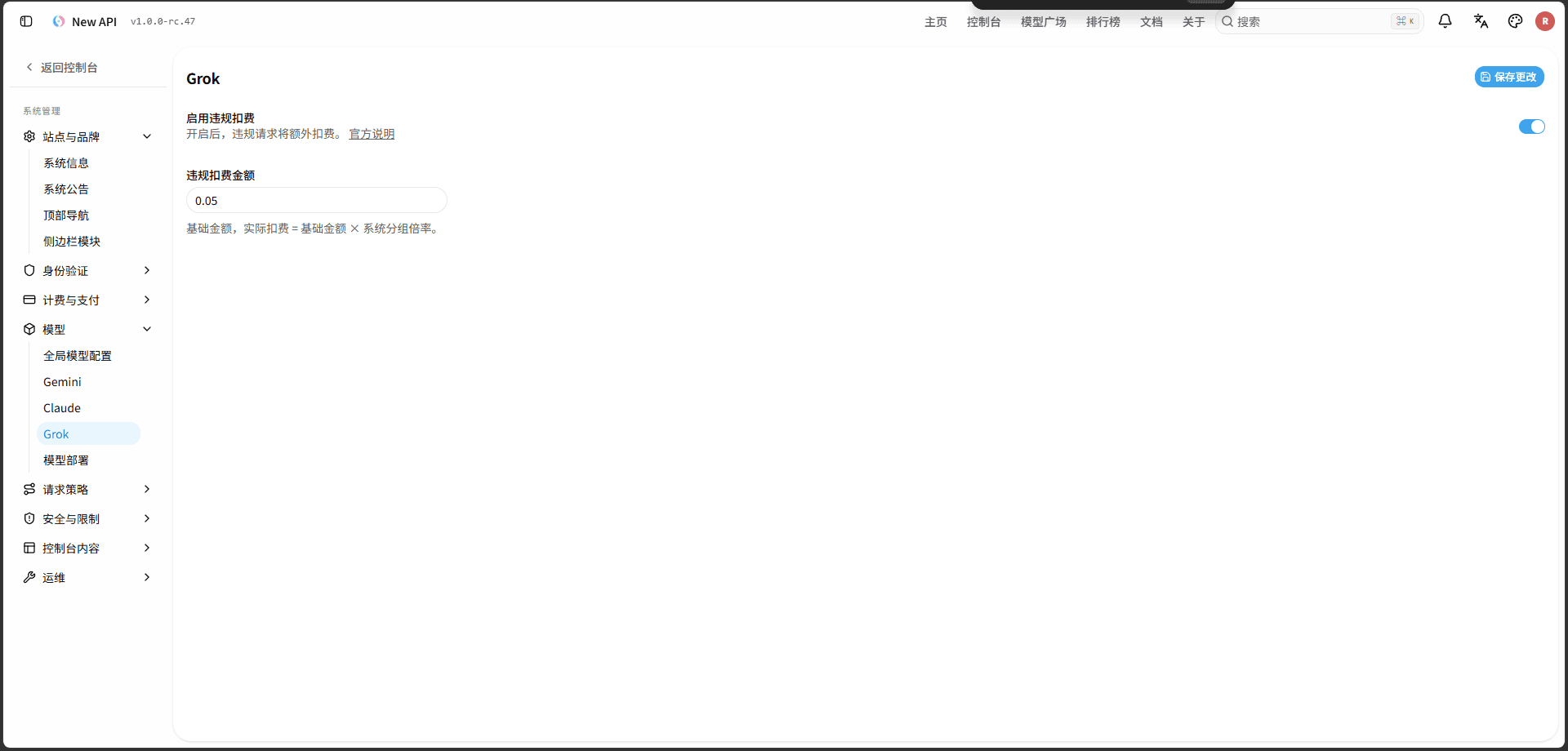
Configuration Steps
- Turn “Enable Violation Fees” on or off.
- If enabled, enter the “Violation Fee Amount”.
- Click “Save Changes” at the top of the page.
Caution
- A fee is triggered only when the upstream error includes a supported violation marker, such as a notice that the content violates the usage policy.
- Ordinary upstream errors, content moderation failures, and other Grok requests incur no additional fee under this setting. Errors that trigger a violation fee are excluded from retries.
- The actual fee is calculated as base amount × system Group ratio. The system records a separate usage log entry with the message “Violation fee charged”. When troubleshooting, check both the original request error and this log entry.
- This setting deducts fees directly from user balances. Before enabling it or adjusting the amount, check the latest upstream violation fee rules, Group ratios, and user-facing pricing information.
Configuration Fields
| Setting | Definition | Requirements and Constraints | Default |
|---|---|---|---|
| Enable Violation Fees | Charges an additional fee for requests that violate the usage policy. The “Official Documentation” link after the description opens x.ai’s violation fee documentation. | Toggle. | On |
| Violation Fee Amount | Base amount. Actual fee = base amount × system Group ratio. | Minimum 0, in increments of 0.01. This field is editable only when “Enable Violation Fees” is on. | 0.05 |
Model Deployment
- Model → Model Deployment
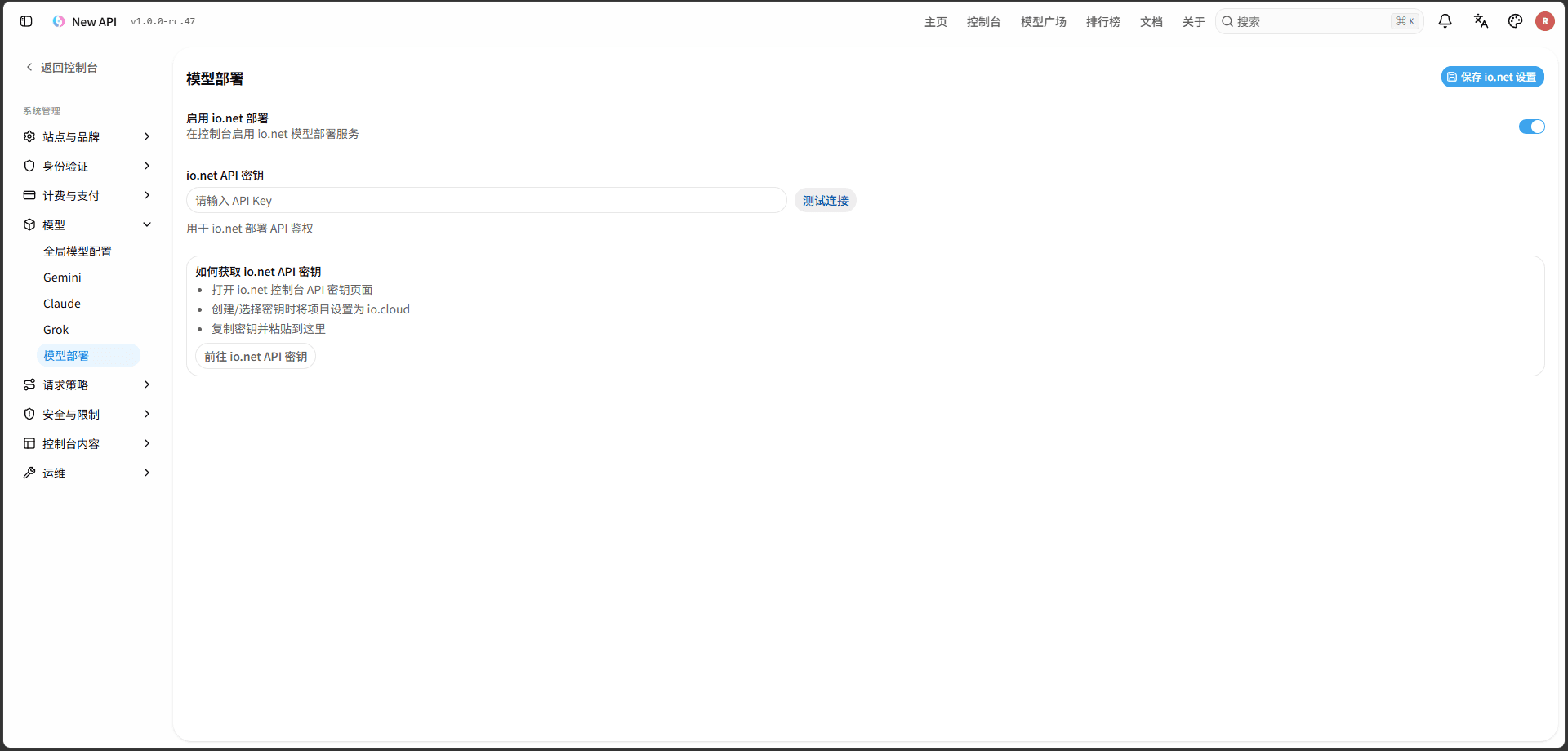
The current model deployment integration supports io.net and appears under “io.net Deployment”. Use this section to enable the integration and configure credentials. Deployment resources are created separately. The screenshot shows the section with “Enable io.net Deployment” turned on.
Configuration Steps
- Turn on “Enable io.net Deployment” to reveal the API key settings.
- Click “Go to io.net API Keys” to open the io.net API Keys page.
- When creating or selecting a key, set Project to
io.cloud. - Copy the key and paste it into “io.net API Key”. If you already have a saved key that you want to keep, leave the field blank.
- Click “Test Connection”.
- Click “Save io.net Settings” at the top of the page.
Caution
- Existing io.net deployments stay active when you turn off the integration, and third-party charges may continue.
- With the integration off, New API rejects attempts to view, extend, or terminate existing deployments.
- Creating, extending, and terminating deployments affect third-party resources and charges. Check your io.net account, resource configuration, and billing before performing these operations.
- New API does not guarantee third-party capacity, billing, or deployment success rates.
Connection Test
- The test uses the API key in the input field or the saved key if the field is blank. Settings are saved separately.
- On success, the interface displays “Connection successful” and “Connected to the io.net service.”
- On failure, the interface displays “Connection failed” and an error message. Check the API key, Project, and network connection.
- The API key field appears blank even after a key has been saved.
Configuration Fields
| Setting | Definition | Requirements and Constraints | Default |
|---|---|---|---|
| Enable io.net Deployment | Enables the io.net model deployment service in the console. | Turning on this toggle reveals the API key field, “Test Connection”, and the “How to Get an io.net API Key” instructions. To use the deployment service, save this setting with the toggle on and save a valid API key. | Off |
| io.net API Key | Authenticates requests to the io.net deployment API. | Required during initial setup. Saved keys are hidden. | Blank |
Saving and Applying Changes
For the save procedure, see the System Settings Overview. For rules on when changes take effect and how they sync across instances, see Effective Scope and Multi-Instance Synchronization. Unless otherwise specified, the node that processes the save request uses the new values immediately. Other nodes pick up the changes through system settings synchronization within about 3 seconds, or within one sync interval at the latest. The default sync interval is 60 seconds. Set the interval in seconds with the SYNC_FREQUENCY environment variable and restart New API after changing it. The table shows when each setting reads the new value.
| Setting | How to Save | When It Takes Effect |
|---|---|---|
| Global Model Configuration › Enable Request Passthrough, Models Exempt from Automatic Thinking Suffix Handling, and Policy JSON | “Save Changes” at the top of the page | Starting with the next request. |
| Gemini and Claude › All fields | “Save Changes” at the top of the page | Starting with the next request. |
| Global Model Configuration › Keep-Alive Heartbeat and Ping Interval (Seconds) | “Save Changes” at the top of the page | The system reads these settings at the start of each streaming response. New streams use the updated settings. Streams already in progress keep their original settings. |
| Grok › Violation fee toggle and amount | “Save Changes” at the top of the page | The next violation that triggers a fee is evaluated using the updated settings. |
| Model Deployment › Enable io.net Deployment and io.net API Key | “Save io.net Settings” | The next attempt to view, create, extend, or terminate a deployment uses the updated values. Turning off the integration blocks these operations and leaves existing deployments running. |
| Model Deployment › Test Connection | No settings saved | Uses the API key in the input field or the saved key if the field is blank. |
Additional Details
- Settings are saved individually. “Save Changes” and “Save io.net Settings” submit only changed settings. Each successful update displays “Setting updated successfully”. If there are no changes, the interface displays “No changes to save”.
- Validation. The page validates JSON syntax. The server also checks that Gemini “Safety Settings” thresholds use allowed values and that Claude “Default Maximum Tokens” values are non-negative. If validation fails, the system skips the field and all subsequent fields. See the FAQ for the error messages.
Important Notes
- Grok violation fees are deducted directly from user balances. See Grok.
- Existing io.net deployments and third-party charges can continue after the integration is disabled. See Model Deployment.
- Upstream providers evaluate saved settings when they receive a request. Apart from the two server-side value checks described above, the provider’s acceptance of the settings can only be confirmed when a request is sent.
- Request passthrough bypasses conversion. Enabling global or Channel-level request body passthrough skips ChatCompletions conversion, parameter overrides, and related processing. See Global Model Configuration.
FAQ
Related Documentation
- When changes take effect, how instances sync, and how to verify changes. System Settings Overview
- Channel model lists, mapping, priority, weight, and the auto-disable toggle. Channel Management
- The model catalog, providers, missing models, and access to deployment operations. Model Management
- Group ratios, per-request pricing, and dynamic billing expressions. Billing and Payment Configuration
- Retries, session persistence, and Channel health. Request Policy Configuration
- Rate limiting, SSRF, and Token restrictions. Security and Limits Configuration
- System behavior and performance settings. Operations Configuration
How is this guide?
Last updated on
Billing and Payment Configuration
Configure quotas, currency display, model and group pricing, payment gateways, and check-in rewards. Learn what each setting does, how to save changes, and what determines when payments are credited.
Request Policy Configuration
Configure session persistence, retry budgets, channel health checks, and auto-disable rules as Root. Learn how settings are saved together and how request decisions are logged.