
Security and Limits Settings
Root can configure model request rate limits, SSRF protection, and the maximum number of API keys per user.
- Only Root can access these settings. In the sidebar, go to Admin → System Settings, then select a section under Security and Limits in the left navigation.
- These settings control model request rates, security checks for server-side outbound requests, and the number of API keys each user can create.
- The rate limits on this page apply only to model requests. Environment variables configure rate limits for site pages and management endpoints.
Tip
- The rate limits on this page count requests per user. The global rate limits controlled by environment variables count requests per IP. These limits operate independently, and either can return 429.
- SSRF protection checks server-initiated outbound requests such as downloads, webhooks, and notifications. Requests forwarded to upstream channels are outside its scope.
Security and Limits Overview
Use the three sections under Security and Limits in the left navigation. Rate Limiting opens by default.
Sections
| Section | Purpose | Tabs |
|---|---|---|
| Rate Limiting | Model request rate limits, including global settings and group overrides. | — |
| SSRF Protection | Domain, IP, and port filtering for outbound requests. | — |
| Token Limits | Maximum number of API keys per user. | — |
Tip
- If rate limiting appears ineffective, requests return 429, SSRF protection blocks an expected request, or API key creation is rejected, see Frequently Asked Questions.
Configuration Sections
This section covers the three sections in the order they appear in the left navigation. For each section's save button and when changes take effect, see Saving and Applying Changes.
Rate Limiting
- Security and Limits – Rate Limiting
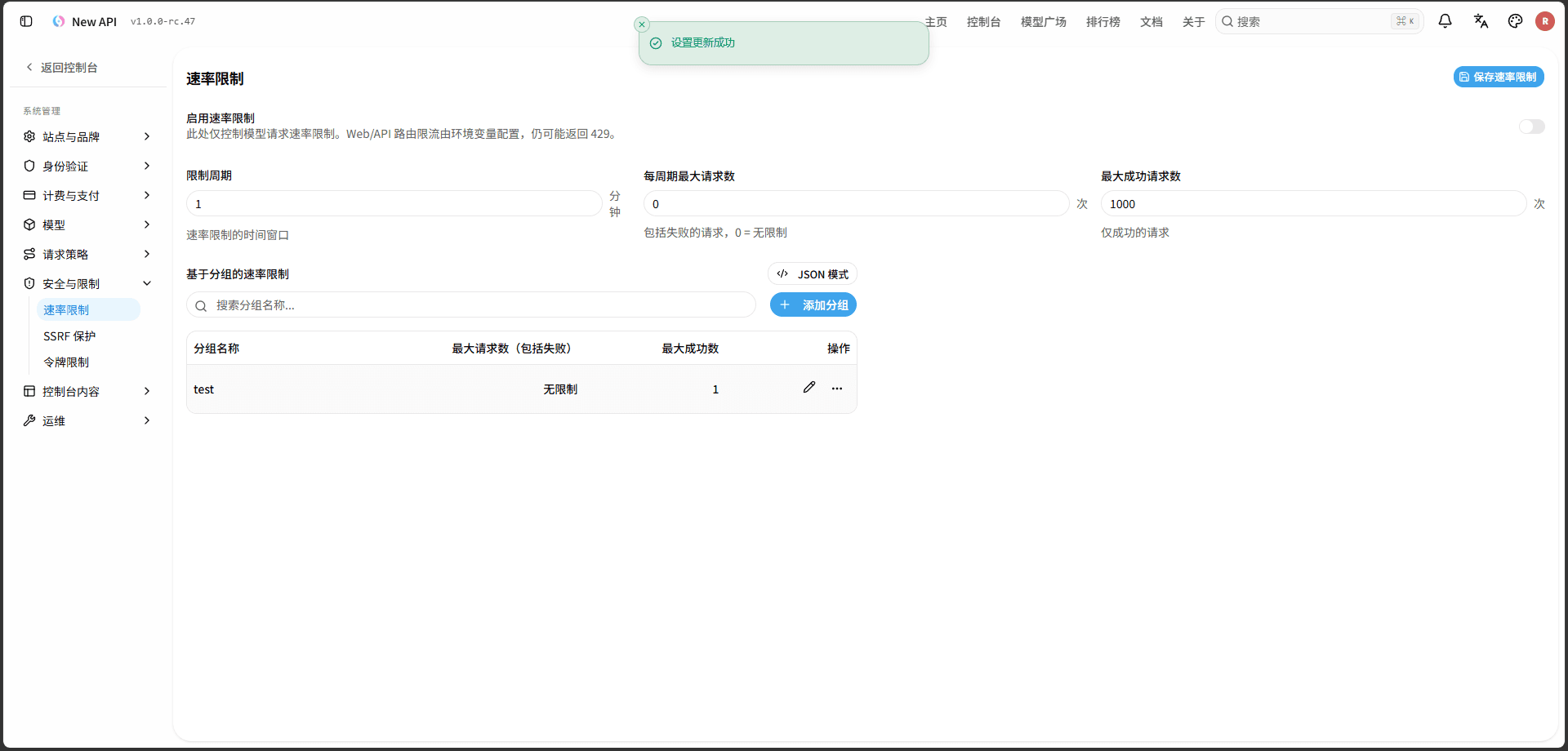
The page has two areas, global limits and Group-Based Rate Limits. The visual editor is the default for group rules. To switch editors, select JSON Mode in the upper-right corner.
Steps
- Turn on Enable Rate Limiting, then enter the rate limit window, maximum requests per window, and maximum successful requests.
- To override the limits for a group, click Add Group.
- In the dialog, enter the group name, maximum requests (including failures), and maximum successful requests, then click Add.
- Click Save Rate Limits at the top of the page.
Tip
- When no group rule matches, requests are counted per user. All API keys belonging to the same user share the counters.
- When a group rule matches, requests are counted per user and group. A user has separate counters for each group.
- The API key's group takes precedence. If the key has no group, the user's group is used. If no rule matches, the global limits apply.
- Group rules override only the request counts and share the global window.
- A request returns 429 if either count exceeds its limit within the window.
- The rate limits on this page exclude Playground requests.
Global limit settings
| Setting | Definition | Requirements and limits | Default |
|---|---|---|---|
| Enable Rate Limiting | The UI description reads “This setting controls rate limits for model requests only. Environment variables configure rate limits for Web/API routes, which can still return 429.” | Toggle. | Off |
| Rate Limit Window | The time window for rate limiting. It also applies to all group rules. | At least 0, in minutes. | 1 |
| Maximum Requests per Window | Total requests allowed within the window, including failed requests. | 0–100,000,000. 0 means unlimited. | 0 |
| Maximum Successful Requests | Successful requests allowed within the window. A request counts as successful if its response status code is below 400 and any streaming response completes without failure. | 1–100,000,000. | 1000 |
| Group-Based Rate Limits | Rules that override the two request counts above for individual groups. | A JSON object in the format {"group name":[maximum requests,maximum successful requests]}. The maximum request count must be at least 0, the maximum successful request count must be at least 1, and both must be at most 2,147,483,647. Invalid input displays “Invalid JSON format or value out of range.” | Empty |
- Security and Limits – Add Group
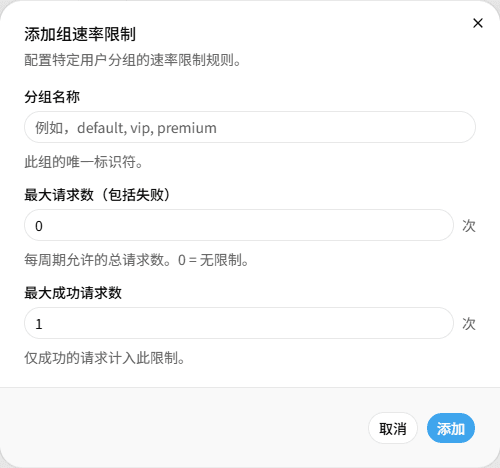
Group rule columns
| Column | Description |
|---|---|
| Group Name | The group the rule applies to. Use Search group names... to filter the list. |
| Maximum Requests (Including Failures) | 0 is displayed as Unlimited. |
| Maximum Successful Requests | Number of successful requests allowed per window. |
| Actions | The edit icon opens Edit Group Rate Limit. Select ⋯ → Delete to remove the rule from the list immediately without a confirmation dialog. |
Tip
- Clicking Add or Update in the dialog, or deleting a rule, changes only the data on the page. Click Save Rate Limits at the top of the page to apply the changes.
- When the list is empty, the page displays “No group-based rate limits configured. Click ‘Add Group’ to get started.”
Add Group Rate Limit settings
| Setting | Definition | Requirements and limits | Default |
|---|---|---|---|
| Group Name | Unique identifier for the group. | Required. Must exactly match a user group or API key group name, such as default, vip, or premium. | Empty |
| Maximum Requests (Including Failures) | Total requests allowed per window. 0 means unlimited. | From 0 to 2,147,483,647. | 0 |
| Maximum Successful Requests | Only successful requests count toward this limit. | From 1 to 2,147,483,647. | 1 |
- Security and Limits – Edit Group
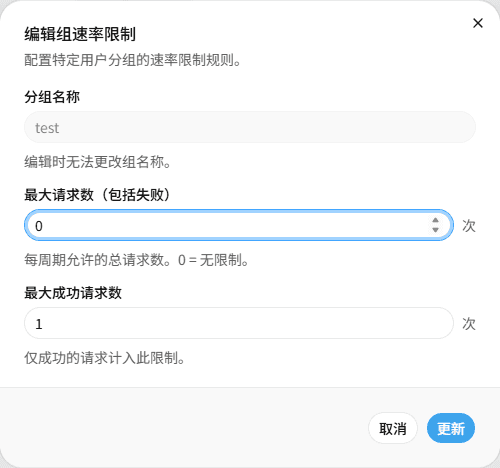
The Edit Group Rate Limit dialog uses the same settings as Add Group Rate Limit, with the differences shown below.
| Item | Add Group Rate Limit dialog | Edit Group Rate Limit dialog |
|---|---|---|
| How to open | Add Group | Edit icon at the end of the row |
| Group Name | Editable | Read-only. The UI displays “Group name cannot be changed when editing.” |
| Confirmation button | Add | Update |
Global rate limiting environment variables
The following environment variables configure the site and management endpoint rate limits mentioned in the Enable Rate Limiting description. These settings are configured in the deployment environment and operate independently of this page's rate limits. New API reads them only at startup, so restart it after making changes. When Redis is enabled, all nodes share counters. Otherwise, each node maintains its own counters.
Rate limiting variables for APIs, site pages, and frontend build assets
| Environment variable | Default | Purpose | Counted by |
|---|---|---|---|
GLOBAL_API_RATE_LIMIT_ENABLE | true | Enables global API rate limiting. | — |
GLOBAL_API_RATE_LIMIT | 360 | Number of requests allowed per window for management and account endpoints. Also applies to legacy quota lookup endpoints. | IP |
GLOBAL_API_RATE_LIMIT_DURATION | 180 | API rate limit window in seconds. | — |
GLOBAL_WEB_RATE_LIMIT_ENABLE | true | Enables rate limiting for site pages. | — |
GLOBAL_WEB_RATE_LIMIT | 120 | Number of site page requests allowed per window, excluding frontend build assets. | IP |
GLOBAL_WEB_RATE_LIMIT_DURATION | 180 | Site page rate limit window in seconds. | — |
GLOBAL_STATIC_RATE_LIMIT_ENABLE | false | Enables rate limiting for frontend build assets such as JS, CSS, and icons. | — |
GLOBAL_STATIC_RATE_LIMIT | 1000 | Number of requests for frontend build assets allowed per window. | IP |
GLOBAL_STATIC_RATE_LIMIT_DURATION | 180 | Frontend build asset rate limit window in seconds. | — |
Rate limiting variables for critical endpoints and searches
| Environment variable | Default | Purpose | Counted by |
|---|---|---|---|
CRITICAL_RATE_LIMIT_ENABLE | true | Enables rate limiting for critical endpoints, including per-user limits. | — |
CRITICAL_RATE_LIMIT | 20 | Number of critical requests allowed per window. | IP, with separate per-user counters for some operations |
CRITICAL_RATE_LIMIT_DURATION | 1200 | Critical rate limit window in seconds (approximately 20 minutes). | — |
SEARCH_RATE_LIMIT_ENABLE | true | Enables search rate limiting. | — |
SEARCH_RATE_LIMIT | 10 | Number of search requests allowed per window. | User |
SEARCH_RATE_LIMIT_DURATION | 60 | Search rate limit window in seconds. | — |
Operations subject to critical endpoint and search rate limits
- Per-IP limits apply to registration, login (including two-step verification, email verification, and passkey login), password recovery and reset, OAuth authorization and callbacks, WeChat and Telegram login and account linking, email linking, session refresh and logout, profile updates, Access Token management, and security verification.
- Per-IP limits also apply to redemption code redemption, top-up and subscription orders across payment gateways, viewing API keys and retrieving them in bulk, looking up quota and logs by API key, viewing channel keys, and the public pricing endpoint.
- Both per-IP and per-user limits apply to email linking, Access Token management, and security verification.
- Only per-user limits apply to passkey registration and verification, two-step verification setup and activation, and referral quota transfers.
- Email linking, Access Token management, and referral quota transfers each have a separate per-user counter. Security verification, passkey operations, and two-step verification operations share one per-user counter. All of these counters use the critical rate limit settings for both the count and window.
- Per-user search limits apply when users search for API keys or search their own usage logs.
SSRF Protection
- Security and Limits – SSRF Protection
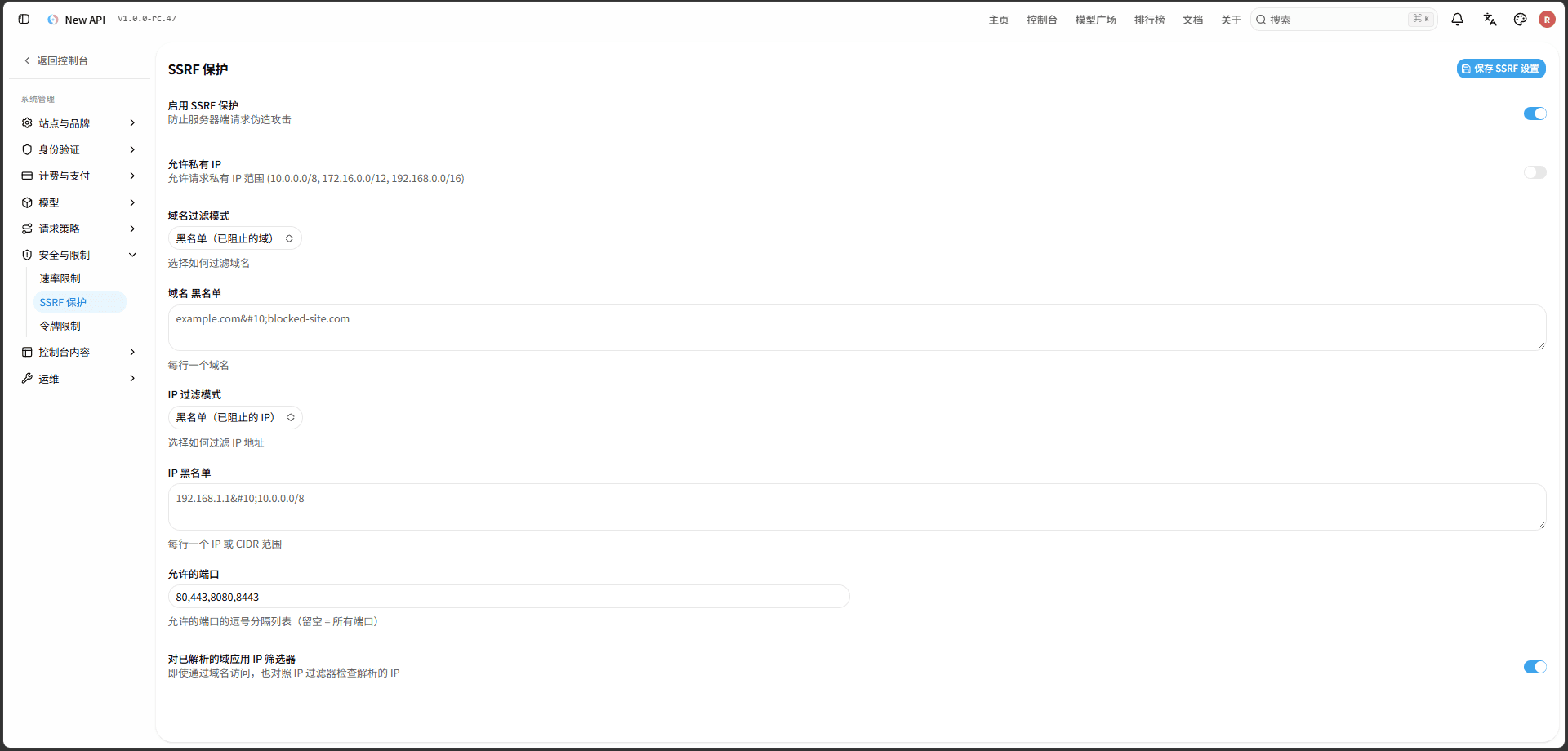
SSRF protection restricts the domains, IP addresses, and ports that server-side outbound HTTP requests can reach to prevent access to internal networks or loopback addresses.
Steps
- Turn on Enable SSRF Protection. If needed, turn on Allow Private IPs.
- Select a domain filtering mode, then enter one domain per line in the domain list.
- Select an IP filtering mode, then enter one IP address or CIDR range per line in the IP list.
- Enter the allowed ports. If needed, turn on Apply IP Filters to Resolved Domains.
- Click Save SSRF Settings at the top of the page.
Caution
- With Allow Private IPs off, outbound requests targeting internal networks or loopback addresses are blocked. This applies to downloads, webhooks, and notifications, including requests to private addresses on the IP allowlist.
- The filter covers more than the three ranges listed in the UI. It also covers IANA private and reserved addresses such as loopback and link-local addresses.
- With Apply IP Filters to Resolved Domains off, requests to domain names skip the resolved-IP check. Domains that resolve to internal addresses pass this check.
- An empty allowlist blocks all entries. An empty blocklist allows all entries.
Scope of checks
- Checks apply to download requests, Midjourney image retrieval, video proxy requests, redirects during task plugin lookups, webhooks, and notifications such as Bark and Gotify. Requests forwarded to upstream channels are outside this scope.
- Only
http://andhttps://URLs are allowed. If the URL omits a port, the check uses 80 or 443 as appropriate. A domain resolution failure returns an error. - For requests to a domain name, the resolved IP gets checked before the request and again at connection time. The connection-time check applies only when Apply IP Filters to Resolved Domains is enabled and the request connects without a proxy.
Settings
| Setting | Definition | Requirements and limits | Default |
|---|---|---|---|
| Enable SSRF Protection | Checks all protected outbound requests to prevent server-side request forgery (SSRF) attacks. | Toggle. | On |
| Allow Private IPs | Allows requests to private IP ranges (10.0.0.0/8, 172.16.0.0/12, 192.168.0.0/16). | Toggle. | Off |
| Domain Filtering Mode | Determines how domains are filtered. | Choose Blocklist (block listed domains) or Allowlist (allow only listed domains). IP literals such as http://203.0.113.10/ are outside the scope of domain list matching. | Blocklist (block listed domains) |
| Domain Blocklist / Domain Allowlist | The label follows the selected Domain Filtering Mode. | Enter one domain per line. Matching is case-insensitive. *.example.com matches both subdomains and example.com. | Empty |
| IP Filtering Mode | Determines how IP addresses are filtered. | Choose Blocklist (block listed IPs) or Allowlist (allow only listed IPs). | Blocklist (block listed IPs) |
| IP Blocklist / IP Allowlist | The label follows the selected IP Filtering Mode. | Enter one IP address or CIDR range per line, such as 10.0.0.0/8 or 192.168.1.1. | Empty |
| Allowed Ports | Ports that outbound requests can access. | Enter comma-separated port numbers between 1 and 65,535. Leave empty to allow all ports. An invalid port causes all protected outbound requests to fail. | 80, 443, 8080, 8443 |
| Apply IP Filters to Resolved Domains | Checks resolved IP addresses against the IP filter even when a request uses a domain name. This helps prevent DNS rebinding from bypassing IP filtering. | Toggle. | On |
Token Limits
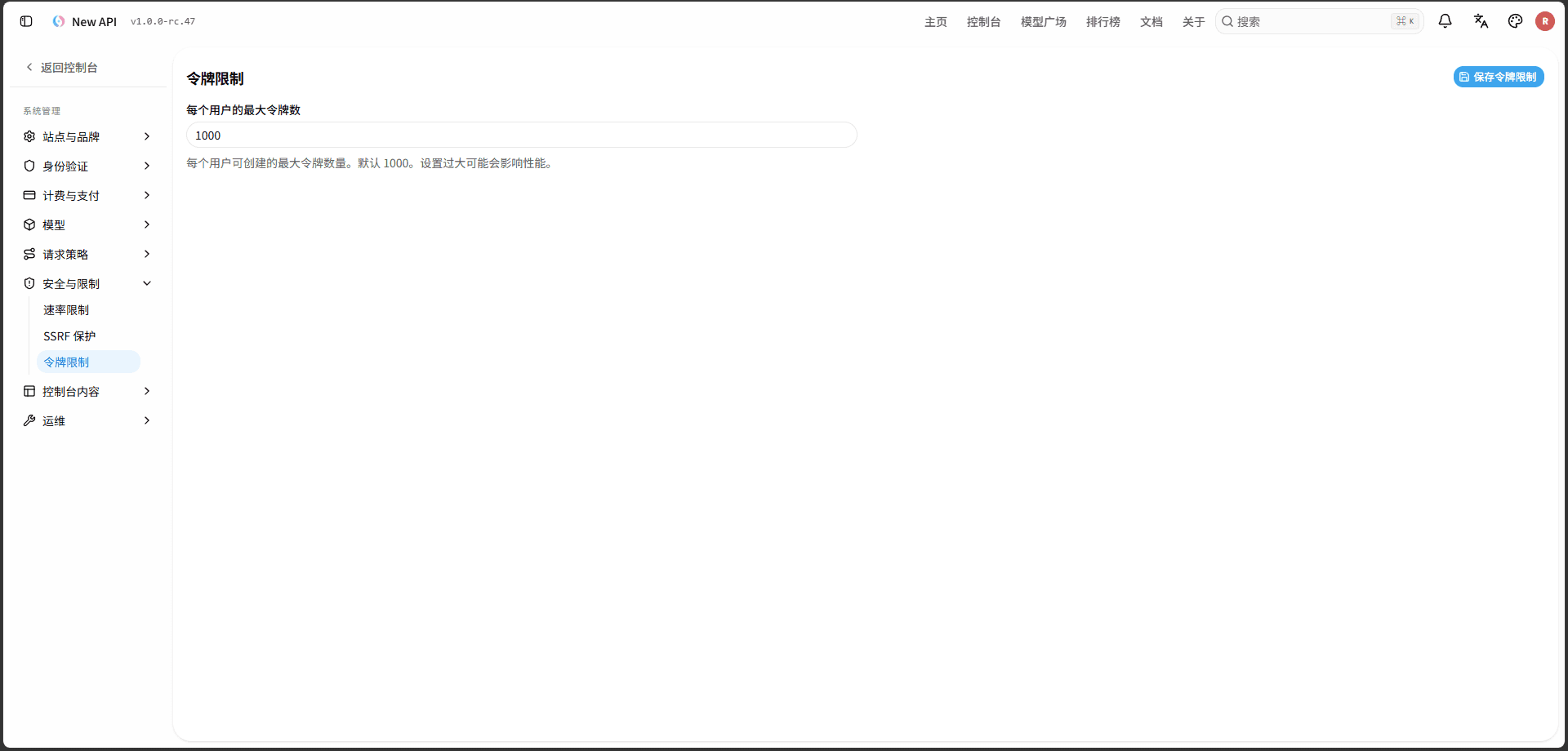
- Security and Limits – Token Limits
Steps
- Enter the Maximum Tokens per User.
- Click Save Token Limits at the top of the page.
Tip
- New API checks the limit when a user creates an API key. Once the user reaches the limit, New API rejects new keys. Disabled and expired keys count toward the limit.
- If a user's key count exceeds the limit, for example after the limit is lowered, searches with the
%wildcard are rejected. Only exact searches are allowed.
Settings
| Setting | Definition | Requirements and limits | Default |
|---|---|---|---|
| Maximum Tokens per User | Maximum number of tokens each user can create. | An integer of at least 1. The UI description reads “… Defaults to 1000. Setting this too high may affect performance.” | 1000 |
Saving and Applying Changes
For save behavior, see the System Settings Overview. For details on when settings take effect and how they sync across instances, see Scope and Multi-Instance Synchronization. Unless specified otherwise, the node that handles the save request uses the new value immediately. Other nodes pick it up through system settings synchronization in about 3 seconds, or within one sync interval at most (60 seconds by default). Set the sync interval in seconds using SYNC_FREQUENCY. It defaults to 60 seconds. New API reads all environment variables mentioned on this page only at startup. Restart New API after changing them. The following table shows when each setting takes effect.
| Setting | How to save | When changes take effect |
|---|---|---|
| Rate Limiting › All fields | Save Rate Limits at the top of the page | The new limits apply starting with the next model request. When Redis is enabled, nodes share counters. Otherwise, each node maintains its own counters. |
| Rate Limiting › Global rate limiting environment variables | Set in the deployment environment. | Restart the service. Use consistent settings across instances in multi-instance deployments. |
| SSRF Protection › All fields | Save SSRF Settings at the top of the page | The new rules apply starting with the next outbound request. |
| Token Limits › Maximum Tokens per User | Save Token Limits at the top of the page | The new limit applies the next time a user creates an API key. Existing keys are retained with their current status. |
Additional details
- Saving without changes. SSRF Protection displays “No changes to save.” Rate Limiting and Token Limits skip submission without showing a message.
- Per-field submission. Each section identifies the changed fields, then sends a separate
PUT /api/option/request for each one. - SSRF list storage.
SSRFlist fields are stored as JSON strings. The domain and IP lists use one entry per line, and the allowed ports list uses comma-separated entries. The page converts the entries to arrays before submitting them.
Notes
Rate limits and tokens
- Model request rate limits apply only to model requests. These limits count requests per user. The global limits controlled by environment variables count requests per IP and operate independently.
- Group rules share the global window. Groups override only the request counts and use the same window as the global limits.
- Token limits cap the number of API keys per user. Once a user reaches the limit, requests to create new keys are rejected. If the user's key count exceeds the limit, for example after the limit is lowered, searches using the
%wildcard are rejected. Only exact searches are allowed. - Blocked requests return an error. When a rate limit or SSRF rule blocks a request, the request fails without an automatic retry. Clients can handle the returned error.
SSRF
- Private IP ranges. Turning off Allow Private IPs blocks a broader set of IANA private and reserved ranges than those listed in the UI.
- Allowlist and blocklist behavior. An empty allowlist blocks everything. An empty blocklist allows everything. Domain wildcards apply only to domain names. IP filtering applies to each IP address returned by DNS resolution.
- Default ports. The backend defaults to
80/443/8080/8443. An empty list allows all ports.
Frequently Asked Questions
Related Documentation
- System Settings Overview — How settings take effect, synchronization across instances, sensitive configuration, and requirements for verifying changes.
- Request Policy Configuration — Retries, session persistence, and channel health.
- Request Processing — Request filtering, including sensitive word filtering.
- API Keys — API key creation, group assignment, and model restrictions.
- Usage Logs — View request details. Usage logs omit model requests rejected by rate limits.
How is this guide?
Last updated on
Request Policy Configuration
Configure session persistence, retry budgets, channel health checks, and auto-disable rules as Root. Learn how settings are saved together and how request decisions are logged.
Console Content Configuration
Root users can configure console content, including Data Dashboard export, announcements, API addresses, FAQs, Uptime Kuma, chat presets, and drawing toggles.