
Task Logs
View the status, progress, results, and failure reasons for asynchronous tasks such as video and music generation, as well as Midjourney image generation tasks. Learn about timeout and refund rules.
- In the sidebar, go to “General” → “Task Logs”.
- View the status, progress, results, and failure reasons for asynchronous tasks such as video, music, and image generation.
- The page has two tabs, “Drawing Logs” and “Task Logs”. The “Task Logs” tab opens by default when you enter from the sidebar.
Tip
- Asynchronous tasks take time to produce results after submission. Examples include video and music generation and Midjourney image generation. When a submission succeeds, the system returns a task ID, then periodically checks and updates the task status in the background.
- Regular users can only view tasks from their own accounts. Administrators can switch between “All” and “Only Me” in the upper-right corner of the page. This toggle is visible only to administrators. “Only Me” shows the same content that regular users see.
- To view charges and refunds for tasks, see Usage Logs.
- If “Task Logs” is missing from the left sidebar or the “Drawing Logs” and “Task Logs” tabs are missing from the page, open “Profile” and go to “Personal Sidebar Settings”. Enable “Console Section”, “Drawing Logs”, and “Task Logs”, then save your changes.
Task Logs Overview
- Task Logs – Task List
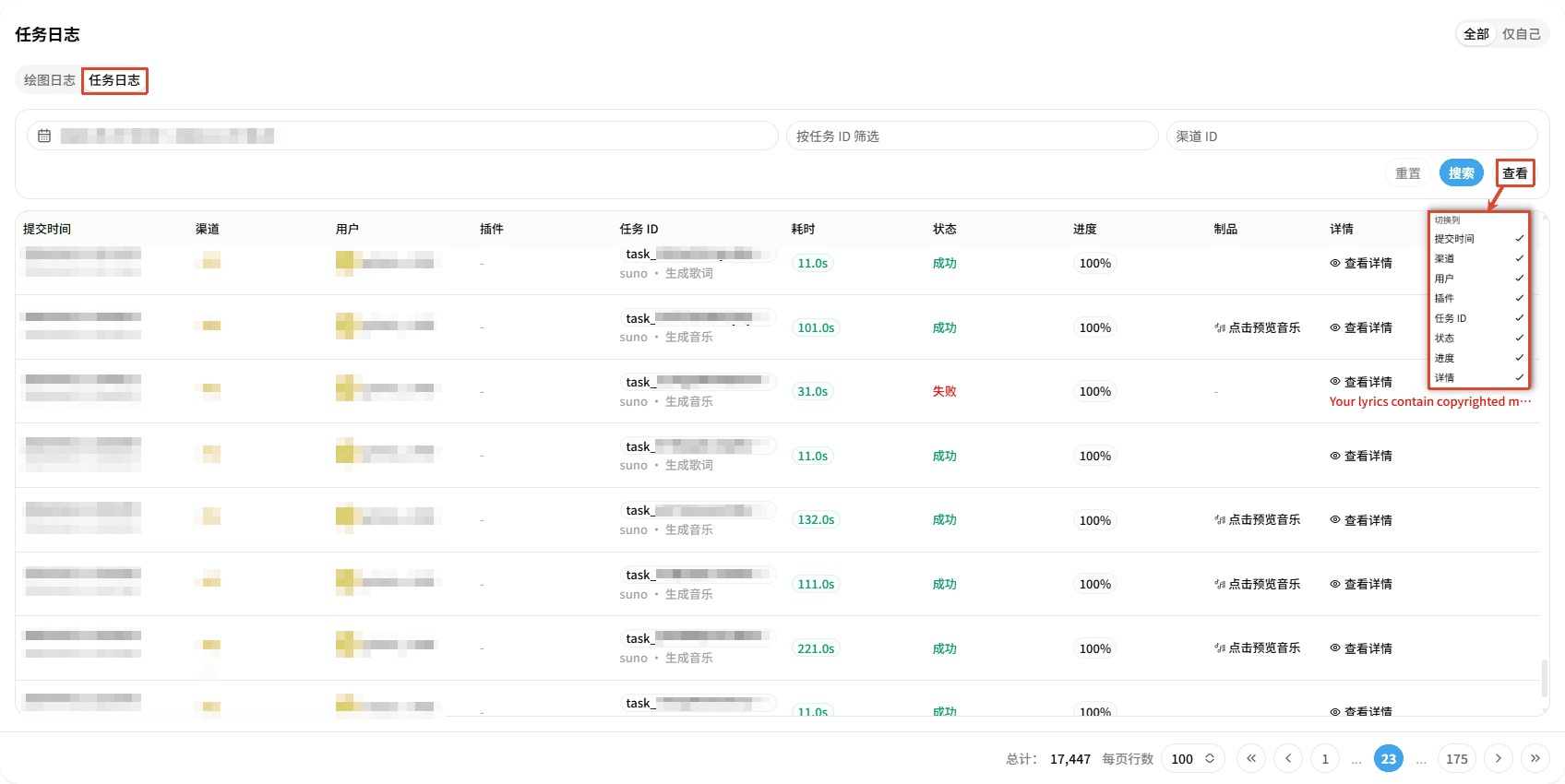
In the “Task Logs” tab, you can find asynchronous tasks such as video and music generation by time range and task ID, then view their status, progress, and results.
- Filter Tasks
- View Task Details and Artifacts
- View Drawing Logs
- View Prompts, Images, and Failure Reasons
- View Refunds for Failed Tasks
Tip
If a task takes a long time to complete or fails, see Frequently Asked Questions.
Field Descriptions
| Field | Definition | Requirements and Restrictions | Notes |
|---|---|---|---|
| Submission Time | The times when the task was submitted and completed. | The system records these times automatically. They cannot be edited. | The submission time appears at the top. The completion time appears below in smaller gray text. Incomplete tasks display “-” in place of the completion time. |
| Channel (Admins Only) | The channel that handled the task. | Appears only in the “All” view. | Displays the channel ID prefixed with “#”. Click to copy the ID. |
| User (Admins Only) | The user who submitted the task. | Appears only in the “All” view. | Click the username to open the “User Information” dialog. |
| Plugin (Admins Only) | The task plugin that handled the task. | Appears only in the “All” view. Tasks that were handled without a task plugin display “-”. | Displays the plugin name, “Plugin Key @ Version”, and the plugin author. If the author has a homepage, click the author’s name to open it in a new tab. |
| Task ID | The task’s unique identifier. | The system generates this ID on submission. It cannot be edited. | Click to copy. The line below displays “Platform · Action”, such as “suno · Generate Music”. Unrecognized actions display “Unknown”. |
| Duration | The elapsed time from submission to completion. | Appears once the task is complete. Incomplete tasks display “-”. | Measured in seconds. Values over 300 seconds appear in red. |
| Status | The task’s current processing status. | The system updates this field using the result returned by the upstream provider. | For the meaning of each status, see Task Status. |
| Progress | The task’s processing progress. | The system updates this field using the result returned by the upstream provider. | Examples include “0%”, “30%”, and “100%”. Failed tasks also display “100%”. Check “Status” to confirm the outcome. |
| Artifact | The files the task generated, such as images, videos, or audio. | Available only for “Succeeded” tasks. Tasks with other statuses display “-”. | Displays an “Artifact” button. Some music and video tasks display “Click to Preview Music” or “Click to Preview Video”. Tasks whose results were not saved display “Result Not Retained”. See View Task Details and Artifacts. |
| Details | Access to the task’s full information. | — | Click “View Details” to open the “Task Details” dialog. For failed tasks, the failure reason appears in red below the button. The full reason is available in the “Task Details” dialog. |
Filter Tasks
Steps
- Click the “Task Logs” or “Drawing Logs” tab below the page title.
- Click “Time Range” and select a preset, or enter a “Start Time” and an “End Time” and click “Confirm”.
- If needed, enter the task ID in “Filter by Task ID” on the “Task Logs” tab or in “Filter by MjProxy Task ID” on the “Drawing Logs” tab.
- Click “Search” or press Enter in the input field.
- To clear the filters, click “Reset”.
Tip
- By default, the page shows only tasks submitted in the range from 00:00:00 today to one hour after the current time. Adjust the time range to find earlier tasks.
- Click “Search” to apply changes to the filters. The page does not refresh automatically. Click “Search” to see the latest task status.
Filter Descriptions
The filter area has a single row. Only the task ID input differs between the two tabs. The table lists the filters in the order they appear.
| Filter | Definition | Requirements and Restrictions | Default |
|---|---|---|---|
| Time Range | Filters tasks by submission time, including both endpoints. | Presets include “Today”, “7 Days” (including today), “This Week” (Sunday through Saturday), “30 Days” (including today), and “This Month”. When entering a custom range, specify times to the second, then click “Confirm”. | 00:00:00 today to one hour after the current time |
| Filter by Task ID | Finds tasks by ID in the “Task Logs” tab. | Optional. Matches the full ID. Click an ID in the “Task ID” column to copy it. | Empty |
| Filter by MjProxy Task ID | Finds tasks by ID in the “Drawing Logs” tab. | Optional. Matches the full ID. | Empty |
| Channel ID (Admins Only) | Filters tasks by the channel that handled them. | Appears only in the “All” view. Enter the numeric channel ID. | Empty |
View Task Details and Artifacts
- Task Logs – Task Details
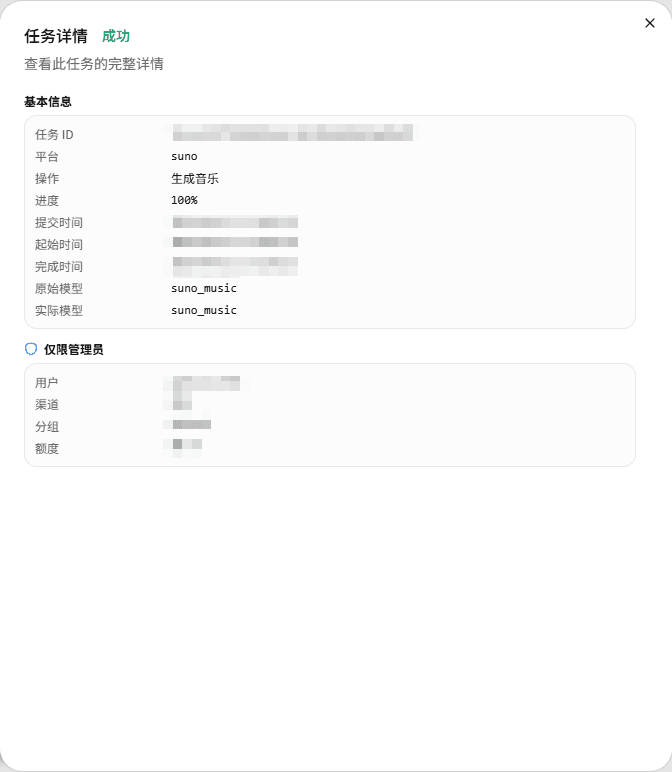
View Task Details
- In the “Task Logs” tab, click “View Details” in the “Details” column for the task.
- Review the task information in the “Task Details” dialog. For a failed task, see “Failure Reason” for the full reason.
View Artifacts
- For a task with the “Succeeded” status, click “Artifact” in the “Artifact” column. For some music and video tasks, click “Click to Preview Music” or “Click to Preview Video”.
- Preview the image or play the video or audio in the dialog.
- Click “Download” to open the file in a new tab and save it.
Caution
- The system fetches the artifact from the upstream provider each time. Once the upstream file expires or is deleted, you can no longer preview or download it. Download and save the file before it expires.
- If the preview fails, the dialog displays “Media preview failed. Please try again.” Click “Retry” to reload it.
Task Details Dialog
The table lists the fields from top to bottom as they appear in the dialog.
| Section | Field | Definition | Visibility |
|---|---|---|---|
| Basic Information | Task ID | The task’s unique identifier. | All tasks. |
| Basic Information | Platform | The identifier of the platform that handled the task, such as suno. | All tasks. |
| Basic Information | Action | The task type, such as “Generate Music” or “Generate Lyrics”. Unrecognized types display “Unknown”. | All tasks. |
| Basic Information | Progress | The task’s processing progress. | All tasks. |
| Basic Information | Submission Time, Start Time, Completion Time | The times when the task was submitted, started processing, and completed. An event that has yet to occur displays “-”. | All tasks. |
| Basic Information | Original Model, Actual Model | The model requested at submission and the model actually used. | When the record contains model information. |
| Basic Information | Failure Reason | The full reason why the task failed. For the meaning of each reason, see Frequently Asked Questions. | Tasks with the “Failed” status. |
| Admin Only (Admins Only) | User, Channel, Group, Quota | The user who submitted the task, the channel that handled it, the group used, and the quota currently recorded for the task. | “All” view. |
| Admin Only (Admins Only) | Request ID, Request Path | The ID and API endpoint path of the request that submitted the task. | “All” view, when the record contains this information. |
| Admin Only (Admins Only) | Task Plugin, Plugin Key, Version, Plugin Author | Information about the plugin that handled the task. A link appears if the author has a homepage. | “All” view, when a task plugin handled the task. |
| Root Diagnostics (Root Only) | API Version, Plugin Runtime Generation, Upstream Task ID, Node Name | Internal information for troubleshooting. | When Root uses the “All” view and the record contains the relevant information. |
View Drawing Logs
- Task Logs – Drawing Logs
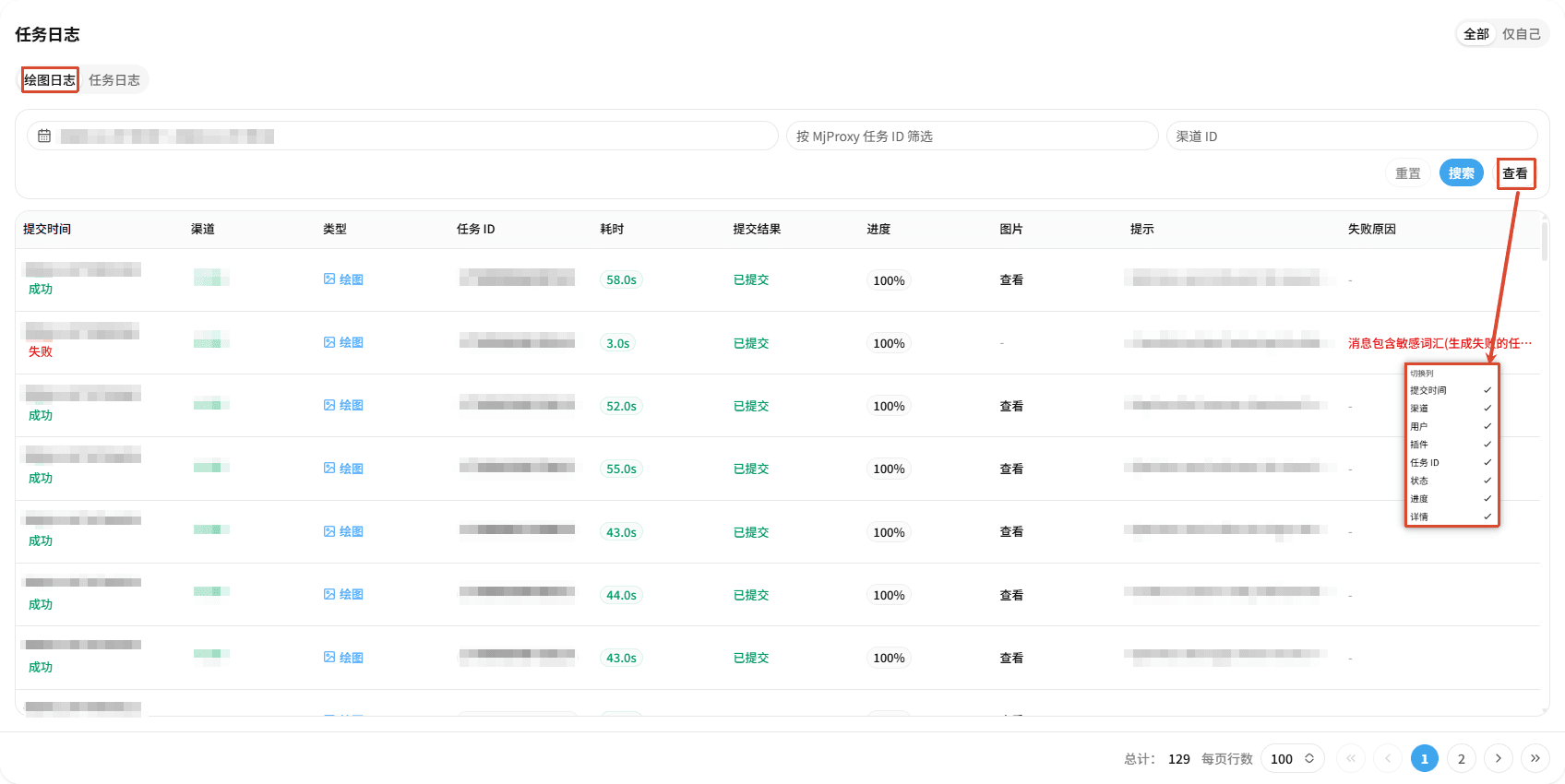
Steps
- Click the “Drawing Logs” tab below the page title.
- Set the time range as needed or enter the task ID in “Filter by MjProxy Task ID”, then click “Search”.
- View the task status, progress, and generated images.
Field Descriptions
The “Drawing Logs” tab has the columns listed below. For the columns you can select under “View”, see Page Buttons and Filters.
| Field | Definition | Requirements and Restrictions | Notes |
|---|---|---|---|
| Submission Time | The task’s submission time and status. | The system records this information automatically. It cannot be edited. | The submission time appears at the top, with the status below in colored text. For the meaning of each status, see Drawing Task Status. |
| Channel (Admins Only) | The channel that handled the task. | Appears only in the “All” view. | Displays the channel ID prefixed with “#”. Click to copy the ID. |
| Type | The type of drawing task. | Determined by the action taken at submission. | Examples include “Imagine”, “Upscale”, “Variation”, “Blend”, “Describe”, and “Vary (Region)”. Unrecognized types display “Unknown”. |
| Task ID | The Midjourney task identifier. | The upstream provider generates this ID. It cannot be edited. | Click to copy. |
| Duration | The elapsed time from submission to completion. | Appears once the task is complete. Incomplete tasks display “-”. | Measured in seconds. Values over 60 seconds appear in red. |
| Submission Result (Admins Only) | The outcome of submitting the task to the upstream provider. | Appears only in the “All” view. | For possible values, see Drawing Submission Results. |
| Progress | The task’s processing progress. | Returned by the upstream provider. | For example, “100%”. |
| Image | The generated image. | Displays “View” when an image is available and “-” otherwise. | Click “View” to open the “Image Preview” dialog. |
| Prompt | The prompt entered when submitting the task. | — | Displays a truncated single line. Click it to open the “Prompt Details” dialog. |
| Failure Reason | The reason why the task failed. | Only failed tasks display a reason. Other tasks display “-”. | Displays a truncated single line in red. Click it to open the “Failure Reason Details” dialog. |
View Prompts, Images, and Failure Reasons
- Task Logs – Prompt Details
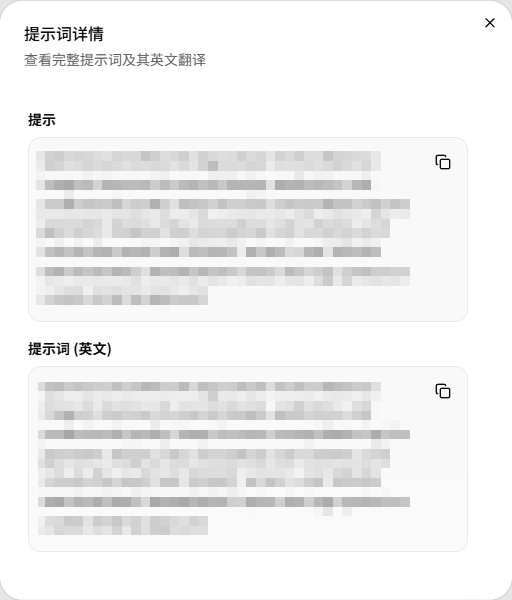
View Prompts
- In the “Drawing Logs” tab, click the text in the “Prompt” column for the task.
- Review the “Prompt” in the “Prompt Details” dialog. If an English translation is available, it appears below under “Prompt (English)”.
- Click the copy button in the upper-right corner of the content area to copy the prompt.
View Images
- Click “View” in the “Image” column for the task.
- View the image and its URL in the “Image Preview” dialog.
View Failure Reasons
- Click the red text in the “Failure Reason” column for the task.
- Review the “Error Message” in the “Failure Reason Details” dialog. Click the copy button to copy it.
Tip
The upstream provider stores the image. If the image expires or the provider deletes it, the “Image Preview” dialog displays “Unable to load image”.
View Refunds for Failed Tasks
Steps
- In the “Task Logs” tab, click “View Details” for the failed task, confirm the “Failure Reason”, and copy the task ID. For a drawing task, copy the ID from the “Task ID” column in the “Drawing Logs” tab.
- Open Usage Logs, select “Refund” from the type dropdown, set the time range to cover when the task failed, and click “Search”.
- Click “Asynchronous Task Refund” in the refund record’s “Details” column. Verify the task ID and reason in “Refund Details”.
Refund Rules
When you submit a task, the system deducts quota based on the price. If the task fails or times out, the system issues a full refund to the original source (wallet balance or subscription quota), restores the quota on the API key used for the task, and adds a “Refund” record to Usage Logs.
| Scenario | “Failure Reason” Display | Refund |
|---|---|---|
| The upstream provider reports that the task failed | The reason returned by the upstream provider, which may be in English | Full refund |
| The upstream provider cannot find the task | “The upstream provider could not find this task” | Full refund |
| Repeated attempts to retrieve the task status fail | “Failed to query upstream task status” | Full refund |
| The task remains incomplete more than 3 days (by default) after submission | “Task timed out” | Full refund |
| A task submitted before February 22, 2026 times out | “Task timed out (legacy task from the previous system, no refund issued, please contact an administrator)” | No refund. Contact an administrator. |
| The channel used for the task is no longer available | “Failed to retrieve channel information. Please contact an administrator.” | Check Usage Logs for a refund record. If there is none, send the task ID to an administrator. |
| A drawing task fails | The reason returned by the upstream provider | Full refund with the reason “Image composition failed” |
| A drawing task remains incomplete more than 1 hour after submission | “Upstream task timed out (over 1 hour)” | Full refund with the reason “Image composition failed” |
Tip
- Confirm refunds by checking for a “Refund” record in Usage Logs. The “Failed” status alone does not confirm that a refund was issued.
- The system bills successful tasks based on actual usage. If actual usage is lower than the quota deducted at submission, the system returns the difference and records it as a “Refund”. If actual usage is higher, the system deducts the difference and adds a “Consumption” record.
Available Actions
Page Buttons and Filters
| Action | Location | Description |
|---|---|---|
| All / Only Me (Admins Only) | Upper-right corner of the page | Defaults to “All”, which shows tasks from all users, the “Channel”, “User”, “Plugin”, and “Submission Result” columns, the “Channel ID” filter, and the “Admin Only” section in “Task Details”. “Only Me” shows only tasks from the current account and displays the same content regular users see. |
| Drawing Logs, Task Logs | Below the page title | Switch between the two tabs. The tabs appear only when both “Drawing Logs” and “Task Logs” are enabled in the left sidebar settings. |
| Time Range, Channel ID (Admins Only) | Filter area | See Filter Tasks. |
| Filter by Task ID | Filter area in the “Task Logs” tab | See Filter Tasks. |
| Filter by MjProxy Task ID | Filter area in the “Drawing Logs” tab | See Filter Tasks. |
| Reset | Lower-right corner of the filter area | Available when a task ID or channel ID has been entered. Clears these filters and restores the default time range. |
| Search | Lower-right corner of the filter area | Refreshes the list using the current filters and returns to page 1. |
| View | Lower-right corner of the filter area in the “Task Logs” tab | Use “Toggle Columns” to choose which columns to display. The current browser saves your settings. You can toggle “Submission Time”, “Task ID”, “Status”, “Progress”, and “Details”. Administrators can also toggle “Channel”, “User”, and “Plugin”. The “Duration” and “Artifact” columns are always visible. |
| View | Lower-right corner of the filter area in the “Drawing Logs” tab | Use “Toggle Columns” to choose which columns to display. The current browser saves your settings. You can toggle “Submission Time”, “Type”, “Task ID”, “Progress”, “Image”, “Prompt”, and “Failure Reason”. Administrators can also toggle “Channel” and “Submission Result”. The “Duration” column is always visible. |
| Rows per Page, Pagination | Bottom of the list | “Rows per Page” defaults to 100 (20 on phones). The available options are 10, 20, 30, 40, 50, and 100. “Total” shows the number of tasks that match the filters. |
Row Actions
| Action | Location | Description |
|---|---|---|
| Copy Task ID | “Task ID” column | Click the ID to copy it. |
| Copy Channel ID (Admins Only) | “Channel” column | Click the ID to copy it. |
| View User Information (Admins Only) | Username in the “User” column of the “Task Logs” tab | Opens the “User Information” dialog. |
| Open Plugin Author’s Homepage (Admins Only) | Author’s name in the “Plugin” column of the “Task Logs” tab | Opens the homepage in a new tab. |
| View Artifacts | “Artifact” column in the “Task Logs” tab | See View Task Details and Artifacts. |
| View Details | “View Details” in the “Details” column of the “Task Logs” tab | Opens the “Task Details” dialog. |
| View Image | “View” in the “Image” column of the “Drawing Logs” tab | Opens the “Image Preview” dialog. |
| View Prompt | Text in the “Prompt” column of the “Drawing Logs” tab | Opens the “Prompt Details” dialog. |
| View Failure Reason | Red text in the “Failure Reason” column of the “Drawing Logs” tab | Opens the “Failure Reason Details” dialog. |
| Copy Prompt or Failure Reason | Copy button in the “Prompt Details” or “Failure Reason Details” dialog | See View Prompts, Images, and Failure Reasons. |
Status Descriptions
Task Status
The “Status” column in the “Task Logs” tab typically progresses from “Not Started” → “Queued” → “In Progress”, then ends in “Succeeded” or “Failed”.
| Status | Meaning | Notes |
|---|---|---|
| Not Started | The task was submitted, and the system has yet to retrieve its processing status from the upstream provider. | Progress is usually “0%”. Click “Search” again later to see the latest status. |
| Queued | The upstream provider has received the task and queued it for processing. | Appears in yellow or orange. Both colors have the same meaning. |
| In Progress | The upstream provider is generating the result. | — |
| Succeeded | The task is complete. | View and download the result in the “Artifact” column. |
| Failed | The task failed or timed out. | Progress displays “100%”. Check “Task Details” for the failure reason and see View Refunds for Failed Tasks for refund information. |
Drawing Task Status
In the “Drawing Logs” tab, the status appears below the timestamp in the “Submission Time” column.
| Status | Meaning | Notes |
|---|---|---|
| Not Started | The task was submitted and is awaiting processing. | — |
| Queued | The task is queued for processing. | — |
| In Progress | The image is being generated. | — |
| Succeeded | The image has been generated. | Click “View” in the “Image” column. |
| Failed | The task failed or timed out. | Check the “Failure Reason” column for the reason. The system refunds the deducted quota. See View Refunds for Failed Tasks. |
| Waiting | The task requires a follow-up action before it can continue. | — |
Drawing Submission Results
The “Submission Result” column (visible only to administrators) in the “Drawing Logs” tab can show the following values.
| Submission Result | Meaning | Notes |
|---|---|---|
| Submitted | The task was submitted to and accepted by the upstream provider. | Once the background process starts checking task status, all accepted submissions display “Submitted”. |
| Waiting, Duplicate | At submission, the upstream provider indicated that the task already existed or was queued. The task continues to be processed. | Changes to “Submitted” once the background process starts checking task status. |
| Not Submitted | The task could not be submitted to the upstream provider. | See the “Failure Reason” column for the reason. Other results from the upstream provider display as “Unknown”. |
Frequently Asked Questions
Related Documentation
- Usage Logs — View task charges and refunds.
- Wallet — Check your balance and subscription quota after a refund.
- Get Your Tasks — Query asynchronous tasks for your account through the API.
- Get Your Midjourney Tasks — Query image generation tasks for your account through the API.
- Get Video Task Status — Query the status and result of a video generation task.
- Get Video Content — Retrieve the video file for a completed video generation task.
- API Reference — Find other video and music generation endpoints.
How is this guide?
Last updated on
Audit Logs
Review account activity such as sign-ins, security changes, API key operations, and access token operations. Check the time, source, and outcome of each action.
Wallet
View your balance and usage, add funds online or redeem quota, purchase subscription plans and choose a billing preference, transfer referral rewards, and view your order history.