
Playground
Select a group and model, adjust request parameters, and chat with the model in your browser to evaluate its responses. Find the API base URL, authentication details, SDK examples, and supported endpoints.
- In the sidebar, go to “Chat” → “Playground”.
- Chat with a model in your browser to test the model and its request parameters.
- Model calls deduct quota from your account (wallet balance or subscription quota) based on the applicable pricing.
Tip
- The Playground calls models using your signed-in account. API key quotas, model restrictions, and IP restrictions do not apply, and calls do not count toward any API key’s usage.
- Chat history is stored only in the current browser, separately for each signed-in account.
- If “Playground” is missing from the left sidebar:
Go to the “Profile” page, enable “Chat Section” and “Playground” under “Personal Sidebar Settings”, and save your changes.
Playground Overview
- Playground – Chat
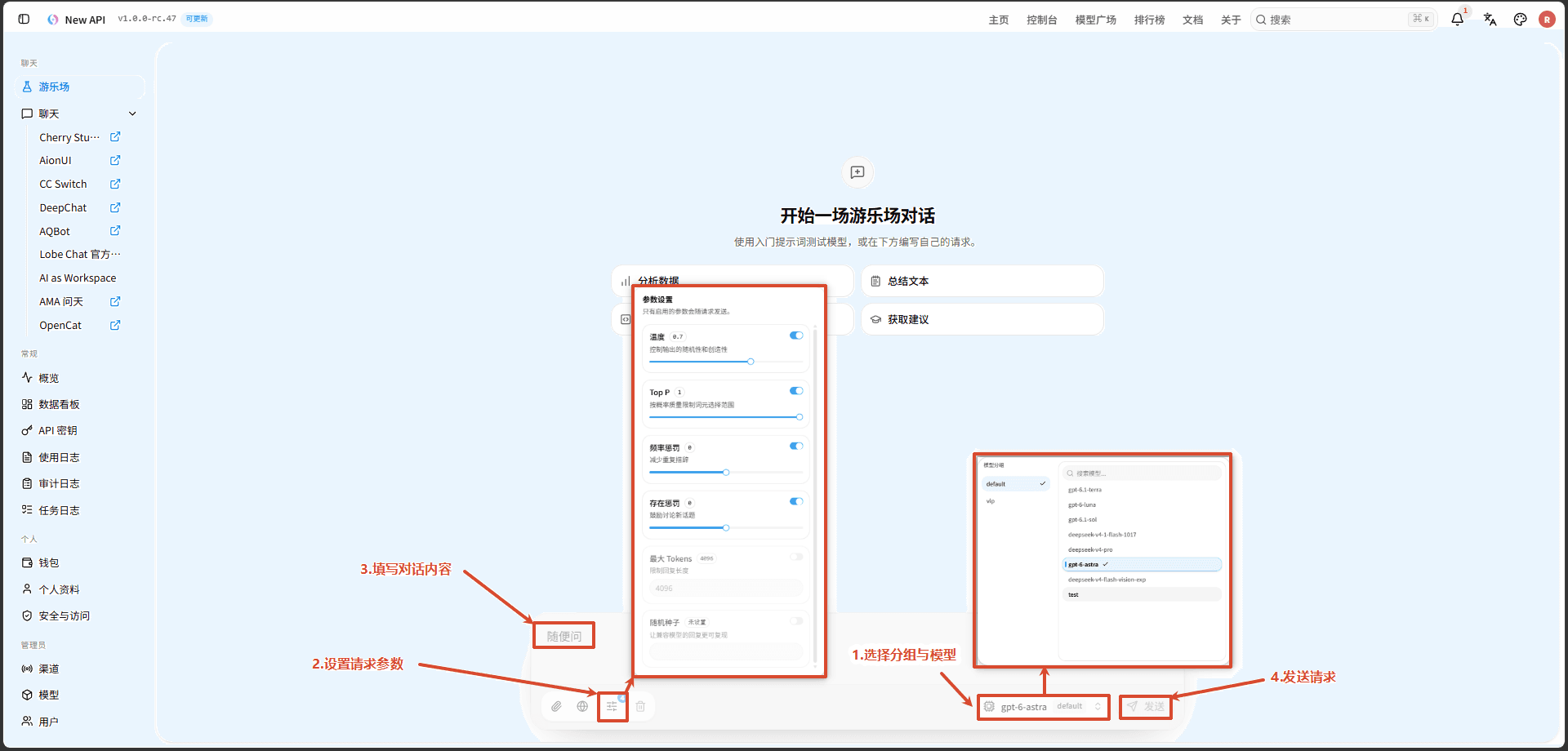
The chat area is at the top of the page and the input box is below it. From this page, you can:
- Send Messages and View Responses
- Adjust Request Parameters
- Manage Conversations
- API Base URL and Authentication
- SDK Examples
- Supported API Endpoints
Tip
If you see an error or receive no response after sending a message, see the Frequently Asked Questions.
Page Areas
The table lists the page areas from top to bottom and left to right.
| Area | Definition | Visibility and Availability | Notes |
|---|---|---|---|
| Chat Area | The messages in the current conversation, including sent messages and model responses. | Always visible. When there are no messages, it shows “Start a Playground conversation” and four starter prompts: “Analyze data”, “Summarize text”, “Code”, and “Get advice”. | Clicking a starter prompt sends it immediately. See Message Actions for the controls below each message. |
| Input Box | Enter the content to send to the model. The placeholder is “Ask anything”. | Always visible. Input is disabled while a response is being generated. | Press Enter to send or Shift+Enter to insert a line break. |
| Toolbar | Four icons at the lower left of the input box for attaching files, searching, adjusting parameters, and clearing chat history. | Always visible. The controls are disabled while a response is being generated. | The number at the upper right of the parameters icon shows how many parameters are enabled. See Input Box and Toolbar. |
| Group and Model Selector | Selects the group and model for the current conversation. | Always visible. It is disabled during response generation, while the model list is loading, or when the account has no available groups. | The selector is at the lower right of the input box. Its buttons show the current model and group, or “Model” and “Group” before a selection is made. On narrow screens, such as phones, the selector appears above the toolbar. |
| Send / Stop | Sends the content in the input box or stops the response currently being generated. | While a response is being generated, “Send” becomes a red “Stop” button. | “Send” is disabled when the input box is empty or the selected group has no available models. On narrow screens, only the icon appears. |
Send Messages and View Responses
Steps
- Select a group and model. Click the group and model selector at the lower right of the input box. Select a group under “Model Groups” on the left, then select a model on the right.
- Set request parameters as needed. Click the parameters icon below the input box, then enable and adjust parameters in “Parameter Settings”. See Adjust Request Parameters.
- Enter a question, instruction, or prompt in the input box.
- Click “Send” or press Enter to send the request.
- View the model’s response as it streams into the chat area. To interrupt generation, click “Stop”.
Tip
- If your selected model is unavailable after you switch groups, the Playground automatically selects the first model in the new group.
- For reasoning models, the reasoning process appears above the response. It shows “Thinking...” while the model is reasoning and “Thought for … seconds” once it finishes. Click to expand or collapse it.
- Any content already generated stays in the conversation after you click “Stop”.
- “Attach” and “Search” below the input box are still under development. Clicking them only displays “Feature under development” or “Search is under development”. File attachments, image attachments, and web search are unavailable.
Configuration Options
The group and model selector has two columns. The table lists them from left to right.
| Option | Definition | Requirements and Limits | Default |
|---|---|---|---|
| Group | The group used for the request, which determines the available models and billing ratio. | Select a group under “Model Groups” on the left. The list shows only group names and includes only the groups your account can use, including the group your account belongs to. If the site allows auto, the system automatically selects an available group when you choose it. | default if available, or the first group in the list. The Playground remembers your last selection. |
| Model | The model called in the current conversation. | Select a model from the list on the right. Use “Search models...” to search by name. If there are no matches, the list shows “No models found.” The list includes the models available in the selected group and ignores API key model restrictions. | gpt-4o if available, or the first model in the list. The Playground remembers your last selection. |
Adjust Request Parameters
Steps
- Click the parameters icon below the input box to open “Parameter Settings”. Hovering over the icon shows “Parameters”.
- Turn on the switch to the right of each parameter you want to send.
- Drag the slider or enter a value.
Tip
- Requests include only enabled parameters. The current browser saves parameter values and switch settings for your next visit.
- Parameter support varies by model. If a request returns an error, disable the relevant parameter and try again.
- The Playground always streams responses. Custom system prompts and non-streaming responses are unavailable.
Configuration Options
The “Parameter Settings” window shows all parameters in one list, with a switch to the right of each. The table follows the order in the window.
| Option | Definition | Requirements and Limits | Default |
|---|---|---|---|
| Temperature | Controls the randomness and creativity of the output. | Use the slider to select a value from 0.1 to 1 in increments of 0.1. | 0.7, enabled |
| Top P | Limits token selection based on cumulative probability mass. | Use the slider to select a value from 0.1 to 1 in increments of 0.1. | 1, enabled |
| Frequency Penalty | Reduces repetitive wording. | Use the slider to select a value from -2 to 2 in increments of 0.1. | 0, enabled |
| Presence Penalty | Encourages the model to discuss new topics. | Use the slider to select a value from -2 to 2 in increments of 0.1. | 0, enabled |
| Max Tokens | Limits the response length. | Enter an integer from 0 to 200000. Out-of-range values are automatically set to the nearest valid value. | 4096, disabled |
| Seed | Makes responses from compatible models more reproducible. | Enter an integer from 0 to 2147483647. If left blank, the field shows “Not set” and the request omits the seed even when enabled. | Not set, disabled |
Manage Conversations
Regenerate a Response
- Hover over the message you want to regenerate from.
- Click the regenerate icon below the message. Hovering over the icon shows “Regenerate”.
Edit a Message
- Click the edit icon below the message.
- Edit the content in the text box.
- When editing a user message, click “Save and Submit” to regenerate the response using the revised content. To save only the edit, click “Save”.
Delete a Message
- Click the delete icon below the message.
Clear Chat History
- Click the trash icon below the input box. Hovering over the icon shows “Clear Chat History”.
- Click “Clear” in the “Clear Chat History?” dialog.
Warning
Clearing chat history permanently deletes the messages. Your group, model, and parameter settings are retained.
Tip
- Each request sends the existing messages in the conversation as context and omits the model’s reasoning. Clear the chat history before starting a new topic.
- Regenerating, editing, deleting, and clearing chat history are unavailable while a response is being generated.
- On narrow screens, message actions are available in the ⋯ menu below each message.
Available Actions
Input Box and Toolbar
| Action | Location | Description |
|---|---|---|
| Starter Prompts | Center of the chat area when there are no messages | Click “Analyze data”, “Summarize text”, “Code”, or “Get advice” to send that prompt immediately. |
| Attach | Paperclip icon at the lower left of the input box | The menu includes “Upload File”, “Upload Photo”, “Take a Screenshot”, and “Take a Photo”. These options are still under development and display “Feature under development” when clicked. |
| Search | Globe icon at the lower left of the input box | This feature is still under development. Clicking it displays “Search is under development”. |
| Parameters | Sliders icon at the lower left of the input box | Opens “Parameter Settings”. The number at the upper right shows how many parameters are enabled. See Adjust Request Parameters. |
| Clear Chat History | Trash icon at the lower left of the input box | Unavailable when there are no messages. See Manage Conversations. |
| Group and Model Selector | Lower right of the input box | See Send Messages and View Responses. |
| Send | Bottom right corner of the input box | Sends the content in the input box. Press Enter to send or Shift+Enter to insert a line break. |
| Stop | Bottom right corner of the input box, replacing “Send” during response generation | Stops generation immediately and keeps any content already generated. |
Message Actions
| Action | Location | Description |
|---|---|---|
| Copy | Copy icon below the message | Copies the message content and briefly displays “Copied!”. |
| Show Source / Show Preview | Code icon below the response | Switches between the “Raw Response” text and the formatted preview. |
| Regenerate | Refresh icon below the message | Deletes all messages after the selected message and resends the request. If you use it on a response, it also deletes that response. |
| Edit | Edit icon below the message | Turns the message into a text box with “Save” and “Cancel” options. “Reset” is available after you make changes. User messages also offer “Save and Submit”. |
| Delete | Delete icon below the message | Immediately deletes only the selected message. |
| Retry, Edit, Delete | Below a failed response | “Retry” deletes the failed response and resends the request. “Edit” opens the previous user message for editing. “Delete” removes the failed response. |
| Open Menu | ⋯ below the message on narrow screens | Shows the message actions listed above. |
Tip
While editing, press Ctrl+Enter (Cmd+Enter on macOS) to save, or to save and submit when editing a user message. Press Esc to cancel. If you cancel with unsaved edits, the “Unsaved Changes” confirmation dialog appears.
API Base URL and Authentication
This is the typical OpenAI-compatible base URL for the gateway.
https://your-host/v1Pass your API key as a Bearer Token.
Authorization: Bearer sk-your-api-keyThe following command sends a chat completion request.
curl https://your-host/v1/chat/completions \
  -H "Content-Type: application/json" \
  -H "Authorization: Bearer sk-your-api-key" \
  -d '{"model":"gpt-4o-mini","messages":[{"role":"user","content":"你好"}]}'
SDK Examples
Python (OpenAI SDK)
from openai import OpenAI

client = OpenAI(
    api_key="sk-xxxxxxxx",
    base_url="https://your-host/v1",
)

response = client.chat.completions.create(
    model="gpt-4o-mini",
    messages=[{"role": "user", "content": "你好"}],
)
print(response.choices[0].message.content)
Claude Native Format
curl https://your-platform.com/v1/messages \
  -H "x-api-key: sk-xxxxxxxx" \
  -H "anthropic-version: 2023-06-01" \
  -H "content-type: application/json" \
  -d '{"model": "claude-3-5-sonnet-20241022", "max_tokens": 1024, "messages": [{"role": "user", "content": "Hello"}]}'
Gemini Native Format
curl "https://your-platform.com/v1beta/models/gemini-1.5-pro:generateContent?key=sk-xxxxxxxx" \
  -H "Content-Type: application/json" \
  -d '{"contents": [{"parts": [{"text": "Hello"}]}]}'
Supported API Endpoints
| API | Path | Description |
|---|---|---|
| Chat Completions | POST /v1/chat/completions | OpenAI Chat Completions-compatible endpoint. Requires model and messages and supports both streaming and non-streaming responses. |
| Text Completions | POST /v1/completions | Traditional text completion endpoint. Requires prompt and model. |
| Embeddings | POST /v1/embeddings | Converts text or an array of text strings into vectors. Requires input. The channel adapter converts the request to the upstream format. |
| Image Generation | POST /v1/images/generations | Generates images from a prompt. The model, image size, quality, and number of images depend on the request parameters and configured channels. |
| Image Editing | POST /v1/images/edits | Edits images using an input image and a prompt. Supports JSON and multipart/form-data requests. |
| Legacy Edits | POST /v1/edits | Reserved legacy path that is currently unavailable. Use /v1/images/edits for image editing. |
| Speech to Text | POST /v1/audio/transcriptions | Converts audio to text. Forwards the request to the appropriate speech recognition channel using the OpenAI Audio API format. |
| Audio Translation | POST /v1/audio/translations | Recognizes spoken content in the audio and returns the translated text. |
| Text to Speech | POST /v1/audio/speech | Converts input text to audio. |
| Reranking | POST /v1/rerank | Ranks candidate documents by relevance to the query. Both the query and the document list must be non-empty. |
| Moderation | POST /v1/moderations | Moderates text or other inputs. If the request omits a model, the endpoint uses the default moderation model candidates. |
| Responses API | POST /v1/responses | OpenAI Responses-format endpoint that supports inputs, tools, and response events. |
| Responses WebSocket | GET /v1/responses (WebSocket) | Connects to the Responses endpoint over WebSocket. Once connected, send a response.create event to create a response. The endpoint selects a channel after receiving the first response.create event. Pass the API key the same way as for the Realtime endpoint. |
| Responses Compaction | POST /v1/responses/compact | Compacts the context of a Responses request. |
| Codex Web Search | POST /v1/alpha/search | Endpoint for the standalone Codex web search format. Currently, only Sub2API, New API, Codex, and advanced custom channels that support this capability can handle these requests. |
| DeepSeek Search | POST /v1/tools/search | DeepSeek search endpoint that forwards the request body and returns the response as received. It always uses deepseek-search for channel selection and bills per request without counting tokens. Currently, only DeepSeek, New API, Sub2API, and advanced custom channels can handle these requests. |
| DeepSeek Web Fetch | POST /v1/tools/fetch | DeepSeek web fetch endpoint. It always uses deepseek-fetch for channel selection and bills per request. It uses the same forwarding behavior and channels as DeepSeek Search. |
| Claude Messages | POST /v1/messages | Anthropic Claude Messages-compatible endpoint. Requires model and message content. New API converts the request to the upstream protocol when necessary. /v1/messages/count_tokens is currently disabled. |
| Realtime | GET /v1/realtime (WebSocket) | OpenAI Realtime-style endpoint for bidirectional real-time communication. The model is typically passed as a query parameter. You can pass the API key as a Bearer Token or through the WebSocket subprotocol. |
| Gemini Native Model Operations | POST /v1beta/models/{model}:{action} | Gemini native-format endpoint for model actions such as generateContent, streamGenerateContent, and embedding operations. :countTokens is currently unsupported and returns 404. |
| Gemini-Compatible Model Operations | POST /v1/models/{model}:{action} | Accepts Gemini-style model operation requests under the /v1 prefix. Gemini Relay parses and converts the requests. |
| List Models | GET /v1/models | Returns an OpenAI-format model list by default. Returns Claude format when both x-api-key and anthropic-version headers are present, or Gemini format when the request includes an x-goog-api-key header or a key query parameter. |
| Model Details | GET /v1/models/{model} | Retrieves information about a single model. If the model does not exist, the endpoint returns a model_not_found error object with HTTP status 200. |
| Gemini Model List | GET /v1beta/models | Returns a list of available models in Gemini format. Response fields include models and nextPageToken. |
| OpenAI-Format Model List | GET /v1beta/openai/models | Returns the model list in OpenAI format under the Gemini-compatible namespace. |
Frequently Asked Questions
Related Documentation
- API Keys — Create an API key, then copy the API URL and key to call models from a client.
- Usage Logs — View charge details for Playground and API calls.
- Wallet — Top up your balance, redeem quota, and view subscriptions.
- Model Marketplace and Leaderboard — View available models and their prices.
- Profile — Choose which pages appear in the left sidebar.
- Chat — Use models in chat apps such as Cherry Studio.
- API Reference — Look up request parameters and response formats for each endpoint.
How is this guide?
Last updated on