
Audit Logs
Review account activity such as sign-ins, security changes, API key operations, and access token operations. Check the time, source, and outcome of each action.
- In the sidebar, go to “General” → “Audit Logs.”
- Review account activity such as sign-ins, security changes, API key operations, and access token operations.
- Audit Logs cover account activity only. Model usage and charges appear in Usage Logs.
Tip
- Regular users can view only their own account records. Administrators with the “View Other Accounts’ Audit Logs” permission can switch between “All” and “Only Me” in the upper-right corner of the page. This switch is visible only to administrators.
- The “Management” and “Login” type filters in Usage Logs are deprecated. New sign-in and administrative actions appear in Audit Logs. To review model usage and charges, see Usage Logs.
- “API Token” in an event refers to a key on the “API Keys” page. Access tokens are credentials for account management only and cannot be used to call models. Create them on the Security & Access page.
- If “Audit Logs” is missing from the left sidebar, go to “Profile” and find “Left Sidebar Personal Settings.”
Enable “Console” and “Audit Logs,” then save your changes.
Audit Logs Overview
- Audit Logs – List
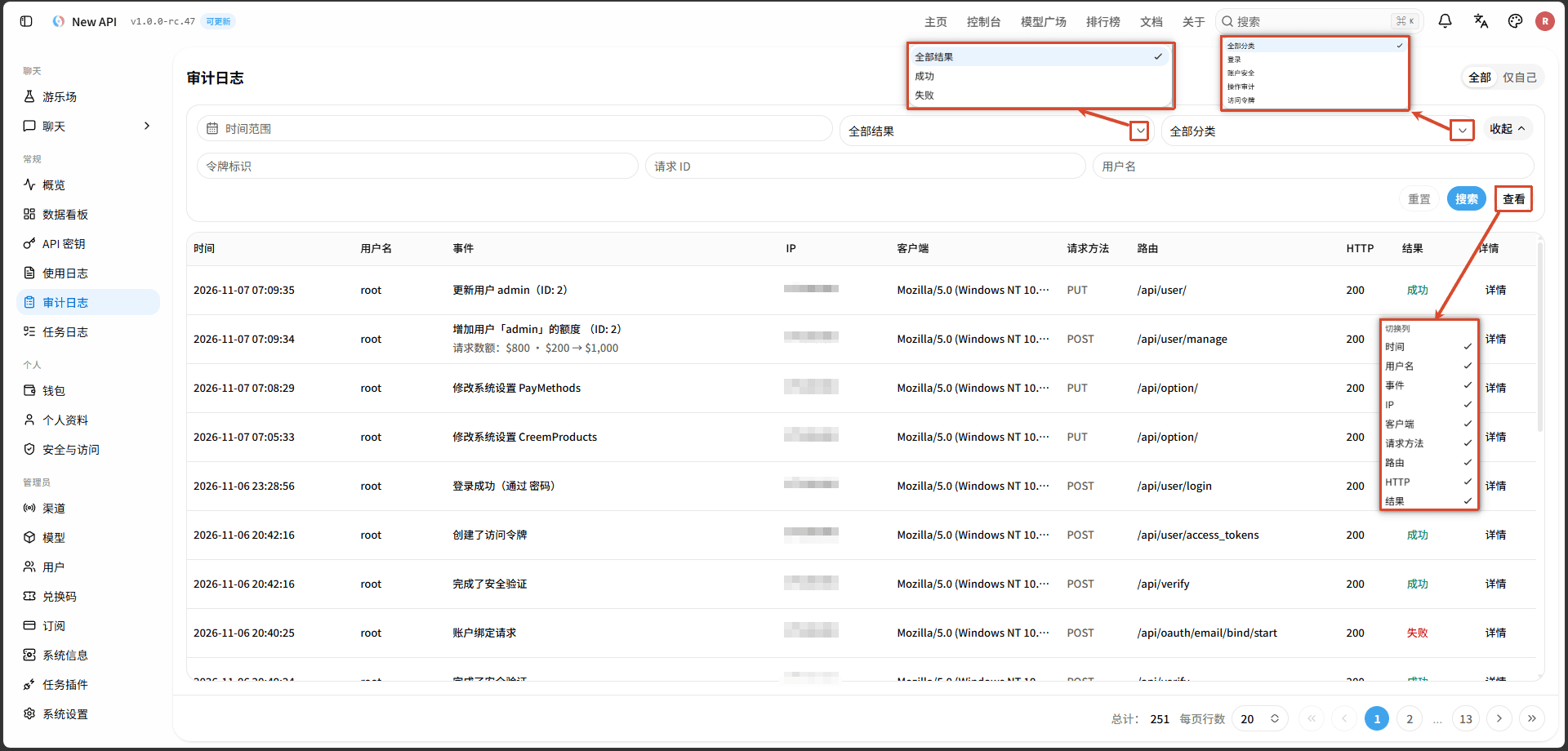
Use the time range, result, category, and other filters to narrow the list and check the source and outcome of each action.
Tip
If you see a sign-in or action you don’t recognize, see Frequently Asked Questions.
Field Descriptions
| Field | Definition | Requirements and Constraints | Notes |
|---|---|---|---|
| Time | When the action occurred. | The system records this value automatically. It is read-only. | Timestamps are precise to the second. The newest records appear first. |
| Username | The account the record belongs to. | The system records the username at the time of the action. After an account is renamed, older records retain the original username. | Regular users see only their own account in the list. The screenshot shows the administrator’s “All” view. |
| Event | A description of the action, such as “Login successful (via password)” or “Created an access token.” | The system generates the description based on the action. | Hover over a truncated event to see the full text. API key and quota events show additional information on a second line. “Update user,” “Modify system settings,” and similar entries in the screenshot are administrative actions. See Event Categories for the events in each category. |
| IP | The IP address from which the action originated. | The system records it automatically regardless of the “Record IP Address” setting. | — |
| Client | Information about the browser or application that initiated the action. | The system automatically records up to 512 characters. | The list truncates this value. Hover over it or open the details to see the full recorded value. |
| Request Method | The HTTP method associated with the action, such as GET, POST, PUT, or DELETE. | The system records it automatically. | — |
| Route | The API endpoint associated with the action. | The system records it automatically. | The list truncates this value. Open the details to see the full value. |
| HTTP | The HTTP status code returned for the request. | The system records it automatically. | A “Failure” result can still have an HTTP status code of 200. See Audit Results. |
| Result | Whether the action succeeded. | The system determines the result from the request outcome. | Green “Success” or red “Failure.” |
| Details | Opens the full record. | This column is always visible. | Click “Details” to open the “Log Details” window. See View Audit Details. |
Filter Audit Logs
Steps
- Click “Time Range” and select a preset, or enter a “Start Time” and an “End Time” and click “Confirm.”
- Select options as needed from the result drop-down (defaults to “All Results”) and the category drop-down (defaults to “All Categories”).
- To search by token identifier or request ID, click “Expand” and fill in the filters in the second row.
- Review the automatically refreshed list. To run the search again with the current filters, click “Search.”
- To clear the filters, click “Reset.”
Tip
- The list refreshes as soon as you change a filter. Clicking “Search” is optional.
- By default, the list shows records from all time. Reloading the page clears the filters.
Filter Descriptions
The filter area has two rows. The second row is collapsed by default. Click “Expand” to display it. The table lists the filters in the order they appear on the page.
| Filter | Location | Definition | Requirements and Constraints | Default |
|---|---|---|---|---|
| Time Range | First row | Filters by the time of the action, including both endpoints. | Presets include “Today,” “7 Days” (including today), “This Week” (Sunday through Saturday), “30 Days” (including today), and “This Month.” Enter custom times to the second, then click “Confirm.” Either endpoint can be left blank, and the range can span any length of time. If the start time is later than the end time, the page displays “End time must be later than start time” and leaves the list as it is. | Blank (all time) |
| Result | First row | Filters by the outcome of the action. | Select one of “All Results,” “Success,” or “Failure.” | “All Results” |
| Category | First row | Filters by record category. | Select one of “All Categories,” “Login,” “Account Security,” “Action Audit,” or “Access Token.” See Event Categories. | “All Categories” |
| Token Identifier | Second row | Identifies the access token used to make a request. | Optional. Enter the full 64-character identifier, which consists of digits and lowercase letters a–f. You can copy it from the details of a record in the “Access Token” category. This filter matches only records in that category. If you enter an incomplete identifier, the list displays “Failed to load audit records.” | Blank |
| Request ID | Second row | The identifier of the request associated with an action. | Optional. Enter the full ID for an exact match. You can copy it from the “Request” section of the record details. | Blank |
| Username (administrators only) | Second row | Filters by the account the record belongs to. | Appears only in the “All” view. Enter the full username as it was when the record was created. | Blank |
View Audit Details
- Audit Logs – Log Details
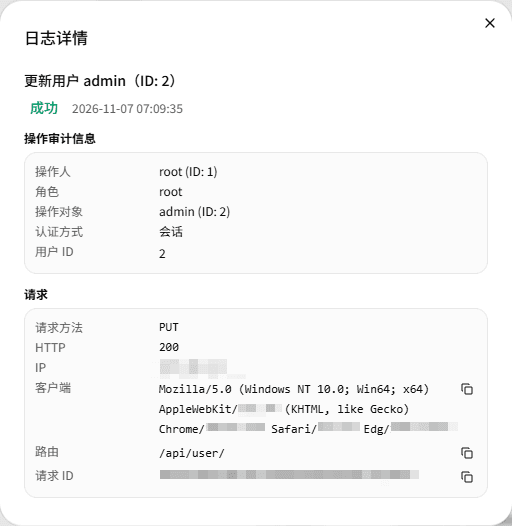
Steps
- In the record’s row, click “Details” in the “Details” column to open the “Log Details” window.
- Review the event, result, actor, and request information.
- To copy values such as the client, route, or request ID, click the copy button to the right of the value.
Details Window
The table lists the sections in the order they appear in the window, from top to bottom.
| Section | Fields | Definition | When Shown |
|---|---|---|---|
| Top of window | Event, Result, Time | The action description, its result (“Success” or “Failure”), and the time it occurred. | All records. |
| Token Operation Details | Token Name, Token ID, Modified Fields, Status Changes, and other fields | Details about API key creation, updates, deletion, and viewing. Bulk actions also show the requested and completed counts. | Events related to “API Token.” |
| Quota Adjustment Details | Target User, Adjustment Method, Requested Amount, Quota Before and After | Details about an administrator’s adjustment to a user’s quota. If the action fails, this section shows the reason. | User quota adjustment events performed by administrators (administrators only). |
| Action Audit Information | Actor | The account that performed the action, displayed as “username (ID: …).” | All records. |
| Action Audit Information | Role | The account’s role when it performed the action, displayed as user, admin, or root. | All records. |
| Action Audit Information | Target | The object affected by the action, such as a user, channel, or access token. Shows the name and ID if available. | Appears when the record has a target. For API key and quota adjustment events, the target appears in the corresponding details section above. |
| Action Audit Information | Authentication Method | “Session” indicates an action performed after signing in to the web interface. “Access Token” indicates an API request authenticated with an access token. | All records. |
| Action Audit Information | Other Fields | Additional event information such as “User ID,” “Changed Fields,” “Expiration Time,” “Verification Method,” “Failure Reason,” or “Required Permission.” | Varies by event. If the record’s additional information cannot be read, the window displays “Additional audit information unavailable.” |
| Request | Request Method, HTTP, IP, Client, Route, Request ID | Information about the request that initiated the action. Longer values have a copy button on the right. | All records. |
| Request | Token Identifier | The identifier of the access token used to make the request. Copy it to use in the “Token Identifier” filter. | Records in the “Access Token” category. |
| Additional Information | — | Other record information beyond the fields above. Administrators can see more request information in the “All” view. | Appears when additional information is available. |
Event Categories
The table lists the events in each category. Refer to the “Event” column in the list for the names shown in the application.
| Category | Event | Triggering Action | Notes |
|---|---|---|---|
| Login | Login successful (via …) | Successfully sign in using a password, two-step verification, a Passkey, WeChat, Telegram, or a third-party account. | Only successful sign-ins are recorded. |
| Account Security | Account password changed | Change the account password. | Both successful and failed attempts are recorded. |
| Account Security | Started setting up two-step verification, Enabled two-step verification, Disabled two-step verification, Regenerated two-step verification backup codes | Set up or disable two-step verification, or regenerate backup codes. | — |
| Account Security | Registered a Passkey, Removed a Passkey | Add or remove a Passkey. | — |
| Account Security | Account linking requested, Account linked, Account unlinked, Email confirmation code resent | Link an email address, WeChat account, or third-party account, or unlink a third-party account. | — |
| Account Security | Completed security verification | Complete security verification before performing a sensitive action. | — |
| Account Security | Created an access token, Renamed an access token, Changed access token permissions, Revoked an access token | Manage access tokens on the Security & Access page. | — |
| Account Security | Created API token “…”, Updated API token “…”, Deleted API token “…”, Bulk deleted API tokens, Viewed the key for API token “…”, Bulk viewed API token keys | On the “API Keys” page, create, edit, enable, disable, or delete keys, or view or copy full keys. | “API Token” refers to an API key. |
| Access Token | Access token | Call the dashboard API using an access token. | Each request generates a record, including rejected requests. For rejected requests, the details show the “Failure Reason.” |
| Action Audit | Update user, Increase quota for user “…”, Modify system settings, and other administrative actions (administrators only) | Perform an administrative action on an administration page. | The action is recorded under the administrator who performed it and is normally visible only to administrators. When an administrator other than Root resets a subscription plan’s quota, the affected user sees “Administrator reset the quota for subscription plan … (ID: …).” |
Available Actions
Page Controls and Filters
| Action | Location | Description |
|---|---|---|
| All / Only Me (administrators only) | Upper-right corner of the page | Appears for administrators with the “View Other Accounts’ Audit Logs” permission and defaults to “All.” “All” shows records across accounts and displays the “Username” filter. Records of actions performed by Root are visible only to Root. “Only Me” shows records for the current account only. If the permission is revoked, the page displays “Audit access changed. Showing only your records.” and switches to “Only Me.” |
| Time Range, Result, Category | First row of the filter area | See Filter Audit Logs. |
| Expand / Collapse | Right side of the first filter row | Shows or hides the second row of filters, which is collapsed by default. The button shows how many filters in the second row are set. The screenshot shows the expanded view. |
| Token Identifier, Request ID | Second row of the filter area | See Filter Audit Logs. |
| Username (administrators only) | Second row of the filter area | See Filter Audit Logs. |
| Reset | Lower-right corner of the filter area | Clears all filters. Available when at least one filter is set, including the time range. |
| Search | Lower-right corner of the filter area | Runs the search again with the current filters. |
| View | Lower-right corner of the filter area | Use “Toggle Columns” to select which columns to show. “Details” is always visible. Reloading the page restores all columns. |
| Rows Per Page, Pagination | Bottom of the list | “Rows Per Page” defaults to 20. Available options are 10, 20, 30, 40, 50, and 100. “Total” shows the number of matching records. |
Row Actions
| Action | Location | Description |
|---|---|---|
| View Details | “Details” in the “Details” column | Opens the “Log Details” window. See View Audit Details. |
| View Full Event | “Event” column | Hover to see the full event description. |
| View Full Client | “Client” column | Hover to see the full client information. |
| Copy | Copy button to the right of a value in the details window | Copies values such as the client, route, request ID, or token identifier. |
Status Descriptions
Audit Results
The “Result” column and the result filter use the following two outcomes.
| Result | Meaning | Notes |
|---|---|---|
| Success | The action completed. | — |
| Failure | The action could not be completed, for example because verification failed, the request was rejected, or the parameters were invalid. | “HTTP” can still show 200 if the request reached the service and the action failed. For rejected access token requests, “Failure Reason” in the details shows “Access token has expired,” “Access token lacks the required permission,” “Access tokens cannot use this feature,” or “This feature requires signing in to the dashboard.” “Required Permission” shows the permission the action requires. |
Frequently Asked Questions
Related Documentation
- Review model usage, charges, and historical records of the “Management” and “Login” types in Usage Logs.
- Create, edit, and delete keys on the API Keys page. Audit Logs record these actions.
- Change your password, link accounts, set up two-step verification and Passkeys, and manage sign-in sessions and access tokens on the Security & Access page.
How is this guide?
Last updated on
Usage Logs
View usage and charges for each model call, along with Quota changes from top-ups, refunds, and other transactions. Filter and export records, and verify charges in the billing details.
Task Logs
View the status, progress, results, and failure reasons for asynchronous tasks such as video and music generation, as well as Midjourney image generation tasks. Learn about timeout and refund rules.