
Billing Expressions
Root users can price models with billing expressions. This guide covers editors and presets, pricing parameters and usage variables, functions and syntax, request rules, cost estimation and request simulation, and the rules for pre-deduction, settlement, and validation on save.
- Only Root users have access. Open the pricing editor from System Settings → Billing & Payments → Model Pricing, or from Pricing on the Models page.
- Use billing expressions to price models, then estimate costs and simulate requests before saving.
- This page covers the editor and expression syntax. For the model price list, input pre-deduction Ratio, and Group Ratios, see Billing & Payments Configuration.
Tip
- A single billing expression fully defines a model's pricing, including Token unit prices, tier conditions, separate pricing for cache, images, and audio, per-request prices, and request rule Ratios.
- Billing expressions replace legacy settings such as the model Ratio and completion Ratio.
- Group Ratios still apply.
- The legacy Per Token (Deprecated) and Per Request (Deprecated) modes still work. For migration instructions, see Convert from a legacy mode.
- Models such as
gpt-image-2,gpt-6-astra, anddeepseek-v4-procome with built-in billing expressions.
Billing expression overview
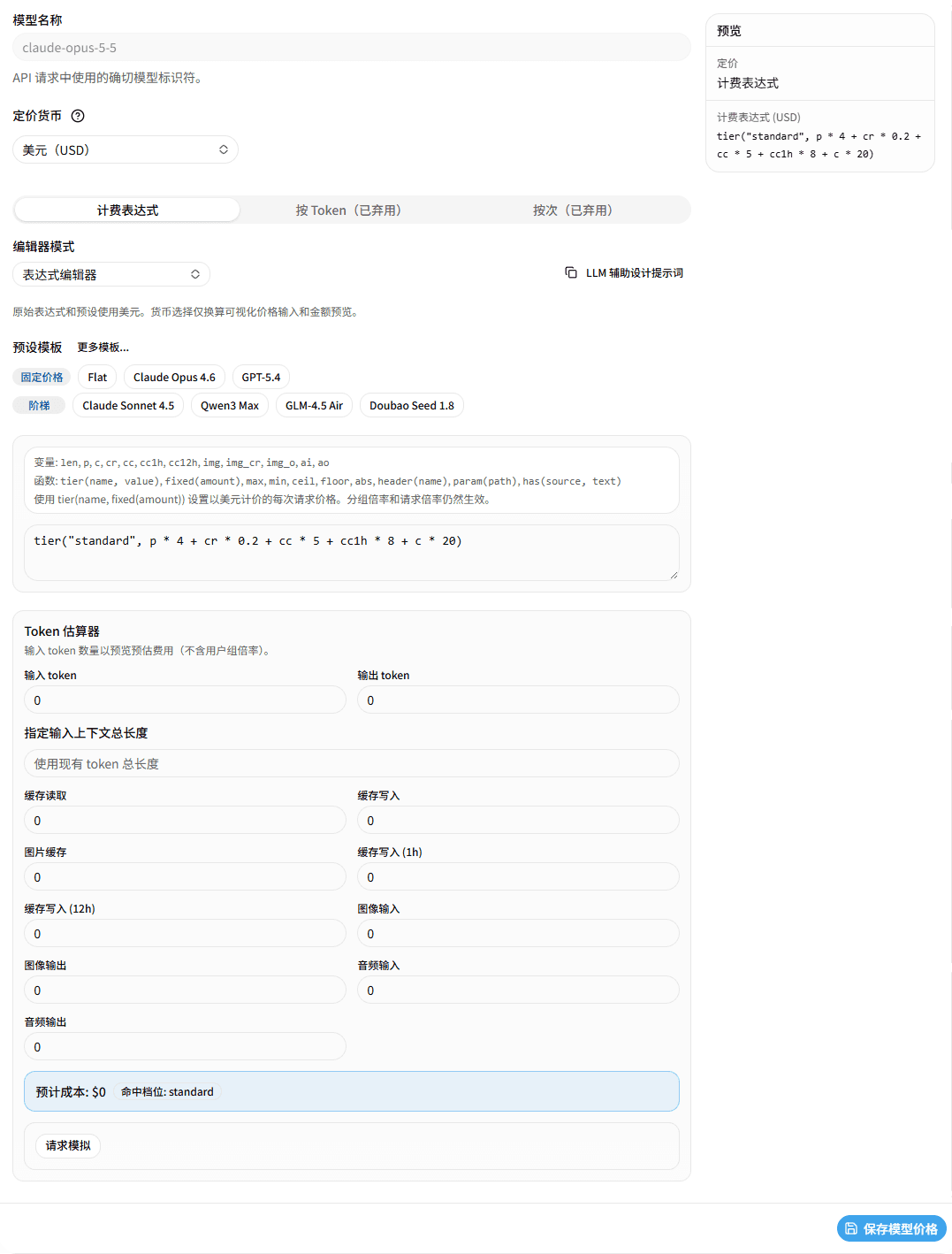
- Billing expressions — expression editor
- Billing expressions — visual editor with a single default tier
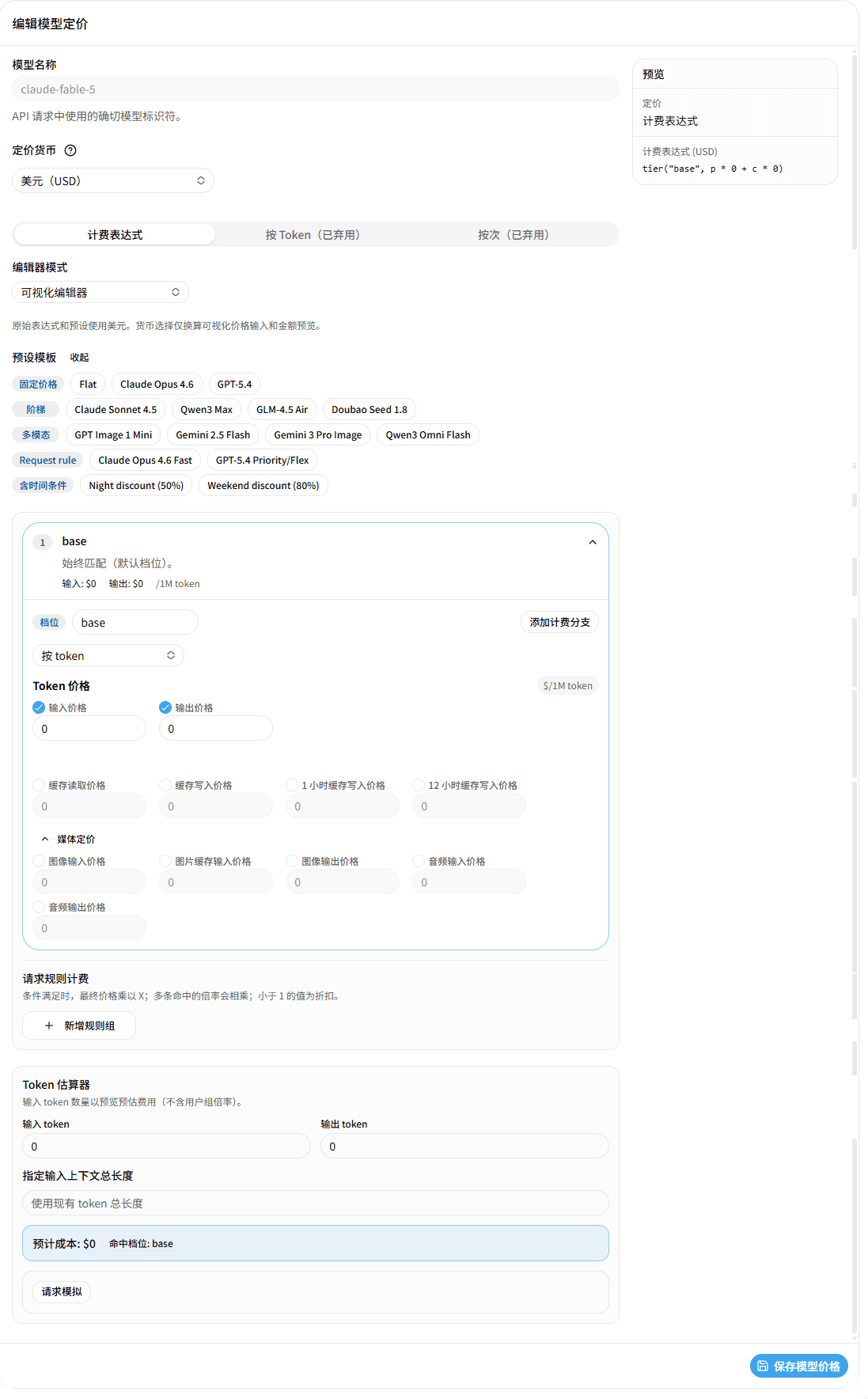
The pricing editor has two modes, the visual editor and the expression editor. Common tasks include the following.
- Open the pricing editor
- Set prices in the visual editor
- Configure request rules
- Write expressions in the expression editor
- Estimate costs and simulate requests
- Convert from a legacy mode
- Set task model prices
- Save model prices
Tip
If saving returns an error, the estimate differs from the actual charge, or tiers switch unexpectedly, see FAQ.
Upper panel sections
The sections appear in the order shown below. Each section appears only when its display conditions are met.
| Section | Display conditions | Description |
|---|---|---|
| Model Name and Pricing Currency | Model Name appears only when you open the editor from Billing & Payments | Basic fields at the top of the panel. See Billing & Payments Configuration. |
| Billing mode tabs | — | Billing Expression, Per Token (Deprecated), and Per Request (Deprecated). The sections below appear only after you select Billing Expression. Models provided by task plugins have an additional row of provider tabs above these tabs. See Set task model prices. |
| Editor Mode | — | Visual Editor or Expression Editor. On open, the panel uses the visual editor if it can reconstruct the expression as a visual structure. Otherwise, it uses the expression editor. Correct any invalid fields in the visual draft before switching to the expression editor. If the expression cannot be fully reconstructed, the editor displays “This expression cannot be converted to visual editing without loss” and stays in expression mode. |
| LLM-Assisted Design Prompt | Expression Editor mode | To the right of Editor Mode. See Write expressions in the expression editor. |
| Currency note | — | Small text below Editor Mode reads “Raw expressions and presets use USD. Currency selection only converts visual price inputs and amount previews.” |
Lower panel sections
These sections appear below the currency note in the order shown. Each section appears only when its display conditions are met.
| Section | Display conditions | Description |
|---|---|---|
| Preset Templates | — | Fixed Price and Tiered appear by default. Click More Templates... to show Multimodal, Request rule, and With Time Conditions. The button then changes to Collapse. Applying a preset replaces the current draft. Save the draft to apply it. |
| Editing area | — | In the visual editor, “Rules are evaluated in order. The first matching rule determines the price” appears above the tier cards. See Set prices in the visual editor. The expression editor shows an expression input and a quick reference for variables and functions. See Write expressions in the expression editor. |
| Request Rule Billing | Visual Editor mode | At the bottom of the editing area. See Configure request rules. |
| Token Estimator | — | Below the editing area, with Request Simulation collapsed by default. See Estimate costs and simulate requests. |
| Preview and Save Model Prices | — | Preview shows the pricing method and the full Billing Expression (USD). It appears on the right in wider panels and below the editor in narrower panels. Click Save Model Prices at the bottom of the panel to submit the draft. See Save model prices. |
Common tasks
This section covers opening the pricing editor, setting prices and request rules, estimating costs, converting legacy pricing, configuring task model pricing, and saving changes.
Open the pricing editor
Steps
- Open the pricing editor from any of these locations.
- Under System Settings → Billing & Payments → Model Pricing → Model Prices, click Add Model or the edit icon in a model row.
- In the Models list, click Pricing in a model row.
- In the model edit drawer, select the Pricing tab.
- Select Billing Expression in the billing mode tabs.
- Under Editor Mode, select Visual Editor or Expression Editor.
Tip
- Only Root users can view and edit model prices. When an Admin opens Pricing on the Models page, the page displays “Model pricing is managed by the super administrator.”
- All three entry points edit the same model pricing configuration. See Save model prices.
- For the entry point on the Models page, see Model Management.
Set prices in the visual editor
Steps
- Select Visual Editor under Editor Mode, or click a preset under Preset Templates as a starting point.
- In the tier card, enter a Tier Name such as
baseorstandard. - To add a conditional tier, click Add Billing Branch and configure Tier Conditions in the new card.
- Under Branch Billing Method, select Per Token or Per Call.
- If you select Per Token, select the price items you want to bill separately and enter their unit prices.
- If you select Per Call, enter a Price per Request.
- To price images or audio, expand Media Pricing and enter the prices.
Tip
- Each tier corresponds to one
tier()in the expression. The usage log records the name of the matched tier. - Add Billing Branch inserts a conditional branch before the current tier.
- Rules are evaluated in order. The first match determines the tier.
- The last tier is the fallback. Its card displays Fallback Tier and “None of the preceding rules matched.” A single tier displays “Always matches (default tier)” and omits the Fallback Tier label.
- Media Pricing is collapsed by default and expands automatically when media prices are already set. Click Media Pricing to expand or collapse it manually.
Configuration fields
The table follows the order of the fields in the tier card.
| Field | Definition | Requirements and limits | Default |
|---|---|---|---|
| Tier Name | Identifies the matched pricing tier. | Use a recognizable name, such as base or standard. | base |
| Tier Conditions | Conditions for matching this tier. | Choose Full Input Length, Billable Input Tokens, Billable Output Tokens, Hour, Minute, Day of Week, Month, or Day of Month. Time fields require a time zone. Use Add Condition or Add Condition Group. Within a group, select Match All or Match Any. You can also Negate the condition. For length-based tiers, use Full Input Length ( len). Cache hits can reduce Billable Input Tokens (p) and cause the wrong tier to match. | None New condition defaults to Hour, >=, and Asia/Shanghai. |
| Branch Billing Method | Determines whether the tier charges per Token or per request. | For Per Token, fill in the price items below in the selected pricing currency per 1M Tokens. For Per Call, enter the Price per Request in the selected pricing currency per request. For image models whose expressions use image_count, both Per Call and Price per Request appear as Price per Image. | Per Token |
Price items
Select the checkbox next to a price item to bill it separately. Unselected cache, image, and audio usage remains part of input or output usage and is billed at the corresponding input or output price.
Prices in the visual editor are in the selected pricing currency per 1M Tokens. Coefficients in the expression are always in USD per 1M Tokens.
| Parameter | Expression variable | Definition |
|---|---|---|
| Input Price | p | Base unit price for input Tokens. |
| Output Price | c | Base unit price for Tokens the model outputs. |
| Cache Read Price | cr | Unit price for cached input Tokens when an existing prompt cache is reused. |
| Cache Write Price | cc | The default label is Cache Write Price. Selecting 1-Hour Cache Write Price changes it to Cache Creation (5m), even if the 12-hour option is also selected. Selecting only 12-Hour Cache Write Price changes it to Cache Creation (30m). This covers Claude's 5-minute cache writes, OpenAI's 30-minute cache writes, and generic cache writes for other upstream providers. |
| 1-Hour Cache Write Price | cc1h | Unit price for Tokens written when creating a prompt cache with a 1-hour lifetime. Applies only to Claude. If unselected, these Tokens are billed at 1.6 times the cache write price (6 ÷ 3.75). |
| 12-Hour Cache Write Price | cc12h | Unit price for Tokens written when OpenAI creates a prompt cache with a 12-hour lifetime. If unselected, these Tokens are billed at twice the cache write price. |
| Image Input Price | img | Unit price for image input Tokens. |
| Cached Image Input Price | img_cr | Unit price for cached image input Tokens. The upstream provider must report a valid image cache usage breakdown. |
| Image Output Price | img_o | Unit price for image output Tokens from model-generated images. |
| Audio Input Price | ai | Unit price for audio input Tokens. |
| Audio Output Price | ao | Unit price for audio output Tokens from model-generated audio. |
Tip
If Cache Write Price is also unselected, long-lived cache writes are billed at the input price multiplied by the corresponding factor above.
Configure request rules
- Billing expressions — tier conditions, fallback tier, and request rules
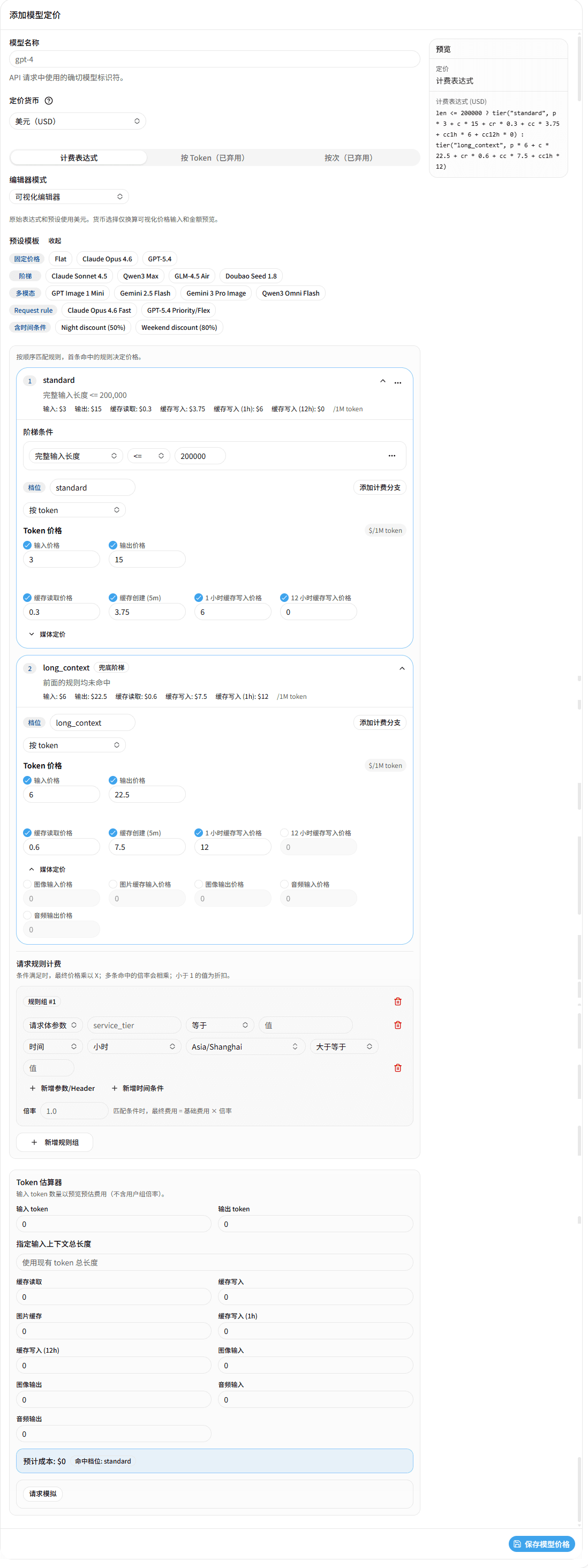
Request Rule Billing appears only in the visual editor. It applies a Ratio to the final price based on request parameters, request headers, or time conditions.
Steps
- Under Request Rule Billing at the bottom of the editing area, click Add Rule Group.
- In the rule group, click Add Parameter/Header or Add Time Condition to add a condition.
- Under Ratio, enter the Ratio to apply when the group matches.
Tip
- The note below Request Rule Billing reads “When the conditions are met, the final price is multiplied by X. Ratios from matching rules are multiplied together. Values below 1 apply a discount.”
- Every condition in a group must be met for that group to match. Ratios from all matching groups are multiplied together.
- If the rule is too complex, the editor displays “This expression is too complex for the visual editor. Switch to expression mode to edit it.”
Saved expression
- Rules are saved as multiplication factors appended to the base expression, in the form
(base expression) * (condition ? ratio : 1). Switch to the expression editor to see them. - A factor is recorded as a request rule in the usage log only if its condition references
param,header, or a time function, its match value is numeric, and its non-match value is1.
Configuration fields
| Field or action | Required input | Description |
|---|---|---|
| Request Body Parameter | Parameter path, comparison operator, and value | Reads a JSON path from the original request body sent by the client. For example, use service_tier to distinguish service tiers. Operators include Equals, Contains, Exists, Greater Than, Greater Than or Equal To, Less Than, and Less Than or Equal To. |
| Request Header | Header name, comparison operator, and value | Matches the request headers actually sent. Operators include Equals, Contains, and Exists. |
| Time | Time field, time zone, and comparison value or range | Specify a time zone such as Asia/Shanghai. Time fields include Hour, Minute, Day of Week, Month, and Day of Month. Operators include Equals, Greater Than or Equal To, Less Than, and Time Range. Ranges include the start and exclude the end. A start greater than the end indicates a range that crosses midnight, such as 21 to 6. |
| Ratio | Ratio to apply | Every condition in a group must be met for that group to match. Ratios from all matching groups are multiplied together. A value below 1 applies a discount. |
Caution
- Before applying a surcharge based on a request parameter such as
service_tier, verify that the Channel forwards the parameter to the upstream provider. - Channels remove
service_tierby default. Enable Allowservice_tierPassthrough in the Channel. Otherwise, the user pays the surcharge while the upstream provider may still charge for standard service.
Write expressions in the expression editor
Select Expression Editor under Editor Mode and enter the expression directly in the input field. The quick reference below the field lists the available variables and functions. For details on variables, functions, and syntax, see Rules and behavior.
You can use an LLM to help design billing expressions. LLM-Assisted Design Prompt appears only in Expression Editor mode. The built-in prompt is in English and automatically includes the current model name at the end.
You are an AI API billing expression design assistant. The user needs help designing a billing expression for an AI API gateway.

## Expression Language

Expressions are based on standard arithmetic with ternary operators.

### Token Variables

Input side:
- p — input token count (for pricing). Automatically excludes sub-categories priced separately (e.g., if cr is used, cache tokens are deducted from p)
- len — total input context length (for condition checks). Not affected by auto-exclusion; always reflects the full input length. Use in tier conditions
- cr — cache-hit (read) token count
- cc — cache-create token count (Claude 5-min TTL, OpenAI 30-min TTL)
- cc1h — cache-create token count (1-hour TTL, Claude-specific)
- cc12h — cache-create token count (12-hour TTL, OpenAI-specific)
- img — image input token count
- ai — audio input token count

Output side:
- c — output token count. Also auto-excludes sub-categories priced separately
- img_o — image output token count
- img_cr — image cache input tokens; deducted from img and cr only when the upstream reports a valid image cache breakdown
- ao — audio output token count

### p/c Auto-exclusion

p and c are fallback variables representing all tokens not separately priced in the expression. If the expression uses a sub-category variable (e.g., cr), those tokens are deducted from p to avoid double-billing. Unused sub-category tokens remain in p/c at base price.

Important: len is NOT affected by auto-exclusion. Tier conditions should use len instead of p to prevent cache hits from lowering p and misidentifying the tier.

### Built-in Functions

- tier(name, value) — labels the billing tier; must wrap the cost expression
- fixed(amount) — a finite non-negative USD price per request, used only as tier("name", fixed(0.01)); replaces token charges in that leaf. Other leaves may still use token prices. Group/request multipliers and existing tool surcharges still apply. Unsupported for task usage expressions and Realtime.
- max(a, b), min(a, b) — maximum/minimum
- ceil(x), floor(x), abs(x) — ceiling, floor, absolute value
- header(name) — reads a request header
- param(path) — reads a request body JSON path (gjson syntax)
- has(source, substr) — substring check
- hour(tz), minute(tz), weekday(tz), month(tz), day(tz) — time functions, tz is a timezone like "Asia/Shanghai"

### Price Coefficients

Numbers in the expression are $/1M tokens prices. For example, p * 2.5 means input $2.50/1M tokens.

## Expression Examples

Simple pricing:
tier("base", p * 2.5 + c * 15)

With cache:
tier("base", p * 2.5 + c * 15 + cr * 0.25)

Multi-tier (use len for conditions):
len <= 200000
  ? tier("standard", p * 3 + c * 15 + cr * 0.3 + cc * 3.75 + cc1h * 6)
  : tier("long_context", p * 6 + c * 22.5 + cr * 0.6 + cc * 7.5 + cc1h * 12)

Image model:
tier("base", p * 2 + c * 8 + img * 2.5)

Multimodal with audio:
tier("base", p * 0.43 + c * 3.06 + img * 0.78 + ai * 3.81 + ao * 15.11)

Three-tier example:
len <= 128000
  ? tier("standard", p * 1.1 + c * 4.4)
  : (len <= 1000000
    ? tier("medium", p * 2.2 + c * 8.8)
    : tier("long", p * 4.4 + c * 17.6))

## Rules

1. Every leaf branch must be wrapped in tier("name", cost_expr)
2. Use English tier names, e.g. "base", "standard", "long_context"
3. Use len for tier conditions (not p), supports <, <=, >, >=
4. Multi-tier uses nested ternary: cond1 ? tier(...) : (cond2 ? tier(...) : tier(...))
5. Price coefficients are the provider's official $/1M tokens prices
6. If cache/image/audio don't need separate pricing, omit those variables; their tokens are included in p/c automatically

Please generate a billing expression based on the model information and pricing requirements provided.

Current model: claude-opus-5-5
Steps for LLM-assisted design
- Select Expression Editor under Editor Mode, then click LLM-Assisted Design Prompt to expand and view the built-in prompt.
- Click Copy Prompt on the right side of the panel. If copying fails, select and copy the text manually.
- Open a tool such as ChatGPT or Claude and paste the prompt into the chat input. Keep the built-in syntax instructions so the model can generate an expression in the supported format.
- Append the model name, prices, pricing method, tier conditions, and Ratio rules. Specify the pricing units. If you are revising an existing expression, include it and identify the parts to change.
- Send the full prompt and ask the LLM for a ready-to-paste expression, an explanation of the rules, and test cases.
- Check the prices, variables, condition boundaries, and Ratios, then paste the expression itself into the input field.
- Enter usage in the Token Estimator and check the cost and matched tier. For request or time conditions, also use Request Simulation.
- If the result differs from what you expect, share the expression, error message or test inputs, actual result, and expected result with the LLM. Once the results match, save the expression. See Save model prices.
Tip
- Provide pricing information explicitly so the LLM has more than the model name to work from.
- If information is missing or ambiguous, ask the LLM to confirm the details before filling in prices or rules.
- Paste only the expression itself, omitting Markdown fences, explanations, and test data.
- Test just below, at, and just above each threshold, as well as cases with missing fields. Request simulation excludes Group Ratios.
- Copying the prompt or editing a simulation example leaves the pricing configuration in draft.
Estimate costs and simulate requests
The Token Estimator appears below the editing area. It contains a Request Simulation section that is collapsed by default. Both tools calculate results in the browser for preview purposes.
Steps
- Enter Input Tokens and Output Tokens in the Token Estimator. To test tier boundaries, enter Override Total Input Context Length.
- Check the Estimated Cost and Matched Tier.
- If the expression includes request rules, request conditions, or time conditions, click Request Simulation to expand it.
- Fill in Simulated Request Body and Simulated Request Headers, then choose a Simulation Time.
- Check the Simulated Request Cost, Matched Tier, and whether each rule matched.
Tip
- The estimator evaluates only the base expression, excluding request rules and Group Ratios. Request simulation includes request rules and excludes Group Ratios.
- Request simulation recalculates automatically when the input changes.
- For task model expressions, the estimator displays “This expression requires task usage data to estimate costs. Check the model's task plugin configuration.”
Results
| Result | Display |
|---|---|
| Estimated Cost | “Estimated Cost: …” with /request appended for per-request tiers. Excludes request rules and Group Ratios. |
| Simulated Request Cost | “Simulated Request Cost: …” with /request appended for per-request tiers. Includes request rules and excludes Group Ratios. |
| Matched Tier | “Matched Tier: …” shows the name of the pricing tier, such as base. |
| Rule Matches | Shows Matched or Unmatched and the Ratio for each rule. Appears only when the expression includes request rules. |
| Estimation Error | “Expression error: …” |
| Simulation Error | Displays the reason in red. Possible messages include “Invalid expression syntax,” “This expression cannot be simulated in the browser,” “Required simulation context is missing,” “Expression argument types do not match,” “Billing values must be finite and non-negative,” and “This expression exceeds the browser simulation limits.” |
Tip
- The simulation time sets the instant to evaluate. The time zone in the expression determines the corresponding hour, day of the week, and other time values.
- Browser evaluation supports only the operators in the Common syntax table,
%, parentheses, strings,true,false, andnil. - Expressions outside these limits display “This expression cannot be simulated in the browser.” Server-side saving and billing continue to work.
Configuration fields
| Field | Definition | Requirements and limits | Default |
|---|---|---|---|
| Input Tokens, Output Tokens | Usage for the estimate. | If the expression uses any cache, image, or audio variable, all nine additional fields appear together: Cache Read, Cache Write, Image Cache, Cache Write (1h), Cache Write (12h), Image Input, Image Output, Audio Input, and Audio Output. | 0 |
| Override Total Input Context Length | Corresponds to len and lets you test tier boundaries independently. | Leave blank to use the current total Token length. | Blank |
| Billable Image Count | Number of images to simulate. | Appears when the expression uses image_count. Accepts values from 1 to 128.The hint reads “Pre-deduction uses the requested count. Settlement uses the actual number returned.” | 1 |
| Simulated Request Body | Supplies request parameters to pricing rules. | Must be a JSON object, such as {"priority":true}. Use {} to simulate a request without those fields.The hint reads “The request body must be a JSON object.” | {} |
| Simulated Request Headers | Supplies test data for header-based pricing rules. | Enter one name and string value per row. You can add or delete rows, or switch to JSON mode and enter an object such as {"tier":"fast"}.The hint reads “Request headers must be a JSON object with string values.” | {} |
| Simulation Time | The instant used to evaluate pricing rules. | Select Current Time or Specified Time. A specified time must include a time zone, as in 2026-09-18T09:00:00+08:00. Z denotes UTC.The hint reads “Enter an ISO date and time with a time zone offset.” | Current Time |
Convert from a legacy mode
Steps
- Select Per Token (Deprecated) or Per Request (Deprecated) in the billing mode tabs.
- Click Convert to Billing Expression below the notice.
- Review both sides of the Pricing Migration Preview, then click Apply to Draft.
- Click Save Model Prices. See Save model prices.
Tip
- The legacy mode tab displays “Legacy pricing modes are deprecated. Convert the current price to a billing expression draft, then save it to apply the change.”
- If a billing expression draft already exists, the button is disabled and the panel displays “A billing expression draft already exists. Open the Billing Expression tab to continue editing.”
- If conversion is unavailable, the panel displays the reason. See the conversion rules below.
Conversion rules
- Per Token mode generates
tier("base", p * … + c * … …). The base input unit price is the model Ratio × 2, in USD per million Tokens at the default Quota per USD. The configured completion, cache, and image Ratios determine the corresponding terms. - Per Request mode generates
tier("request", fixed(price)). - Per-image pricing generates
tier("image", fixed(price)) * image_countand carries over the existing size and quality Ratios. - Automatic conversion is unavailable for task plugin models, video, Realtime, OpenRouter Claude pricing that infers cache writes from upstream costs, models with different audio prices on the Gemini and OpenAI interfaces, models without a configured input price, models whose routing cannot be verified, and models already using a billing expression.
- Conversion retains the legacy price fields, so you can switch back to the old mode.
- After conversion, pre-deduction and rounding follow billing expression rules. The effective unit price stays the same, though individual charges may differ slightly after rounding.
Set task model prices
For models provided by task plugins, such as video or asynchronous image models, an extra row of provider tabs appears at the top of the editor. It includes Default Price, Regular Price when the model is priced by task usage, and a tab for each plugin.
Steps
- Open the model's pricing editor and set the model-level expression or price in the Default Price tab.
- To set a separate price for a plugin, open its tab.
- Enable Set a Separate Price for This Provider and configure the plugin's price.
- Click Save Model Prices. See Save model prices.
Tip
- When Set a Separate Price for This Provider is off, the plugin inherits the model-level expression or price.
- If a plugin cannot evaluate the model-level expression, the Default Price tab displays “The following providers cannot evaluate the model-level expression: …” Click a plugin name to open its tab.
- The Regular Price tab displays “Set a separate regular price and keep existing plugin prices. Changes take effect after saving.” Click Configure Regular Price to set the price for regular requests.
- If a plugin no longer provides the model, its tab displays “This provider currently does not provide this model.”
- If the plugin has a saved price, click Delete Saved Price to remove it.
- For task expression syntax, inheritance rules, and the Pricing Pending status, see Task models.
Save model prices
Editor changes remain in the draft until you click Save Model Prices. The save flow depends on where you opened the editor.
Save from Billing & Payments
- Under Billing & Payments → Model Pricing → Model Prices, click Save Model Prices.
- In Confirm Price Changes, review the Current Price and Price After Saving for each model.
- Click Confirm Save to submit the entire batch.
Save from the Models page
- In the model's Pricing tab, click Save Model Prices to save that model directly.
Tip
- Below the Confirm Price Changes heading, the dialog displays “New prices apply to billing immediately after saving. … models have changed.”
- On success, the editor displays “Model pricing saved.”
- If there are no changes in Billing & Payments, the editor displays “No model price changes to save.”
- If server-side validation fails, the editor rejects the save. See Validation on save for the rules and FAQ for the exact error messages.
- For a screenshot of the confirmation dialog and the draft indicators in the price list, see Billing & Payments Configuration.
Rules and behavior
This section covers expression units and Quota conversion, usage variables, functions and syntax, pre-deduction, settlement, logs, task model pricing, and validation on save.
Units and Quota conversion
Price coefficients in expressions are denominated in USD. The system converts the result to Quota using the rules below.
Conversion rules
- Units. Token coefficients are in USD per million Tokens.
p * 2.5means $2.50 per million input Tokens, andfixed(0.01)means $0.01 per request. - Conversion. Quota equals the expression result ÷ 1,000,000 × Quota per USD (500,000 by default) × Group Ratio, rounded to the nearest integer.
- Version prefix. An expression can start with
v1:. Expressions without a prefix use v1.
Conversion examples
- For
tier("base", p * 2 + c * 8)with 1,000 input Tokens, 500 output Tokens, and a Group Ratio of 1, the result is 6,000, or $0.006. At the default Quota per USD, the charge is 3,000 Quota. - The system also multiplies the
fixed()amount by 1,000,000 internally before including it in the result. Under the same conditions,fixed(0.01)charges 5,000 Quota per request.
Usage variables
Variables
| Variable | Name | Definition |
|---|---|---|
len | Full Input Context Length | Used to select a tier by length, independently of the automatic deductions below. For non-Claude formats, it equals the total input Tokens reported by the upstream provider. For the Claude format, it equals the sum of text input, cache read, and cache creation Tokens. |
p | Base Input Tokens | Usage billed at the base input price. Cache, image, and audio input priced separately in the expression is automatically deducted from p. Other input usage remains in p. |
c | Base Output Tokens | Usage billed at the base output price. When the expression prices img_o or ao separately, that usage is automatically deducted from c. |
cr | Cache Read Tokens | Input usage that hits and reuses an existing prompt cache. |
cc | Cache Creation Tokens | Claude's 5-minute cache writes, OpenAI's 30-minute cache writes, or generic cache writes from other upstream providers. |
cc1h | 1-Hour Cache Creation Tokens | Claude's 1-hour cache creation usage. 1h is the cache lifetime. |
cc12h | 12-Hour Cache Creation Tokens | OpenAI's 12-hour cache write usage. |
img | Image Input Tokens | Token usage associated with input images. |
img_cr | Image Cache Read Tokens | Image input usage served from cache. The system separates this usage only when the expression references img_cr and the upstream provider supplies a valid image cache breakdown. Otherwise, the value is 0. |
img_o | Image Output Tokens | Output Token usage associated with model-generated images. |
ai | Audio Input Tokens | Token usage associated with input audio. |
ao | Audio Output Tokens | Output Token usage associated with model-generated audio. |
image_count | Billable Image Count | Number of images billed individually. Accepts an integer from 1 to 128 and defaults to 1 if omitted. It can multiply a fixed() tier. Pre-deduction uses the requested count, and settlement uses the actual number returned. |
Deduction rules
- Suppose the upstream provider reports 1,000 input Tokens, including 200 cache read Tokens and 100 image Tokens. In
p * 3 + c * 15,p = 1000. Inp * 3 + c * 15 + cr * 0.3,p = 800. Addingimg * 2reducespto 700. - These automatic deductions apply only to non-Claude formats such as OpenAI. Input Tokens reported in the Claude format already exclude cache usage, so cache reads and writes without separate prices are added to the input count. If deductions bring
porcbelow 0, that variable is set to 0. - When long-lived cache writes lack separate prices,
cc1his billed at 1.6 times theccprice andcc12hat twice theccprice. Ifccalso lacks a separate price, the same factors apply to thepprice.
Functions
Pricing and numeric functions
| Function | Parameters | Behavior and return value | Example |
|---|---|---|---|
tier(name, value) | name is the tier name string. value is the pricing expression. | Returns the pricing result and records the matched tier name. | tier("base", p * 2 + c * 8) |
fixed(amount) | amount is a finite, non-negative numeric literal in USD per request. | Sets the base per-request price. Place it directly in the second argument of tier(). The tier can be multiplied by image_count or a request rule Ratio. Adding a fixed tier to Token charges or summing multiple tier() calls is invalid. These rules also apply to branches that can never match. Realtime requests and task usage expressions exclude fixed(). Group Ratios, request rule Ratios, and tool call surcharges still apply. | tier("request", fixed(0.01)), tier("image", fixed(0.04)) * image_count |
max(a, b) | Two numeric values. | Returns the larger value. Use it to set a lower bound. | max(p * 2 + c * 8, 1000) sets a minimum charge of $0.001 for the Token expression. |
min(a, b) | Two numeric values. | Returns the smaller value. Use it to cap a value. | min(p, 100000) caps input usage at 100,000. |
ceil(x) | One numeric value. | Rounds up to the next integer if needed. | ceil(1.2) returns 2. |
floor(x) | One numeric value. | Rounds down to the previous integer if needed. | floor(1.8) returns 1. |
abs(x) | One numeric value. | Returns the absolute value. | abs(-2) returns 2. |
Request functions, usage functions, and reserved names
| Function | Parameters | Behavior and return value | Example |
|---|---|---|---|
header(name) | name is the request header name string. | Reads a header sent by the client and returns its value as a string. Names are case-insensitive. Leading and trailing whitespace is trimmed from names and values. Missing headers return an empty string, and headers with empty values are treated as missing. If a name occurs more than once, the function uses only the first value. | header("service-tier") == "priority" |
param(path) | path is the request body field path string. | Returns the field value with its original type, such as string, number, or boolean. Missing fields return nil. Supports dot-separated paths for nested fields. Reads only the original client request body with a JSON Content-Type. For image generation requests with expressions that use image_count, only model, n, size, quality, and parameters are available. | param("service_tier") == "priority", param("stream_options.fast_mode") == true |
has(source, text) | source is the value to check. text is the substring to find. | Converts a non-nil source to text and performs a case-sensitive substring check. Returns false if the source is nil or the search text is empty. | has(header("anthropic-beta"), "fast-mode") |
u(key) | key is the name of a usage field declared by the task plugin. | Reads usage reported by a task plugin and is available only for task models. Using u() in an expression for a regular model causes validation to fail on save. See Task models. | u("seconds") * 0.4 |
_trace, _trace_int | — | Reserved for internal use and unavailable in expressions. | — |
Time functions
| Function | Return value | Example |
|---|---|---|
hour(tz) | Hour, 0–23. | hour("Asia/Shanghai") >= 21 matches 21:00 or later local time. |
minute(tz) | Minute, 0–59. | minute("UTC") < 30 matches the first 30 minutes of the current hour. |
weekday(tz) | Day of the week, 0–6, where 0 is Sunday and 6 is Saturday. | weekday("Asia/Shanghai") == 0 matches Sundays. |
month(tz) | Month, 1–12. | month("Asia/Shanghai") == 12 matches December. |
day(tz) | Day of the month, 1–31. | day("Asia/Shanghai") == 1 matches the first day of each month. |
Tip
- Use an IANA time zone name such as
Asia/ShanghaiorUTC. The visual editor flags invalid time zones in tier conditions. In the expression editor, a misspelled or blank time zone silently defaults to UTC in both server-side evaluation and browser simulation. - Pre-deduction and settlement each evaluate the expression at their respective times. If a request crosses a time boundary, the time window at settlement, when the request ends, determines the final charge.
Common syntax
Operators and literals
| Syntax | Meaning | Example |
|---|---|---|
+, -, *, / | Addition, subtraction, multiplication, and division. | p * 2 + c * 8 |
>, >=, <, <= | Numeric comparisons that return a boolean. | len <= 200000 |
==, != | Equality and inequality. | param("priority") == true |
&& | Logical AND. Both conditions must be true. | len < 32000 && c < 200 |
|| | Logical OR. At least one condition must be true. | hour("UTC") >= 21 || hour("UTC") < 6 |
! | Logical negation. | !(param("priority") == true) |
condition ? A : B | Evaluates A if the condition is true, or B otherwise. | len <= 200000 ? tier("short", p * 2) : tier("long", p * 4) |
(...) | Groups terms to control evaluation order. | (base expression) * (condition ? 2 : 1) illustrates the structure. Replace the placeholders with an expression and a condition. |
"text", true, false, nil | String, boolean, and null values. | true is a boolean, while "true" is a string. |
Pre-deduction, settlement, and logs
Before sending a request, the system pre-deducts Quota based on estimated usage. After the upstream provider responds, it settles the charge based on actual usage and records the billing details in the usage log.
Processing rules
- Pre-deduction. Before sending the request, the system uses locally estimated input Tokens for both
pandlenand setscand all other usage variables to 0. - Pre-deduction Ratio. The Input Pre-deduction Ratio applies only to Token-priced tiers. The Group Ratio is applied last. See Quota Settings.
- Conditions during pre-deduction. Branch conditions that reference
care always evaluated withc = 0during pre-deduction. - Negative pre-deduction. The system rejects the request if the pre-deduction result is below 0.
- Settlement. After the upstream response arrives, the system evaluates the expression again using actual usage and refunds or charges the difference. If evaluation fails at settlement, the system settles at the pre-deducted amount.
- Logs. The usage log records the matched tier (
matched_tier), billing unit (billing_unit), per-request price (fixed_price), image count (image_count), request rules and whether each matched (request_rules), and the full base64-encoded expression (expr_b64). Users can see these fields in their own log details, so keep expression content suitable for users to read.
Task models
Models provided by task plugins are priced using the usage reported by the plugin. For editor steps, see Set task model prices.
Pricing rules
- Task expressions use
u("field")to read usage reported by the plugin, such as seconds or image count. The result is already in USD and requires no division by 1,000,000. fixed()is unavailable in task expressions.- Task expressions cannot read chat request quantities such as Token counts or
image_count. Attempting to save such an expression displaystask usage expressions cannot read chat request quantities …in English. - When a plugin also forwards regular requests for the same model, the model-level price applies to regular requests.
- In that case, tasks inherit the model-level price only if it is a legacy Per Request (Deprecated) price or an expression containing
u(). Otherwise, set a separate price in that plugin's tab. - If a separate price is required and missing, submitting a task displays “Model … has no task price for plugin …. Set a separate price for this plugin in model pricing.”
- For plugin usage fields, plugin-level price overrides, and validation on save, see Usage and Billing.
Pricing Pending
- If a task model cannot be billed, Pricing Pending appears next to its name in the model price list. The reason is one of “No price has been set,” “The price uses a usage field that the plugin no longer provides,” or “The plugin no longer provides this model.”
- For resolution steps, see Billing & Payments Configuration.
Validation on save
When you save, the server validates each model's expression. If any expression fails validation, the server rejects the entire batch.
Validation rules
- Expressions must compile.
u()is available only for task models. - The server then evaluates seven fixed usage vectors, including an all-zero vector and one with a very large
len. It tests each vector with two request contexts. One is an empty request. The other includes theanthropic-beta: fast-mode-2026-02-01header and a body withservice_tier: fast. - Every test result must be finite and non-negative.
- These tests leave branches triggered by other request parameters, request headers, or time conditions unchecked.
- For validation error messages, see FAQ.
Saving and applying changes
Editor changes remain in the draft until you click Save Model Prices. For the workflow, see Save model prices. For how system settings are saved, see System Settings Overview. Model prices are stored as system settings and take effect as follows.
| Where | When changes take effect |
|---|---|
| Node handling the save request | Uses the new prices for pre-deduction and settlement starting with the next request. |
| Other nodes | Use the new prices after system settings synchronize, typically within about 3 seconds and at most within one synchronization cycle, which defaults to 60 seconds. Until synchronization completes, they use the previous prices. See Scope and Multi-Instance Synchronization. |
| Requests with completed pre-deduction | Settle using the expression in effect at pre-deduction. |
| Asynchronous tasks already submitted | Continue using the expression in effect at submission. |
| Model Marketplace | The node handling the save request updates prices immediately. Other nodes update after system settings synchronize, typically within about 3 seconds. Users with the Model Marketplace already open see the new prices after refreshing the page. |
Additional details
- Invalid drafts. If the visual editor contains invalid fields, saving is disabled and the editor displays “Correct the invalid fields before saving or switching modes. The last valid expression has been retained.”
- Batch saves. When several models are submitted at once, a validation failure for any model rejects the entire batch and leaves existing prices in effect. See Validation on save.
- Version conflicts. If someone changes the pricing after you open the page, the server rejects your save. Click Reload Pricing, then make your changes again.
Important notes
- Validation tests cover only some branches. Branches triggered by other request parameters, request headers, or time conditions are outside the test set. Ensure each branch produces a non-negative result. See Validation on save.
- Restore Default Pricing clears custom prices. Running this action in the model's Pricing tab removes its custom prices, including billing expressions, and restores the built-in defaults. Models without a default price become unpriced. See Model Management.
- Billing fields are visible to users. The full expression and other billing fields appear in users' own log details. See Pre-deduction, settlement, and logs.
- Request parameter surcharges require Channel forwarding. Channels remove
service_tierby default. See Configure request rules.
FAQ
Related documentation
- Model price setup and saving, input pre-deduction Ratio, Group Ratios, and tool prices. Billing & Payments Configuration
- Opening Pricing from the model list. Model Management
- Task plugins and task models. Plugin Management
- Plugin usage fields,
u()task expressions, and plugin-level price overrides. Usage and Billing - Viewing the matched tier and request rules in the usage log. Usage Logs
- How model prices are saved and how version conflicts are handled. System Settings Overview
How is this guide?
Last updated on
Frequently Asked Questions
Find causes and solutions for issues that span multiple pages, including request failures, quota and charges, accounts and sign-in, and interface and display issues. Look up an issue by the exact message or by what you observe.
Channel Management
Configure channels for AI service providers, plugins, gateways, and custom routing. Manage credentials, models, groups, and routing policies.