# Quick Start
import { BookOpen, Bot, Boxes, Code2, Container, Handshake, Headphones, KeyRound, Network, Puzzle } from 'lucide-react';
New API is an open-source AI gateway and model API management system. Follow these steps to go from deployment to application integration.
## Start using New API
## Choose a deployment method
Need a management panel, cluster, or local development environment? See [all deployment methods](/en/docs/installation).
## Explore the documentation
Explore the project and ecosystem on the [New API official website (newapi.ai)](https://www.newapi.ai/) or [New API official website (newapi.pro)](https://www.newapi.pro/).
# API Reference
import { Card, Cards } from 'fumadocs-ui/components/card';
import {
List,
MessageSquare,
FileText,
Database,
Search,
ShieldCheck,
Headphones,
Radio,
Image,
Video,
FileQuestion,
Server,
SlidersHorizontal,
UserCheck,
Users,
KeyRound,
Link2,
Network,
Blocks,
Key,
Ticket,
CreditCard,
ScrollText,
ChartBar,
ListTodo,
FolderKanban,
Store,
ShieldAlert,
} from 'lucide-react';
## Overview
New API provides a complete set of RESTful API interfaces, categorized into **AI Model APIs** and **Management APIs**. You can use these interfaces to invoke AI capabilities and perform system management functions.
You can visit the [Apifox Playground](https://apifox.newapi.ai/) to test and debug API interfaces online, or browse the API documentation below.
## AI Model APIs
AI Model APIs provide access to various AI capabilities and are compatible with the OpenAI API format.
## Management APIs
Management APIs are used for backend operations such as system configuration, user management, and business management.
# Business Collaboration
## 💡 Our Original Intention
The original intention behind New API's creation is simple: **to make AI accessible to more people and lower the barrier to entry for AI**.
We believe that AI should not be a privilege for a few, but a tool accessible to everyone. Whether you are an independent developer, a startup team, or a large enterprise, you should be able to reduce internal access and management complexity under the premise of legal authorization and compliant deployment.
## 🤝 About Commercialization
Our choice to commercialize is not to maximize profit, but to enable the project to **develop healthily and sustainably**.
Servers incur costs, maintenance requires effort, and ecosystem development needs resources—moderate commercialization is a necessary guarantee for New API to continue serving the community. We pledge to invest profits back into product iteration, community building, and ecosystem expansion, ensuring that every bit of support translates into better services.
## 📜 Gentleman's Agreement
The New API community has always upheld the concept of a **Gentleman's Agreement**:
* We trust every user and provide flexible and open ways of use.
* We do not impose cumbersome restrictions, trusting that everyone will use resources responsibly.
* We expect users, while benefiting, to also respect the sustainable development of the project.
* If your project benefits from New API, we welcome contributions back to the community in any form.
This is an agreement based on trust and respect, and a continuation of the open-source spirit.
## 📬 Contact Information
[newapi@quantumnous.com](mailto:newapi@quantumnous.com)
Email replies are generally within 2-3 business days.
New API is committed to providing developers and enterprises with a unified API gateway and usage management capabilities under legally authorized scenarios. If you wish to engage in in-depth collaboration with us at the product or technical level, we sincerely welcome your inquiry! Collaboration should be based on legal authorization, compliant deployment, and legitimate business scenarios, and adhere to upstream service terms, platform rules, and regulatory requirements. Clients must legally obtain upstream authorization and bear responsibility for their service qualifications, compliant operations, content security, and user management.
# AionUi - Free Open-Source Desktop Office Agent
🚀 AionUi is a free, local, open-source Cowork, supporting various AI agents such as Gemini CLI, Claude Code, Codex, OpenCode, Qwen Code, Goose CLI, Auggie. It provides a complete GUI interface and WebUI remote access functionality, serving as an open-source alternative to Cowork.
* Official Website: [https://www.aionui.com](https://www.aionui.com)
* GitHub Repository: [https://github.com/iOfficeAI/AionUi](https://github.com/iOfficeAI/AionUi)
* Download Link: [https://github.com/iOfficeAI/AionUi/releases](https://github.com/iOfficeAI/AionUi/releases)
/v1`)
Please use your self-deployed New API, or ensure that the service provider offers New API services with legitimate upstream authorization and compliance obligations. Do not connect API addresses or keys from unknown sources to a production environment.
### Configuration Steps
1. **Copy API key in NewAPI**
/v1`)
* API Key: Paste the API Key copied from the NewAPI console
5. **Add Model**
* Select the model to add from the dropdown
* The model name should match the model name configured in NewAPI
* Select the appropriate request protocol
6. **Start Using**
* Return to the chat page
* Select the configured NewAPI model to start a conversation
## Related Links
* [GitHub Repository](https://github.com/iOfficeAI/AionUi)
* [Complete Usage Guide](https://github.com/iOfficeAI/AionUi#-detailed-usage-guide)
* [FAQ Frequently Asked Questions](https://github.com/iOfficeAI/AionUi#-support--help)
# AQBot - Local-First Desktop AI Workbench
In the New API console, go to System Settings -> Chat Settings and add the
following shortcut option. It lets users fill AQBot from the token
management page with one click:
```json
{ "AQBot": "aqbot://providers?name=New%20API&baseurl={address}&apikey={key}&type=openai" }
```
AQBot is a local-first, open-source desktop AI workbench (AGPL-3.0). It
unifies multi-provider chat, ACP agents, knowledge bases, MCP tools, and a
local API gateway, while keeping app data and user files on the machine.
AstrBot is an open-source, all-in-one Agent chatbot platform that seamlessly integrates large language model capabilities into mainstream instant messaging software such as QQ, Feishu, DingTalk, and WeChat Work, creating a reliable and scalable conversational AI infrastructure for individuals, developers, and teams. Whether it's a personal AI companion, intelligent customer service, automation assistant, or enterprise knowledge base, AstrBot can quickly build production-ready AI applications within your instant messaging platform's workflow.
* Official Website: [https://astrbot.app](https://astrbot.app)
* Official Documentation: [https://docs.astrbot.app](https://docs.astrbot.app)
* Project Homepage: [https://github.com/astrbotdevs/astrbot](https://github.com/astrbotdevs/astrbot)
## NewAPI Integration Method
AstrBot supports integrating NewAPI as a model provider, allowing users to access and utilize various AI model services through NewAPI.
### Configuration Steps
#### Obtain NewAPI API Key
After registering and logging into NewAPI, click 'Console' in the top navigation bar, then click 'Token Management', and then click the 'Add Token' button to create a new API Key. Select the appropriate permissions and click 'Create'.
In the New API console under System Settings -> Chat Settings, you can add the following shortcut to enable one-click fill for CC Switch from the token management page:
```json
{ "CC Switch": "ccswitch" }
```
🔀 CC Switch is an open-source, cross-platform all-in-one AI CLI management tool. It supports
one-click provider switching for Claude Code, Codex and Gemini CLI, unified MCP server management,
system prompts management, and Skills extension management — letting you freely switch between
multiple AI coding assistants without manually editing config files.
* GitHub Repository: [https://github.com/farion1231/cc-switch](https://github.com/farion1231/cc-switch)
* Download: [GitHub Releases](https://github.com/farion1231/cc-switch/releases)
## Key Features
### 🔌 Provider Management
* **One-click switching** — Switch between Claude Code, Codex, and Gemini API configs instantly, no manual env vars or config file editing
* **Multi-endpoint support** — Configure multiple endpoints per provider with API key management and latency speed tests
* **4-tier model config** — Granular model selection across Haiku / Sonnet / Opus / Custom tiers
### 🛠️ MCP Server Management
* **Unified cross-app management** — Manage MCP servers for Claude / Codex / Gemini from a single panel
* **Three transport types** — Supports stdio, HTTP, and SSE (Server-Sent Events)
* **Auto sync** — Unified import/export with bidirectional synchronization
### 💬 Prompts Management
* **Multi-preset system prompts** — Unlimited presets with quick switching
* **Cross-app support** — Claude (`CLAUDE.md`), Codex (`AGENTS.md`), Gemini (`GEMINI.md`)
* **Markdown editor** — CodeMirror 6 with live preview
### 🌐 Multi-platform Support
* **Desktop app** — Native installers for Windows, macOS, and Linux
* **Web version** — Browser-accessible interface for headless servers / SSH environments
* **CLI version** — Both interactive menu-driven and command-line modes
## NewAPI Integration
CC Switch supports the `ccswitch://` Deep Link protocol, allowing one-click provider config import from the New API token management page.
### Configuration Steps
1. **On the New API token management page, click the dropdown menu for the corresponding token**
Select the **CC Switch** option from the menu. The system will automatically launch CC Switch and open the configuration dialog.
2. **Complete the configuration in the dialog**
In the New API
console's System Settings -> Chat Settings, you can add the following quick options for one-click filling into
Cherry Studio on the token management page:
```json
{ "Cherry Studio": "cherrystudio://providers/api-keys?v=1&data={cherryConfig}" }
```
🍒 Cherry Studio is a powerful desktop AI client designed for professional users, integrating 30+
industry-specific intelligent assistants to meet the needs of various work scenarios and significantly improve work efficiency.
* Official Website: [https://cherry-ai.com](https://cherry-ai.com/)
* Download Link: [https://cherry-ai.com/download](https://cherry-ai.com/download)
* Official Documentation: [https://docs.cherry-ai.com](https://docs.cherry-ai.com)
## NewAPI Integration Method
### Parameter Configuration
Provider Type: Types supported by NewAPI
API Key: Obtained from NewAPI
API Address: NewAPI Site Address
Please use your self-deployed New API, or ensure that the service provider has a New API service with legal upstream authorization and compliance obligations. Do not integrate API addresses or keys from unknown sources into a production environment.
### Graphical Guide
1. Copy API key in NewAPI
Unleash Claude's raw power directly in your terminal. Search million-line codebases instantly. Turn hours-long workflows into a single command. Your tools. Your workflow. Your codebase, evolving at thought speed.
* Official Homepage: [https://www.anthropic.com/claude-code](https://www.anthropic.com/claude-code)
## Demo
* Open your browser and visit [https://nodejs.org/](https://nodejs.org/)
* Click the "LTS" version to download (Long Term Support version recommended)
* After downloading, double-click the .msi file
* Follow the installation wizard to complete the installation, keeping default settings
* It is recommended to use PowerShell instead of CMD
* If you encounter permission issues, try running as administrator
* Some antivirus software may report false positives; you may need to add an exception
After installation, open PowerShell or CMD and enter the following commands:
```bash
node --version
npm --version
```
If version numbers are displayed, the installation was successful.
#### 2. Install Git Bash
In a Windows environment, Git Bash is required to install Claude Code. After installation, environment variable setup and using Claude Code will still be done in regular PowerShell or CMD.
* Visit [https://git-scm.com/downloads/win](https://git-scm.com/downloads/win)
* Click "Download for Windows" to download the installer
* Run the downloaded .exe installation file
* Keep default settings during installation, and click "Next" to complete the installation
After installation, open Git Bash and enter the following command to verify:
```bash
git --version
```
If a version number is displayed, the installation was successful.
#### 3. Install Claude Code
Open PowerShell and run the following command:
```bash
npm install -g @anthropic-ai/claude-code
```
This command will download and install the latest version of Claude Code from the official npm repository.
```powershell
[Environment]::SetEnvironmentVariable('Path', ([Environment]::GetEnvironmentVariable('Path','User') + ";$HOME\.local\bin"), 'User')
```
After installation, enter the following command to check if it was successfully installed:
```bash
claude --version
```
If a version number is displayed, congratulations! Claude Code has been successfully installed.
#### 4. Set Environment Variables
To allow Claude Code to connect to your relay service, you need to set multiple environment variables:
```powershell
iex (irm 'https://raw.githubusercontent.com/QuantumNous/new-api-docs/refs/heads/main/helper/claude-cli-setup.ps1')
```
Open PowerShell and launch Claude Code directly:
```bash
claude
```
To use in a specific project:
```bash
# Navigate to your project directory
cd C:\path\to\your\project
# Launch Claude Code
claude
```
Enter the command:
```bash
/model
```
Press Enter to select a model; usually, the default settings are sufficient.
Open Terminal and run the following command:
```bash
curl -fsSL https://claude.ai/install.sh | bash
```
Optional: Run the provided command when prompted
```bash
echo 'export PATH="$HOME/.local/bin:$PATH"' >> ~/.bashrc && source ~/.bashrc
```
Enter the command:
```bash
curl -fsSL https://raw.githubusercontent.com/QuantumNous/new-api-docs/refs/heads/main/helper/claude-cli-setup.sh | bash
```
After installation, enter the following command to check if it was successfully installed:
```bash
claude --version
```
If a version number is displayed, congratulations! Claude Code has been successfully installed.
#### 3. Start Using Claude Code
You can now start using Claude Code!
Launch Claude Code directly:
```bash
claude
```
To use in a specific project:
```bash
# Navigate to your project directory
cd /path/to/your/project
# Launch Claude Code
claude
```
Enter the command:
```bash
/model
```
Press Enter to select an official model; usually, the default model is sufficient.
If the system prevents Claude Code from running:
* Open "System Preferences" → "Security & Privacy"
* Click "Open Anyway" or "Allow"
* Or run in Terminal: `sudo spctl --master-disable`
### Linux Graphical Guide
#### 1. Install Claude Code
Open Terminal and run the following command:
```bash
curl -fsSL https://claude.ai/install.sh | bash
```
If you encounter permission issues, you can use sudo:
```bash
sudo curl -fsSL https://claude.ai/install.sh | bash
```
After installation, enter the following command to check if it was successfully installed:
```bash
claude --version
```
If a version number is displayed, congratulations! Claude Code has been successfully installed.
#### 2. Set Environment Variables
To allow Claude Code to connect to your relay service, you need to set two environment variables:
Enter the command:
```bash
curl -fsSL https://raw.githubusercontent.com/QuantumNous/new-api-docs/refs/heads/main/helper/claude-cli-setup.sh | bash
```
Launch Claude Code directly:
```bash
claude
```
To use in a specific project:
```bash
# Navigate to your project directory
cd /path/to/your/project
# Launch Claude Code
claude
```
Enter the command:
```bash
/model
```
Press Enter to select an official model; usually, the default model is sufficient.
Some Linux distributions require additional dependencies to be installed:
```bash
# Ubuntu/Debian
sudo apt install build-essential
# CentOS/RHEL
sudo dnf groupinstall "Development Tools"
```
Check the following points:
* Confirm that you modified the correct configuration file (`.bashrc` or `.zshrc`)
* Restart the terminal or run `source ~/.bashrc`
* Verify settings: `echo $ANTHROPIC_BASE_URL`
# OpenAI Codex CLI
Codex CLI is a coding agent from OpenAI that runs locally on your computer.
* Official Homepage: [https://chatgpt.com/codex](https://chatgpt.com/codex)
* Project Homepage: [https://github.com/openai/codex](https://github.com/openai/codex)
## Demo
Codex CLI is a coding agent from OpenAI that runs locally on your computer.
* Official Homepage: [https://chatgpt.com/codex](https://chatgpt.com/codex)
* Project Homepage: [https://github.com/openai/codex](https://github.com/openai/codex)
## Demo
```powershell
wsl --install
```
Restart your Windows computer after installation.
* It is recommended to use PowerShell instead of CMD.
* If you encounter permission issues, try running as administrator.
* Some antivirus software may report false positives; you need to add an exception.
```bash
curl -o- https://raw.githubusercontent.com/nvm-sh/nvm/master/install.sh | bash
```
Open a new PowerShell window in the tab bar and open WSL:
```bash
wsl
```
Install Node.js (version numbers are time-sensitive; please install the corresponding version according to the [OpenAI official website](https://developers.openai.com/codex/windows) requirements):
```bash
nvm install 22
```
```bash
npm i -g @openai/codex
```
This command will download and install the latest version of Codex CLI from the official npm repository.
```powershell
iex (irm 'https://raw.githubusercontent.com/QuantumNous/new-api-docs/refs/heads/main/helper/codex-cli-setup.ps1')
```
Launch WSL2:
```bash
wsl
```
Launch Codex CLI directly:
```bash
codex
```
Use in a specific project:
```bash
cd mnt/c/path/to/your/project
codex
```
Press Enter to launch Codex CLI.
```bash
/model
```
```bash
/bin/bash -c "$(curl -fsSL https://raw.githubusercontent.com/Homebrew/install/HEAD/install.sh)"
```
Update Homebrew:
```bash
brew update
```
Install Node.js:
```bash
brew install node
```
* If you encounter permission issues, you might need to use `sudo`.
* The first run may require permission in System Preferences.
* It is recommended to use Terminal or iTerm2.
After installation, open the terminal and enter the following commands:
```bash
node --version
npm --version
```
If version numbers are displayed, the installation was successful.
#### 3. Install Codex CLI
Open the terminal and run the following command:
```bash
# Install Codex CLI globally
npm install -g @openai/codex
```
If you encounter permission issues, you can use sudo:
```bash
sudo npm install -g @openai/codex
```
After installation, enter the following command to check if the installation was successful:
```bash
codex --version
```
If a version number is displayed, congratulations! Codex CLI has been successfully installed.
#### 4. Modify Configuration File
```bash
curl -fsSL https://raw.githubusercontent.com/QuantumNous/new-api-docs/refs/heads/main/helper/codex-cli-setup.sh | bash
```
Launch Codex CLI directly:
```bash
codex
```
Use in a specific project:
```bash
cd /path/to/your/project
codex
```
Press Enter to launch Codex CLI.
Try the following solutions:
* Install with `sudo`: `sudo npm install -g @openai/codex`
* Or configure `npm` to use the user directory: `npm config set prefix ~/.npm-global`
If the system prevents Codex CLI from running:
* Open "System Preferences" → "Security & Privacy"
* Click "Open Anyway" or "Allow"
* Or run in Terminal: `sudo spctl --master-disable`
### Linux Graphical Guide
#### 1. Install Node.js Environment
Codex CLI requires a Node.js environment to run.
Add NodeSource repository:
```bash
sudo curl -fsSL https://deb.nodesource.com/setup_lts.x | sudo -E bash -
```
Install Node.js:
```bash
sudo apt-get install -y nodejs
```
* Some distributions may require additional dependencies.
* If you encounter permission issues, use sudo.
* Ensure your user has write permissions in npm's global directory.
After installation, open the terminal and enter the following commands:
```bash
node --version
npm --version
```
If version numbers are displayed, the installation was successful.
#### 2. Install Codex CLI
Open the terminal and run the following command:
```bash
# Install Codex CLI globally
npm install -g @openai/codex
```
If you encounter permission issues, you can use sudo:
```bash
sudo npm install -g @openai/codex
```
After installation, enter the following command to check if the installation was successful:
```bash
codex --version
```
If a version number is displayed, congratulations! Codex CLI has been successfully installed.
#### 3. Modify Configuration File
```bash
curl -fsSL https://raw.githubusercontent.com/QuantumNous/new-api-docs/refs/heads/main/helper/codex-cli-setup.sh | bash
```
Launch Codex CLI directly:
```bash
codex
```
Use in a specific project:
```bash
# Enter your project directory
cd /path/to/your/project
# Launch Codex CLI
codex
```
Press Enter to launch Codex CLI.
Try the following solutions:
* Install with `sudo`: `sudo npm install -g @openai/codex`
* Or configure `npm` to use the user directory: `npm config set prefix ~/.npm-global`
* Then add to PATH: `export PATH=~/.npm-global/bin:$PATH`
Some Linux distributions require additional dependencies:
```bash
# Ubuntu/Debian
sudo apt install build-essential
```
```bash
# CentOS/RHEL
sudo dnf groupinstall "Development Tools"
```
# DeepChat - Commercial-Friendly Full-Featured AI Agent Client
In the New API console, go to System Settings -> Chat Settings and add the
following shortcut option. It lets users fill DeepChat from the token
management page with one click:
```json
{ "DeepChat": "deepchat://provider/install?v=1&data={deepchatConfig}" }
```
DeepChat is an open-source, cross-platform, commercial-friendly full-featured
AI Agent client. It supports cloud and local models, MCP tool calls, Skills,
ACP, Agent integration, and remote-control workflows, making it suitable for
users who need unified Provider management and advanced AI Agents.
* Official Website: [https://deepchat.thinkinai.xyz](https://deepchat.thinkinai.xyz)
* GitHub Repository: [https://github.com/ThinkInAIXYZ/deepchat](https://github.com/ThinkInAIXYZ/deepchat)
* Download Address: [https://deepchat.thinkinai.xyz/#/download](https://deepchat.thinkinai.xyz/#/download)
## NewAPI Integration Method
### Method 1: One-Click Import
1. In the New API console sidebar, open **Token Management** and find the token you want to use
Droid CLI is a command-line tool developed by Factory AI, designed to run as an AI software engineering agent. It allows users to interact with various large language models through the terminal, build, debug, and refactor code, and even create complete applications.
* Official Homepage: [https://factory.ai/product/cli](https://factory.ai/product/cli)
* Official Documentation: [https://docs.factory.ai/cli/getting-started/quickstart](https://docs.factory.ai/cli/getting-started/quickstart)
## Demo
```powershell
irm https://app.factory.ai/cli/windows | iex
```
```powershell
iex (irm 'https://raw.githubusercontent.com/QuantumNous/new-api-docs/refs/heads/main/helper/factory-cli-setup.ps1')
```
#### 4. Start Using Droid CLI
Now you can start using Droid CLI!
Launch Droid CLI directly:
```bash
droid
```
Use in a specific project:
```bash
# Navigate to your project directory
cd C:\path\to\your\project
# Launch Droid CLI
droid
```
Press Enter to launch Droid CLI.
Droid CLI requires users to log in to an official account (free) before use.
#### 5. Windows Common Issues Solution
This is usually a permission issue. Try the following solutions:
* Run PowerShell as an administrator
* Or configure `npm` to use the user directory: `npm config set prefix %APPDATA%\npm`
If you encounter an execution policy restriction, run:
```powershell
Set-ExecutionPolicy -ExecutionPolicy RemoteSigned -Scope CurrentUser
```
### macOS/Linux Graphical Guide
#### 1. Install Droid CLI
Open your terminal and run the following command:
```bash
curl -fsSL https://app.factory.ai/cli | sh
```
```bash
echo 'export PATH=/Users/modify_here/.local/bin:$PATH' >> ~/.zshrc
source ~/.zshrc
```
#### 2. Modify Configuration File
Droid CLI requires modifying the configuration file to use third-party APIs.
```bash
curl -fsSL https://raw.githubusercontent.com/QuantumNous/new-api-docs/refs/heads/main/helper/factory-cli-setup.sh | bash
```
Launch Droid CLI directly:
```bash
droid
```
Use in a specific project:
```bash
# Navigate to your project directory
cd /path/to/your/project
# Launch Droid CLI
droid
```
Press Enter to launch Droid CLI.
> Droid CLI requires users to log in to an official account (free) before use.
# FluentRead - Open Source Translation Plugin
In the System Settings -> Chat Settings of the New API console, you can add
the following shortcut options for easy one-click population to FluentRead on
the Token Management page:
```json
{ "流畅阅读": "fluentread" }
```
🌊 FluentRead is an open-source browser translation plugin dedicated to
providing a native-like reading experience.
* Project Address: [https://github.com/Bistutu/FluentRead](https://github.com/Bistutu/FluentRead)
## 🌟 Core Features
### Smart Translation Engine
* **Multi-Engine Support**: Supports 20+ translation engines
* **Traditional Translation**: Microsoft Translate, Google Translate, DeepL Translate, etc.
* **AI Large Models**: OpenAI, DeepSeek, Kimi, Ollama, etc.
* **Custom Engine**: Supports custom translation service configuration
### Immersive Reading Experience
* **Bilingual Comparison**: Original and translated text displayed side-by-side for easier reading
* **Selection Translation**: Select any text to get instant translation results
* **One-Click Copy**: Quickly copy translated text to improve reading efficiency
* **Full-Page Translation**: One-click translation of the entire webpage with a floating button, no page refresh required
### Privacy and Customization
* **Privacy Protection**: All data stored locally, open-source and transparent code
* **High Customization**: Rich customization options to meet different scenario needs
* **Completely Free**: Open-source and free, non-commercial project
## 📦 Installation Methods
| Browser | Installation Method |
| ----------- | ------------------------------------------------------------------------------------------------------------------------------------------------------------------------------------------------------------------------------------------------------ |
| **Chrome** | [Chrome Web Store](https://chromewebstore.google.com/detail/%E6%B5%81%E7%95%85%E9%98%85%E8%AF%BB/djnlaiohfaaifbibleebjggkghlmcpcj?hl=zh-CN\&authuser=0) \| [Domestic Mirror](https://www.crxsoso.com/webstore/detail/djnlaiohfaaifbibleebjggkghlmcpcj) |
| **Edge** | [Edge Add-ons Store](https://microsoftedge.microsoft.com/addons/detail/%E6%B5%81%E7%95%85%E9%98%85%E8%AF%BB/kakgmllfpjldjhcnkghpplmlbnmcoflp?hl=zh-CN) |
| **Firefox** | [Firefox Add-ons Store](https://addons.mozilla.org/zh-CN/firefox/addon/%E6%B5%81%E7%95%85%E9%98%85%E8%AF%BB/) |
## 🚀 Configuration Methods
### Import Configuration from New API Console (Recommended)
After the FluentRead plugin is installed in your browser, opening the New API console -> Token Management page will display a prompt to add FluentRead.
## Integration Guide
Most applications only require configuring the following information to connect to New API:
1. **API Address**: Your New API service address
2. **API Key**: The Token generated in the New API console
3. **Model Name**: Select the model to use
For specific configuration steps, please refer to the detailed documentation of each application.
# LangBot - Instant Messaging Bot Development Platform
LangBot is an open-source instant messaging bot development platform that
supports various instant messaging platforms such as Feishu, DingTalk, WeChat,
QQ, Telegram, Discord, Slack, etc. It integrates with mainstream global AI
models, supports various AI application capabilities like Knowledge Base,
Agent, MCP, and is perfectly compatible with NewAPI.
* Official Website: [https://langbot.app](https://langbot.app/)
* Download Address: [https://github.com/langbot-app/LangBot/releases](https://github.com/langbot-app/LangBot/releases)
* Official Documentation: [https://docs.langbot.app](https://docs.langbot.app/)
* Open Source Address: [https://github.com/langbot-app/LangBot](https://github.com/langbot-app/LangBot)
## Integrating NewAPI
LangBot supports integrating with locally deployed NewAPI and third-party NewAPI services built using NewAPI.
### Usage
1. Obtain an API key from NewAPI
In the New API
console's System Settings -> Chat Settings, you can add the following shortcut option for one-click population into
LunaTranslator from the Token Management page:
```json
{ "LunaTranslator": "lunatranslator://llmapi/base64?data={cheryConfig}" }
```
LunaTranslator
is an open-source and free visual novel (GalGame) translator, dedicated to providing a native-level visual novel gaming experience.
* Project Address: [https://github.com/HIllya51/LunaTranslator](https://github.com/HIllya51/LunaTranslator)
* Project Documentation: [https://docs.lunatranslator.org/en/README.html](https://docs.lunatranslator.org/en/README.html)
## Feature Support
* **HOOK** Primarily uses HOOK to extract game text, adapting to almost all common and niche visual novels.
* **In-game Translation** For some games, translation can be directly embedded into the game for an immersive experience.
* **HOOK Emulator** For most games on NS/PSP/PSV/PS2, HOOK emulator support allows direct reading of game text.
* **OCR** Built-in high-precision OCR models, and supports many other online & offline OCR engines for flexible reading of any text.
* **Rich Translation Interfaces** Supports almost all translation engines, including large language model translation, offline translation, etc.
* **Language Learning** Supports Japanese word segmentation and kana furigana, AnkiConnect, and Yomitan plugin.
* **Speech Synthesis** Supports a large number of online & offline speech synthesis engines.
* **Speech Recognition** On Windows 10 and Windows 11, Windows Speech Recognition can be used.
## Installation Method
Download and install from [LunaTranslator Documentation - Download & Launch & Update](https://docs.lunatranslator.org/en/README.html)
## Integrating NewAPI into LunaTranslator
LunaTranslator supports integration with locally deployed New API. Please use your own deployed New API, or ensure that the service provider has legitimate upstream authorization and compliance obligations for their New API service. Do not connect API addresses or keys from unknown sources to production environments.
### One-Click Configuration
1. In the New API console's `System Settings` -> `Chat Settings`, add the following shortcut option:
```json
{ "LunaTranslator": "lunatranslator://llmapi/base64?data={cheryConfig}" }
```
Memoh is an open-source, self-hosted AI agent platform where each bot runs in
its own isolated container with persistent memory and a dedicated filesystem.
It supports 9 channels including Telegram, Discord, Lark (Feishu), QQ, Matrix,
WeCom, WeChat, Email, and a built-in Web UI, along with MCP tool calling,
browser automation, scheduled tasks, and other rich agent capabilities.
* Website: [https://memoh.sh](https://memoh.sh)
* Documentation: [https://docs.memoh.ai](https://docs.memoh.ai)
* GitHub: [https://github.com/memohai/Memoh](https://github.com/memohai/Memoh)
## Key Features
* **Containerized Isolation**: Each bot runs in its own containerd container with a dedicated filesystem and network, supporting snapshots and data import/export
* **Memory Engine**: LLM-driven fact extraction, hybrid retrieval (dense + sparse + BM25), 24-hour context loading, memory compaction and rebuild
* **Multi-Channel Support**: Telegram, Discord, Lark (Feishu), QQ, Matrix, WeCom, WeChat, Email, Web UI
* **MCP Support**: Full MCP protocol support (HTTP / SSE / Stdio / OAuth), with independent MCP connection management per bot
* **Browser Automation**: Built-in headless browser powered by Playwright, supporting web browsing, form filling, screenshots, and more
* **Web Dashboard**: Modern management interface built with Vue 3 + Tailwind CSS, featuring streaming chat, tool call visualization, file management, and more
## Quick Installation
Memoh is deployed via Docker. One-click install (requires Docker):
```bash
curl -fsSL https://memoh.sh | sudo sh
```
Or install manually:
```bash
git clone --depth 1 https://github.com/memohai/Memoh.git
cd Memoh
cp conf/app.docker.toml config.toml
# Edit the config.toml configuration file
sudo docker compose up -d
```
After startup, visit `http://localhost:8082`. Default credentials: `admin` / `admin123`.
## NewAPI Integration
Memoh supports any OpenAI-compatible model provider, allowing you to use NewAPI to centrally manage and access various AI model services.
### Configuration Steps
#### Obtain a NewAPI API Key
After registering and logging in to NewAPI, click "Console" in the top navigation bar, then click "Token Management", and click the "Add Token" button to create a new API Key. Select the appropriate permissions and click "Create".
Once created, click the copy button to copy the generated API Key.
OpenClaw is an open-source, self-hosted personal AI
assistant platform that connects messaging apps to AI
agents running on your own hardware. Designed for developers and advanced users, it allows you to have an autonomous AI assistant without giving up control of your data.
* Official Homepage: [https://openclaw.ai](https://openclaw.ai)
* Project Documentation: [https://docs.openclaw.ai](https://docs.openclaw.ai)
* GitHub: [https://github.com/openclaw/openclaw](https://github.com/openclaw/openclaw)
OpenClaw is completely open-source. You can browse the source code, submit issues, or contribute on [OpenClaw's GitHub repository](https://github.com/openclaw/openclaw). This tutorial covers the complete steps for installing, configuring, and integrating OpenClaw with New API.
## 🌟 Core Features
### Multi-channel Integration
* **Multi-channel Integration**: Supports various messaging channels like Telegram, Discord, WhatsApp, iMessage, and can be extended to more platforms via plugins.
* **Single Gateway**: Unified management of all channels through a single Gateway process.
* **Voice Support**: Supports macOS/iOS/Android voice interaction.
* **Canvas Interface**: Can render interactive Canvas interfaces.
### Self-hosting and Data Security
* **Fully Self-hosted**: Runs on your own machine or server.
* **Open Source Transparency**: MIT open-source license, completely transparent code.
* **Local Data**: Context and skills are stored on your local computer, not in the cloud.
### Intelligent Agent Capabilities
* **Continuous Operation**: Supports persistent background operation with long-term memory.
* **Scheduled Tasks**: Supports cron scheduled tasks.
* **Session Isolation**: Isolates sessions by agent/workspace/sender.
* **Multi-agent Routing**: Supports collaborative work among multiple agents.
* **Tool Calling**: Native support for tool calling and code execution.
## 📦 Preparation Before Integration
* Node.js 22 or higher
* An available New API address (usually ending with `/v1`)
* An available New API API Key
* Please use your own deployed New API, or confirm that the service provider has legitimate upstream authorization and compliance obligations for their New API service. Do not connect unknown API addresses or keys to production environments.
Before integrating New API, it's recommended to first get the Gateway and Control UI running according to OpenClaw's official current recommended process. This makes it easier to distinguish whether OpenClaw itself is not starting or if the model provider configuration is incorrect when troubleshooting later.
### 1. Install OpenClaw (macOS/Linux)
```bash
curl -fsSL https://openclaw.ai/install.sh | bash
```
For other installation methods, refer to the OpenClaw official documentation: [Getting Started](https://docs.openclaw.ai/start/getting-started).
### 2. Run the Onboarding Wizard
```bash
openclaw onboard --install-daemon
```
This wizard will complete basic authentication, Gateway setup, and optional channel initialization. The goal here is to get OpenClaw running first, then switch the default model to New API later.
### 3. Check Gateway and Control UI
```bash
openclaw gateway status
```
```bash
openclaw dashboard
```
If the browser can open the Control UI, it means OpenClaw's basic operation is normal. At this stage, there's no need to configure Telegram, Discord, Feishu, or other messaging channels yet.
### 4. Locate the Configuration File
OpenClaw's configuration file is usually located at `~/.openclaw/openclaw.json`. You can continue to modify it based on what the onboarding wizard generated.
If you run OpenClaw under a dedicated service account, or wish to customize the configuration/state directory, you can use:
* `OPENCLAW_HOME`
* `OPENCLAW_STATE_DIR`
* `OPENCLAW_CONFIG_PATH`
For detailed instructions, see the official environment variables documentation: [Environment Variables](https://docs.openclaw.ai/help/environment).
## 🚀 Using New API as a Model Provider
OpenClaw supports integrating custom or OpenAI-compatible model gateways via `models.providers`. For New API, the most common approach is to add it as a custom provider to the configuration, then point the default model to `newapi/model-ID`.
### Integration Approach
1. Declare a `newapi` provider under `models.providers`.
2. Point `baseUrl` to your New API address, ensuring it includes `/v1`.
3. Set `api` to `openai-completions`.
4. List the model IDs you want OpenClaw to use in `models`.
5. Switch the default model in `agents.defaults.model.primary` to `newapi/...`.
### Recommended Practice: Store API Key in Environment Variables
First, provide your New API key in the current shell, service environment, or an `.env` file readable by OpenClaw:
```bash
export NEWAPI_API_KEY="sk-your-newapi-key"
```
Then, add or modify the following snippet in `openclaw.json`:
```json5
{
models: {
mode: "merge",
providers: {
newapi: {
baseUrl: "https:///v1",
apiKey: "${NEWAPI_API_KEY}",
api: "openai-completions",
models: [
{ id: "gemini-2.5-flash", name: "Gemini 2.5 Flash" },
{ id: "kimi-k2.5", name: "Kimi K2.5" },
],
},
},
},
agents: {
defaults: {
model: {
primary: "newapi/gemini-2.5-flash",
fallbacks: ["newapi/kimi-k2.5"],
},
models: {
"newapi/gemini-2.5-flash": { alias: "flash" },
"newapi/kimi-k2.5": { alias: "kimi" },
},
},
},
}
```
This is not a complete configuration that must be copied exactly, but rather the most critical part for integrating New API. As long as the `provider`, model IDs, and default model references are correct, OpenClaw will be able to call your exposed model resources via New API.
### Key Configuration Details
| Configuration Item | Description |
| --------------------------------- | ----------------------------------------------------------------------------------------------- |
| `models.mode` | Recommended to set to `merge`, appending `newapi` while retaining OpenClaw's built-in providers |
| `models.providers.newapi.baseUrl` | Your New API address, usually needs to include `/v1` |
| `models.providers.newapi.apiKey` | New API key, recommended to inject via `${NEWAPI_API_KEY}` |
| `models.providers.newapi.api` | For OpenAI-compatible gateways like New API, use `openai-completions` |
| `models.providers.newapi.models` | The model IDs listed here must match the actual model names exposed by your New API |
| `agents.defaults.model.primary` | Default primary model, format must be `provider/model-id` |
| `agents.defaults.model.fallbacks` | List of fallback models, automatically switches if the primary model fails |
| `agents.defaults.models` | Optional, used to create aliases for models, convenient for referencing in UI or sessions |
### Verify Successful Integration
After completing the configuration, return to the Control UI or reopen it:
```bash
openclaw dashboard
```
If you can initiate conversations normally in OpenClaw and the default model has become `newapi/...`, then the integration is successful. You can also use:
```bash
openclaw models list
```
to confirm that models with the `newapi/` prefix appear in the selectable list.
### Common Issues
* `baseUrl` missing `/v1`: This is one of the most common integration errors.
* Incorrect model ID: `primary` and `fallbacks` must correspond to the `id` in `models.providers.newapi.models`.
* API key only effective in the current terminal: If Gateway runs as a background service, ensure the service process can also read `NEWAPI_API_KEY`.
* For foreground troubleshooting: Use the official foreground running method `openclaw gateway --port 18789` to observe logs and errors.
# About
The About page in the navigation bar can be configured in System Settings -> Other Settings.
## Configuration & Maintenance
# Compliance and Acceptable Use Policy
import { Callout } from 'fumadocs-ui/components/callout';
Before using New API, please read and understand this policy carefully.
## Project Positioning
New API is an AI API gateway and usage management system designed for legally authorized scenarios, primarily intended for self-use, internal team use, and enterprise private deployment. Its core capabilities include:
* Unified authentication and multi-model routing within the enterprise
* Usage statistics and access control within the organization
* Cost allocation and enterprise client account management
* Private deployment and development testing
## Legal Authorization Requirements
When using New API, users must meet the following requirements:
* Legally obtain authorization for upstream API Keys, model services, payment services, and other third-party services
* Comply with upstream terms of service and platform rules
* Comply with local laws, regulations, and supervisory requirements
* Comply with applicable AI governance frameworks and content security requirements
## Usage Boundaries
When using this project, ensure that relevant scenarios are legally authorized, compliant, auditable, and meet the following requirements:
* Comply with upstream terms of service and platform rules
* Comply with local laws, regulations, and supervisory requirements
* Comply with content security, public safety, cybersecurity, and rights protection requirements
* Comply with upstream content policies and applicable AI governance requirements
## Public Service Obligations
If users provide generative AI services to the general public, they shall independently fulfill compliance obligations required by local laws and regulations, including but not limited to:
* Filing and qualification requirements
* Content security review and governance mechanisms
* Identity management and log retention
* Tax and payment compliance
* Consumer protection
* Upstream authorization and adherence to terms of service
This project is primarily intended for self-use, internal team use, and enterprise private deployment scenarios. Compliance obligations related to providing services to external parties shall be borne by the deployer.
## Key and Channel Requirements
* Upstream channels must be accounts, API Keys, model services, or enterprise contracts legally owned or authorized by the deployer
* Features such as multi-key management, load balancing, and failover are only for high availability and enterprise multi-account management
* When using the above capabilities, upstream terms of service, platform rules, and regulatory requirements must be observed
## Payment and Account Management
Features such as payment, top-up, redemption codes, and invitations are only for internal settlement, enterprise client accounts, or compliant service fees in legally authorized scenarios. The deployer must ensure that related services, fees, promotions, and upstream authorizations comply with local laws and regulations, upstream terms of service, and platform rules.
Compliance obligations such as taxation, invoicing, consumer protection, and payment risk control for the receiving entity shall be borne by the deployer.
## Content Security
The deployer is obligated to ensure that services provided through this project comply with content security requirements. Features such as blacklisting, logging, and monitoring should serve content security, abuse governance, and compliance auditing. For public-facing services, mechanisms for abuse reporting, log auditing, and handling should be established.
## Community Governance
Community discussions for this project should revolve around legal authorization, compliant deployment, and legitimate engineering issues. Issues, PRs, and discussions should comply with project compliance requirements and community rules, and maintainers will process non-compliant content according to these rules.
## Maintainer Stance
New API is provided "as is" without warranties of any kind. Maintainers only provide technical discussions and community support for legally compliant use cases and may process issues, PRs, discussions, and tutorial links that do not meet project compliance requirements according to community rules. Developers and maintainers are not liable for any damages or legal issues arising from the use of this software.
# Task Plugin API v1 Reference
import { Callout } from 'fumadocs-ui/components/callout';
This repository marks API v1 as a contract that has not yet been officially released. New capabilities may still use `apiVersion: 1`, and older hosts may reject unrecognized fields. This page summarizes the contract; the complete signature and validation structure are subject to
[v1.d.ts](https://github.com/QuantumNous/new-api-plugins/blob/main/docs/plugin-api/v1.d.ts), [v1.schema.json](https://github.com/QuantumNous/new-api-plugins/blob/main/docs/plugin-api/v1.schema.json)
and the [original specification](https://github.com/QuantumNous/new-api-plugins/blob/main/docs/plugin-api/v1.md).
## Manifest: `meta`
| Field | Type | Description |
| ------------------------------- | --------------------------- | --------------------------------------------------------------------------------------------------------------- |
| `apiVersion` | `1` | Contract version |
| `key` | string | Plugin identifier, max 30 characters, consistent with marketplace directory name |
| `name` | string | Display name |
| `version` | string | Semantic version, consistent with version directory |
| `author` | `{ name, url? }` | Author name is required, URL is HTTP(S) address; self-declared author information |
| `models` | string\[] | Declares supported models |
| `fetchMode` | `per_task` / `batch` | Single-task or batch polling |
| `description` | LocalizedText | Plugin description |
| `icon` | string | LobeHub icon name or `text` / `text:`, remote URLs or inline images are not accepted |
| `website` | string | Optional plugin official website, must be a valid HTTPS URL if not empty |
| `sortPriority` | integer | Display sort order, larger value means higher priority; does not affect routing priority |
| `baseUrl` | string | Default upstream address usable by channel type 61 |
| `allowedHosts` | string\[] | Additional hosts allowed to access beyond channel host, can include port |
| `upstreams` | `("vendor" \| "new_api")[]` | Optional upstream kinds; vendor support is implied, while `new_api` enables binding to type-60 New API channels |
| `auth` | string / object | `none`, `api_key`, `vertex_oauth` or authentication object defined by specification |
| `channelTypes` | number\[] | Adaptable legacy channel types; third-party plugins typically use key binding for type 61 |
| `routes` | NativeRoute\[] | Plugin's own native routes |
| `protocols` | ProtocolClaim\[] | Host protocol declarations |
| `usageSchema` / `usageExamples` | object / array | Default usage fields and examples |
| `usageProfiles` | array | Provides complete usage schema and examples per model |
| `requiredCapabilities` | string\[] | Versioned capabilities that must be supported by the host |
| `submitResponseTypes` | array | Upstream submission response types, default `["json"]`, can declare `"sse"` |
`baseUrl` must not contain credentials, query strings, or fragments, and must use an ASCII hostname; self-hosted HTTP or private addresses are allowed. `allowedHosts` uses `host` / `host:port`, without protocol or path, and the port will be part of the matching. The default address does not implicitly expand the set of allowed hosts.
## Localized Text
`LocalizedText` can use a string or a language map containing `en`. Strings will be normalized to an English map. The matching order is current language, primary language, English:
```js
description: {
en: "Video generation through the vendor API",
zh: "通过厂商接口生成视频",
"zh-TW": "透過廠商介面產生影片",
}
```
Text in plugin data should not be used as translation keys for the management frontend. Model names, field keys, and raw enum values must remain stable.
## Lifecycle Hooks
| Export | Input | Primary Return Content |
| ------------------------ | ------------------------------------------ | --------------------------------------------------------------- |
| `buildSubmitRequest` | `DriverContext` | HTTP request descriptor |
| `parseSubmitResponse` | ctx, `{ statusCode, headers, body }` | `{ taskId, taskData?, immediate?, state? }` |
| `buildQueryRequest` | `TaskQueryContext` | Single-task query descriptor, `per_task` is required |
| `parseTaskResult` | Query context, body, `{ status, headers }` | Standardized status, optional progress/reason/result, etc. |
| `buildBatchQueryRequest` | Batch context, task array | Batch query descriptor, `batch` is required |
| `parseBatchResult` | Batch context, body, HTTP info | Array of results, each containing `taskId`, `batch` is required |
All plugins must export `meta`, `buildSubmitRequest`, `parseSubmitResponse`, and `parseTaskResult`, including batch plugins.
For submission, the host accepts every upstream 2xx status, including `200`, `201 Created`, and `202 Accepted`, then calls `parseSubmitResponse` with `{ statusCode, headers, body }`. Any other status fails submission with the upstream status and body before the hook runs.
Standard statuses include `NOT_START`, `SUBMITTED`, `QUEUED`, `IN_PROGRESS`, `SUCCESS`, `FAILURE`, `UNKNOWN`. Unknown statuses return `UNKNOWN`; unknown results should not be defaulted to in-progress.
During polling, upstream HTTP status also participates in host determination: 404/410 leads to failure and refund; 401/403, 429, 5xx, and transport errors accumulate polling failures. After reaching `TASK_POLL_MAX_FAILURES` (default 20), failure cleanup is initiated, and the task timeout mechanism remains the outer deadline.
## Request and Query Context
`DriverContext` provides normalized `requestBody`, request headers, action, `model` / `upstreamModel`, channel `baseUrl`, authentication information, file references, public task ID, and optional `originTasks`.
`TaskQueryContext` reconstructs from saved tasks:
| Field | Meaning |
| ------------------------- | ------------------------------------------------------------- |
| `taskId` | Upstream task ID |
| `publicTaskId` | New API public task ID |
| `model` / `upstreamModel` | User model name and upstream model name after channel mapping |
| `action` | Persisted standardized operation |
| `data` | Current `Task.Data` snapshot |
| `state` | Plugin's private cross-polling state |
| `baseUrl` / Auth fields | Currently used channel information |
The query side does not have `requestBody`. The saved field name is `data`, there is no `raw` alias. If the parsing hook omits `state`, the original state is retained; it is only updated if explicitly returned. Request and state inputs should be treated as read-only and not rely on module global variables to save task data.
### Hook arguments and results
Treat all hook arguments as read-only, including nested objects and arrays. Plain JSON inputs are passed without copying and converted when first read; other values are normalized through the host JSON codec. Assignments inside a hook affect only that call's view. Return the value the host should use, and declare `json-clone@1` to use `utils.json.clone(value)` when a mutable, independent copy is needed.
Never keep arguments or their nested values in module variables after a hook returns. Runtimes are pooled across requests: retained references can expose data to a later request and keep the original data alive. Use returned `state` for data that must survive polling.
Host integrations must also treat passed values as immutable. Returning an input unchanged may return the original Go value; copy it before modifying it, including before replacing file placeholders. Concurrent mutation of a shared Go map can terminate the process. JavaScript-created integers return as `int64`, other numbers as `float64`; unchanged host values retain their Go types, so numeric consumers must accept all supported number types.
Optional usage and artifact hooks are detected once when the plugin loads. An export that is `undefined` at load time stays absent even if assigned later. Existing callable bindings remain live.
### Upstream kinds and gateway connections
`meta.upstreams` accepts unique `vendor` and `new_api` values. Every plugin implicitly supports `vendor`; `new_api` means the driver also addresses an upstream New API gateway with the same plugin installed. Type-60 channels bind plugins through `setting.task_plugin_key` / `setting.task_extend_plugin_keys`. Neither 60 nor 61 may appear in `channelTypes`, and each legacy channel type still belongs to only one plugin.
The host supplies `ctx.upstream` on `DriverContext`, `TaskQueryContext`, `BatchQueryContext`, and the `buildContentRequest` context as `{ kind: "vendor" }` or `{ kind: "new_api" }`. Treat a missing field as `vendor`. For `new_api`, construct the plugin's own native paths, such as `/doubao/api/v3/...` or `/ali/api/v1/...`, instead of copying vendor paths. No prefix change is needed when the paths already match native routes or the plugin uses only host protocols.
For type-60 channels, the host has already set `authHeader` to `Bearer ` and `apiKey` to the channel key; vendor OAuth/JWT authentication is not run. Submission parsers must accept the upstream plugin's native presentation, and queries use the public task ID returned by that gateway. `upstreams` is an additive API v1 extension: older hosts reject the unknown field, so upgrade the host before installation.
## HTTP Descriptors and Files
Construction hooks return `{ url, method?, headers?, body?, ... }`, which are validated and sent by the host. JSON is the default body type, and multipart can also be constructed via `bodyType: "multipart"` and `parts`.
Inbound body is uniformly parsed by the host into the following union type:
```ts
type RequestBody =
| { kind: 'json'; value: unknown }
| { kind: 'form'; fields: Record }
| {
kind: 'multipart';
fields: Record;
files: readonly FileReference[];
}
| { kind: 'none' };
```
Files are referenced into JavaScript only as `{ ref, field, filename, mimeType, size }`; plugins cannot directly read file bytes. Multipart outbound uses `parts[].fileRef`; JSON outbound can embed placeholders, which the host replaces with encoded content:
```js
{ __fileRef: "request_file:input_reference", encoding: "base64" }
{ __fileRef: "request_file:input_reference", encoding: "dataUrl", mimeType: "image/png" }
```
Placeholders can optionally have `maxBytes`; the host will still perform file size limits and total volume checks. References must not be treated as file paths.
A repeated field such as `image[]` can contain several files. Each file has its own `ref`: `request_file:` for the first, then `request_file:#` (zero-based, so the second file uses `#1`). Copy the corresponding `files[].ref` into `parts[].fileRef` or the JSON placeholder; do not construct references by hand or collapse all files in one field into a single reference.
## Native Routes and Host Protocols
### Native Routes
`meta.routes` defines plugin-specific URLs, where function names point to synchronous functions within the `native` object:
```js
routes: [
{
method: 'POST',
path: '/vendor/jobs',
type: 'submit',
decode: 'create',
render: 'created',
},
{
method: 'GET',
path: '/vendor/jobs/:task_id',
type: 'query',
render: 'status',
},
];
```
* `submit` / `dynamic` must specify `decode` and `render`; query only specifies `render` and cannot declare a decoder.
* The default task parameter name for query is `task_id`, which can be specified via `taskIdParam`.
* Decoders return `{ kind: "submit", model, action?, requestBody?, originTaskIds? }` or a query intent.
* `routes[].models` can restrict top-level models for submit/dynamic, but not for query; when models are nested within the vendor body, the decoder should determine them.
* The host is responsible for authentication, ownership, and task persistence; renderers only handle external responses. Error messages thrown by hooks may be returned to the caller and should use readable error text without sensitive data.
`originTaskIds` uses public task IDs. After the host checks ownership and channel consistency, `originTasks` containing internal upstream IDs are injected into the driver; they are not passed to external renderers.
### Result retention
`routes[].retainResult` is an optional boolean for submit/dynamic routes, defaults to `true`, and is prohibited on query routes. Set it to `false` only when every successful submission completes immediately. An immediate terminal result does not persist `task.data`; native queries, Responses/Video retrieval, and artifact listing/content subsequently cannot find the task. The task record remains for billing and logs. The submit presenter still receives the full in-memory data, and completion usage hooks run before that data is discarded.
If a route declaring `false` returns an asynchronous task, the host retains the result and logs a warning. Responses and Video always retain results. Image returns immediate terminal results inline without retaining result data; results completed by in-request polling retain the poller's snapshot. When a discarded result is referenced, `originTasks[].data` is `null`. Older hosts reject the `retainResult` field.
### Host Protocols
`meta.protocols` declares protocol paths uniformly managed by the host and should not duplicate these paths in `meta.routes`:
| Protocol | Host Path | Plugin Export |
| ------------------ | ------------------------------------------------------------------------------ | --------------------------------------------------- |
| `openai_video` | `POST /v1/videos`, `GET /v1/videos/{id}`, `GET / HEAD /v1/videos/{id}/content` | `protocols.openai_video.decodeRequest` and `render` |
| `openai_responses` | `POST /v1/responses`, `GET /v1/responses/{id}` | `decodeRequest`, and pattern-matching render hooks |
| `openai_image` | `POST /v1/images/generations`, `POST /v1/images/edits` | `protocols.openai_image.decodeRequest` and `render` |
Responses must explicitly declare `supports` as an object: `stream` requires `renderEvents`, `sync` or `background` requires `renderFinal`. Missing required hooks, or exporting hooks not used by any declared pattern, will result in rejection.
Decoders may execute multiple times after candidate filtering and channel selection, and should remain deterministic. Multiple plugins can share models under the same protocol; the actual plugin is determined by the selected channel.
Video render must return a JSON object; the host overrides standard ID, model, status, and time fields, and preserves compliant vendor extensions. Successful results of Responses reference artifacts via `ctx.artifacts[key].url` injected by the host.
### OpenAI Image protocol
Declare `"openai_image"` or `{ name: "openai_image", models: [...] }` without `supports`. Like `openai_video`, it defines no request modes; both allow string claims or objects with model restrictions. Generation accepts JSON; editing accepts JSON or multipart. The host pins `ctx.model` and provides `ctx.operation: "generate" | "edit"`.
Export `decodeRequest` and `render`. A synchronous upstream returns a terminal `immediate` from `parseSubmitResponse`; an asynchronous upstream returns a task ID, and the host waits within the client request using the ordinary query hooks. `TASK_PLUGIN_PROTOCOL_TIMEOUT_SECONDS` defaults to 600 seconds; a timeout returns 504 `task_timeout`. After a timeout or client disconnect, the submitted task still completes and settles through background polling. Terminal task failure returns 400 with the failure reason.
On success, `render(ctx, task)` returns an object with a `data` array of `{ url }` or `{ b64_json }` entries, optionally including `revised_prompt`. The host adds `created` when absent. For `response_format: "b64_json"`, it downloads image URLs and adds Base64 while preserving the URLs; failed downloads produce a warning and leave the URLs. This hook receives no `ctx.artifacts`; image URLs come from the upstream result.
## Usage Hooks
Optional exports `extractUsage`, `extractUsageOnSubmit`, and `extractUsageOnComplete` extract usage from requests, submission results, or completion results, respectively. Return usage facts, never prices or quotas. Facts declared by the selected schema must satisfy its validation rules.
`usageProfiles` supplies complete schemas and examples for its models, replacing defaults without merging or inheritance. Runtime selection first matches the final upstream model. If that name has no profile (for example, it is mapped to a vendor endpoint ID), it falls back to the client-facing model, then to the plugin defaults. Saved prices are not automatically migrated. See [Usage and Billing](/en/docs/plugins/billing).
When removing a field from a model's profile, keep reporting its released key with a value that preserves existing charges: `0`, `false`, or the first declared enum value. Saved single-plugin expressions can therefore continue to use those facts. Editing an expression must follow the current schema; shared models still require provider-specific field compatibility.
Numeric field descriptions name the billing subject and unit price, such as `Image generation unit price` / `图片生成单价`; the actual field value remains a usage quantity. Put units in `unit`, count display words in `unitLabel`, and enum display names in `enumLabels`. Action, boolean, and enum descriptions name the action, the state represented by `true`, and the condition, respectively. Keep translations equivalent, without numeric prices, protocol details, or trailing punctuation.
## Artifacts and Content Requests
Artifact hooks must be exported in pairs:
* `listArtifacts(task)`: Projects a stable list of `{ key, type, mimeType? }` from persisted data, without returning a second persisted record or temporary download URL.
* `buildContentRequest(ctx)`: Constructs the read descriptor for this request based on the selected artifact key, data, production version, upstream task ID, channel information, and secure Range/conditional request headers.
Content requests with channel credentials can only access channel hosts or `allowedHosts`. Public dynamic CDNs can use `credentialless: true`; in this case, only GET/HEAD is allowed, no plugin headers or body can be attached, and the host will check the initial address and redirects.
Host artifact links use `TaskPublicAddress`, falling back to `ServerAddress` by default. Multi-node setups require a shared valid `CRYPTO_SECRET`; rotating it will invalidate issued addresses.
## Immediate Completion, SSE, and Host Capabilities
`parseSubmitResponse` can return an `immediate` final state result, allowing the host to complete persistence and settlement during the submission phase; these tasks will not continue polling.
When upstream submission uses SSE, declare `submitResponseTypes: ["json", "sse"]` and select `responseType: "sse"` in the descriptor:
| Mode | Required Declarations and Exports | Data Flow |
| ----------- | ----------------------------------------------------------------------- | ---------------------------------------------------------------------------------------------------------------------------- |
| Snapshot | `parseSubmitEvent` | Each event returns `{ state, done }`, and the complete state after completion serves as the body of `parseSubmitResponse` |
| Incremental | `requiredCapabilities: ["submit-sse-delta@1"]`, `parseSubmitEventDelta` | Returns `{ changes, state, done }`, the host applies `set` / `append` / `appendText`, and the body is formed upon completion |
The host passes returned SSE `state` to the next event as `previousState`. Mutating `previousState` without returning the new state does not preserve the change. Non-plain JSON state, such as a typed array, is normalized through JSON encoding. Every event's state is checked against its actual encoded size, including an intermediate state later replaced by a smaller one.
Cancellation callbacks finish before a runtime returns to the pool, and the engine releases references to the completed call's arguments. Values retained in module variables still keep their data alive. No JavaScript execution slot is held while waiting for upstream events.
SSE mode does not directly pass upstream events to the client. The plugin interprets event semantics and termination conditions, while the host manages connections, frame parsing, size limits, and timeouts; read failures after successfully accepting upstream SSE will not automatically retry submission, to avoid creating duplicate billing tasks.
`json-clone@1` provides a synchronous `utils.json.clone(value)` for creating mutable, independent JSON snapshots. Other utilities include time, UUID, Base64, HMAC, JWT, and Volc signature tools; see type declarations for full signatures. `requiredCapabilities` must declare the exact version; unknown or unsupported capabilities will be rejected at load time.
## Management and Diagnostic Interfaces
The Root management interface is located at `/api/plugin/task`, including upload, version activation, status switching, deletion, marketplace source, dry run, and `/runtime/status`. These management operations are not part of the same permission system as `/v1/tasks` accessed with an API key.
The runtime is published atomically as a complete generation. Requests consistently use one generation, while background polling may use updated plugins. Multi-node troubleshooting should compare database override revisions, not directly compare the auto-incrementing generation numbers of each node.
For debugging steps, see [Development Guide](/en/docs/plugins/development); for release checks, see [Publishing Specification](/en/docs/plugins/publishing).
# Usage and Billing
import { Callout } from 'fumadocs-ui/components/callout';
## Plugins Report Usage, Host Determines Price
Task plugins report seconds, counts, tokens, credits, or enum conditions via usage hooks. Actual pricing, pre-deduction, post-deduction, settlement, and refunds are handled by the New API host.
**Usage examples in the marketplace are not official price lists.** After installing a plugin, you still need to configure appropriate prices in your instance's model price settings and confirm channel and grouping rules.
## Viewing Usage Fields
View "Usage Fields" in the plugin details on the [Plugin Marketplace](/en/plugins). Field definitions come from `usageSchema` or the `usageProfiles` corresponding to the current model.
| Type | Declaration Method | Purpose |
| ------- | -------------------------------------------------------------- | ----------------------------------------------------------- |
| Numeric | `type: "number"`, unit `second`, `count`, `token`, or `credit` | Duration, product quantity, token, or upstream billing unit |
| Boolean | `type: "boolean"` | Whether conditions like audio are enabled |
| Enum | `enum: [...]` | Resolution, quality tier, or task type |
The `count` field can use `unitLabel` to display unit names like "sheets" or "songs"; it does not change the field key, unit type, or billing logic. Field descriptions and enum display names also do not change the original values referenced by expressions.
## Configuring Prices for Models
1. Find the target model in the system settings' model price configuration.
2. View the plugins and usage fields used by this model, and select an appropriate billing mode.
3. Use the task usage price editor, or fill in billing expressions that match these fields.
4. Use the usage examples provided by the plugin to check the results; after saving, call the model and verify the actual logs and settlement.
For example, the following example is only meaningful if the plugin actually declares and reports the `seconds` field:
```text
tier("standard", u("seconds") * 0.02)
```
It means that in the `standard` tier, the calculation is based on `seconds` multiplied by the example unit price. `0.02` is only used to illustrate the syntax and is not a suggested price for any official plugin. Prices in the original expression use USD; the final deduction is also affected by rules such as the instance's grouping and request ratio.
Do not treat fields like `seconds`, `duration`, `video_tokens` as interchangeable. The
`u("field_name")`
in the expression must match the fields reported by the current plugin and model. Task usage expressions also cannot directly copy all functions from text token
billing expressions.
## Differentiating Usage Configuration by Model
The same plugin can use `meta.usageProfiles` to declare its own complete schema and examples for different models, for instance, image models billed by sheet, video models billed by second.
* Models matching a profile use that profile's complete field definition and **do not merge or inherit** the default `usageSchema`.
* Models not matching a profile use the plugin's default schema and examples.
* A model can belong to at most one profile; the model name uses the declared name in `meta.models`.
* Updating usage profiles does not automatically migrate saved billing expressions.
At runtime, the upstream model profile takes precedence. If the mapped name has no profile, selection falls back to the client-facing model, then to the defaults. This also applies to background and batch polling.
For a model served by a single plugin, an unchanged stored expression and an unchanged plugin override remain saveable after the model's profile narrows. New or edited expressions must use the current schema. Plugins keep reporting removed fields with neutral values (`0`, `false`, or the first declared enum value) that preserve existing charges; the pricing editor displays only the remaining fields. Shared models still enforce compatibility for every provider using an expression.
## Plugin-Level Price Overrides for the Same Model
Different plugins may support the same model but report different fields or incur different costs. The model price page can display each plugin provider and save billing expressions separately.
Plugin-level expressions are saved in `billing_setting.plugin_billing_expr`, with the key `::`. When an override exists, the override value is used; otherwise, the model-level expression is inherited. Providers without overrides need to be compatible with the model expression.
For shared models, if the literal `u()` field in the actual expression is not in the schema selected by that provider, the provider will be considered unconfigured and return `model_price_error`. The model's default expression should be corrected or a separate expression configured for that plugin.
Saved overrides remain effective even if only one provider remains. When a plugin is unavailable or no longer declares a model, the old override will be marked as `stale`; it can retain its original value or be explicitly removed, but cannot be treated as a new valid binding. Plugin-level overrides are not automatically distributed with model price synchronization.
## Pre-deduction and Final Settlement
Estimated usage can be extracted during the submission phase, and actual usage reported during the completion phase. The host calculates and processes the difference based on the billing configuration frozen for the task; plugins must not return host quota or perform settlement themselves.
Missing usage or parsing anomalies do not equate to free usage. Do not write unknown usage as zero to mask errors; plugin logs and host records should be checked. Legitimate explicit zero values, however, should be retained.
## Image protocol usage
`openai_image` follows the ordinary task billing contract: `extractUsage` reports the requested count. Immediate results report actual counts through `extractUsageOnSubmit` for legacy pricing; task expressions use `extractUsageOnComplete` for immediate and polled results. When facts contain `image_count`, the consume log records the billed count in `other.image_count`.
Count actual images, not entries containing only text, prompts, or empty payloads. A timeout while waiting for images or a client disconnect does not cancel a submitted upstream task; it still settles on background completion. A missing create response does not mean the task was free and is not a reason to immediately resubmit it.
## Checks During Upgrade
Before upgrading, read the Migration section of the version's update log, focusing on checking field renaming, billing units, resolution tiers, default parameters, model profiles, and provider overrides. When reconfiguring prices is necessary, complete the configuration before opening traffic.
For development specifications, see [API v1 Reference](/en/docs/plugins/api-reference); for billing migration requirements during publishing, see [Publishing Specifications](/en/docs/plugins/publishing).
# Channel Configuration
import { Callout } from 'fumadocs-ui/components/callout';
## Creating Task Plugin Channels
After installing and enabling the plugin, open "Channel" management in your New API instance and add a channel:
1. Select **Task Plugin (Type 61)**.
2. Select a registered plugin.
3. Fill in the upstream Base URL and the authentication information required by the plugin.
4. Select models supported by the plugin, and configure available groups, priority, and weight.
5. Save the channel, then [set prices](/en/docs/plugins/billing) for relevant models.
Channels are bound to plugins via `setting.task_plugin_key`. The plugin must be in an available state, and the models should match the names actually declared by the plugin. The channel's groups must also match the available groups of the calling user or API key.
Plugin management is performed by Root; administrators binding plugin channels require `task_plugin:bind` permission and corresponding channel management permissions.
## Connecting to another New API gateway
When the upstream is also New API, select **New API (Type 60)**, enter the upstream gateway URL and its API key, and bind plugins supporting the `new_api` upstream kind. Both gateways must have the same plugin installed and enabled, with versions supporting the required contract. A plugin cannot bind to this channel unless `meta.upstreams` declares `new_api`.
Type 60 supports multiple plugins through `setting.task_extend_plugin_keys` and also accepts `setting.task_plugin_key`. If several bound plugins support a model, the first eligible candidate in ascending plugin-key order executes. The host sends the upstream gateway key as Bearer credentials; the plugin constructs its native paths according to `ctx.upstream.kind`. Vendor API keys or OAuth credentials are not upstream gateway keys.
## Meaning of Base URL
**The Base URL is the upstream service address, not the download address for `plugin.js`.** The installation address is used for importing code, while the channel address is used for actually initiating generation requests.
| Configuration | Behavior |
| ---------------------------------------------- | -------------------------------------------------------------------------------------------------------------------- |
| Explicitly fill in Base URL | Save and use the address filled in by the administrator |
| Leave blank and plugin declares `meta.baseUrl` | For Task Plugin channels, the host writes the plugin's default address into the channel configuration |
| Leave blank and plugin has no default address | Requires providing the actual upstream address used by the plugin; cannot assume the host knows the vendor's address |
| Plugin subsequently changes `meta.baseUrl` | Saved channels continue to use the original address; administrators need to decide whether to modify it |
The plugin's default address is only used for Type 61 channels. Existing channel types continue to follow the address configuration rules for their respective types.
## Authentication and Allowed Hosts
Fill in the API Key or corresponding authentication configuration according to the plugin documentation; authentication methods may vary for different plugins. `meta.auth` can declare API Key, no authentication, or host-managed OAuth authentication methods; OAuth credential parsing is the responsibility of the host.
Access to the host where the channel's Base URL resides is allowed by default. When requesting other hosts, the plugin must declare additional `host` or `host:port` in `meta.allowedHosts`. This list does not accept protocols, paths, or query parameters.
After changing the channel domain, the plugin's original default domain will not be automatically added to the allowed list. If the plugin still constructs requests pointing to the old domain, the host will reject it. You should check how the plugin uses
`ctx.baseUrl` instead of arbitrarily expanding the range of allowed hosts.
## Models and Model Mapping
First, check the supported models from the details on the [Plugin Marketplace](/en/plugins), then configure the channel model list. When a plugin declares protocols or native routes, it may further restrict the model scope for a particular entry point.
If channel model mapping is used, the plugin will receive two model identifiers:
* `ctx.model`: The model name requested by the user, used for billing and external display, which may be an alias.
* `ctx.upstreamModel`: The mapped upstream model name. This value is used when requesting upstream and selecting model usage configuration; if not mapped, it is consistent with the original model.
When developing plugins, `ctx.upstreamModel || ctx.model` is typically used to construct the upstream body. You should not arbitrarily change the top-level `model` in the request descriptor to the upstream name.
Usage profile selection first checks `ctx.upstreamModel`, falls back to `ctx.model` if the upstream name has no profile, and uses the plugin default schema only if neither matches. Mapping a model to a vendor endpoint ID therefore preserves its client-facing usage profile.
## Existing Channel Types and Shared Models
Some official plugins support existing channel types via `meta.channelTypes`, such as OpenAI, Gemini, or vendor-specific types. Their supported scope is based on marketplace details, and existing channels do not all need to be changed to Type 61.
The same old channel type can only be owned by one plugin; conflicts are checked upon activation. Multiple plugins can declare the same model on the same host protocol, and the choice of which plugin to use is ultimately determined by the selected channel: old channels by channel type, and Type 61 channels by plugin key.
Shared models do not imply identical usage fields or prices. You should check the [billing configuration](/en/docs/plugins/billing) corresponding to each plugin.
## Post-Configuration Verification
Using an API key with access to that group and model, initiate a small-scale test according to the [Usage Guide](/en/docs/plugins/usage) to confirm that task creation, status queries, and artifact retrieval all meet expectations, then check the model and usage in the task logs.
# Development Guide
import { Callout } from 'fumadocs-ui/components/callout';
## Before You Start Developing
Plugins are single-file, synchronous ECMAScript modules. You cannot use `import`, `require`, `async`, `await`, `fetch`, file system, or environment variables. Network requests, authentication parsing, task saving, and billing are handled by the host.
The current Plugin API v1 is still evolving. The [type declarations](https://github.com/QuantumNous/new-api-plugins/blob/main/docs/plugin-api/v1.d.ts) and [JSON Schema](https://github.com/QuantumNous/new-api-plugins/blob/main/docs/plugin-api/v1.schema.json) serve as the contract basis and are validated against the target host version.
## Minimal Complete Example
Save the following code as `plugin.js`. It demonstrates a task plugin named `demo-task`: submitting to `/jobs`, reading the returned `id`, and then querying the status via `/jobs/{id}`.
`api.example.com`
and the request/response formats here are for demonstration purposes and are not directly callable real services. When integrating with actual vendors, you will need to replace the upstream address, authentication, and protocol handling, and configure channels and prices.
```js title="plugin.js"
export const meta = {
apiVersion: 1,
key: 'demo-task',
name: 'Demo Task',
version: '1.0.0',
author: { name: 'Example Author' },
description: {
en: 'A minimal asynchronous task adapter',
zh: '最小异步任务适配示例',
},
models: ['demo-model'],
fetchMode: 'per_task',
baseUrl: 'https://api.example.com',
auth: 'api_key',
usageSchema: {
requests: {
type: 'number',
unit: 'count',
description: { en: 'Generation request unit price', zh: '生成请求单价' },
},
},
usageExamples: [{ label: 'One request', facts: { requests: 1 } }],
};
export function buildSubmitRequest(ctx) {
const input = ctx.requestBody || {};
if (typeof input.prompt !== 'string' || !input.prompt.trim()) {
throw new Error('prompt must be a non-empty string');
}
return {
url: ctx.baseUrl.replace(/\/$/, '') + '/jobs',
method: 'POST',
headers: {
Authorization: ctx.authHeader,
'Content-Type': 'application/json',
},
body: {
model: ctx.upstreamModel || ctx.model,
prompt: input.prompt,
},
};
}
export function parseSubmitResponse(ctx, response) {
if (response.statusCode < 200 || response.statusCode >= 300) {
throw new Error('The upstream service rejected the task');
}
const body = response.body;
if (!body || typeof body.id !== 'string' || !body.id) {
throw new Error('The upstream response has no task id');
}
return { taskId: body.id, taskData: body };
}
export function buildQueryRequest(ctx) {
return {
url:
ctx.baseUrl.replace(/\/$/, '') +
'/jobs/' +
encodeURIComponent(ctx.taskId),
method: 'GET',
headers: { Authorization: ctx.authHeader },
};
}
export function parseTaskResult(ctx, body, response) {
const statuses = {
queued: 'QUEUED',
running: 'IN_PROGRESS',
succeeded: 'SUCCESS',
failed: 'FAILURE',
};
const status =
body && Object.hasOwn(statuses, body.status)
? statuses[body.status]
: 'UNKNOWN';
return { status };
}
export function extractUsage(ctx) {
return { requests: 1 };
}
```
This example submits via the generic interface `POST /v1/tasks/demo-task`, with a JSON body containing `model: "demo-model"` and `prompt`. It does not declare native routes, Image/Video/Responses protocols, or artifact hooks, which need to be implemented as needed in actual plugins.
## Lifecycle and Data
1. The host authenticates and selects a channel, then passes the standardized request to `buildSubmitRequest`.
2. The host validates the descriptor's URL and sends an HTTP request. Every upstream 2xx response, including `201` and `202`, is passed to `parseSubmitResponse` with its status, headers, and body; other statuses fail submission before the hook runs.
3. The plugin returns the upstream task ID and persistent data; the host generates a public task ID and saves the task.
4. The host periodically calls `buildQueryRequest` and `parseTaskResult` until the task reaches a final state or is cleaned up due to failure.
5. The host reads usage facts and completes billing according to the saved billing configuration.
`TaskQueryContext.taskId` is the upstream ID, and `publicTaskId` is the New API public ID; the polling context does not have `requestBody`. Data that needs to be preserved across polls should use `state` and should not rely on module global variables.
`Task.Data` saves the most recent upstream snapshot; it is updated with each successful parsing round. Unknown statuses should return `UNKNOWN`, not default to `IN_PROGRESS`, otherwise abnormal tasks might continuously occupy resources.
Treat hook arguments and nested values as read-only. Return updated values explicitly, use `utils.json.clone` with `json-clone@1` for a mutable copy, and never keep request arguments in module globals. Optional usage and artifact hooks must already be defined at load time. See [hook arguments and results](/en/docs/plugins/api-reference#hook-arguments-and-results).
## Compilation and Fixture Testing
Validate the source code using the New API executable that includes the plugin CLI:
```bash
new-api plugin lint plugin.js
new-api plugin test plugin.js --fixture golden.json
```
Save the following content as `golden.json`, covering model mapping, invalid input, and unknown states:
```json title="golden.json"
{
"cases": [
{
"name": "mapped model is sent upstream",
"hook": "buildSubmitRequest",
"args": [
{
"model": "public-alias",
"upstreamModel": "demo-model",
"baseUrl": "https://api.example.com",
"authHeader": "Bearer example-key",
"requestBody": { "prompt": "A quiet garden" }
}
],
"expected": {
"url": "https://api.example.com/jobs",
"method": "POST",
"headers": {
"Authorization": "Bearer example-key",
"Content-Type": "application/json"
},
"body": { "model": "demo-model", "prompt": "A quiet garden" }
}
},
{
"name": "reject an empty prompt",
"hook": "buildSubmitRequest",
"args": [{ "requestBody": { "prompt": " " } }],
"expectedError": "prompt must be a non-empty string"
},
{
"name": "preserve the upstream task id",
"hook": "parseSubmitResponse",
"args": [{}, { "statusCode": 200, "body": { "id": "vendor-123" } }],
"expected": { "taskId": "vendor-123", "taskData": { "id": "vendor-123" } }
},
{
"name": "unknown status is not in progress",
"hook": "parseTaskResult",
"args": [
{},
{ "status": "unexpected" },
{ "status": 200, "headers": {} }
],
"expected": { "status": "UNKNOWN" }
}
]
}
```
Fixtures only execute deterministic synchronous hooks and do not send requests upstream. Formal plugins should also cover submission errors, successful and failed final states, polling context, batch behavior, zero usage values, protocol rendering, and artifact reading.
## Debugging in the Admin Page
Root can select a hook and input a JSON array of parameters in the "Sandbox" of the installed plugin details. For example, when debugging `buildSubmitRequest`, input:
```json
[
{
"model": "demo-model",
"baseUrl": "https://api.example.com",
"authHeader": "Bearer example-key",
"requestBody": { "prompt": "A quiet garden" }
}
]
```
Sandbox calls only run the selected synchronous function and do not execute the HTTP request descriptor it returns. Therefore, a successful output only indicates that the hook's behavior matches the input, but does not prove that the upstream request will definitely succeed.
## Extended Capabilities
* **Batch Query**: Declare `fetchMode: "batch"` and implement batch construction and parsing hooks; each result must include the corresponding task ID.
* **Native Interface**: Implement vendor-specific entry points via `meta.routes` and `native` decoders and renderers.
* **Host Protocol**: Declare `meta.protocols` and implement protocol hooks for Image, Video, or Responses.
* **Artifacts**: Implement `listArtifacts` and `buildContentRequest` in pairs.
* **Submit-and-Complete or Upstream SSE**: Implement immediate final states, SSE snapshots, or incremental event hooks according to capability declarations.
* **Gateway connections**: Implement vendor and New API paths, submission parsing, and querying before declaring `upstreams: ["new_api"]`; cover both `ctx.upstream.kind` values and the missing-field fallback.
For detailed constraints, see [API v1 Reference](/en/docs/plugins/api-reference). When preparing for release, add versions, logs, and generate an index according to the [Publishing Specification](/en/docs/plugins/publishing).
# FAQ
## Why can't I see the task plugin page, or why does it return 403?
The plugin management page `/task-plugins` and the `/api/plugin/task` management API require Root privileges. Having a regular administrator role or a model API key is not sufficient. You also need to confirm that your deployment version includes the task plugin functionality.
Administrators selecting plugins in a channel use independent plugin binding permissions. See [Channel Configuration](/en/docs/plugins/configuration).
## What if the documentation site marketplace fails to load?
Click "Reload". Marketplace data is read from the corresponding official website based on the documentation domain: `.pro` uses `www.newapi.pro`, `.ai` uses `www.newapi.ai`, and local preview defaults to `.ai`. The Chinese language itself does not switch the data source.
If the site is temporarily unable to read data, installation and development tutorials are still available. Administrators deploying the documentation site should check the network connectivity from the server to the corresponding official website, and whether the public `/api/v1/plugins` interface is reachable.
## Why does URL import fail?
Confirm that you've pasted the complete `plugin.js` address, rather than an HTML marketplace page or a GitHub `blob` page. Check if your browser can read the address, if the origin server allows cross-origin requests, and if the source code exceeds 1 MiB.
Using the copy button on the [Documentation Site Marketplace](/en/plugins) can provide the official website hosted address. If clipboard permissions are insufficient, a manually selectable address will be displayed after the copy fails.
## What if SHA-256 is inconsistent?
Do not bypass verification and proceed with installation. Refresh the marketplace directory and re-read the source code, check if the origin server is publishing, or if the mirror has cached an unmatched version. Marketplace publishers should ensure that the source code is published along with the generated index, and that published versions are not overwritten.
Manual uploads and regular URL imports should not be described as having completed marketplace index hash verification. See [Installation and Management](/en/docs/plugins/installation) for the complete process.
## Why is `apiVersion: 1` still incompatible?
API v1 may introduce `upstreams`, `retainResult`, `openai_image`, `usageProfiles`, `unitLabel`, `requiredCapabilities`, or SSE capabilities. Older hosts will reject unsupported fields and capabilities, even if the version number is also 1.
First, read the release notes, then upgrade to a host that supports these capabilities; or choose a plugin version compatible with the current host. Do not simply remove capability declarations to bypass verification.
## What if there's a channel type or routing conflict during installation?
Check the other plugin indicated in the error, and verify both parties' `channelTypes` and native routes. Ownership of old channel types must be unique, and native routes cannot register conflicting HTTP methods and path patterns.
Sharing models under the same host protocol is allowed, and there's no need to remove a plugin just because the model names are the same. First, confirm the actual type of conflict, then adjust the version or plugin configuration.
## Why can't I call it after successful installation?
Check the following in order:
1. Whether the task plugin master switch is enabled and whether the target version is activated.
2. Whether the corresponding channel is enabled and whether the Task Plugin channel is bound to the correct key.
3. Whether the model name, channel model mapping, group, and API key permissions match.
4. Whether the entry point used for the request is declared by the plugin and whether the Responses request pattern is supported.
5. Whether the Base URL, authentication information, and billing settings for this model are correct.
Installing a plugin does not automatically create available channels, nor does it decide prices for administrators.
## What if there's a `model_price_error` or usage mismatch?
Check the schema declared by the actually executing plugin for the current model. Different providers of shared models may report different fields; if the model's default expression is incompatible, save a separate expression for this plugin.
When an upgrade causes changes in usage fields or profiles, old expressions will not be automatically migrated. Modify relevant prices according to the Migration, see [Usage and Billing](/en/docs/plugins/billing) for details.
## What if a task is stuck in processing for a long time or polling fails?
Check task logs, upstream authentication, and response status. 404/410 will result in failed refunds; 401/403, 429, 5xx, or network failures will accumulate polling failures. Unknown task statuses are also considered failures and should not be forcibly converted to `IN_PROGRESS` by the plugin.
The host defaults to marking a task as failed after 20 consecutive polling failures and is also constrained by the task timeout mechanism controlled by `TASK_TIMEOUT_MINUTES`. First, locate upstream errors or parsing issues; do not just increase the number of failures.
## What if different nodes behave inconsistently after an upgrade?
Root can read `GET /api/plugin/task/runtime/status` for each node to view the current generation, database override revision, most recent rebuild results, and plugin-level errors.
Generation is a node-local number; database revisions should be compared between different nodes. If the database is temporarily unreadable, the interface will still return the node's existing status along with a `database_error`. New versions must also continue to parse data for in-progress tasks, because background polling might use the newly activated version.
## How to view plugin debug logs?
Start New API with `DEBUG=true` and filter logs by `task_plugin` to view registration, routing, channel selection, submission, polling, and protocol observation events. Request-related events include a request ID; background events may be marked as `SYSTEM`.
Plugin `console.log` may also be forwarded in DEBUG mode. Do not output keys, authentication headers, request bodies, full upstream payloads, or private URLs. Verification of individual hooks can be done using the [sandbox and fixture in the Development Guide](/en/docs/plugins/development).
## Why is the artifact link inaccessible?
First, confirm that the task was successful and the plugin implemented the artifact hook, then use the actually returned artifact key or `content_url`. Check `TaskPublicAddress`; if not set, the host falls back to `ServerAddress`.
Multi-node deployments require sharing a valid `CRYPTO_SECRET`. Issued artifact access links do not have an expiration time, but rotating the key will invalidate old links; requests still need to be able to load the task and corresponding plugin. Do not publicly disseminate artifact links with access credentials.
## Why is the plugin still active after disabling the override version?
If a built-in plugin with the same key exists, disabling or deleting a custom override version will restore the built-in implementation. Built-in plugins cannot be deleted or disabled individually; closing the master switch will stop the entire plugin system, including other plugins.
# Plugins
import { Card, Cards } from 'fumadocs-ui/components/card';
import { Callout } from 'fumadocs-ui/components/callout';
import { Blocks, Download, Settings, Code2 } from 'lucide-react';
## What are Task Plugins
Task plugins are single-file JavaScript modules running within the New API gateway, used to interface with upstream task submission, result parsing, polling, and artifact downloading. Administrators can extend generative capabilities for images, videos, music, etc., through plugins, without recompiling the gateway for each upstream.
Plugins are responsible for converting requests and responses into a unified data structure. The New API host is responsible for authentication, channel selection, HTTP requests, task persistence, retries, polling, and billing settlement. Plugins only report usage facts and do not independently determine the price users should pay.
The current plugin repository still marks Task Plugin API v1
as a contract not yet officially released. This document is written based on the current plugin repository and New API
implementation; before installation, please confirm that your gateway version supports the fields and capabilities declared by the plugin. Compatibility cannot be judged solely by
`apiVersion: 1`.
## Get Started
## Built-in Plugins and Custom Versions
| Type | Source | Management Method |
| ------------------------- | ---------------------------------------------- | ------------------------------------------------------------------------------------------------------------------------- |
| Built-in Plugin (Factory) | Provided with New API program | Cannot be deleted or disabled individually; can be overridden by a custom version with the same key |
| Override Version | Installed or uploaded plugin with the same key | Overrides the built-in version when enabled; built-in plugin is restored after disabling or deleting the override version |
| Third-party Plugin | Installed or uploaded plugin with a new key | After disabling or deleting, the corresponding plugin capabilities become unavailable |
The master switch for task plugins controls the entire plugin system, including built-in plugins. Turning it off immediately stops plugin services, and ongoing tasks are subsequently handled by timeout cleanup. Before upgrading, disabling, or deleting, associated channels and unfinished tasks should be checked.
## Who Can Use
* **Root (Super Administrator)**: Install, upload, upgrade, enable/disable, delete, configure marketplace sources, and run debugging.
* **Administrators with plugin binding permissions**: Select available plugins and bind channels in channel management; this is not equivalent to plugin management permissions.
* **API Users**: Use their instance's API key to call open models and interfaces, without needing plugin management permissions.
Task plugins extend the gateway itself. For extensions used by AI coding assistants, see [Skills](/en/docs/skills).
## Recommended Configuration Order
1. View plugin models, interfaces, latest versions, and migration instructions in the [Plugin Marketplace](/en/plugins).
2. [Install plugins](/en/docs/plugins/installation), then [bind channels](/en/docs/plugins/configuration).
3. [Configure usage and billing](/en/docs/plugins/billing) according to the fields reported by the plugin.
4. Submit tasks according to the [Calling Guide](/en/docs/plugins/usage), and check status and artifacts.
## Specifications & Source Code
* [Official Plugin Repository](https://github.com/QuantumNous/new-api-plugins)
* [Task Plugin API v1](https://github.com/QuantumNous/new-api-plugins/blob/main/docs/plugin-api/README.md)
* [Marketplace Index and Release Notes Specification](https://github.com/QuantumNous/new-api-plugins/blob/main/docs/marketplace.md)
The specific plugin version, supported models, and update records are subject to real-time marketplace data.
# Installation and Management
import { Callout } from 'fumadocs-ui/components/callout';
import { OfficialPluginLinks } from '@/components/plugins/official-links';
## Preparation
Log in to your New API instance as **Root (Super Administrator)**, open "Task Plugins" (`/task-plugins`). Confirm that your deployment version includes the task plugin feature, and enable the main task plugin switch at the top of the page.
Regular API keys are used for model calls and cannot be used to install plugins. If the page is not visible or returns 403, please check your account role and deployment version first.
Plugins can use the credentials of the current channel to construct upstream requests. During installation, you should check the source code, version differences, default Base URL, and allowed extra hosts; successful compilation or hash consistency does not mean the code has undergone a security review.
## Install via the In-Instance Plugin Marketplace
1. Open "Marketplace" within "Task Plugins".
2. Select a market source, search for the target plugin, and view supported models and interfaces.
3. Select the version to install, read the update logs and migration instructions; when upgrading, check the source code differences from the currently installed version.
4. Wait for the plugin source code download and SHA-256 verification to complete, then confirm and select "Install and Enable".
5. Return to the installed list, check the actually effective version; then [configure channels](/en/docs/plugins/configuration) and [billing](/en/docs/plugins/billing).
Marketplace installation uses the hash declared in the index to verify the source code, and the server then recompiles, verifies metadata, and checks for conflicts. If channel type or routing conflicts occur, the installation will be rejected; resolve the conflicts before retrying.
## Copy Official Installation URL from Documentation Site
1. Open the [documentation site plugin marketplace](/en/plugins).
2. Click "Copy Installation URL" on the plugin card or details page.
3. Return to your New API instance, select "Upload Plugin", paste the URL in "Import from URL" and read the source code.
4. After checking the plugin information and source code, save it and confirm that the plugin is enabled.
What is copied is the `plugin.js` URL hosted by the official website. `docs.newapi.pro` uses `www.newapi.pro`, `docs.newapi.ai` uses `www.newapi.ai`; language does not affect domain selection.
The installation URL format is:
```text
https://www.newapi.pro/api/v1/plugins//plugin.js
https://www.newapi.ai/api/v1/plugins//plugin.js
```
These unfixed-version URLs retrieve the current latest version from the official website upon import, and **will not automatically update already installed plugins**. When a specific version is required, prioritize selecting the version within the instance's marketplace; viewing historical update logs will not change the latest version URL provided by the documentation site's copy button.
You can also select a local `.js` file or paste the source code directly. Manual URL import is not equivalent to integrity verification based on the market index; when verification based on the index hash is required, use the marketplace installation process.
## Manage Market Sources
The instance defaults to providing two sources: official website and GitHub. A market source must point to an `index.json` file conforming to the index v1 format, not an official website HTML page.
Turning off the main switch will stop the entire task plugin system, including built-in plugins. Ongoing tasks will be handled by timeout cleanup and the main switch should not be treated as a deactivation button for a single plugin.
For installation failures, version conflicts, or inconsistent runtime node status, refer to [FAQ](/en/docs/plugins/faq).
# Release Specification
import { Callout } from 'fumadocs-ui/components/callout';
## Repository Structure
The official plugin repository is [QuantumNous/new-api-plugins](https://github.com/QuantumNous/new-api-plugins). Currently, the `tasks` directory is used to organize task plugins:
```text
new-api-plugins/
├── plugins/tasks/example/
│ ├── icon.svg # Optional, icon.png can also be used
│ └── 1.0.0/
│ ├── plugin.js
│ ├── CHANGELOG.md # Required, complete English description
│ └── CHANGELOG.zh-CN.md # Optional Chinese description
├── index.json # Tool generated
└── tools/pluginindex/
```
The directory key and version must match the compiled `meta.key` and `meta.version` respectively. Market icons are stored next to the version directory by plugin key and referenced by the index's `iconFile`; do not embed image data into JavaScript source code.
**Published version directories are immutable.** When modifying a plugin, add a new version directory, do not overwrite the old `plugin.js`, and do not alter immutable historical versions to backfill logs.
## Release Notes Required for Every New Version
Every new plugin or new version must provide an English `CHANGELOG.md` next to `plugin.js`, with no exception for the first release. When synchronizing plugins from other repositories, logs must also be synchronized; if the source lacks logs, new version descriptions should be backfilled based on verified changes.
English specification files use UTF-8 Markdown, starting with YAML front matter on the first line:
```markdown title="CHANGELOG.md"
---
changelogVersion: 1
plugin: 'example'
version: '1.0.0'
locale: 'en'
translations:
zh-CN: CHANGELOG.zh-CN.md
---
# Changelog
## [1.0.0]
### Added
- Support task submission and status queries for the example model.
```
If `translations` is declared above, provide the corresponding file:
```markdown title="CHANGELOG.zh-CN.md"
---
changelogVersion: 1
plugin: 'example'
version: '1.0.0'
locale: 'zh-CN'
---
# Changelog
## [1.0.0]
### Added
- 支持示例模型的任务提交和状态查询。
```
If there is no translation file, remove the `translations` mapping from the English file. The language filename must be `CHANGELOG..md` in the same directory, not an external URL or cross-directory path.
## Changelog Content Requirements
Metadata keys, `# Changelog`, version titles, and category titles must always use the English structure specified in the specification; Chinese versions only translate the body text.
Categories, when present, should follow this order: `Added`, `Changed`, `Deprecated`, `Removed`, `Fixed`, `Security`, `Migration`. Empty categories are omitted; each category uses an unordered list, and entries should not use tables, nested lists, or additional headings. At least one non-Migration category must contain actual changes.
The plugin, version, and version title in the metadata must be consistent with the directory and source code. Chinese files use the same version and categories and are discovered through the translation mapping in the English file.
### Billing or Configuration Changes Must Include Migration Notes
When changes involve pricing, billing calculations, or necessary configurations, add `Migration`. Start by explaining:
1. Whether it affects pricing or billing calculations.
2. Whether administrators need to modify model prices, resolution tiers, billing modes, or expressions.
3. Which models or configurations are affected, whether there is automatic migration, and the specific actions required.
Only explicitly state "no price adjustment required" if the change truly does not necessitate reconfiguring prices. Other compatibility steps should follow the pricing explanation.
Release notes describe actual capabilities, behavioral changes, fixes, and migrations. Test reports, validation scope, and general release processes are included in the PR description, not in the version changelog.
## Generating Market Index
`index.json` is compiled derived data, **do not edit manually**. The indexing tool relies on a sibling `new-api` checkout:
```text
workspace/
├── new-api/
└── new-api-plugins/
```
Execute from the plugin repository:
```bash
cd tools/pluginindex
go run . generate ../..
go run . check ../..
```
The generator extracts names, models, channel types, and display fields from compiled metadata, maintains version directories and the latest versions, and calculates source code SHA-256. During installation, the host still performs hash verification, compilation, and admission checks on the actual source code; the index is not a basis for trust.
`path` is resolved relative to the index URL, so the same repository can be provided via the official website, GitHub raw, or a compliant mirror. `minApiVersion` is a display hint; final compatibility is determined by host validation.
`pluginindex check` checks source code and index, but not the changelog. Before committing, also verify YAML
metadata, categories, version titles, translation mappings, and migration notes.
## Submission Checklist
* Execute plugin lint and fixtures in the target New API version, covering affected hooks and compatible scenarios.
* Prepare source code, complete English changelog, and declared translation files for the new version.
* Regenerate and verify the index, then submit these files together.
* In the PR, describe actual changes, compatibility, billing implications, and validations performed.
* After release, check if the versions, models, interfaces, and logs in the official market are consistent with the released content.
# Calling Guide
import { Callout } from 'fumadocs-ui/components/callout';
## Pre-Call Confirmation
Administrators need to first [install plugins](/en/docs/plugins/installation), [configure channels](/en/docs/plugins/configuration), and [set prices](/en/docs/plugins/billing). Callers use **their own New API instance's API key** and confirm that the key can access the corresponding models and groups.
`https://your-newapi.example` on this page is an instance address placeholder, not the official website. The official website is for browsing and downloading plugins; actual requests are sent to your configured instance.
Check the plugin's supported endpoints and models in the [Plugin Marketplace](/en/plugins) details. Not every plugin supports all protocols listed below.
## General Task API
| Method | Path | Purpose |
| ---------- | ---------------------------------------------------- | ------------------------------ |
| POST | `/v1/tasks/{pluginKey}` | Submit Task |
| GET | `/v1/tasks/{taskId}` | Query Own Task |
| GET | `/v1/tasks/{taskId}/artifacts` | List Task Artifacts |
| GET / HEAD | `/v1/tasks/{taskId}/artifacts/{artifactKey}/content` | Read or Check Artifact Content |
### Submit Task
```bash
curl 'https://your-newapi.example/v1/tasks/' \
-H 'Authorization: Bearer ' \
-H 'Content-Type: application/json' \
-d '{
"model": "",
"prompt": "一只小猫在窗边看雨"
}'
```
Replace ``, ``, and ``. `model` is a required field; other fields are determined by the request construction logic of the selected plugin. The above is a schematic representation of the request structure; specific plugins may require images, videos, duration, or other fields; not all plugins accept requests with only `prompt`.
The general submission response includes the public task ID generated by New API, for example:
```json
{
"id": "",
"task_id": "",
"status": "queued",
"model": "",
"created_at": 1780000000
}
```
Save the returned `task_id`. Subsequent queries use this public ID, not the internal task ID returned by the upstream vendor.
### Query Status
```bash
curl 'https://your-newapi.example/v1/tasks/' \
-H 'Authorization: Bearer '
```
The query response directly includes `task_id`, `platform`, `status`, `progress`, `fail_reason`, `created_at`, and `finished_at`. Tasks may go through `NOT_START`, `SUBMITTED`, `QUEUED`, `IN_PROGRESS`, eventually entering `SUCCESS` or `FAILURE`.
Query at reasonable intervals and stop polling after a final state is reached; do not assume that the general query response will return the original upstream payload or artifact URL. See `fail_reason` for failure reasons, and contact the instance administrator to check task logs if necessary.
### Get Artifacts
```bash
curl 'https://your-newapi.example/v1/tasks//artifacts' \
-H 'Authorization: Bearer '
```
When the plugin supports artifacts, the `artifacts` array in the response contains stable `key`, `type`, optional `mime_type`, and `content_url`. Use the actual returned key; do not assume all plugins use `video`.
You can read the returned `content_url`, or download it via the content interface with an API key:
```bash
curl 'https://your-newapi.example/v1/tasks//artifacts//content' \
-H 'Authorization: Bearer ' \
--output result.bin
```
`content_url` may contain access credentials issued by the host; anyone holding this link can read the corresponding artifact. Treat it as a sensitive link. Link issuance depends on the instance's public address and key configuration; see [FAQ](/en/docs/plugins/faq) for details.
## Plugin Native Routing
Plugins can provide vendor-style native interfaces via `meta.routes`. Use the **actual path, HTTP method, and request structure** listed in the marketplace details, still sending requests to your own New API instance and providing your instance API key.
The response encapsulation for native routes is determined by the plugin; the general task response fields above cannot be directly applied to all native interfaces. Query routes are first validated for task ownership by the host; submission and dynamic routes will also check model scope based on declarations.
Native paths may include a plugin prefix, such as `/doubao/api/v3/...` or `/ali/api/v1/...`; do not use the vendor path as the gateway path without checking it. For an immediate-completion route declaring `retainResult: false`, save the result from the create response. Later result queries and artifact endpoints are unavailable, while billing and task logs remain.
## OpenAI Image compatible interface
Plugins declaring `openai_image` can handle generation and editing for supported models. Both operations wait for results within the current request. They do not return a task handle for polling through the image protocol or declare the Responses `stream` / `sync` / `background` modes. Generation accepts JSON; editing accepts JSON or multipart, with fields determined by the plugin.
```bash
curl 'https://your-newapi.example/v1/images/generations' \
-H 'Authorization: Bearer ' \
-H 'Content-Type: application/json' \
-d '{
"model": "",
"prompt": "A kitten by the window",
"n": 1,
"response_format": "b64_json"
}'
curl 'https://your-newapi.example/v1/images/edits' \
-H 'Authorization: Bearer ' \
--form-string 'model=' \
-F 'prompt=Combine the two reference images into an illustration' \
-F 'image[]=@reference-1.png' \
-F 'image[]=@reference-2.png'
```
Replace the model, key, and local image paths. Use repeated `image[]` fields only if the plugin and model support editing multiple images. Let curl generate the multipart Content-Type and boundary.
A successful response contains `created` and `data`; image entries may include `url`, `b64_json`, and optional `revised_prompt`. For `response_format: "b64_json"`, the host attempts to download images and add Base64. A failed download may leave only the URL, which clients should handle.
For asynchronous upstream tasks, the host polls within the request. Waiting beyond `TASK_PLUGIN_PROTOCOL_TIMEOUT_SECONDS` (600 seconds by default) returns 504 `task_timeout`; a failed task returns 400 with its failure reason. Disconnecting or timing out does not cancel a submitted task: background processing and settlement continue. Check task logs before retrying.
Immediate terminal image results are not retained for later retrieval, so save the images from the response. Tasks completed through in-request polling retain the saved snapshot; the Image protocol itself provides no image retrieval endpoint.
## OpenAI Video Compatible Interface
Only plugins declaring `openai_video` will participate in routing for this protocol.
```bash
curl 'https://your-newapi.example/v1/videos' \
-H 'Authorization: Bearer ' \
-H 'Content-Type: application/json' \
-d '{
"model": "",
"prompt": "海边日出,缓慢向前移动的镜头"
}'
curl 'https://your-newapi.example/v1/videos/' \
-H 'Authorization: Bearer '
```
The protocol entry supports JSON or multipart; specific fields and formats still depend on the plugin's decoding logic. The artifact content interface is `GET /v1/videos/{video-id}/content`, also supporting HEAD.
Video queries can retain extended fields provided by the plugin; standard ID, model, status, and time fields are uniformly projected by the host. Queries read saved task snapshots and do not necessarily query upstream in real-time every time.
## Responses Compatible Interface
Plugins declaring `openai_responses` will explicitly announce supported request patterns:
| Pattern | Request Parameters | Behavior |
| ------------ | ------------------------------- | --------------------------------------------- |
| `sync` | `stream` / `background` not set | Returns result after task reaches final state |
| `stream` | `stream: true` | Uses host-managed SSE response |
| `background` | `background: true` | Returns pending Response first, then queries |
Here's an example with a plugin supporting `background`:
```bash
curl 'https://your-newapi.example/v1/responses' \
-H 'Authorization: Bearer ' \
-H 'Content-Type: application/json' \
-d '{
"model": "",
"input": "生成一幅山间日出的插画",
"background": true
}'
curl 'https://your-newapi.example/v1/responses/' \
-H 'Authorization: Bearer '
```
The request content must conform to the plugin's `decodeRequest` convention. Undeclared patterns will be rejected during the channel selection phase and will not automatically gain streaming or background capabilities just because they belong to the Responses protocol. Querying an already created Response is an independent operation, not a fourth pattern.
Media artifacts in Responses use artifact addresses generated by the host. Even if the upstream uses an SSE submission interface, it does not mean that upstream events will be directly proxied to the client.
# Discord Community
Welcome to the New API Discord community! Here, you can exchange experiences and share ideas with other developers.
## 📜 Community Rules
To maintain a positive community atmosphere, please adhere to the following rules:
Violation of the following rules may result in removal from the Discord community. Please read and adhere to them carefully.
1. Community administrators are not obligated to provide any technical support. If you have questions, please submit an [issue](/en/docs/support/feedback-issues)
2. Discord discussions should focus on the use, deployment, development, and feedback of New API's open-source project. Do not post information related to account trading, purchase guidance, or solicitations.
3. This community is solely for open-source community communication. Please obtain project information through official repositories, documentation, and community channels.
4. New API adopts the GNU AGPLv3 open-source license. It can be used for free as long as the license is complied with. For details, please refer to [Project Introduction](/en/docs/guide/wiki/basic-concepts/project-introduction)
5. When using this project, you should comply with relevant laws and regulations, upstream terms of service, platform rules, and content security requirements.
6. Community discussions should revolve around legal authorization, compliant deployment, and legitimate engineering issues. Related messages and member moderation will be handled according to community rules.
If you have any feature suggestions or bug feedback, it is recommended to submit an issue directly on GitHub, which allows for better tracking and resolution of problems.
## 🤝 Join the New API Discord Community
Please read the community rules above carefully, then complete the following questionnaire for verification. The Discord invitation link will be displayed once all answers are correct. You will be asked to confirm before submitting. Any incorrect answer after confirmation prevents further attempts in this browser, including after a refresh or language change.
The quota calculation formula is as follows:
```
Quota = Group Ratio * Model Ratio * (Prompt Token Count + Completion Token Count * Completion Ratio)
```
**Completion Ratio Explanation:**
* GPT3.5: Fixed at 1.33
* GPT4: Fixed at 2 (consistent with official)
**Notes:**
* In non-streaming mode, the official API returns the total tokens consumed, but the consumption ratios for prompt and completion are different.
* The default ratio of New API is consistent with the official ratio and has been adjusted.
This is because token quota and account quota are separate:
* Token quota is only used to set the maximum usage limit.
* Users can freely set the token quota.
* Please check if your token quota is sufficient.
## 🔧 Channel Configuration Issues
Weight and Priority are two important parameters that control the order and distribution of channel usage:
* **Priority**: A larger number indicates higher priority; channels with higher priority will be used first.
* **Weight**: Among channels with the same priority, requests are distributed according to the weight ratio.
**For example:**
* Channels with priority 2 will be used before channels with priority 1.
* For two channels with the same priority 1, if the weight ratio is 2:1, requests will be distributed in a 2:1 ratio.
Please check the following settings:
1. User Group Settings
2. Channel Group Settings
3. Channel Model Settings
This error indicates that the return value is not valid JSON, but an HTML page.
The most likely reason is: Your deployment site's IP or proxy node has been blocked by CloudFlare.
Please check if the ratio or price has been configured in "System Settings - Operation Settings - Model Ratio Settings".
Or enable "Self-use Mode" in "System Settings - Operation Settings".
## 🌐 Deployment and Connection Issues
Please check the following:
1. Do not set `BASE_URL` during deployment.
2. Confirm that the API address and API Key are filled in correctly.
3. Check if HTTPS is enabled (browsers will block HTTP requests under HTTPS domains).
This indicates that an upstream channel encountered a 429 error (Too Many Requests).
## 📦 Database and Upgrade Issues
It varies depending on the database type:
* **MySQL**: Data will not be lost.
* **SQLite**: You need to mount a volume according to the deployment command to persist the `one-api.db` database file, otherwise data will be lost after the container restarts.
Generally, no. The system will automatically adjust during initialization.
If special handling is required, it will be explained in the update log and corresponding scripts will be provided.
This error indicates that invalid channel ID records were detected in the `ability` table. Common reasons:
* Invalid channels in the `ability` table were not cleaned up synchronously when deleting `channel` table records.
* Each model supported by a channel needs to have a corresponding record in the `ability` table.
## ❓ Can't find your question?
If your question is not answered here, you are welcome to:
1. Check the [Installation and Deployment Documentation](/en/docs/installation)
2. [Submit an issue on GitHub](/en/docs/support/feedback-issues)
3. Join the [Discord community to discuss questions and ask for help](/en/docs/support/community-interaction)
# Feedback
Your feedback is highly valued and crucial for project improvement. If you encounter any issues during use, please report them to us via GitHub Issues.
## 📝 How to Submit an Issue
Please visit our GitHub Issues page: [New API Issues](https://github.com/Calcium-Ion/new-api/issues)
Before submitting a new issue, we recommend that you:
1. Search to see if a similar issue already exists
2. Ensure you are using the latest version
3. Check if there are already relevant answers in the [FAQ document](/en/docs/support/faq)
* Please strictly follow the template format when submitting issues - Please use a clear title to facilitate searching for other users -
Please pay attention to and respond to the issues you submit promptly - Non-compliant issues may be closed directly -
If the issue is resolved, please close it promptly
* Issues / PRs / discussions should comply with project compliance policies and community rules; maintainers will handle non-compliant content according to the rules
# Help & Support
import { Card, Cards } from 'fumadocs-ui/components/card';
import { HelpCircle, MessageCircle, Bug } from 'lucide-react';
## Overview
Having issues? Need help? We provide multiple support channels to help you solve various problems during use.
## Get Help
# Skills
import { Card, Cards } from 'fumadocs-ui/components/card';
import { User, Shield } from 'lucide-react';
## Overview
**Skills** are a lightweight extension protocol that allows AI editors (such as Claude Code, Codex, OpenClaw, Cursor, Windsurf, etc.) to interact with New API directly from within your coding environment — no browser or admin panel needed.
New API Skills already work in Claude Code, Codex, OpenClaw, and other Skills-compatible tools for model queries, token management, balance checks, and New API usage questions.
New API currently offers the following Skills:
## Supported AI Editors
All Skills work with the following AI coding tools:
| AI Editor / Coding Assistant | Type | Notes |
| ---------------------------- | --------------------------------- | ------------------------------------------------- |
| **Claude Code** | Terminal AI programming assistant | Official Anthropic CLI |
| **OpenClaw** | Self-hosted AI assistant platform | Supports Skills-based `/newapi` command workflows |
| **Cursor** | AI-native code editor | VS Code based |
| **Windsurf** | AI code editor | By Codeium |
| **Cline** | VS Code AI extension | Open-source AI coding agent |
| **Codex CLI** | Terminal AI programming assistant | Official OpenAI CLI |
> Any tool that supports the Skills protocol can use New API Skills.
## Learn More
* GitHub Repository: [github.com/QuantumNous/skills](https://github.com/QuantumNous/skills)
* New API Website: [www.newapi.ai](https://www.newapi.ai)
# newapi-admin (Coming Soon)
import { Callout } from 'fumadocs-ui/components/callout';
**newapi-admin** is currently under development and has not been released yet. Below is a preview of planned features. This page will be updated with full documentation upon release.
## Introduction
**newapi-admin** is a Skill plugin designed for New API administrators. Unlike the user-level [newapi](/en/docs/skills/newapi) Skill, newapi-admin focuses on **admin operations**, allowing site administrators to perform daily management tasks from within their AI editor using natural language commands — no need to log into the admin dashboard.
## Planned Features
### Channel Management
| Command (Planned) | Description |
| ----------------------------------- | ------------------------------------------------------ |
| `/newapi-admin channels` | List all channels and their status |
| `/newapi-admin channel-add` | Add new channels (OpenAI, Claude, Gemini, Azure, etc.) |
| `/newapi-admin channel-test ` | Test connectivity of a specific channel |
| `/newapi-admin channel-toggle ` | Enable or disable a specific channel |
| `/newapi-admin channel-priority` | View and adjust channel priority |
### User Management
| Command (Planned) | Description |
| --------------------------------------- | ----------------------------------------- |
| `/newapi-admin users` | List users |
| `/newapi-admin user-info ` | View user details (balance, group, usage) |
| `/newapi-admin user-quota ` | Adjust user quota and balance |
| `/newapi-admin user-group ` | Change user's group |
| `/newapi-admin user-ban ` | Ban or unban a user |
### System Configuration
| Command (Planned) | Description |
| ---------------------------------------- | ------------------------------------ |
| `/newapi-admin config` | View current system configuration |
| `/newapi-admin config-set ` | Modify a system configuration item |
| `/newapi-admin ratio` | View model rate multiplier settings |
| `/newapi-admin ratio-sync` | Sync upstream model rate multipliers |
### Logs & Monitoring
| Command (Planned) | Description |
| ---------------------- | ---------------------------------------------------------------- |
| `/newapi-admin logs` | View recent request logs |
| `/newapi-admin stats` | View system statistics (request volume, consumption, error rate) |
| `/newapi-admin status` | Check system health and channel connectivity |
### Token & Redemption Management
| Command (Planned) | Description |
| --------------------------------- | ----------------------------- |
| `/newapi-admin redemptions` | List redemption codes |
| `/newapi-admin redemption-create` | Batch create redemption codes |
| `/newapi-admin token-overview` | Global token usage overview |
## Comparison with newapi Skill
| | newapi | newapi-admin |
| ---------------- | ---------------------------------------- | ------------------------------------ |
| **Target Users** | Regular users / developers | Site administrators |
| **Scope** | Personal models, tokens, balance, groups | Global channels, users, config, logs |
| **Permissions** | User access token | Admin access token |
| **Status** | Released | Under development |
## Stay Updated
newapi-admin is under active development. Follow the repository for the latest updates:
* GitHub Repository: [github.com/QuantumNous/skills](https://github.com/QuantumNous/skills)
* Released user-level Skill: [newapi](/en/docs/skills/newapi)
# newapi
import { Callout } from 'fumadocs-ui/components/callout';
import { Step, Steps } from 'fumadocs-ui/components/steps';
**newapi-skills** is the official AI editor Skill plugin from New API. Skills are a lightweight extension protocol that enables AI coding assistants — such as Claude Code, Codex, OpenClaw, Cursor, Windsurf, and Cline — to **call New API endpoints directly from within the editor**, performing model queries, token management, balance checks, and answering New API deployment, configuration, and API usage questions without ever leaving your coding environment.
* GitHub Repository: [github.com/QuantumNous/skills](https://github.com/QuantumNous/skills)
It now also works inside OpenClaw, so you can run `/newapi` commands for models, tokens, groups, and balance, and ask New API usage questions without leaving your agent workflow.
## Why Use Skills
During everyday AI development, developers frequently switch between their editor and the New API management dashboard — checking available models, creating API tokens, inspecting balance, adjusting group quotas. These context switches disrupt coding flow.
**What newapi-skills solves:**
* **Zero context-switching**: Issue natural language commands directly in Claude Code, Codex, OpenClaw, or other AI IDEs — no browser or admin panel needed
* **Built-in help**: Ask about New API deployment, configuration, groups, and API call formats directly from your coding workflow
* **Security-first design**: Keys are never shown in plain text; token copy and injection use secure channels (`sk-` prefixed keys never appear in terminal output or logs)
* **Instant setup**: A single `npx` command handles installation; runtime auto-detection (Bun / Node.js / Deno)
* **Cross-editor compatibility**: Works with any AI editor or coding assistant that implements the Skills protocol
## Supported AI Editors
newapi-skills works with the following AI coding tools:
| AI Editor / Coding Assistant | Type | Notes |
| ---------------------------- | --------------------------------- | ------------------------------------------------- |
| **Claude Code** | Terminal AI programming assistant | Official Anthropic CLI |
| **OpenClaw** | Self-hosted AI assistant platform | Supports Skills-based `/newapi` command workflows |
| **Cursor** | AI-native code editor | VS Code based |
| **Windsurf** | AI code editor | By Codeium |
| **Cline** | VS Code AI extension | Open-source AI coding agent |
| **Codex CLI** | Terminal AI programming assistant | Official OpenAI CLI |
> Any tool that supports the Skills protocol can use newapi-skills.
## Commands Reference
Below is the complete list of commands provided by newapi-skills. These commands interact with the New API REST API to query and manage resources on your New API instance.
### Query Commands
| Command | Description | Use Case |
| ----------------- | ------------------------ | ---------------------------------------------------------------------------------- |
| `/newapi models` | List available AI models | View all models configured on your New API instance (OpenAI, Claude, Gemini, etc.) |
| `/newapi groups` | List user groups | View your account's groups with quota and rate multiplier settings |
| `/newapi balance` | Show account balance | Real-time query of current user's balance and usage |
### Token Management Commands
| Command | Description | Use Case |
| ------------------------------------------- | --------------------------- | -------------------------------------------------------------------------------------------- |
| `/newapi tokens` | List API tokens | View all created tokens (keys shown masked, e.g. `sk-reHR**********OspA`) |
| `/newapi create-token [--group=xxx]` | Create new API token | Generate independent API keys for different apps or projects |
| `/newapi switch-group ` | Change token's group | Modify token group to adjust model access permissions and rate multipliers |
| `/newapi copy-token ` | Copy key to clipboard | Securely copy the real key to system clipboard (key never displayed in terminal) |
| `/newapi apply-token ` | Inject key into config file | Securely write token key into project config files (e.g. `.env`) via placeholder replacement |
### Help Command
| Command | Description | Use Case |
| ------------------------- | ----------------- | ------------------------------------------------------------------------- |
| `/newapi help ` | Ask about New API | Get help on New API deployment, configuration, API call formats, and more |
## Installation & Configuration
### Install newapi-skills
One-line installation via `npx`:
```bash
npx skills add https://github.com/QuantumNous/skills --skill newapi
```
This pulls the latest Skill definition from the GitHub repository and installs it into your editor environment.
### Set Environment Variables
newapi-skills requires three environment variables to connect to your New API instance. Add them to your shell profile:
```bash
# ~/.bashrc or ~/.zshrc
export NEWAPI_BASE_URL=https://
export NEWAPI_ACCESS_TOKEN=your-access-token
export NEWAPI_USER_ID=1
```
| Variable | Description | Example |
| --------------------- | -------------------------- | ------------------------------------------------------------------- |
| `NEWAPI_BASE_URL` | New API service URL | `https://api.example.com` |
| `NEWAPI_ACCESS_TOKEN` | Admin or user access token | From "Personal Settings → Account → Security → System Access Token" |
| `NEWAPI_USER_ID` | User ID | `1` (admin default is 1) |
You can also create a `.env` file in your project root. Make sure `.env` is listed in `.gitignore` to prevent key leaks.
### Start Using
Once installed, type `/newapi` commands in any Skills-compatible AI editor. For example:
* Type `/newapi models` to list available models
* Type `/newapi balance` to check your current balance
* Type `/newapi create-token my-app` to create a new token named `my-app`
* Type `/newapi help how do I configure groups and tokens?` to ask New API usage questions directly
* In OpenClaw, you can also run `/newapi models`, `/newapi balance`, and token commands directly in your agent workflow
## Runtime Requirements
newapi-skills requires one of the following JavaScript runtimes (auto-detected at startup):
| Runtime | Version | Recommendation |
| ----------- | ------- | --------------------- |
| **Bun** | Latest | Recommended (fastest) |
| **Node.js** | >= 18 | Widely supported |
| **Deno** | Latest | Optional |
## Security
newapi-skills has multiple layers of security built in to protect your API keys:
* Token listings only show **masked keys** (e.g. `sk-reHR**********OspA`) — real keys never appear in terminal output
* `copy-token` copies the key to the system clipboard only, never displaying it in any output
* `apply-token` uses placeholder replacement to inject keys, never exposing raw key content
* All `sk-` prefixed key values are strictly protected throughout the entire execution flow
## Learn More
newapi-skills is under active development — commands and features may change with updates. Refer to the repository README for the latest information and changelog:
* GitHub Repository: [github.com/QuantumNous/skills](https://github.com/QuantumNous/skills)
* New API Website: [www.newapi.ai](https://www.newapi.ai)
* New API GitHub: [github.com/QuantumNous/new-api](https://github.com/QuantumNous/new-api)
# Authentication System Description (Auth)
## Description
Backend management interfaces adopt a multi-level authentication mechanism, commonly: **Public**, **User**, **Admin**, **Root**.
## Authentication Methods (Choose One)
### Session
Obtain Session via the login interface:
* `POST /api/user/login`
### Access Token (Recommended)
Carry in the request header:
```text
Authorization: Bearer {token}
```
Tokens can be generated in "Personal Settings - Security Settings - System Access Tokens".
## Required Request Headers
Some interfaces require carrying a user identification request header:
```text
New-Api-User: {user_id}
```
Where `{user_id}` must match the currently logged-in user.
## Permission Levels
* **Public**: No authentication required
* **User**: Requires login or Access Token
* **Admin**: Requires administrator privileges
* **Root**: Highest privilege
# API Tokens
Here you can view, edit, and add tokens.
## View Tokens
Upstream channels must be legally owned or authorized accounts, API Keys, model services, or enterprise contracts of the deployer. Features such as load balancing, automatic failover, weighted random, and multi-key management are used for high availability and enterprise multi-account management. When using them, you should comply with upstream service terms, platform rules, and regulatory requirements.
Here you can manage NewAPI's upstream channels.
Lobe Chat is an open-source multimodal conversational application that
supports various large language models (LLMs) and plugin extensions. It not
only enables text conversations but also supports multimodal interactions such
as images and audio, making it suitable for various scenarios like personal
assistants, knowledge Q\&A, and content creation. Lobe Chat features a clean
and intuitive interface, supports multi-device synchronization, and allows
users to customize models and plugins as needed to flexibly extend
conversational capabilities. Both developers and general users can easily get
started and enjoy the efficient experience brought by intelligent
conversations.
Lobe Chat currently does not support one-click import of configurations from
New API; manual entry is required.
Configuration Entry
AI as Workspace is an innovative approach that integrates artificial
intelligence capabilities into the workspace. By deeply combining AI
assistants with daily office tasks, collaboration, knowledge management, and
other scenarios, users can process information more efficiently, automate
repetitive tasks, and receive intelligent suggestions, thereby enhancing
overall work efficiency and experience.
Supports one-click configuration import from New API
## AMA 问天
AMA 问天 is an intelligent Q\&A assistant provided by NewAPI, supporting
multi-turn conversations and complex problem-solving. Users can interact with
AMA 问天 using natural language to obtain knowledge, technical support, or
business consultations, enhancing communication efficiency and experience.
The AMA 问天 app needs to be installed first.
## OpenCat
OpenCat is an open-source, multi-platform AI chat client that supports
integration with various large language models. Users can engage in natural
language conversations with AI through a clean interface, suitable for daily
communication, knowledge Q\&A, and content creation across multiple scenarios.
OpenCat supports multi-device synchronization and flexible configuration,
making it suitable for both individuals and teams.
The OpenCat app needs to be installed first.
# Dashboard
Here you can view NewAPI's overall statistics.
The use of redemption codes should comply with the authorized scope, platform rules, and local laws and regulations.
Top-ups, redemption codes, and invitation links are applicable to legally authorized scenarios. When used, they should comply with the authorization scope, upstream service terms, platform rules, and local laws and regulations.
To view all historical versions, please visit the [GitHub Releases page](https://github.com/QuantumNous/new-api/releases). This page automatically fetches the latest update information from that page.
## v1.0.0-rc.47
> \[!IMPORTANT]
> 增加了普通渠道和任务插件一起选择渠道的功能。同一个模型名,插件和普通渠道都有的时候,以前请求都发给插件,现在按优先级和权重选择渠道。
>
> 这个模型的定价如果还是按任务插件写的,普通渠道会报价格错误,不会扣额度。可以单独给普通渠道设置价格。
>
> 增加了 OpenAI 12 小时提示缓存单独计价的功能,按输入价格的 2.5 倍收费。
>
> 修复了视频任务超过 24 小时就被退款的问题。默认等到 72 小时才退款。
>
> Added selecting a channel from both a regular channel and a task plugin. On image, video, and Responses endpoints, a model both can serve used to send every request to the plugin. The channel is now selected by priority and weight.
>
> If that model's price is still written for the task plugin, a regular channel returns a price error and does not charge. Set a regular price for it in pricing.
>
> Added a separate price for OpenAI's 12-hour prompt cache, at 2.5 times the input price. It was charged at the 30-minute rate.
>
> Fixed the problem of video tasks being refunded after 24 hours. They now wait 72 hours. If you set TASK\_TIMEOUT\_MINUTES yourself, that time stays.
### 中文
* **渠道**:增加了图片、视频和 Responses 上,普通渠道和任务插件按优先级和权重一起选择渠道的功能。原生插件地址继续走对应的插件。普通渠道和插件各用各的价格。
* **计费**:增加了 OpenAI 12 小时提示缓存单独计价的功能,按输入价格的 2.5 倍收费。gpt-6-astra 的 12 小时写入是每百万 token 25 美元,超过 272K token 是 50 美元。修复了 Claude 缓存写入没拆成 5 分钟和 1 小时时不计费的问题,没拆开的按 5 分钟计费。
* **价格同步**:增加了按站点汇率调整上游价格的功能。可以保持来源价格,也可以乘以或除以汇率。价格相同的模型也能选出来一起改。
* **任务**:修复了视频任务超过 24 小时就被退款的问题,默认等到 72 小时。自己设过 TASK\_TIMEOUT\_MINUTES 的,还是用你设的数。修复了可灵按 metadata 里的时长生成、计费却按外面的时长算的问题。增加了任务插件原生接口接收文件上传的功能。任务插件可以读到客户端请求头,Authorization 和 Cookie 不会给插件。
* **流式**:修复了大段内容传得慢就被当成断开的问题。修复了 Responses 已经回复完、日志里却记成断开的问题,用量照常记。
* **其他**:修复了结构化输出和工具参数字段顺序被打乱的问题,按客户端原来的顺序发给上游。修复了 Chat 转 Gemini 时丢掉 imageConfig 的问题,图片尺寸和比例会带过去。修复了高级自定义保存后「透传请求体」丢失的问题。修复了编辑令牌或模型时,切到另一条还留着上一条内容的问题。修复了访问日志记下网址里的密钥的问题。增加了使用日志详情里复制模型名的功能。
### English
* **Channels**: Added selecting a channel by priority and weight between a regular channel and a task plugin, on image, video, and Responses endpoints. A plugin's own address still goes to that plugin. Regular channels and plugins keep separate prices.
* **Billing**: Added a separate price for OpenAI's 12-hour prompt cache, at 2.5 times the input price. gpt-6-astra bills 12-hour writes at $25 per million tokens, and $50 above 272K tokens. Fixed the problem of Claude cache writes going unbilled when they were not split into 5-minute and 1-hour amounts. The unsplit part is billed as 5-minute writes.
* **Price sync**: Added adjusting synced upstream prices by the site exchange rate. You can keep the source price, or multiply or divide by the rate. Models that already match can be selected and adjusted too.
* **Tasks**: Fixed the problem of video tasks being refunded after 24 hours. The default wait is now 72 hours. A TASK\_TIMEOUT\_MINUTES you already set is left as it is. Fixed the problem of Kling billing the outer duration while generating the duration in metadata. Added file uploads on a plugin's own routes. Task plugins can read the client's request headers. Authorization and Cookie are not given to the plugin.
* **Streaming**: Fixed the problem of a slow transfer of a large event being recorded as a disconnect. Fixed the problem of a finished Responses reply being logged as a disconnect. The usage is still recorded.
* **Also**: Fixed the problem of structured output and tool parameters having their field order rearranged. They are sent in the client's order. Fixed the problem of Chat requests losing imageConfig on the way to Gemini, so image size and aspect ratio are kept. Fixed the problem of Advanced Custom dropping Pass Through Body on save. Fixed the problem of an edit drawer keeping the previous token or model when you switch records. Fixed the problem of access logs storing keys from the URL. Added copying model names from a usage log's details.
***
### What's Changed
* fix(relay): 正确结束已完成的 Responses 流 by @Calcium-Ion in [https://github.com/QuantumNous/new-api/pull/7956](https://github.com/QuantumNous/new-api/pull/7956)
* feat(billing): bill OpenAI 12-hour prompt cache writes at their own price by @Calcium-Ion in [https://github.com/QuantumNous/new-api/pull/7965](https://github.com/QuantumNous/new-api/pull/7965)
* fix(channels): preserve advanced custom body passthrough settings by @seefs001 in [https://github.com/QuantumNous/new-api/pull/7971](https://github.com/QuantumNous/new-api/pull/7971)
* fix(logging): 隐藏访问日志中的查询凭据 by @ceezyyy in [https://github.com/QuantumNous/new-api/pull/7972](https://github.com/QuantumNous/new-api/pull/7972)
* fix: prevent stale values when switching edit drawer records by @seefs001 in [https://github.com/QuantumNous/new-api/pull/7989](https://github.com/QuantumNous/new-api/pull/7989)
* chore(deps): bump react-resizable-panels from 4.12.2 to 4.14.6 in /web by @dependabot\[bot] in [https://github.com/QuantumNous/new-api/pull/7982](https://github.com/QuantumNous/new-api/pull/7982)
* chore(deps): bump input-otp from 1.4.2 to 1.5.0 in /web by @dependabot\[bot] in [https://github.com/QuantumNous/new-api/pull/7980](https://github.com/QuantumNous/new-api/pull/7980)
* chore(deps): bump i18next from 26.3.6 to 26.5.3 in /web by @dependabot\[bot] in [https://github.com/QuantumNous/new-api/pull/7979](https://github.com/QuantumNous/new-api/pull/7979)
* chore(deps): bump react-i18next from 17.0.10 to 17.1.0 in /web by @dependabot\[bot] in [https://github.com/QuantumNous/new-api/pull/7981](https://github.com/QuantumNous/new-api/pull/7981)
* chore(deps): bump axios from 1.18.1 to 1.20.0 in /web by @dependabot\[bot] in [https://github.com/QuantumNous/new-api/pull/7835](https://github.com/QuantumNous/new-api/pull/7835)
### New Contributors
* @ceezyyy made their first contribution in [https://github.com/QuantumNous/new-api/pull/7972](https://github.com/QuantumNous/new-api/pull/7972)
**Full Changelog**: [https://github.com/QuantumNous/new-api/compare/v1.0.0-rc.46...v1.0.0-rc.47](https://github.com/QuantumNous/new-api/compare/v1.0.0-rc.46...v1.0.0-rc.47)
**Download Resources**
***
## v1.0.0-rc.46
> \[!IMPORTANT]
> 修复 CVE-2026-111943,请尽快升级。这一版用 Go 1.26.10。Go 校验证书时,会拒绝一小批已经不再可信的中间证书。用源码编译的,Go 也要换成 1.26.10。
>
> Fixes CVE-2026-111943. Please upgrade soon. This release runs on Go 1.26.10. When Go checks a certificate, it rejects a small set of intermediate certificates that are no longer trusted. Builds from source need Go 1.26.10 too.
### 中文
* **安全**:修复 CVE-2026-111943。运行时改为 Go 1.26.10,校验证书时会拒绝一小批已经不再可信的中间证书。
* **邮件**:新增用 Resend 发邮件的功能,可以代替 SMTP。发件地址和发件人名称单独填。
* **数据看板**:新增缓存用量的显示,和总 token 放在一起。
* **向量**:新增阿里云百炼多模态向量模型 qwen3-vl-embedding 的支持,同系列的视觉向量模型也走这个接口。
* **任务**:修复任务换渠道重试时还按上一次价格计费的问题。更贵的渠道会先补预扣,余额不够就不会发出去。修复任务提交和轮询没用上「请求头覆盖」的问题。修复轮询跳到别的地址时密钥跟着过去的问题。
* **渠道**:修复可灵不接受单个密钥的问题。插件 1.1.1,不带竖线的密钥可以直接用。修复 DeepSeek 美元余额是 0、人民币有钱时,余额显示成 0 的问题。
* **修复**:修复通知限流每到整点就重新计数的问题,超过 60 分钟也按你设的时长算。修复 Claude 流式请求在准备和重试期间断开的问题。修复连续的助手消息合并后丢掉工具调用、Claude 报错的问题。修复 Redis 清掉脚本后限流失效的问题。发给 Gemini 的向量请求里带了图片或视频时,会直接拒绝,不再计费。
### English
* **Security**: Fixed CVE-2026-111943 by moving to Go 1.26.10. Certificate checks reject a small set of intermediate certificates that are no longer trusted.
* **Email**: Added Resend for sending mail, in place of SMTP. The sender address and sender name are set on their own.
* **Dashboard**: Added cache usage next to the total token count.
* **Embeddings**: Added Alibaba Bailian multimodal embeddings, starting with qwen3-vl-embedding. The other vision embedding models on Bailian use the same endpoint.
* **Tasks**: Fixed a retry on another channel still using the previous price. A more expensive channel reserves the difference first, and is not called when the balance cannot cover it. Fixed task submission and polling ignoring Request Header Override. Fixed polling redirects carrying the key to another address.
* **Channels**: Fixed Kling rejecting a single key. Plugin 1.1.1 accepts a key with no vertical bar. Fixed DeepSeek balance showing 0 when the USD wallet is 0 and the CNY wallet has money.
* **Fixes**: Fixed notification rate limits resetting at each hour, so a window longer than 60 minutes lasts for the time you set. Fixed Claude streams dropping during preparation and retries. Fixed merged assistant messages dropping tool calls, which made Claude reject the request. Fixed rate limiting after Redis flushed its scripts. An embedding sent to Gemini with an image or video is rejected and not billed.
***
### What's Changed
* fix(notify): keep notification limit window from resetting every hour by @RedwindA in [https://github.com/QuantumNous/new-api/pull/7877](https://github.com/QuantumNous/new-api/pull/7877)
* fix(audit): add composite index for audit log ordering by @stl25 in [https://github.com/QuantumNous/new-api/pull/7874](https://github.com/QuantumNous/new-api/pull/7874)
* fix(relay): Claude 流式请求在准备和重试期间持续保活 by @mameikagou in [https://github.com/QuantumNous/new-api/pull/7857](https://github.com/QuantumNous/new-api/pull/7857)
* feat(email): 添加 resend 邮件服务商接口 by @imysen in [https://github.com/QuantumNous/new-api/pull/7880](https://github.com/QuantumNous/new-api/pull/7880)
* feat(dashboard): show cache usage alongside total tokens by @seefs001 in [https://github.com/QuantumNous/new-api/pull/7773](https://github.com/QuantumNous/new-api/pull/7773)
* fix(task): 修复任务提交与轮询的请求头覆盖 by @qinhanlei in [https://github.com/QuantumNous/new-api/pull/7918](https://github.com/QuantumNous/new-api/pull/7918)
* feat: 支持阿里多模态向量化模型qwen3-vl-embedding by @feitianbubu in [https://github.com/QuantumNous/new-api/pull/5179](https://github.com/QuantumNous/new-api/pull/5179)
* fix(relaykit): keep tool calls when merging adjacent assistant messages for Claude by @rjchien728 in [https://github.com/QuantumNous/new-api/pull/7921](https://github.com/QuantumNous/new-api/pull/7921)
* fix(kling): 支持单 API Key by @ZIYUT in [https://github.com/QuantumNous/new-api/pull/7897](https://github.com/QuantumNous/new-api/pull/7897)
* fix(limiter): recover redis script after flush(#6412) by @BradleyZhang in [https://github.com/QuantumNous/new-api/pull/6486](https://github.com/QuantumNous/new-api/pull/6486)
* fix: fall back to CNY when the DeepSeek USD wallet is zero by @brushax in [https://github.com/QuantumNous/new-api/pull/7917](https://github.com/QuantumNous/new-api/pull/7917)
* chore(deps): bump github.com/klauspost/compress from 1.18.3 to 1.18.7 by @dependabot\[bot] in [https://github.com/QuantumNous/new-api/pull/7931](https://github.com/QuantumNous/new-api/pull/7931)
* chore(deps-dev): bump vitest from 4.1.10 to 5.0.4 in /web by @dependabot\[bot] in [https://github.com/QuantumNous/new-api/pull/7838](https://github.com/QuantumNous/new-api/pull/7838)
* fix: upgrade Go to 1.26.10 for CVE-2026-111943 by @seefs001 in [https://github.com/QuantumNous/new-api/pull/7942](https://github.com/QuantumNous/new-api/pull/7942)
### New Contributors
* @stl25 made their first contribution in [https://github.com/QuantumNous/new-api/pull/7874](https://github.com/QuantumNous/new-api/pull/7874)
* @mameikagou made their first contribution in [https://github.com/QuantumNous/new-api/pull/7857](https://github.com/QuantumNous/new-api/pull/7857)
* @imysen made their first contribution in [https://github.com/QuantumNous/new-api/pull/7880](https://github.com/QuantumNous/new-api/pull/7880)
* @qinhanlei made their first contribution in [https://github.com/QuantumNous/new-api/pull/7918](https://github.com/QuantumNous/new-api/pull/7918)
* @ZIYUT made their first contribution in [https://github.com/QuantumNous/new-api/pull/7897](https://github.com/QuantumNous/new-api/pull/7897)
* @BradleyZhang made their first contribution in [https://github.com/QuantumNous/new-api/pull/6486](https://github.com/QuantumNous/new-api/pull/6486)
* @brushax made their first contribution in [https://github.com/QuantumNous/new-api/pull/7917](https://github.com/QuantumNous/new-api/pull/7917)
**Full Changelog**: [https://github.com/QuantumNous/new-api/compare/v1.0.0-rc.45...v1.0.0-rc.46](https://github.com/QuantumNous/new-api/compare/v1.0.0-rc.45...v1.0.0-rc.46)
**Download Resources**
***
## v1.0.0-rc.45
> \[!IMPORTANT]
> v1 正式版即将发布,现在是最后几个 RC 版本。新增 DeepSeek V4.1 Flash、Search 和 Fetch,通知分开开关,以及拖动排列渠道优先级的功能。
>
> 敏感词过滤默认关着。以前填过敏感词、但没保存过这个开关的,升级后到「请求检查」里打开。
>
> v1 is coming soon. These are the last few release candidates. Added DeepSeek V4.1 Flash, Search and Fetch, separate notification switches, and dragging to set channel priority.
>
> Sensitive word filtering is off by default. If you filled in a word list and never saved the switch, turn it on under Request checks after upgrading.
### 中文
* **DeepSeek**:新增 DeepSeek V4.1 Flash(deepseek-flash)和 deepseek-v4-pro 的支持,后面可以加 -none、-low、-max,`@thinking` 和 `@effort` 也能用。新增 Search 和 Fetch,地址是 /v1/tools/search 和 /v1/tools/fetch。Claude Code 和 Codex 让 DeepSeek 去搜索、打开网页时,按次数计费,每 1000 次 0.75 美元。
* **通知**:新增按种类开关通知的功能,余额不足提醒默认开着。验证码、重置密码、绑定邮箱,看 SMTP 有没有配好。余额低于你设的数时提醒一次,充回去之后,下次再低才会再提醒。
* **渠道**:新增拖动调整渠道优先级的功能,在渠道列表打开「拖拽模式」。新增 New API 渠道查询上游余额的功能,也可以绑定海螺、Vidu 和 Veo。新增令牌「允许查询用户额度」,新建的默认开着,以前建的还是关的。
* **限流和计费**:修复分组限流算到一起的问题,某个分组自己设了限流,就按这个分组的次数算。修复 Vidu 收费和实际生成对不上的问题,按它实际生成的模型、时长和分辨率计费。修复 Claude 流式把上游报的 0 丢掉的问题,报了 0 就按 0 算。提示词全在缓存里时,按读缓存的价格计费。
* **报错**:修复请求内容读失败时看不出原因的问题。上游报错里,你填的地址、IP 和密钥会被藏起来,文档链接和邮箱还看得到。
* **其他**:新增 Sub2API 查询余额的功能。新增 AWS 的 Mantle(Messages API),已经在用的还是 InvokeModel。新增 Vertex 用 API Key 时填写项目 ID 的功能。任务插件这一版更快。
* **修复**:修复 Vertex 的 us、eu 访问地址错误的问题。修复容器里过载保护看错 CPU 和内存的问题,看的是容器自己的,连续大约 15 秒都过高才会拒绝请求。
### English
* **DeepSeek**: Added deepseek-flash and deepseek-v4-pro. You can add -none, -low, or -max, and `@thinking` and `@effort` work too. Added Search and Fetch at /v1/tools/search and /v1/tools/fetch. When Claude Code or Codex has DeepSeek search or open a page, that is charged per request, $0.75 per 1,000.
* **Notifications**: Added a switch for each kind of notification. The low balance reminder starts on. Verification codes, password resets, and email binding go out when SMTP is set up. You get one reminder when the balance goes below the number you set, and another the next time it does, after a top-up.
* **Channels**: Added dragging to change channel priority. Turn on Drag mode in the channel list. Added upstream balance checks for New API channels, which can also bind Hailuo, Vidu, and Veo. Added Allow querying user quota on tokens. New tokens start with it on. Older tokens stay off.
* **Rate limits and billing**: Fixed group rate limits being counted together. A group with its own limit is counted on its own. Fixed Vidu charges that did not match the video it generated. The charge uses the model, duration, and resolution it actually made. Fixed Claude streams dropping a 0 from the upstream. A reported 0 stays 0. When the whole prompt is cached, the charge is the cache-read price.
* **Errors**: Fixed request failures that hid the real reason the body could not be read. If it is too large, the response is 413. In an upstream error, the address, IP, and key you entered are hidden. Documentation links and email addresses stay visible.
* **Also**: Added balance checks for Sub2API channels. Added Mantle (Messages API) for AWS channels. Ones already in use stay on InvokeModel. Added a project ID field for Vertex API Key mode. Task plugins are faster in this release.
* **Fixes**: Fixed wrong Vertex addresses for the us and eu regions. Fixed overload protection in containers reading the wrong CPU and memory. It uses the container's own, and turns requests away only after they stay too high for about 15 seconds.
***
### What's Changed
* feat(ui): show newly added pricing groups at the top by @seefs001 in [https://github.com/QuantumNous/new-api/pull/7782](https://github.com/QuantumNous/new-api/pull/7782)
* feat(channel): support Sub2API balance queries by @AdoreJc in [https://github.com/QuantumNous/new-api/pull/7749](https://github.com/QuantumNous/new-api/pull/7749)
* fix: disable sensitive word filtering by default and clear list by @seefs001 in [https://github.com/QuantumNous/new-api/pull/7814](https://github.com/QuantumNous/new-api/pull/7814)
* fix(vertex): pass project\_id in API Key mode to avoid 404 on official endpoints by @xiaoyuyu6420 in [https://github.com/QuantumNous/new-api/pull/6330](https://github.com/QuantumNous/new-api/pull/6330)
* fix(web): sort pricing models by input, output and per-request price by @feitianbubu in [https://github.com/QuantumNous/new-api/pull/7813](https://github.com/QuantumNous/new-api/pull/7813)
* fix(claude): preserve explicit zero usage and cache-only billing by @paopaoandlingyia in [https://github.com/QuantumNous/new-api/pull/7816](https://github.com/QuantumNous/new-api/pull/7816)
* fix(relay): mask only the custom upstream address in error messages by @RedwindA in [https://github.com/QuantumNous/new-api/pull/7822](https://github.com/QuantumNous/new-api/pull/7822)
* fix(playground): support the reasoning field in chat responses by @seefs001 in [https://github.com/QuantumNous/new-api/pull/7831](https://github.com/QuantumNous/new-api/pull/7831)
* fix(dashboard): draw flow chart labels in the theme text color by @RedwindA in [https://github.com/QuantumNous/new-api/pull/7821](https://github.com/QuantumNous/new-api/pull/7821)
* fix(relaykit): emit summary on reasoning items announced without one by @rjchien728 in [https://github.com/QuantumNous/new-api/pull/7833](https://github.com/QuantumNous/new-api/pull/7833)
* fix(middleware): 过载哨兵改用容器口径并加入连续性与新鲜度判定 by @ax2 in [https://github.com/QuantumNous/new-api/pull/7317](https://github.com/QuantumNous/new-api/pull/7317)
* fix(relayconvert): 保留 Chat/Claude → Responses 转换中 input\_image 的 detail 字段 by @sicnuyudidi in [https://github.com/QuantumNous/new-api/pull/7855](https://github.com/QuantumNous/new-api/pull/7855)
* fix(web): 补全日志页模型厂商规则(Cloudflare clef、NVIDIA 家族) by @xuu1998 in [https://github.com/QuantumNous/new-api/pull/7840](https://github.com/QuantumNous/new-api/pull/7840)
* fix(web): apply theme before first paint to avoid light flash and Dark Reader misdetection by @RedwindA in [https://github.com/QuantumNous/new-api/pull/7571](https://github.com/QuantumNous/new-api/pull/7571)
* fix: align model card summary with status bar hours by @feitianbubu in [https://github.com/QuantumNous/new-api/pull/7847](https://github.com/QuantumNous/new-api/pull/7847)
* feat(notify): turn each kind of notification on or off by @Calcium-Ion in [https://github.com/QuantumNous/new-api/pull/7868](https://github.com/QuantumNous/new-api/pull/7868)
* feat(deepseek): support V4.1 Flash, the Search and Fetch APIs, and @ reasoning modifiers by @Calcium-Ion in [https://github.com/QuantumNous/new-api/pull/7867](https://github.com/QuantumNous/new-api/pull/7867)
### New Contributors
* @AdoreJc made their first contribution in [https://github.com/QuantumNous/new-api/pull/7749](https://github.com/QuantumNous/new-api/pull/7749)
* @xiaoyuyu6420 made their first contribution in [https://github.com/QuantumNous/new-api/pull/6330](https://github.com/QuantumNous/new-api/pull/6330)
* @paopaoandlingyia made their first contribution in [https://github.com/QuantumNous/new-api/pull/7816](https://github.com/QuantumNous/new-api/pull/7816)
* @rjchien728 made their first contribution in [https://github.com/QuantumNous/new-api/pull/7833](https://github.com/QuantumNous/new-api/pull/7833)
* @sicnuyudidi made their first contribution in [https://github.com/QuantumNous/new-api/pull/7855](https://github.com/QuantumNous/new-api/pull/7855)
* @xuu1998 made their first contribution in [https://github.com/QuantumNous/new-api/pull/7840](https://github.com/QuantumNous/new-api/pull/7840)
**Full Changelog**: [https://github.com/QuantumNous/new-api/compare/v1.0.0-rc.44...v1.0.0-rc.45](https://github.com/QuantumNous/new-api/compare/v1.0.0-rc.44...v1.0.0-rc.45)
**Download Resources**
***
## v1.0.0-rc.44
> \[!IMPORTANT]
> **v1 Coming Soon & Log Export / v1 即将发布与日志导出**
>
> v1 正式版即将发布,现在是最后几个 RC 版本。
>
> 使用日志支持导出 CSV。可以在日志维护里设置是否允许用户导出,以及日志最长时间范围,默认 365 天。普通用户的日志查询、导出和数据看板都按这个范围限制。
>
> 游乐场的数据按账号分开保存,升级后之前的聊天记录会清空一次。
>
> Claude 请求按模型支持的档位发送思考强度。发给 Gemini 的工具和结构化输出保留完整的 JSON Schema。
>
> v1 is coming soon. These are the last few release candidates.
>
> Usage logs can be exported as CSV. In Log Maintenance you can choose whether users may export and set the longest log time range, 365 days by default. Regular users' log searches, exports, and dashboard charts all follow that range.
>
> Playground data is stored per account. Earlier Playground history is cleared once after the upgrade.
>
> Claude requests get the thinking effort each model accepts. Tools and structured output sent to Gemini keep their full JSON Schema.
### New Features
* The usage log page has an Export button next to Search. It downloads the current view, with the page's filters and a chosen time range, as a CSV file in the viewer's language. Users export their own logs, and administrators in the all-users view export every user's logs. Each user runs one export at a time, across tabs and, with Redis, across nodes ([#7774](https://github.com/QuantumNous/new-api/issues/7774)).
* Log Maintenance adds Allow users to export logs (on by default) and Longest log time range (days) (365 by default). Regular users' log searches had no limit before. Their searches, exports, and dashboard usage and traffic charts now share this range. The page is split into Log recording, Log search and export, history log cleanup, and server log management.
* Date and time pickers, including the date range filter on log pages, work down to the second.
### Fixes and Improvements
* Known Claude models get the nearest thinking effort they accept, and none when they accept none. This fixes 400s on Opus 4.5 with `max` or `xhigh`, on Sonnet 4.5 and Haiku 4.5, and when a model suffix or modifier turns thinking off. Native Claude requests without a suffix or modifier pass through as sent.
* Claude Haiku 5.5 uses adaptive thinking with medium effort by default. Converted requests drop `temperature`, `top_p`, and `top_k` for it. Gemini 2.5 Pro gets a 32768 thinking budget for `xhigh` and `max`.
* Tools and structured output sent to Gemini keep `const`, `oneOf`, `$ref`, `$defs`, type arrays, and non-string enums. A schema that Gemini's typed Schema can hold is sent as before, and any other schema goes in `parametersJsonSchema` or `responseJsonSchema`. Models set to Gemini API v1 get a cleaned schema and a conversion warning ([#7455](https://github.com/QuantumNous/new-api/issues/7455), [#7704](https://github.com/QuantumNous/new-api/issues/7704)).
* Responses images sent to Chat Completions upstreams use the object form of `image_url`, so vLLM and strict gateways accept Codex screenshots and tool images ([#7578](https://github.com/QuantumNous/new-api/issues/7578)).
* Chat streams converted to Claude Messages keep answer text that arrives in the same chunk as the last reasoning token ([#7664](https://github.com/QuantumNous/new-api/issues/7664)). Claude Messages converted to Chat Completions keep assistant text next to tool calls ([#6871](https://github.com/QuantumNous/new-api/issues/6871)).
* Claude requests forward `thinking.block_binding` and every `anthropic-beta` header value. This fixes "The block is bound to a different conversation" in multi-turn conversations whose system prompt or tools change ([#7732](https://github.com/QuantumNous/new-api/issues/7732)).
* Responses WebSocket sessions send a close frame when the server ends them, so Codex sees a normal close ([#7642](https://github.com/QuantumNous/new-api/issues/7642)).
* Without Redis, model rate-limit 429s carry the same error message and log line as with Redis ([#7721](https://github.com/QuantumNous/new-api/issues/7721)).
* The console reloads once when a page's code fails to load, and the error page shows a status code only when there is one ([#7634](https://github.com/QuantumNous/new-api/issues/7634)).
* The wallet, security, and OAuth callback pages and the user binding dialog load much less JavaScript. Linux DO bindings show the Linux DO logo.
* Date pickers and relative times follow the interface language ([#7654](https://github.com/QuantumNous/new-api/issues/7654)).
* The model square shows the latest 24 hourly status samples within 7 days, with no gaps. Expression model cards show the cache read price ([#7757](https://github.com/QuantumNous/new-api/issues/7757)).
* Usage log previews keep the recorded billing tiers ([#7763](https://github.com/QuantumNous/new-api/issues/7763)), and task settlement logs show tiered billing ([#7446](https://github.com/QuantumNous/new-api/issues/7446)).
* Pricing conversion accepts model metadata that declares endpoints as an array ([#7724](https://github.com/QuantumNous/new-api/issues/7724)). Root can manage pricing while the model square is disabled ([#7761](https://github.com/QuantumNous/new-api/issues/7761)).
* Performance metrics count streams that finished before the client disconnected ([#7638](https://github.com/QuantumNous/new-api/issues/7638)).
* The Sign in button on password login stays clickable and shows the legal consent warning ([#7771](https://github.com/QuantumNous/new-api/issues/7771)).
* The Auto font uses the browser's sans-serif again. Meta Muse Spark models show the Meta icon ([#7734](https://github.com/QuantumNous/new-api/issues/7734)), and billing source icons line up on mobile ([#7760](https://github.com/QuantumNous/new-api/issues/7760)).
* Dependency updates, including Electron 41.
***
### What's Changed
* fix(gemini): OpenAI 工具参数转换丢弃非字符串 enum,修复布尔枚举致上游 400 by @zhaoruizhe81 in [https://github.com/QuantumNous/new-api/pull/7729](https://github.com/QuantumNous/new-api/pull/7729)
* fix(web): map Meta Muse Spark models to Meta icon by @i-richardwang in [https://github.com/QuantumNous/new-api/pull/7734](https://github.com/QuantumNous/new-api/pull/7734)
* fix(web): show cache read price on expression model cards by @i-richardwang in [https://github.com/QuantumNous/new-api/pull/7757](https://github.com/QuantumNous/new-api/pull/7757)
* fix(metrics): count completed streams after context cancellation by @jimmyleocn in [https://github.com/QuantumNous/new-api/pull/7638](https://github.com/QuantumNous/new-api/pull/7638)
* fix(logs): vertically align billing source icons on mobile by @seefs001 in [https://github.com/QuantumNous/new-api/pull/7760](https://github.com/QuantumNous/new-api/pull/7760)
* fix: mark task settlement logs with is\_task for tiered billing display by @feitianbubu in [https://github.com/QuantumNous/new-api/pull/7446](https://github.com/QuantumNous/new-api/pull/7446)
* fix(pricing): allow root access when the square is disabled by @seefs001 in [https://github.com/QuantumNous/new-api/pull/7761](https://github.com/QuantumNous/new-api/pull/7761)
* fix(relaykit): preserve assistant text with tool calls by @enwaiax in [https://github.com/QuantumNous/new-api/pull/6871](https://github.com/QuantumNous/new-api/pull/6871)
* fix(web): preserve recorded billing tiers in usage log previews by @seefs001 in [https://github.com/QuantumNous/new-api/pull/7763](https://github.com/QuantumNous/new-api/pull/7763)
* chore(web): bump @lobehub/icons to 5.22.0 by @i-richardwang in [https://github.com/QuantumNous/new-api/pull/7764](https://github.com/QuantumNous/new-api/pull/7764)
* fix(pricing): accept declared endpoint arrays in pricing conversion by @JohnUncle in [https://github.com/QuantumNous/new-api/pull/7724](https://github.com/QuantumNous/new-api/pull/7724)
* fix(ci): stabilize checks and configure Bun dependency updates by @seefs001 in [https://github.com/QuantumNous/new-api/pull/7765](https://github.com/QuantumNous/new-api/pull/7765)
* fix(auth): show legal consent warning on password login by @seefs001 in [https://github.com/QuantumNous/new-api/pull/7771](https://github.com/QuantumNous/new-api/pull/7771)
* fix(claude): forward thinking.block\_binding and every anthropic-beta value by @RedwindA in [https://github.com/QuantumNous/new-api/pull/7732](https://github.com/QuantumNous/new-api/pull/7732)
* chore(deps-dev): bump @xmldom/xmldom from 0.8.13 to 0.8.15 in /electron by @dependabot\[bot] in [https://github.com/QuantumNous/new-api/pull/7187](https://github.com/QuantumNous/new-api/pull/7187)
* build(deps): bump yace from 1.1.0 to 1.1.1 in /web by @dependabot\[bot] in [https://github.com/QuantumNous/new-api/pull/7770](https://github.com/QuantumNous/new-api/pull/7770)
* build(deps): bump stream-markdown-parser from 1.1.3 to 1.2.18 in /web by @dependabot\[bot] in [https://github.com/QuantumNous/new-api/pull/7769](https://github.com/QuantumNous/new-api/pull/7769)
* build(deps-dev): bump @tanstack/router-plugin from 1.168.23 to 1.168.42 in /web by @dependabot\[bot] in [https://github.com/QuantumNous/new-api/pull/7768](https://github.com/QuantumNous/new-api/pull/7768)
* build(deps-dev): bump oxfmt from 0.57.0 to 0.72.0 in /web by @dependabot\[bot] in [https://github.com/QuantumNous/new-api/pull/7766](https://github.com/QuantumNous/new-api/pull/7766)
* chore(deps-dev): bump electron from 39.8.10 to 41.10.6 in /electron by @dependabot\[bot] in [https://github.com/QuantumNous/new-api/pull/7625](https://github.com/QuantumNous/new-api/pull/7625)
* chore(deps-dev): bump fast-uri from 3.1.5 to 3.1.7 in /electron by @dependabot\[bot] in [https://github.com/QuantumNous/new-api/pull/7169](https://github.com/QuantumNous/new-api/pull/7169)
* chore(deps): bump github.com/gorilla/websocket from 1.5.0 to 1.5.3 by @dependabot\[bot] in [https://github.com/QuantumNous/new-api/pull/7001](https://github.com/QuantumNous/new-api/pull/7001)
* chore(deps): bump ai from 7.0.31 to 7.0.136 in /web by @dependabot\[bot] in [https://github.com/QuantumNous/new-api/pull/7767](https://github.com/QuantumNous/new-api/pull/7767)
* chore(deps-dev): bump brace-expansion from 1.1.16 to 1.1.21 in /electron by @dependabot\[bot] in [https://github.com/QuantumNous/new-api/pull/7623](https://github.com/QuantumNous/new-api/pull/7623)
* chore(deps-dev): bump js-yaml from 4.3.1 to 4.3.2 in /electron by @dependabot\[bot] in [https://github.com/QuantumNous/new-api/pull/7327](https://github.com/QuantumNous/new-api/pull/7327)
* chore(deps-dev): bump undici from 6.28.0 to 6.29.0 in /electron by @dependabot\[bot] in [https://github.com/QuantumNous/new-api/pull/7624](https://github.com/QuantumNous/new-api/pull/7624)
* feat(logs): export usage logs from the common log page by @Calcium-Ion in [https://github.com/QuantumNous/new-api/pull/7774](https://github.com/QuantumNous/new-api/pull/7774)
### New Contributors
* @zhaoruizhe81 made their first contribution in [https://github.com/QuantumNous/new-api/pull/7729](https://github.com/QuantumNous/new-api/pull/7729)
* @i-richardwang made their first contribution in [https://github.com/QuantumNous/new-api/pull/7734](https://github.com/QuantumNous/new-api/pull/7734)
* @JohnUncle made their first contribution in [https://github.com/QuantumNous/new-api/pull/7724](https://github.com/QuantumNous/new-api/pull/7724)
**Full Changelog**: [https://github.com/QuantumNous/new-api/compare/v1.0.0-rc.43...v1.0.0-rc.44](https://github.com/QuantumNous/new-api/compare/v1.0.0-rc.43...v1.0.0-rc.44)
**Download Resources**
***
## v1.0.0-rc.43
> \[!IMPORTANT]
> 完善了 i18n,控制台、API 错误、邮件、通知和服务器日志都支持多语言。使用 DEFAULT\_LANGUAGE 环境变量设置默认语言,不设置时为英文。
>
> 渠道新增“忽略上游证书校验”开关,可以连接使用自签证书的上游。
>
> 任务插件新增 utils.fetch,可以读取上游数据。
>
> 豆包 Seedance 1.5 Pro、2.x 和万相 3.0 支持传 -1 自动选择时长,按上游回报的时长计费。
>
> Improved i18n. Console messages, API errors, emails, notifications, and server logs are now multilingual. Set the default language with the DEFAULT\_LANGUAGE environment variable. It defaults to English.
>
> Channels have a new Skip Upstream TLS Verification switch for upstreams that use self-signed certificates.
>
> Task plugins can read upstream data with the new utils.fetch.
>
> Doubao Seedance 1.5 Pro and 2.x, and Wan 3.0, accept -1 to pick the video duration automatically and bill the duration the upstream reports.
### New Features
* Improved i18n. The web console shows API messages and log entries in all seven interface languages. The backend translates errors for AI clients, emails, and notifications into English, Simplified Chinese, or Traditional Chinese, using the account language first and then the request's Accept-Language header. Log entries written before this release keep their original text.
* `DEFAULT_LANGUAGE` (`en`, `zh-CN`, or `zh-TW`) sets the default language of backend messages and server logs. It defaults to `en`.
* Skip Upstream TLS Verification is under the HTTP settings of each channel. It covers the channel's relay requests, Responses and Realtime WebSocket, task submission and polling, plugin fetches, balance, usage, and model-list queries, and media proxied through the channel. Codex OAuth refresh and Vertex or plugin service-account tokens still verify certificates.
* Task plugins can call `utils.fetch` in the submit, query, and content-download hooks. It reaches the channel Base URL and the additional request domains the plugin declares, and the upload dialog lists those domains. The [Task Plugin API v1](https://github.com/QuantumNous/new-api/blob/v1.0.0-rc.43/docs/plugin-api/v1.md) document lists the hooks and limits.
* Plugins can call `utils.json.clone` and export `parseSubmitEventDelta` with no capability declaration. Plugins that declare `json-clone@1` or `submit-sse-delta@1` keep loading.
* Doubao 1.3.0 and Alibaba Bailian 1.4.2 accept a duration of `-1` for Seedance 1.5 Pro and 2.x and for Wan 3.0. The request reserves the model's longest duration (12 seconds for Seedance 1.5 Pro, 15 for 2.0, 30 for 2.5 and Wan 3.0) and bills the duration the upstream reports. A JSON duration on `/v1/videos` now reaches Ark, and Wan 3.0 smart duration works on `/v1/video/generations`. (#7700)
### Fixes and Improvements
* Responses input converted for Claude and Gemini drops assistant text that comes after the last user message or tool result, and records a `trailing_assistant_omitted` warning. Codex sends such input when it retries a stream that failed after a reply finished. Claude 4.6 and later, Gemini 3.6 Flash, and Gemini 3.5 Flash-Lite and later rejected it with a 400. Chat Completions and Claude Messages requests keep their prefill.
* xAI Grok Imagine 1.1.0 bills video edits and extensions at the output resolution. The output keeps the input video's resolution up to 720p. The plugin reads the output file header and bills 480p when the shorter side is 480 pixels or less. It bills 720p otherwise, and when the header cannot be read.
* Hailuo 1.2.1 downloads MiniMax v1 videos through the file retrieve link. Those downloads returned 410 before. (#7709)
* Multipart task submissions send the Content-Type of the rebuilt body, so the boundary matches the body the upstream receives. (#7655)
***
### What's Changed
* fix(task-plugin): set multipart content type for upstream requests by @LauZzL in [https://github.com/QuantumNous/new-api/pull/7655](https://github.com/QuantumNous/new-api/pull/7655)
* feat(i18n): translate web console messages in the frontend and AI-client errors in the backend by @Calcium-Ion in [https://github.com/QuantumNous/new-api/pull/7712](https://github.com/QuantumNous/new-api/pull/7712)
**Full Changelog**: [https://github.com/QuantumNous/new-api/compare/v1.0.0-rc.42...v1.0.0-rc.43](https://github.com/QuantumNous/new-api/compare/v1.0.0-rc.42...v1.0.0-rc.43)
**Download Resources**
***
## v1.0.0-rc.42
> \[!IMPORTANT]
> **Search Billing & Task Plugins / 搜索计费与任务插件**
>
> 重做了搜索函数计费。渠道可以按上游自己的方式进行网络搜索,并按上游回报的搜索次数计费。
>
> 任务插件性能大幅提升。支持插件决定是否保留 JSON 字段顺序,声明 `json-order@1` 即可;其他插件行为不变。
>
> 高级自定义渠道可以把 Claude Messages 和 Gemini 转到 OpenAI Responses。
>
> 新增 xAI Grok Imagine 视频任务插件。
>
> Search-function billing has been reworked. Channels can encode Web search for their upstream and settle from the search counts the vendor reports.
>
> Task Plugins are substantially faster. A plugin that must keep the client’s JSON field order can declare `json-order@1`. Other plugins are unchanged.
>
> Advanced Custom channels can convert Claude Messages and Gemini to OpenAI Responses. An xAI Grok Imagine video Task Plugin is added.
### New Features
* Reworked search-function billing, including per-Channel Web search encoding and vendor-reported search counts.
* Advanced Custom channels can convert Claude Messages and Gemini generateContent to OpenAI Responses.
* Moonshot Channels forward `/v1/responses` unchanged. Kimi currently serves `kimi-k3` on that path.
* Added the xAI Grok Imagine video Task Plugin: `grok-imagine-video`, `grok-imagine-video-1.5`, and `grok-imagine-video-1.5-lite`.
* Advanced parameter overrides support Regex conditions ([#7698](https://github.com/QuantumNous/new-api/issues/7698)).
* Users can be filtered by User Group.
* Task Plugins that declare `json-order@1` keep the client’s JSON field order through to the upstream.
### Fixes and Improvements
* Task Plugin requests are substantially faster, including passthrough submissions.
* Token counting is much faster, including long text without punctuation.
* Gemini stream usage is no longer multiplied by the number of frames ([#7687](https://github.com/QuantumNous/new-api/issues/7687)).
* Responses tool-output images are sent to Gemini as images, not as text. Claude Opus 5.5 defaults to medium effort when the client sets none.
* Responses custom tools such as `exec` and `apply_patch` are kept on Claude and Gemini upstreams ([#7636](https://github.com/QuantumNous/new-api/issues/7636)).
* Turning off the Thinking Suffix Adapter now also leaves effort suffixes such as `-high` unchanged.
* Completed image generations still bill when the Responses request later fails or is cancelled.
* Frontend build files no longer count against the page rate limit, so a cold load does not return 429 for the next session on the same IP.
* `gpt-6-sol` and `gpt-6-luna` use `max_completion_tokens` ([#7559](https://github.com/QuantumNous/new-api/issues/7559)).
* System Settings are hidden from non-root admins ([#7513](https://github.com/QuantumNous/new-api/issues/7513)).
* Fixed a blank Channels page on OriginOS 6. Fixed rounded clipping of Group names on API Keys ([#7645](https://github.com/QuantumNous/new-api/issues/7645)).
***
### What's Changed
* fix: isolate TLS configs across HTTP transports by @seefs001 in [https://github.com/QuantumNous/new-api/pull/7627](https://github.com/QuantumNous/new-api/pull/7627)
* fix: use max\_completion\_tokens for gpt-6-sol and gpt-6-luna by @feitianbubu in [https://github.com/QuantumNous/new-api/pull/7559](https://github.com/QuantumNous/new-api/pull/7559)
* fix(web): Add class to wrap the long strings at auto-disable status tooltip content in channel manage page by @makisekuris in [https://github.com/QuantumNous/new-api/pull/7604](https://github.com/QuantumNous/new-api/pull/7604)
* fix(web): hide system settings from non-root admins by @jimmyleocn in [https://github.com/QuantumNous/new-api/pull/7513](https://github.com/QuantumNous/new-api/pull/7513)
* fix(i18n): keep cached zhTW interface code stable across page loads by @yenchieh in [https://github.com/QuantumNous/new-api/pull/7139](https://github.com/QuantumNous/new-api/pull/7139)
* fix(web): correct translations, chart ordering, and font loading by @seefs001 in [https://github.com/QuantumNous/new-api/pull/7628](https://github.com/QuantumNous/new-api/pull/7628)
* fix(relayconvert): keep Responses custom tools on Claude and Gemini upstreams by @Calcium-Ion in [https://github.com/QuantumNous/new-api/pull/7636](https://github.com/QuantumNous/new-api/pull/7636)
* fix(keys): prevent rounded clipping of group names by @jimmyleocn in [https://github.com/QuantumNous/new-api/pull/7645](https://github.com/QuantumNous/new-api/pull/7645)
* fix(relaykit): Gemini stream token details, Responses tool-output media on Gemini, Opus 5.5 default effort by @Calcium-Ion in [https://github.com/QuantumNous/new-api/pull/7687](https://github.com/QuantumNous/new-api/pull/7687)
* feat(relay): web search encoding per channel and vendor-reported search billing by @Calcium-Ion in [https://github.com/QuantumNous/new-api/pull/7690](https://github.com/QuantumNous/new-api/pull/7690)
* feat: support regex conditions in advanced parameter overrides by @seefs001 in [https://github.com/QuantumNous/new-api/pull/7698](https://github.com/QuantumNous/new-api/pull/7698)
### New Contributors
* @makisekuris made their first contribution in [https://github.com/QuantumNous/new-api/pull/7604](https://github.com/QuantumNous/new-api/pull/7604)
* @yenchieh made their first contribution in [https://github.com/QuantumNous/new-api/pull/7139](https://github.com/QuantumNous/new-api/pull/7139)
**Full Changelog**: [https://github.com/QuantumNous/new-api/compare/v1.0.0-rc.41...v1.0.0-rc.42](https://github.com/QuantumNous/new-api/compare/v1.0.0-rc.41...v1.0.0-rc.42)
**Download Resources**
***
## v1.0.0-rc.41
> \[!IMPORTANT]
> **Access Tokens & Task Plugins / 访问令牌与任务插件**
>
> 安全与访问里的单个面板访问令牌,改为最多 20 个具名访问令牌。创建时只显示一次,默认 30 天过期;作用域按本人已有权限勾选。升级后旧版令牌还能再用 30 天,之后会被拒绝,且不能重新生成,请在到期前换成新令牌。
>
> 管理员管理用户时,删除、改状态或角色、设置密码或权限、创建管理员、重置通行密钥、关闭两步验证、清除绑定,都需要一次性校验。额度调整,以及修改显示名、分组、备注,不需要。
>
> 任务插件改由 moejs 运行,性能大幅提升,插件接口不变。
>
> 豆包 Seedream 图片改走任务插件的 OpenAI Images(`/v1/images/generations`、`/v1/images/edits`)。新增 Seedream 5.0 Flash;各模型按自己的档位计价。任务插件收窄用量项之后,已保存的价格仍可编辑。
>
> Security & Access replaces the single dashboard Access Token with up to 20 named Access tokens. A token is shown once at creation, expires in 30 days by default, and its Scopes stay within what the owner can already do. The Legacy token keeps working for 30 days after the upgrade, then it is rejected and cannot be regenerated. Replace it before then.
>
> Admin user management now requires a single-use verification for delete, status or role changes, password or Permissions, creating an admin, resetting a Passkey, disabling 2FA, and clearing a binding. Quota adjustments, and edits to display name, Group, or remark, do not.
>
> Task Plugins now run on moejs, with a large performance improvement.
>
> Doubao Seedream images now go through the Task Plugin OpenAI Images paths (`/v1/images/generations`, `/v1/images/edits`). Seedream 5.0 Flash is added, and each model is priced on its own tiers. Prices saved before a Task Plugin narrows its usage facts stay editable.
### New Features
* Replaced the single dashboard Access Token with up to 20 named Access tokens on Security & Access. Tokens are shown once, use Scopes, and expire after 30 days by default.
* Access tokens can be renamed without verification. Changing Permissions requires a single-use proof bound to that token.
* Moved Task Plugins to moejs, with a large performance improvement. The plugin API is unchanged.
* Added Seedream 5.0 Flash, and price each Seedream model on its own tiers. Seedream images are served through the Task Plugin OpenAI Images protocol.
* Highlight differing values when comparing source price expressions ([#7543](https://github.com/QuantumNous/new-api/issues/7543)).
* Added a Refresh button on the Channels table.
### Fixes and Improvements
* Keep Pricing Configuration editable after a usage profile drops facts. Remaining prices stay in place.
* Keep Responses custom tools when converting to Chat Completions, so tools such as `exec` and `apply_patch` are no longer dropped.
* Preserve Claude auto-mode safeguards and per-message `output_config` ([#7598](https://github.com/QuantumNous/new-api/issues/7598), [#7561](https://github.com/QuantumNous/new-api/issues/7561)).
* Preserve the Responses WebSocket setting when saving a Channel ([#7468](https://github.com/QuantumNous/new-api/issues/7468)).
* Revalidate Marketplace downloads so a republished plugin source does not fail the integrity check from a stale cache.
* Reject non-standard roles when creating a user.
* Release binaries now embed the real version instead of `v0.0.0` ([#7536](https://github.com/QuantumNous/new-api/issues/7536)).
### What's Changed
* test(billing): fix websocket rejection refund test after pre-consume dropped output estimation by @feitianbubu in [https://github.com/QuantumNous/new-api/pull/7491](https://github.com/QuantumNous/new-api/pull/7491)
* fix(plugins/alibaba): keep upstream metadata in openai\_image render by @feitianbubu in [https://github.com/QuantumNous/new-api/pull/7507](https://github.com/QuantumNous/new-api/pull/7507)
* fix(relayconvert): Responses→Chat 工具输出图片改为提升到后续 user 消息 by @Calcium-Ion in [https://github.com/QuantumNous/new-api/pull/7510](https://github.com/QuantumNous/new-api/pull/7510)
* fix(relayconvert): Claude tool\_result 图片提升到 user 消息;Chat→Responses 流补齐 reasoning part 事件并按段切分 item by @Calcium-Ion in [https://github.com/QuantumNous/new-api/pull/7512](https://github.com/QuantumNous/new-api/pull/7512)
* fix(logs): keep model badge text readable and compact by @Yorick-Ryu in [https://github.com/QuantumNous/new-api/pull/7504](https://github.com/QuantumNous/new-api/pull/7504)
* fix: move force operation into confirm slot so plugin-in-use dialog has one cancel button by @feitianbubu in [https://github.com/QuantumNous/new-api/pull/7528](https://github.com/QuantumNous/new-api/pull/7528)
* fix(web): keep text selection when opening a model pricing row for editing by @RedwindA in [https://github.com/QuantumNous/new-api/pull/7403](https://github.com/QuantumNous/new-api/pull/7403)
* fix(ci): align ldflags -X package path with module path so release binaries embed the real version by @mslchy in [https://github.com/QuantumNous/new-api/pull/7536](https://github.com/QuantumNous/new-api/pull/7536)
* fix: match current price column width to source columns so expressions wrap alike by @feitianbubu in [https://github.com/QuantumNous/new-api/pull/7542](https://github.com/QuantumNous/new-api/pull/7542)
* feat: highlight differing values in source price expressions by @feitianbubu in [https://github.com/QuantumNous/new-api/pull/7543](https://github.com/QuantumNous/new-api/pull/7543)
* style(playground): add break-all to playground input by @LauZzL in [https://github.com/QuantumNous/new-api/pull/6600](https://github.com/QuantumNous/new-api/pull/6600)
* fix(channel): preserve Responses WebSocket setting on save by @zenor0 in [https://github.com/QuantumNous/new-api/pull/7468](https://github.com/QuantumNous/new-api/pull/7468)
* fix(claude): preserve per-message output\_config in Claude messages by @Zane-0x5a in [https://github.com/QuantumNous/new-api/pull/7561](https://github.com/QuantumNous/new-api/pull/7561)
* fix(claude): preserve auto mode safeguards in native requests by @seefs001 in [https://github.com/QuantumNous/new-api/pull/7598](https://github.com/QuantumNous/new-api/pull/7598)
### New Contributors
* @Yorick-Ryu made their first contribution in [https://github.com/QuantumNous/new-api/pull/7504](https://github.com/QuantumNous/new-api/pull/7504)
* @mslchy made their first contribution in [https://github.com/QuantumNous/new-api/pull/7536](https://github.com/QuantumNous/new-api/pull/7536)
* @LauZzL made their first contribution in [https://github.com/QuantumNous/new-api/pull/6600](https://github.com/QuantumNous/new-api/pull/6600)
* @zenor0 made their first contribution in [https://github.com/QuantumNous/new-api/pull/7468](https://github.com/QuantumNous/new-api/pull/7468)
* @Zane-0x5a made their first contribution in [https://github.com/QuantumNous/new-api/pull/7561](https://github.com/QuantumNous/new-api/pull/7561)
**Full Changelog**: [https://github.com/QuantumNous/new-api/compare/v1.0.0-rc.39...v1.0.0-rc.41](https://github.com/QuantumNous/new-api/compare/v1.0.0-rc.39...v1.0.0-rc.41)
**Download Resources**
***
## v1.0.0-rc.40
> \[!IMPORTANT]
> **Task Plugins / 任务插件**
>
> 任务插件源码上限提高到 8 MiB,更大的插件可以正常上传和保存。
> 上游提交返回 201 / 202 等成功状态时,任务会正常继续,不再被当成失败。
>
> 定价配置在任务插件收窄可选项后,仍可编辑剩下的档位和价格,不会整表打不开。
> Claude / Responses 里工具结果中的图片会按图片送给上游,不再当成文本。
>
> Task Plugin source uploads now allow up to 8 MiB, so larger plugins can be saved.
> A 2xx upstream submit status such as 201 / 202 is accepted, so the task continues instead of failing.
>
> Pricing Configuration stays editable after a Task Plugin narrows its options; remaining tiers keep their prices.
> Images in Claude / Responses tool results are sent upstream as images, not as text.
### New Features
* Raised the Task Plugin source upload limit to 8 MiB. After upload, Activate now is available.
* Accept any 2xx upstream status on task submission, including 201 Created and 202 Accepted ([#7478](https://github.com/QuantumNous/new-api/issues/7478)).
### Fixes and Improvements
* Keep Pricing Configuration editable after a Task Plugin drops enum values. Unreachable branches are skipped; remaining prices are preserved.
* Send Claude `tool_result` images and Responses tool-output media upstream as images, not as text ([#7512](https://github.com/QuantumNous/new-api/issues/7512), [#7510](https://github.com/QuantumNous/new-api/issues/7510)).
* Keep upstream metadata in Alibaba OpenAI Images render ([#7507](https://github.com/QuantumNous/new-api/issues/7507)).
* Resolve safe constants in plugin metadata previews. Isolate theme preferences in local storage. Include provider icons in Windows builds.
***
### What's Changed
* test(billing): fix websocket rejection refund test after pre-consume dropped output estimation by @feitianbubu in [https://github.com/QuantumNous/new-api/pull/7491](https://github.com/QuantumNous/new-api/pull/7491)
* fix(plugins/alibaba): keep upstream metadata in openai\_image render by @feitianbubu in [https://github.com/QuantumNous/new-api/pull/7507](https://github.com/QuantumNous/new-api/pull/7507)
* fix(relayconvert): Responses→Chat 工具输出图片改为提升到后续 user 消息 by @Calcium-Ion in [https://github.com/QuantumNous/new-api/pull/7510](https://github.com/QuantumNous/new-api/pull/7510)
* fix(relayconvert): Claude tool\_result 图片提升到 user 消息;Chat→Responses 流补齐 reasoning part 事件并按段切分 item by @Calcium-Ion in [https://github.com/QuantumNous/new-api/pull/7512](https://github.com/QuantumNous/new-api/pull/7512)
**Full Changelog**: [https://github.com/QuantumNous/new-api/compare/v1.0.0-rc.39...v1.0.0-rc.40](https://github.com/QuantumNous/new-api/compare/v1.0.0-rc.39...v1.0.0-rc.40)
**Download Resources**
***
## v1.0.0-rc.39 - Task Plugins & Quota Settings
> \[!IMPORTANT]
> **Task Plugins & Quota Settings / 任务插件与额度设置**
>
> 任务插件现已兼容 OpenAI Images:
> 可承接 `/v1/images/generations` 和 `/v1/images/edits`。
> 请求内提交任务并等待完成后,按 OpenAI 图片格式返回。
> 阿里云百炼万相图片模型改走任务插件;豆包 Seedream 图片生成已接入。
>
> New API 渠道可绑定多个上游任务插件,用于对接另一套网关里的多个任务插件。
> 渠道的模型重定向更清晰,应用上游模型变更前可先预览。
>
> 额度设置可配置钱包免预扣门槛和输入预扣倍率,余额足够时跳过预扣。
>
> Task Plugins now serve OpenAI Images:
> `/v1/images/generations` and `/v1/images/edits`.
> The host submits the task, waits inside the request, and returns an OpenAI image response.
> Unclaimed models still use the existing image relay.
> Alibaba Bailian Wanxiang image models now go through Task Plugins.
> Doubao Seedream image generation is added.
>
> A New API Channel can bind multiple Upstream task plugins, for another gateway that hosts several Task Plugins.
> Model Mapping is clearer, and upstream model changes can be previewed before apply.
>
> Quota Settings add Wallet pre-consume bypass threshold, and Input pre-consume multiplier.
> High enough balances skip pre-consume.
### New Features
* Task Plugins can serve OpenAI Images (`/v1/images/generations`, `/v1/images/edits`).
Bailian Wanxiang image models now go through the Alibaba Task Plugin.
Doubao Seedream image generation is added.
* New API Channels can bind multiple Upstream task plugins.
* Quota Settings: Wallet pre-consume bypass threshold (USD) and Input pre-consume multiplier.
* Model management Sync metadata supports bulk field selection.
* API Keys can show and copy the Default API address / Current domain.
* Group configuration supports drag sorting and a clearer editor.
* Usage Logs show billing source and task artifacts for Task Plugin image work.
Async tasks record performance metrics when they reach a terminal status.
### Fixes and Improvements
* Seedance and Wan Task Plugins price only the resolutions each model actually offers.
Unsupported resolutions are rejected at submit.
* Preview upstream model changes before applying them.
Model Mapping controls are simpler.
* Display conditional task billing prices more reliably.
Accept fractional Group ratios and tool prices.
Limit pricing inputs to four decimal places ([#7453](https://github.com/QuantumNous/new-api/issues/7453)).
* Derive Response model mismatch from model names ([#7464](https://github.com/QuantumNous/new-api/issues/7464)).
Restore compact cost bubbles and hide funding-source labels when Subscription is not in use ([#7450](https://github.com/QuantumNous/new-api/issues/7450), [#7451](https://github.com/QuantumNous/new-api/issues/7451)).
* Forward `reasoning_effort` to Zhipu ([#7124](https://github.com/QuantumNous/new-api/issues/7124)).
Keep mobile dialog actions on screen.
Start linked-account verification from the provider button.
***
### What's Changed
* fix: forward reasoning\_effort to zhipu upstream by @feitianbubu in [https://github.com/QuantumNous/new-api/pull/7124](https://github.com/QuantumNous/new-api/pull/7124)
* perf: avoid repeated Claude tool-name lookups by @Cylion-bot in [https://github.com/QuantumNous/new-api/pull/7447](https://github.com/QuantumNous/new-api/pull/7447)
* fix: hide source labels when subscriptions are not in play by @seefs001 in [https://github.com/QuantumNous/new-api/pull/7450](https://github.com/QuantumNous/new-api/pull/7450)
* refactor(log): 恢复费用气泡并用图标区分订阅来源 by @Calcium-Ion in [https://github.com/QuantumNous/new-api/pull/7451](https://github.com/QuantumNous/new-api/pull/7451)
* fix(web): 修复小数输入限制和日志分组选项未遮挡的问题 by @zuiho-kai in [https://github.com/QuantumNous/new-api/pull/7453](https://github.com/QuantumNous/new-api/pull/7453)
* fix(log): derive response model mismatch from names stored flag by @seefs001 in [https://github.com/QuantumNous/new-api/pull/7464](https://github.com/QuantumNous/new-api/pull/7464)
* feat: record perf metrics when async tasks reach terminal status by @feitianbubu in [https://github.com/QuantumNous/new-api/pull/7481](https://github.com/QuantumNous/new-api/pull/7481)
### New Contributors
* @Cylion-bot made their first contribution in [https://github.com/QuantumNous/new-api/pull/7447](https://github.com/QuantumNous/new-api/pull/7447)
**Full Changelog**: [https://github.com/QuantumNous/new-api/compare/v1.0.0-rc.38...v1.0.0-rc.39](https://github.com/QuantumNous/new-api/compare/v1.0.0-rc.38...v1.0.0-rc.39)
**Download Resources**
***
## v1.0.0-rc.38 — Responses WebSocket & Request Policies
> \[!IMPORTANT]
> **Request Policies & Channels / 请求策略与渠道**
>
> 系统设置新增请求策略:集中配置请求检查、会话与重试、渠道健康,并在使用日志中留下策略决策记录。
>
> 渠道创建与编辑补充快捷选项、透传说明,以及模型重定向工作台。高级自定义渠道可按路径单独开启透传。新增 vLLM、SGLang 渠道;Ollama 渠道可按渠道开启 OpenAI 兼容对话。
>
> 渠道可开启 Responses WebSocket。高级自定义、Sub2API、New API 渠道在开关打开后可用;高级自定义仅用于无转换的 `/v1/responses`。
>
> System Settings now includes Request policies: Request checks, Sessions and retries, and Channel health, with policy decision records on Usage Logs.
>
> Channel create and edit add Quick options, Pass-through guidance, and a Model Mapping workbench. Advanced Custom channels can enable Pass-through per path. vLLM and SGLang channels are added. Ollama channels can enable OpenAI-compatible chat per Channel.
>
> Channels can enable Responses WebSocket. Advanced Custom, Sub2API, and New API channels can use it when the toggle is on. Advanced Custom only uses converter-free `/v1/responses` paths.
> \[!WARNING]
> **Experimental Plugin System / 实验性插件系统**
>
> 自 v1.0.0-rc.27 起引入的实验性插件系统仍处于测试阶段,并涉及较大的架构调整。如遇问题,请及时反馈。
>
> 从 v1.0.0-rc.26 或更早版本升级的用户,**必须重新配置所有视频模型价格**;已完成该配置的用户无需重复操作。**本版本仍不推荐用于生产环境。**
>
> The experimental plugin system introduced in v1.0.0-rc.27 remains under testing and includes major architectural changes. Please report any issues promptly.
>
> Users upgrading from v1.0.0-rc.26 or earlier **must reconfigure all video model prices**. Users who have already completed this step do not need to repeat it. **This release is still not recommended for production use.**
### New Features
* Added Request policies in System Settings: Request checks, Sessions and retries, and Channel health, with policy decision records on Usage Logs.
* Added Responses WebSocket relay, with a per-Channel toggle. Advanced Custom, Sub2API, and New API channels can use it when enabled; Advanced Custom only uses converter-free `/v1/responses`.
* Added a Model Mapping workbench, Quick options, and Pass-through controls in the Channel editor. Advanced Custom channels can enable Pass-through per path.
* Added vLLM and SGLang channels. Ollama channels can enable OpenAI-compatible chat per Channel.
* Added filtered task history and cleanup in System Info.
* Show subscription deductions on Usage Logs, and flag Response model mismatch when the upstream model differs.
### Fixes and Improvements
* Interrupted Responses streams no longer settle at zero and refund the whole pre-consume Quota; estimated usage is billed unless upstream reported an explicit failure ([#7427](https://github.com/QuantumNous/new-api/issues/7427)).
* Count Images by payload for Quota, and map image output token details into image-output billing ([#7410](https://github.com/QuantumNous/new-api/issues/7410)).
* Hailuo / MiniMax Task Plugins bill only the dimensions each model family supports.
* Reserve model rate-limit slots and judge success by the response outcome, not HTTP status alone.
* Hide Task Plugin keys from the public no-Channel 503, while keeping plugin context for operators ([#7414](https://github.com/QuantumNous/new-api/issues/7414)).
* Reject Gemini `:countTokens` as an unknown path instead of treating it as generateContent ([#7388](https://github.com/QuantumNous/new-api/issues/7388)).
* Request stream usage on every cross-protocol conversion to OpenAI chat ([#7389](https://github.com/QuantumNous/new-api/issues/7389)).
* Preserve Ollama tool calls from the final stream frame ([#7376](https://github.com/QuantumNous/new-api/issues/7376)).
* Restore saved compatible Passkey domains; fix DeepSeek Channel balance fetch ([#6814](https://github.com/QuantumNous/new-api/issues/6814)); accept mixed-case audio extensions ([#7321](https://github.com/QuantumNous/new-api/issues/7321)).
* Handle legacy database constraints and scoped authorization policies on upgrade.
***
### What's Changed
* test(web): stabilize flaky frontend suite timeouts and motion visibility races by @RedwindA in [https://github.com/QuantumNous/new-api/pull/7367](https://github.com/QuantumNous/new-api/pull/7367)
* fix: unify model provider detection and add Wan icon by @seefs001 in [https://github.com/QuantumNous/new-api/pull/7373](https://github.com/QuantumNous/new-api/pull/7373)
* fix(dashboard): align weekly default range with available preset by @jimmyleocn in [https://github.com/QuantumNous/new-api/pull/7355](https://github.com/QuantumNous/new-api/pull/7355)
* fix(web): prevent combobox dropdowns opening on dialog autofocus by @RedwindA in [https://github.com/QuantumNous/new-api/pull/7365](https://github.com/QuantumNous/new-api/pull/7365)
* fix(audio): case-insensitive file extension in GetAudioDuration by @chiliec in [https://github.com/QuantumNous/new-api/pull/7321](https://github.com/QuantumNous/new-api/pull/7321)
* fix(pricing): keep model status bar spacing uniform by @jimmyleocn in [https://github.com/QuantumNous/new-api/pull/7284](https://github.com/QuantumNous/new-api/pull/7284)
* Add Responses WebSocket relay support by @KoSukeWork in [https://github.com/QuantumNous/new-api/pull/5062](https://github.com/QuantumNous/new-api/pull/5062)
* feat: vllm channel && sglang channel by @seefs001 in [https://github.com/QuantumNous/new-api/pull/7332](https://github.com/QuantumNous/new-api/pull/7332)
* fix(pricing): 修复排序菜单打开时导航栏横向位移 by @jimmyleocn in [https://github.com/QuantumNous/new-api/pull/7145](https://github.com/QuantumNous/new-api/pull/7145)
* fix(ollama): preserve tool calls from final stream frame | 保留流式末尾帧的 tool calls by @zcxads666 in [https://github.com/QuantumNous/new-api/pull/7376](https://github.com/QuantumNous/new-api/pull/7376)
* feat(channel): 修复获取DeepSeek余额错误 by @sszj987-crypto in [https://github.com/QuantumNous/new-api/pull/6814](https://github.com/QuantumNous/new-api/pull/6814)
* feat(rate-limit): optimize in-memory limiter allocation and cleanup by @sszj987-crypto in [https://github.com/QuantumNous/new-api/pull/6807](https://github.com/QuantumNous/new-api/pull/6807)
* feat(ollama): add per-channel OpenAI-compatible chat switch by @seefs001 in [https://github.com/QuantumNous/new-api/pull/7382](https://github.com/QuantumNous/new-api/pull/7382)
* fix(gemini): accept case-insensitive thinkingLevel by @seefs001 in [https://github.com/QuantumNous/new-api/pull/7387](https://github.com/QuantumNous/new-api/pull/7387)
* fix(gemini): reject :countTokens as an unknown route by @seefs001 in [https://github.com/QuantumNous/new-api/pull/7388](https://github.com/QuantumNous/new-api/pull/7388)
* fix(relay): request stream usage on every cross-protocol conversion by @seefs001 in [https://github.com/QuantumNous/new-api/pull/7389](https://github.com/QuantumNous/new-api/pull/7389)
* feat: per-route pass-through for advanced custom channels by @seefs001 in [https://github.com/QuantumNous/new-api/pull/7386](https://github.com/QuantumNous/new-api/pull/7386)
* fix(middleware): 隐藏无可用渠道错误中的任务插件标识 by @blackdm666 in [https://github.com/QuantumNous/new-api/pull/7414](https://github.com/QuantumNous/new-api/pull/7414)
* docs(github): tighten issue and PR templates for pass-through by @seefs001 in [https://github.com/QuantumNous/new-api/pull/7438](https://github.com/QuantumNous/new-api/pull/7438)
* refactor: show subscription deductions and improve cost display by @seefs001 in [https://github.com/QuantumNous/new-api/pull/7272](https://github.com/QuantumNous/new-api/pull/7272)
* feat(log): flag upstream response model mismatches by @seefs001 in [https://github.com/QuantumNous/new-api/pull/7418](https://github.com/QuantumNous/new-api/pull/7418)
* fix(relay): 将 Images 的 output\_tokens\_details 映射到 img\_o by @sxhstc in [https://github.com/QuantumNous/new-api/pull/7410](https://github.com/QuantumNous/new-api/pull/7410)
* fix(responses): estimate usage for streams cut before terminal usage by @Calcium-Ion in [https://github.com/QuantumNous/new-api/pull/7427](https://github.com/QuantumNous/new-api/pull/7427)
* doc: fix issue template by @seefs001 in [https://github.com/QuantumNous/new-api/pull/7441](https://github.com/QuantumNous/new-api/pull/7441)
### New Contributors
* @chiliec made their first contribution in [https://github.com/QuantumNous/new-api/pull/7321](https://github.com/QuantumNous/new-api/pull/7321)
* @KoSukeWork made their first contribution in [https://github.com/QuantumNous/new-api/pull/5062](https://github.com/QuantumNous/new-api/pull/5062)
* @sszj987-crypto made their first contribution in [https://github.com/QuantumNous/new-api/pull/6814](https://github.com/QuantumNous/new-api/pull/6814)
* @blackdm666 made their first contribution in [https://github.com/QuantumNous/new-api/pull/7414](https://github.com/QuantumNous/new-api/pull/7414)
* @sxhstc made their first contribution in [https://github.com/QuantumNous/new-api/pull/7410](https://github.com/QuantumNous/new-api/pull/7410)
**Full Changelog**: [https://github.com/QuantumNous/new-api/compare/v1.0.0-rc.37...v1.0.0-rc.38](https://github.com/QuantumNous/new-api/compare/v1.0.0-rc.37...v1.0.0-rc.38)
**Download Resources**
***
## v1.0.0-rc.37- Pricing Configuration, Task Plugins, and Passkey
> \[!IMPORTANT]
> **Pricing Configuration & Task Plugins / 定价配置与任务插件**
>
> 旧定价模式即将弃用。定价配置可将当前价格转换为计费表达式草稿,预览生效价格后再保存。新编辑器支持按条件计价、按次、含时间条件,以及图片用量与图片缓存。`gpt-image-2`、`gpt-image-2.5-sunburst`、`gpt-image-2.5-flare` 已有内置计费表达式默认值;已有管理员覆盖仍然优先。
>
> 任务插件能力增强:支持流式输出;定价配置可按任务插件设置用量价格与计费表达式;插件详情展示更新日志,缺省回退英文。创建与编辑渠道时,任务插件可参与提供商与模型选择,并带出对应插件信息。
>
> 渠道的创建与编辑已统一:共用提供商选择、分页配置、模型发现、模型重定向与参数覆盖。创建渠道时会优先使用已可用的任务插件。
>
> 安全与访问支持多个通行密钥域名。通行密钥只认创建它的网站。移除仍在使用的域名会先预览受影响数量,并要求确认;被移除域名上的通行密钥将无法继续使用。
>
> Legacy pricing will be deprecated soon. Pricing Configuration can convert current prices to an Expression draft; review the effective prices, then save to apply. The editors now support Pricing by condition, Per-request, Time-based, and image usage / image cache. `gpt-image-2`, `gpt-image-2.5-sunburst`, and `gpt-image-2.5-flare` have built-in Expression defaults; existing administrator overrides still take precedence.
>
> Task Plugins capabilities are expanded: Streaming; Usage prices and Expression in Pricing Configuration per Task Plugin; and Changelog in plugin details with an English fallback. When creating or editing a Channel, Task Plugins can take part in provider and model selection and bring along the matching plugin info.
>
> Channel create and edit are unified: shared provider selection, tabbed setup, model discovery, Model Mapping, and parameter overrides. Channel creation prefers an available Task Plugin.
>
> Security & Access supports multiple Passkey domains. Passkeys only work on the website they were created for. Removing a domain still in use previews how many Passkeys are affected and requires confirmation; Passkeys on a removed domain will stop working.
> \[!WARNING]
> **Experimental Plugin System / 实验性插件系统**
>
> 自 v1.0.0-rc.27 起引入的实验性插件系统仍处于测试阶段,并涉及较大的架构调整。如遇问题,请及时反馈。
>
> 从 v1.0.0-rc.26 或更早版本升级的用户,**必须重新配置所有视频模型价格**;已完成该配置的用户无需重复操作。**本版本仍不推荐用于生产环境。**
>
> The experimental plugin system introduced in v1.0.0-rc.27 remains under testing and includes major architectural changes. Please report any issues promptly.
>
> Users upgrading from v1.0.0-rc.26 or earlier **must reconfigure all video model prices**. Users who have already completed this step do not need to repeat it. **This release is still not recommended for production use.**
### New Features
* Added Convert to expression in Pricing Configuration: review a legacy-to-Expression draft with effective prices, then save to apply it. Legacy pricing will be deprecated soon.
* Extended Expression editors and usage details: Pricing by condition, Per-request, Time-based, and image usage / image cache. Confirmation is required before replacing an Expression.
* Added built-in Expression defaults for `gpt-image-2`, `gpt-image-2.5-sunburst`, and `gpt-image-2.5-flare`, including separate text and image cache prices. Existing administrator overrides stay in place.
* Expanded Task Plugins capabilities: Streaming, Usage prices and Expression per Task Plugin, and localized Changelog (English fallback).
* Unified Channel create and edit: shared provider selection, tabbed setup, inline model discovery, Model Mapping, and parameter overrides.
* Let Task Plugins take part in Channel provider and model selection, including a gateway category and preferring available plugins for legacy task providers.
* Added System updates reminders for administrators.
* Added multiple Passkey domains in Security & Access, with impact preview and confirmation before removing a domain still in use.
### Fixes and Improvements
* Validate image quantities before reserving Quota, and keep image usage consistent through reservation, retries, and settlement.
* Stop Pricing Configuration writes from resetting or failing to persist on some long-lived deployments.
* Allow editing multi-key selection strategy without dropping existing keys; omit the strategy for single-key Channels.
* Restore the add split button in Advanced Custom ([#7289](https://github.com/QuantumNous/new-api/issues/7289)).
* Correct Wan model protocols and usage accounting; preserve provider fields in Sora video queries; fix VolcEngine Channel model-list fetch ([#7203](https://github.com/QuantumNous/new-api/issues/7203)).
* Unify server error notifications so each failed operation is reported once, while preserving backend details.
* Deduplicate `/api/status` requests ([#7189](https://github.com/QuantumNous/new-api/issues/7189)).
* Keep Model pricing content in one scroll area.
### What's Changed
* fix(frontend): deduplicate /api/status requests (#7157) by @CreatorEdition in [https://github.com/QuantumNous/new-api/pull/7189](https://github.com/QuantumNous/new-api/pull/7189)
* fix: 修正火山方舟(VolcEngine)渠道获取模型列表端点路径 404 by @captainold in [https://github.com/QuantumNous/new-api/pull/7203](https://github.com/QuantumNous/new-api/pull/7203)
* fix: restore add split button in advanced custom routes by @seefs001 in [https://github.com/QuantumNous/new-api/pull/7289](https://github.com/QuantumNous/new-api/pull/7289)
### New Contributors
* @captainold made their first contribution in [https://github.com/QuantumNous/new-api/pull/7203](https://github.com/QuantumNous/new-api/pull/7203)
**Full Changelog**: [https://github.com/QuantumNous/new-api/compare/v1.0.0-rc.36...v1.0.0-rc.37](https://github.com/QuantumNous/new-api/compare/v1.0.0-rc.36...v1.0.0-rc.37)
**Download Resources**
***
## v1.0.0-rc.36 - Task Plugins, Pricing Configuration, and Quota
> \[!IMPORTANT]
> **Task Plugins & Pricing / 任务插件与定价**
>
> 本版本完善任务插件与插件市场:插件图标、插件官网、插件元数据与能力,创建渠道时可带出对应插件信息。同时改进模型管理、目录展示与广场展示、定价配置,以及 API 密钥与用户额度、使用日志、兑换码。定价货币可切换为站点货币以便录入和查看,额度仍按美元扣费。
>
> This release improves Task Plugins and the Marketplace: Plugin icon, Plugin website, Plugin metadata, and Capabilities, plus matching plugin info when creating a Channel. It also improves Model management, Catalog visibility, Model square visibility, Pricing Configuration, Quota on API Keys and users, Usage Logs, and Redemption Codes. Pricing currency can switch to Site currency for entry and review; Quota is still deducted in USD.
> \[!WARNING]
> **Experimental Plugin System / 实验性插件系统**
>
> 自 v1.0.0-rc.27 起引入的实验性插件系统仍处于测试阶段,并涉及较大的架构调整。如遇问题,请及时反馈。
>
> 从 v1.0.0-rc.26 或更早版本升级的用户,**必须重新配置所有视频模型价格**;已完成该配置的用户无需重复操作。**本版本仍不推荐用于生产环境。**
>
> The experimental plugin system introduced in v1.0.0-rc.27 remains under testing and includes major architectural changes. Please report any issues promptly.
>
> Users upgrading from v1.0.0-rc.26 or earlier **must reconfigure all video model prices**. Users who have already completed this step do not need to repeat it. **This release is still not recommended for production use.**
### New Features
* Improved Task Plugins and the Marketplace: Plugin metadata, Plugin website, Plugin icon (including optional `icon.svg` / `icon.png`), integrity checks, Capabilities, and clearer install/update flows.
* Improved Channel setup for Task Plugins so a new Channel picks up the matching Plugin icon and Plugin metadata.
* Added Site currency in Pricing Configuration. Display and conversion use the site exchange rate; stored prices remain in USD.
* Improved Model management, pricing display, Catalog visibility, and Model square visibility. Channel-configured models appear without creating catalog metadata first. The Model square can show Pricing by condition, usage prices, and visibility reasons.
* Added a searchable Group filter on Usage Logs. Suggestions come from the current view; historical Group names can still be typed in.
* Refined the Usage Logs mobile layout so filters and quick actions stay available.
* Refined Quota display on API Keys and users: Remaining quota and used amounts, progress bars, Group ratio badges, and activity timestamps. Full API Keys are resolved only for explicit copy or chat actions.
* Added confirmed batch deletion for Redemption Codes, plus an optional Save as a file step (TXT / Markdown) after creation.
### Fixes and Improvements
* Show desktop API Keys Remaining quota and used amounts side by side, with more room and consistent cell spacing. Mobile stacked labels are unchanged.
* Unified table cells and Quota details across list pages.
***
**Full Changelog**: [v1.0.0-rc.35...v1.0.0-rc.36](https://github.com/QuantumNous/new-api/compare/v1.0.0-rc.35...v1.0.0-rc.36)
**Download Resources**
***
## v1.0.0-rc.35 — Wan 3.0 Video, Plugin Routing
> \[!IMPORTANT]
> **Task Plugin Controls / 任务插件控制简化**
>
> 任务插件现在只有两层开关:总开关与每个插件自己的开关。关闭某个插件后,不会再回退到同名内置插件,同名模型也不会再继续由内置插件处理。内置插件会按请求中的模型名回显(遵循模型重定向),而不是上游真实 ID。
>
> Task plugins now have two control layers only: the master switch and each plugin’s own toggle. Disabling a plugin no longer falls back to a same-name built-in plugin, so same-name models are no longer still handled by the built-in plugin. Built-in plugins echo the requested model name (honoring model redirects) instead of the upstream model ID.
> \[!WARNING]
> **Experimental Plugin System / 实验性插件系统**
>
> 自 v1.0.0-rc.27 起引入的实验性插件系统仍处于测试阶段,并涉及较大的架构调整。如遇问题,请及时反馈。
>
> 从 v1.0.0-rc.26 或更早版本升级的用户,**必须重新配置所有视频模型价格**;已完成该配置的用户无需重复操作。**本版本仍不推荐用于生产环境。**
>
> The experimental plugin system introduced in v1.0.0-rc.27 remains under testing and includes major architectural changes. Please report any issues promptly.
>
> Users upgrading from v1.0.0-rc.26 or earlier **must reconfigure all video model prices**. Users who have already completed this step do not need to repeat it. **This release is still not recommended for production use.**
### New Features
* Added Alibaba Bailian `wan3.0-video` and `wan3.0-video-prime` all-in-one video models, with DashScope media, resolution/ratio, duration rules, and billing ratios.
* Supported wan3.0 smart duration (`duration` / `seconds` = `-1`): submit `-1` upstream, pre-consume 30 seconds, then settle from actual usage. Other Wan models reject this marker instead of silently defaulting to 5 seconds.
* Added `kimi-k3` to the Moonshot model list.
### Fixes and Improvements
* Preserved Kimi K3 mid-conversation tool-loading messages, so dynamic tools are no longer dropped during relay and `tool_choice=required` no longer fails for missing `tools` ([#7235](https://github.com/QuantumNous/new-api/issues/7235)).
* Made wan3.0 convert and billing follow the redirected upstream model, reject unknown sizes, restore the image-only guard for text-to-video models, and forward ratio/audio in native passthrough ([#7240](https://github.com/QuantumNous/new-api/issues/7240)).
* Made the SunoAPI built-in honor model redirects and fixed lyrics/music rendering. Bumped sunoapi to 1.0.2.
* Replaced the model-card health strip’s last-three-bucket rates with an hourly series, so empty hours stay gray and the 24-slot bar can show a full day.
* Portaled Combobox and Select popups into drawer content so they stay clickable inside modal drawers.
* Switched the pricing card grid (and its skeleton) to three columns at the `xl` breakpoint.
* Routed `common` and `relaykit` JSON helpers through a host-injectable codec so the JSON engine can be swapped in one place.
***
**Full Changelog**: [v1.0.0-rc.34...v1.0.0-rc.35](https://github.com/QuantumNous/new-api/compare/v1.0.0-rc.34...v1.0.0-rc.35)
**Download Resources**
***
## v1.0.0-rc.34
> \[!IMPORTANT]
> **Account Security / 账户安全功能完善**
>
> 本版本补齐账户安全能力:登录与敏感操作共用校验流程;已登记的 TOTP 与 Passkey 可作为互备因子;系统访问令牌支持查看、轮换、撤销与访问记录;新增独立审计日志。注销账户、绑定、改密、Passkey/2FA 登记与渠道密钥查看均需作用域一次性证明,并绑定到发起会话。
>
> Telegram 登录已迁到统一 OAuth。管理员须在 BotFather Login Widget 中登记 `/oauth/telegram`,并填写 Client ID / Client Secret 后重新启用;已有绑定会保留。密码存储改为默认 Argon2id(兼容历史 bcrypt),是本次安全加固的一部分,而非单独的升级动作。
>
> This release completes account security: login and sensitive operations share one verification flow; enrolled TOTP and Passkey are alternative factors; system access tokens support status, rotation, revocation, and access history; and a dedicated audit log is added. Account deletion, bindings, password changes, Passkey/2FA enrollment, and channel-key access require scoped, single-use proofs bound to the initiating session.
>
> Telegram login now uses unified OAuth. Administrators must register `/oauth/telegram` in BotFather’s Login Widget and enter the Client ID / Client Secret before re-enabling it; existing bindings are preserved. Password storage now defaults to Argon2id (with bcrypt-compatible reads) as part of this hardening, not as a standalone upgrade.
> \[!WARNING]
> **Experimental Plugin System / 实验性插件系统**
>
> 自 v1.0.0-rc.27 起引入的实验性插件系统仍处于测试阶段,并涉及较大的架构调整。如遇问题,请及时反馈。
>
> 从 v1.0.0-rc.26 或更早版本升级的用户,**必须重新配置所有视频模型价格**;已完成该配置的用户无需重复操作。**本版本仍不推荐用于生产环境。**
>
> The experimental plugin system introduced in v1.0.0-rc.27 remains under testing and includes major architectural changes. Please report any issues promptly.
>
> Users upgrading from v1.0.0-rc.26 or earlier **must reconfigure all video model prices**. Users who have already completed this step do not need to repeat it. **This release is still not recommended for production use.**
### New Features
* Reworked model and vendor management: catalog metadata validation, vendor management, batch delete with channel/pricing cleanup, model pricing snapshot editing with optimistic concurrency, and upstream ratio sync with price cells. The models page is organized around vendors and model connections, with dedicated pricing and vendor-management dialogs.
* Moved account security settings to a dedicated page, with system access-token status, rotation, revocation, and access history. Generate and revoke require scoped, single-use verification.
* Added a dedicated audit log page (`audit.read`). Successful and failed API token and quota operations are recorded with role snapshots and safe metadata, correlated with top-up records. Model, vendor, and pricing mutations are also audited.
* Unified login and sensitive-operation verification: enrolled TOTP and Passkey are alternative factors. Every primary login transport is gated before a session is issued; WebAuthn requires user verification; login challenges are consumed atomically with session creation.
* Required a scoped, single-use proof for account deletion, rechecked the session inside the deletion transaction, and revoked all sessions afterward. Bindings, password changes, Passkey/2FA enrollment, and channel-key access are likewise bound to the initiating session and action.
### Security
* Completed the account-security surface: shared verification UI, session-bound proofs, last usable login method preservation, and audit of security operation outcomes. OAuth callback secrets are redacted from logs.
* Applied Unicode-aware password length limits (8–128). New passwords default to Argon2id; existing bcrypt hashes remain valid. Profiles return `has_password` from the existing SELECT without extra queries.
* Migrated Telegram login, binding, and security verification to the unified OAuth flow (authorization code + PKCE + ID tokens). Legacy widget / bind endpoints have been removed. A custom OAuth provider must not use the reserved `telegram` slug.
### Fixes and Improvements
* Fixed OpenAI Chat capability detection: match `gpt-` by major version (`n >= 5`) so later generations such as `gpt-6-astra` use `max_completion_tokens` and drop unsupported `temperature` / `top_p` / `logprobs`. `gpt-4.1`, `gpt-4o`, `gpt-oss`, `gpt-image`, and `gpt-realtime` are unchanged ([#7211](https://github.com/QuantumNous/new-api/issues/7211)).
* Upgraded the SQLite GORM driver to distinguish unique indexes from constraints, and normalized equivalent MySQL decimal defaults and PostgreSQL CHAR metadata. Unchanged databases no longer emit redundant DDL on restart.
* Bulk-copied `RawMessage` fields to reduce request deep-copy cost ([#7221](https://github.com/QuantumNous/new-api/issues/7221)).
* Collapsed the completed setup guide by default so it no longer occupies the dashboard.
* Upgraded the ClickHouse driver to v2.46.0.
***
**Full Changelog**: [v1.0.0-rc.33...v1.0.0-rc.34](https://github.com/QuantumNous/new-api/compare/v1.0.0-rc.33...v1.0.0-rc.34)
**Download Resources**
***
## v1.0.0-rc.33
> \[!WARNING]
> **Experimental Plugin System / 实验性插件系统**
>
> 自 v1.0.0-rc.27 起引入的实验性插件系统仍处于测试阶段,并涉及较大的架构调整。如遇问题,请及时反馈。
>
> 从 v1.0.0-rc.26 或更早版本升级的用户,**必须重新配置所有视频模型价格**;已完成该配置的用户无需重复操作。**本版本仍不推荐用于生产环境。**
>
> The experimental plugin system introduced in v1.0.0-rc.27 remains under testing and includes major architectural changes. Please report any issues promptly.
>
> Users upgrading from v1.0.0-rc.26 or earlier **must reconfigure all video model prices**. Users who have already completed this step do not need to repeat it. **This release is still not recommended for production use.**
> \[!IMPORTANT]
> **OpenRouter Compatibility / OpenRouter 兼容性说明**
>
> OpenRouter 渠道不再将任意以 `-thinking` 结尾的模型名自动解释为思考模式别名,以避免错误改写 `kimi-k2-thinking` 等真实模型 ID。
>
> 依赖旧行为的用户应改用 `some-model@thinking:on`,或通过渠道模型映射保留原有公开名称:`{"some-model-thinking":"some-model@thinking:on"}`。符合模型家族识别规则的 Claude 与 Gemini 旧式思考后缀仍受支持。
>
> OpenRouter channels no longer interpret arbitrary model names ending in `-thinking` as reasoning aliases, preventing real model IDs such as `kimi-k2-thinking` from being rewritten.
>
> If you relied on the old behavior, use `some-model@thinking:on`, or preserve the old public name with channel model mapping: `{"some-model-thinking":"some-model@thinking:on"}`. Recognized Claude and Gemini family thinking aliases remain supported.
### New Features
* Added `gpt-6-astra` to the OpenAI model list with built-in expression pricing for standard and long-context requests, including input, output, cache-read, and cache-write usage. Existing administrator pricing overrides take precedence.
* Added explicit trailing `@key:value` model modifiers for non-pass-through relay requests:
* `@thinking:on`, `@thinking:off`, `@thinking:adaptive`, or `@thinking:`
* `@effort:none|minimal|low|medium|high|xhigh|max`
* `@temperature:` and `@topp:`
* Model modifiers override corresponding request-body fields and remain effective across channel model mapping. Modifiers on the mapped model take precedence over those on the requested model; repeated keys use the rightmost value.
* Added administrator-visible conversion diagnostics for modifier conflicts, duplicates, and provider-specific adjustments.
* Added `re:`-prefixed Go regular expressions to **Models that skip thinking suffix processing**, allowing real model names containing `@key:value` to bypass modifier parsing and validation. Unknown modifier keys and invalid values otherwise return HTTP 400.
### Billing and Routing
* Added canonical billing names such as `base@effort:high@thinking:on` and `base@thinking:on`, with fallback to the base model when no matching variant price is configured.
* Equivalent modifier variants share canonical pricing names. Numeric thinking-budget values, `temperature`, and `topp` do not create separate canonical pricing variants.
* Updated pricing settings and pricing synchronization to expose the effective built-in billing defaults used at runtime.
* Improved channel selection, model mapping, and token model-limit matching for models with modifiers or supported legacy aliases.
* Preserved existing legacy alias pricing and Gemini thinking-budget wildcard entries.
### Fixes and Improvements
* Fixed implicit reasoning-effort remapping: `max` and `xhigh` now remain distinct through OpenAI Chat and Responses conversion paths.
* Preserved native reasoning controls when no model modifier or protocol conversion requires adaptation, avoiding unnecessary normalization or rejection of provider-native values.
* Restricted generic legacy suffix parsing to recognized GPT/o-series, Claude, and Gemini model families, protecting real model names such as `qwen-max` and `kimi-k2-thinking`.
* Applied thinking-suffix exemptions consistently across DeepSeek, Volcengine, and xAI adaptors.
* Improved Claude reasoning conversion by adapting unsupported combinations where possible and recording diagnostic warnings.
* In global or channel-level pass-through mode, model modifiers are forwarded unchanged without local parsing or validation.
* Improved HTTP 503 messages for models claimed by task plugins: errors now identify the claiming plugin and explain when it has no enabled channel in the selected group. Plugin model ownership remains unchanged ([#7185](https://github.com/QuantumNous/new-api/issues/7185)).
* Fixed release builds selecting an incorrect version by resolving the version from the triggering Git tag.
***
**Full Changelog**: [v1.0.0-rc.31...v1.0.0-rc.33](https://github.com/QuantumNous/new-api/compare/v1.0.0-rc.31...v1.0.0-rc.33)
**Download Resources**
***
## v1.0.0-rc.32
> \[!WARNING]
> **Experimental Plugin System / 实验性插件系统**
>
> 自 v1.0.0-rc.27 起引入的实验性插件系统仍处于测试阶段,并涉及较大的架构调整。如遇问题,请及时反馈。
>
> 从 v1.0.0-rc.26 或更早版本升级的用户,**必须重新配置所有视频模型价格**;已完成该配置的用户无需重复操作。**本版本仍不推荐用于生产环境。**
>
> The experimental plugin system introduced in v1.0.0-rc.27 remains under testing and includes major architectural changes. Please report any issues promptly.
>
> Users upgrading from v1.0.0-rc.26 or earlier **must reconfigure all video model prices**. Users who have already completed this step do not need to repeat it. **This release is still not recommended for production use.**
> \[!IMPORTANT]
> **Compatibility Notes / 兼容性说明**
>
> 此前 OpenRouter 渠道会将所有以 `-thinking` 结尾的模型名解释为思考模式别名。该行为现已移除,以避免错误改写 `kimi-k2-thinking` 等真实模型 ID。
>
> 依赖旧行为的用户应改用 `some-model@thinking:on`,或通过渠道模型映射保留原有公开名称:`{"some-model-thinking":"some-model@thinking:on"}`。Claude 与 Gemini 模型家族原有的思考后缀仍然兼容。
>
> v1.0.0-rc.31 引入的 `POST /v1/messages/count_tokens` 端点在本版本中暂时停用。
>
> The previous OpenRouter-specific behavior that interpreted every model name ending in `-thinking` as a reasoning alias has been removed, preventing real model IDs such as `kimi-k2-thinking` from being rewritten.
>
> If you relied on the old behavior, use `some-model@thinking:on`, or preserve the old public name with channel model mapping: `{"some-model-thinking":"some-model@thinking:on"}`. Existing Claude and Gemini family aliases remain supported.
>
> The `POST /v1/messages/count_tokens` endpoint introduced in v1.0.0-rc.31 is temporarily disabled in this release.
### New Features
* Added explicit trailing model modifiers for non-pass-through relay requests:
* `@thinking:on`, `@thinking:off`, `@thinking:adaptive`, or `@thinking:`
* `@effort:none|minimal|low|medium|high|xhigh|max`
* `@temperature:` and `@topp:`
* Model modifiers override the corresponding request-body fields and remain effective across channel model mapping. Modifiers configured on the mapped model take precedence over those on the requested model.
* Added conversion diagnostics for overridden, duplicated, or adjusted reasoning and sampling settings. These warnings are recorded with consumption logs for troubleshooting.
* Unknown modifier keys and invalid values now return HTTP 400.
* Added `re:`-prefixed Go regular expressions to **Models that skip thinking suffix processing**, allowing real model IDs containing `@key:value` segments to bypass modifier parsing and validation.
### Billing and Routing
* Added canonical billing identities for model variants. Pricing can now target forms such as `base@effort:high@thinking:on` or `base@thinking:on`, with automatic fallback to the base model.
* Canonical billing is independent of modifier order, duplicate modifiers, and numeric thinking-budget values. `temperature` and `topp` never affect the selected billing identity.
* Updated channel selection, model listing, model mapping, and token model-limit checks to recognize the underlying base model when modifiers or supported legacy aliases are used.
* Preserved existing wildcard pricing behavior for legacy Gemini thinking-budget model names.
### Relay Improvements
* Limited legacy `-thinking`, `-nothinking`, thinking-budget, and effort suffix parsing to recognized GPT/o-series, Claude, and Gemini model families, preventing ordinary model IDs such as `qwen-max` from being misinterpreted.
* Improved Claude reasoning conversion by safely adapting unsupported thinking modes, effort levels, budgets, and sampling combinations while recording conversion warnings.
* Native Claude and Gemini requests without host-specific model modifiers continue to preserve their provider-native reasoning controls.
* Global and channel-level pass-through requests remain byte-identical: model modifiers are not parsed or validated and are forwarded verbatim.
### Bug Fixes
* Improved task-plugin HTTP 503 errors to identify the plugin that owns the requested model when it has no enabled channel in the selected group. The error now recommends disabling or overriding the claiming plugin instead of returning only a generic “no available channel” message ([#7185](https://github.com/QuantumNous/new-api/issues/7185)).
* Fixed release builds resolving an incorrect version when the workflow is triggered from a tag.
***
**Full Changelog**: [v1.0.0-rc.31...v1.0.0-rc.32](https://github.com/QuantumNous/new-api/compare/v1.0.0-rc.31...v1.0.0-rc.32)
**Download Resources**
***
## v1.0.0-rc.31
> \[!WARNING]
> **Experimental Plugin System / 实验性插件系统**
>
> 自 v1.0.0-rc.27 起引入的实验性插件系统仍处于测试阶段,并涉及较大的架构调整。如遇问题,请及时反馈。
>
> 从 v1.0.0-rc.26 或更早版本升级的用户,**必须重新配置所有视频模型价格**;已完成该配置的用户无需重复操作。**本版本仍不推荐用于生产环境。**
>
> The experimental plugin system introduced in v1.0.0-rc.27 remains under testing and includes major architectural changes. Please report any issues promptly.
>
> Users upgrading from v1.0.0-rc.26 or earlier **must reconfigure all video model prices**. Users who have already completed this step do not need to repeat it. **This release is still not recommended for production use.**
### New Features
* Expanded request, response, and streaming conversion across OpenAI Chat Completions, OpenAI Responses, Claude Messages, and Gemini. Hosted tools, citations, grounding metadata, reasoning intent, and authoritative usage are now preserved more faithfully across supported relay paths ([#7137](https://github.com/QuantumNous/new-api/pull/7137), [#7170](https://github.com/QuantumNous/new-api/pull/7170)).
* Added the Anthropic-compatible `POST /v1/messages/count_tokens` endpoint and enabled Claude channels to serve Gemini-format clients through protocol conversion.
* Released RelayKit v0.2.0 with conversion diagnostics and configurable tool-loss policies.
* Added MiniMax-H3 (Hailuo-03) `/v2` video generation to the Hailuo task plugin, including multimodal image, video, and audio references, 768P/2K output, and validated 4–15 second durations ([#7168](https://github.com/QuantumNous/new-api/pull/7168), [#7171](https://github.com/QuantumNous/new-api/pull/7171)).
* Added MiniMax-H3 usage facts for `input_images` and `input_video_seconds`. Existing `ModelBillingExpr` values are not migrated automatically and must reference these fields to include input-media charges.
### Reliability Improvements
* Hardened asynchronous task polling with host-level HTTP classification. Upstream 404/410 responses now fail and refund immediately, while transient, authentication, hook, and unrecognized-response failures use a bounded consecutive-failure counter.
* Added `TASK_POLL_MAX_FAILURES`, defaulting to `20`. A successful poll resets the counter; reaching the limit fails and refunds the task. Set it to `0` or lower to disable this limit. The existing `TASK_TIMEOUT_MINUTES` deadline remains unchanged.
* Reduced unnecessary anonymous cold-start authentication requests and added ETag/304 revalidation for public notice, home, about, and legal-content APIs ([#7166](https://github.com/QuantumNous/new-api/pull/7166)).
* Fixed unchanged system-task state writes being incorrectly treated as task-lock loss ([#7135](https://github.com/QuantumNous/new-api/pull/7135)).
### Billing, Privacy, and Bug Fixes
* Improved billing integrity across converted and streamed requests by preserving authoritative upstream usage and fixing Claude cache accounting, Gemini modality usage, tool-call surcharges, and interrupted-stream settlement ([#7137](https://github.com/QuantumNous/new-api/pull/7137), [#7170](https://github.com/QuantumNous/new-api/pull/7170)).
* Fixed MiniMax-H3 input-media accounting so bounded estimates can be settled against valid upstream image and duration usage ([#7171](https://github.com/QuantumNous/new-api/pull/7171)).
* Hardened usage-log privacy by separating user, administrator, root, and audit metadata and stripping sensitive channel and rejection details from user-visible log responses.
* Corrected Video API links across localized documentation ([#7116](https://github.com/QuantumNous/new-api/pull/7116)).
### New Contributors
* @To3akaRin made their first contribution in [#7116](https://github.com/QuantumNous/new-api/pull/7116).
* @NebulaMao made their first contribution in [#7168](https://github.com/QuantumNous/new-api/pull/7168).
* @CreatorEdition made their first contribution in [#7166](https://github.com/QuantumNous/new-api/pull/7166).
***
**Full Changelog**: [v1.0.0-rc.30...v1.0.0-rc.31](https://github.com/QuantumNous/new-api/compare/v1.0.0-rc.30...v1.0.0-rc.31)
**Download Resources**
***
## v1.0.0-rc.30
> \[!CAUTION]
> **Critical Upgrade Notice / 关键升级提示**
>
> v1.0.0-rc.28 和 v1.0.0-rc.29 存在数据库迁移兼容性问题,部分使用 MySQL 或 PostgreSQL 的现有实例在升级后可能无法启动。
>
> * v1.0.0-rc.29 无法启动或陷入重启循环:请升级至 v1.0.0-rc.30 并重启服务。
>
> v1.0.0-rc.28 and v1.0.0-rc.29 contained a database migration compatibility regression that could prevent some existing MySQL or PostgreSQL deployments from starting after an upgrade.
>
> * v1.0.0-rc.29 fails to start or enters a restart loop: upgrade to v1.0.0-rc.30 and restart the service.
> \[!WARNING]
> **Experimental Plugin System / 实验性插件系统**
>
> 自 v1.0.0-rc.27 起引入的实验性插件系统仍处于测试阶段,并涉及较大的架构调整。如遇问题,请及时反馈。
>
> 从 v1.0.0-rc.26 或更早版本升级的用户,**必须重新配置所有视频模型价格**;已完成该配置的用户无需重复操作。**本版本仍不推荐用于生产环境。**
>
> The experimental plugin system introduced in v1.0.0-rc.27 remains under testing and includes major architectural changes. Please report any issues promptly.
>
> Users upgrading from v1.0.0-rc.26 or earlier **must reconfigure all video model prices**. Users who have already completed this step do not need to repeat it. **This release is still not recommended for production use.**
### Bug Fixes
* Fixed usage-log statistics showing a zero quota total despite matching consumption records containing non-zero quota. This was a reporting-only issue; consumption logs, actual billing, and account balances were not affected (#7106, #7108).
* Added a safe and idempotent PostgreSQL migration for known legacy unique constraints on `tokens.key`, preserving existing token data and key uniqueness while preventing startup migration conflicts.
### New Contributors
* @jimmyleocn made their first contribution in [#7108](https://github.com/QuantumNous/new-api/pull/7108).
***
**Full Changelog**: [v1.0.0-rc.29...v1.0.0-rc.30](https://github.com/QuantumNous/new-api/compare/v1.0.0-rc.29...v1.0.0-rc.30)
**Download Resources**
***
## v1.0.0-rc.29
> \[!CAUTION]
> **Critical Upgrade Notice / 关键升级提示**
>
> v1.0.0-rc.28 存在数据库迁移兼容性问题,部分使用 MySQL 或 PostgreSQL 的现有实例在升级后可能无法启动。
>
> * 仍在 v1.0.0-rc.27:请跳过 v1.0.0-rc.28,直接升级至 v1.0.0-rc.29。
>
> v1.0.0-rc.28 contained a database migration compatibility regression that could prevent some existing MySQL or PostgreSQL deployments from starting after an upgrade.
>
> * Still on v1.0.0-rc.27: skip v1.0.0-rc.28 and upgrade directly to v1.0.0-rc.29.
> \[!WARNING]
> **Experimental Plugin System / 实验性插件系统**
>
> 自 v1.0.0-rc.27 起引入的实验性插件系统仍处于测试阶段,并涉及较大的架构调整。如遇问题,请及时反馈。
>
> 从 v1.0.0-rc.26 或更早版本升级的用户,**必须重新配置所有视频模型价格**;已完成该配置的用户无需重复操作。**本版本仍不推荐用于生产环境。**
>
> The experimental plugin system introduced in v1.0.0-rc.27 remains under testing and includes major architectural changes. Please report any issues promptly.
>
> Users upgrading from v1.0.0-rc.26 or earlier **must reconfigure all video model prices**. Users who have already completed this step do not need to repeat it. **This release is still not recommended for production use.**
### Bug Fixes
* Fixed database initialization failures on existing MySQL and PostgreSQL deployments caused by incompatible GORM core and database driver versions in v1.0.0-rc.28 (#7098, #7099).
* Added a safe and idempotent PostgreSQL migration for legacy `prefill_groups.name` uniqueness constraints, preserving existing data and the intended soft-delete behavior.
***
**Full Changelog**: [https://github.com/QuantumNous/new-api/compare/v1.0.0-rc.28...v1.0.0-rc.29](https://github.com/QuantumNous/new-api/compare/v1.0.0-rc.28...v1.0.0-rc.29)
**Download Resources**
***
## v1.0.0-rc.28
### ⚠️ IMPORTANT WARNING / 重要警告 ⚠️
自 v1.0.0-rc.27 起引入的实验性插件系统仍处于测试阶段,并涉及较大的架构调整。如遇问题,请及时反馈。从 v1.0.0-rc.26 或更早版本升级的用户,**必须重新配置所有视频模型价格**;已在 v1.0.0-rc.27 完成配置的用户无需重复操作。**不推荐在生产环境中使用本版本。**
The experimental plugin system introduced in v1.0.0-rc.27 remains under testing and includes major architectural changes. Please report any issues promptly. Users upgrading from v1.0.0-rc.26 or earlier **must reconfigure all video model prices**; users who already completed this step on v1.0.0-rc.27 do not need to repeat it. **This release is not recommended for production use.**
### New Features
* Added optional RSA-OAEP encryption for password-login request bodies. Enable it with `PASSWORD_LOGIN_ENCRYPTION_ENABLED=true`; this is an additional safeguard and does not replace HTTPS (#6743).
* Added AQBot to the default list of third-party chat options (#7079).
* Added support for channel model-mapping aliases and model-name case variants in task-plugin routing, including consistent upstream mapping and billing resolution.
### Improvements
* Built-in task plugins now update with new-api releases; Marketplace actions no longer create unintended persistent overrides.
* Improved concurrent-write reliability for the default SQLite configuration by enabling WAL, a 30-second busy timeout, and immediate transactions (#7030).
* Improved PostgreSQL transaction-pooler compatibility by disabling prepared statements, and fixed JSON-column handling under the simple protocol.
### Bug Fixes
* Prevented unbounded memory retention and potential OOM when an upstream does not return response headers (#6949). `RELAY_RESPONSE_HEADER_TIMEOUT` now defaults to `1800` seconds; set it to `0` to restore the previous unbounded behavior. Streaming after response headers arrive is unaffected.
* Fixed the frontend display of the "subscription-only" preference when no valid subscription exists (#7086).
* Fixed setup-status detection after a page reload (#6968).
* Changed relay request-validation failures to return HTTP 400 (#6774).
* Fixed Ali image models to honor the requested response format (#7048).
***
### What's Changed
* fix(relay): 请求参数校验错误返回 HTTP 400 by @ax2 in [https://github.com/QuantumNous/new-api/pull/6774](https://github.com/QuantumNous/new-api/pull/6774)
* fix(web): recheck setup status after page reload by @seefs001 in [https://github.com/QuantumNous/new-api/pull/6968](https://github.com/QuantumNous/new-api/pull/6968)
* feat(chat): 将 AQBot 加入第三方聊天默认列表 by @Licoy in [https://github.com/QuantumNous/new-api/pull/7079](https://github.com/QuantumNous/new-api/pull/7079)
* fix(ali): honor image response format (#5513) by @PuppetKL in [https://github.com/QuantumNous/new-api/pull/7048](https://github.com/QuantumNous/new-api/pull/7048)
* fix(subscription): 无有效订阅时前端如实显示「仅用订阅」偏好 (#6222) by @CR-Yun in [https://github.com/QuantumNous/new-api/pull/7086](https://github.com/QuantumNous/new-api/pull/7086)
* fix(sqlite): enable WAL + working busy timeout + \_txlock=immediate to stop concurrent write lockouts by @LinineTy in [https://github.com/QuantumNous/new-api/pull/7030](https://github.com/QuantumNous/new-api/pull/7030)
* fix(relay): bound the wait for upstream response headers (fixes unbounded heap growth → OOM) by @txgo in [https://github.com/QuantumNous/new-api/pull/6949](https://github.com/QuantumNous/new-api/pull/6949)
### New Contributors
* @ax2 made their first contribution in [https://github.com/QuantumNous/new-api/pull/6774](https://github.com/QuantumNous/new-api/pull/6774)
* @PuppetKL made their first contribution in [https://github.com/QuantumNous/new-api/pull/7048](https://github.com/QuantumNous/new-api/pull/7048)
* @CR-Yun made their first contribution in [https://github.com/QuantumNous/new-api/pull/7086](https://github.com/QuantumNous/new-api/pull/7086)
* @LinineTy made their first contribution in [https://github.com/QuantumNous/new-api/pull/7030](https://github.com/QuantumNous/new-api/pull/7030)
* @txgo made their first contribution in [https://github.com/QuantumNous/new-api/pull/6949](https://github.com/QuantumNous/new-api/pull/6949)
**Full Changelog**: [https://github.com/QuantumNous/new-api/compare/v1.0.0-rc.27...v1.0.0-rc.28](https://github.com/QuantumNous/new-api/compare/v1.0.0-rc.27...v1.0.0-rc.28)
**Download Resources**
***
## v1.0.0-rc.27
### ⚠️ IMPORTANT WARNING / 重要警告 ⚠️
最新版已增加插件系统测试版本,系统架构大改,有bug请立即报告。对于切换到这个版本的用户,需要重新配置所有的视频模型价格!**不推荐生产环境使用**。
The latest version introduces an experimental plugin system with major architectural changes. Please report any bugs immediately. Users switching to this version MUST reconfigure all video model prices! **Not recommended for production environments.**
### New Features
* Replaced built-in task adaptors with a new sandboxed JavaScript plugin system (#7076)
* Added support for GLM channel `/v1/responses` endpoint (#7050)
* Enabled passthrough of Claude Messages and OpenAI Responses for Ollama (#7051)
### Bug Fixes
* Fixed an issue in billing where a constantly true time rule expression caused multipliers to apply all day (#6934)
* Restored the ability for administrators to unbind built-in providers in the web interface (#6987)
* Fixed docker development build context by adding relaykit go.mod (#7072)
### Other
* Updated PR templates and removed the PR Check workflow (#7053)
***
### What's Changed
* feat: glm chanel /v1/responses by @seefs001 in [https://github.com/QuantumNous/new-api/pull/7050](https://github.com/QuantumNous/new-api/pull/7050)
* feat(ollama): passthrough Claude Messages and OpenAI Responses by @seefs001 in [https://github.com/QuantumNous/new-api/pull/7051](https://github.com/QuantumNous/new-api/pull/7051)
* docs: update PR template and remove PR Check workflow by @seefs001 in [https://github.com/QuantumNous/new-api/pull/7053](https://github.com/QuantumNous/new-api/pull/7053)
* fix(web): restore admin unbinding for built-in providers by @zcxads666 in [https://github.com/QuantumNous/new-api/pull/6987](https://github.com/QuantumNous/new-api/pull/6987)
* fix(billing): 修复时间规则区间恒真表达式导致倍率全天生效 by @zcxads666 in [https://github.com/QuantumNous/new-api/pull/6934](https://github.com/QuantumNous/new-api/pull/6934)
* fix(docker): add relaykit go.mod to dev build context by @VladKabiak in [https://github.com/QuantumNous/new-api/pull/7072](https://github.com/QuantumNous/new-api/pull/7072)
* feat(task): replace built-in task adaptors with a sandboxed JS plugin system by @Calcium-Ion in [https://github.com/QuantumNous/new-api/pull/7076](https://github.com/QuantumNous/new-api/pull/7076)
### New Contributors
* @VladKabiak made their first contribution in [https://github.com/QuantumNous/new-api/pull/7072](https://github.com/QuantumNous/new-api/pull/7072)
**Full Changelog**: [https://github.com/QuantumNous/new-api/compare/v1.0.0-rc.26...v1.0.0-rc.27](https://github.com/QuantumNous/new-api/compare/v1.0.0-rc.26...v1.0.0-rc.27)
**Download Resources**
***
## v1.0.0-rc.26
### ⚠️ Important Warnings / 重要警告
* **Database Migration Risk / 数据库迁移风险**: This release changes quota fields to support values larger than 4,294,967,295. Upon startup, the system will check database table structures. Startup may fail if the column types are incorrect. In such cases, manual modification is required (instructions will be in the error message; consult AI if unsure how to proceed).
本次更新修复了额度上限问题,支持大于 42 亿的数值。启动时系统会检测数据库表结构,如果不匹配可能会导致启动失败。遇到此问题需根据错误提示手动修改数据库表结构(如不熟悉数据库操作,可寻求 AI 辅助)。
* **Deprecation of 32-bit Systems / 废弃 32 位系统支持**: Support for 32-bit operating systems has been temporarily deprecated to accommodate these changes.
为配合上述更改,我们已“临时”废弃对 32 位操作系统架构的支持。
### New Features
* Added support for `thinking_token_budget` in vLLM (#7027)
### Bug Fixes
* Prevented browser auto-fill from incorrectly populating credentials in usage log filters (#6966)
### Improvements
* Removed 32-bit integer limitations to allow quota values to exceed 4294 million (#7025)
***
### What's Changed
* refactor(web): prevent credential autofill in usage log filters by @seefs001 in [https://github.com/QuantumNous/new-api/pull/6966](https://github.com/QuantumNous/new-api/pull/6966)
* refactor: deprecate int32 by @seefs001 in [https://github.com/QuantumNous/new-api/pull/7025](https://github.com/QuantumNous/new-api/pull/7025)
* feat: vllm thinking\_token\_budget by @seefs001 in [https://github.com/QuantumNous/new-api/pull/7027](https://github.com/QuantumNous/new-api/pull/7027)
**Full Changelog**: [https://github.com/QuantumNous/new-api/compare/v1.0.0-rc.25...v1.0.0-rc.26](https://github.com/QuantumNous/new-api/compare/v1.0.0-rc.25...v1.0.0-rc.26)
**Download Resources**
***
## v1.0.0-rc.25
### Highlights
Channel testing and gateway administration gain safer workflows, user/group-aware overrides, and request-field passthrough controls. This release also improves provider compatibility, Responses API accounting, and recharge/quota reliability.
### New Features
* Channel testing has been expanded with safer test workflows, including an auto-disable-only mode for failing channels (#6917).
* Parameter overrides can now use requester user and group context for more flexible routing and policy rules (#6534).
* Gateway channels now let administrators choose which request fields are passed through to upstream providers (#6847).
### Bug Fixes
* Ali provider requests now avoid sending unset `top_p` values and correctly handle mapped image models (#6772).
* Qwen TTS models are now classified correctly so they route through the proper text-to-speech path (#6711).
* Responses API handling now preserves penalties and prompt-cache settings while settling cached-token usage accurately (#6892).
* Ollama and Claude conversions now preserve reasoning/tool-call context while avoiding invalid empty tool payloads (#6862).
* Gemini-style model listing requests to `/v1/models` now return correctly (#6199).
* Recharge, refund, and quota updates are now settled more consistently, including concurrent and uncreditable order cases (#6845).
* Web forms now keep fetched model selections in sync, and the mobile sidebar behaves correctly (#6841).
* Usage logs now record reasoning effort consistently (#6641).
* Request length validation is now enforced consistently on the backend (#5548).
### Improvements
* Billing logs now highlight the conditional multiplier that matched a request, making cost calculations easier to audit (#6561).
* Large server and model-list searches in the web UI are debounced, improving responsiveness on big installations (#6727).
* The playground now displays streamed output with smoother word fade-ins and a more robust editor experience (#6895).
* Custom channel route editing now has a more capable advanced editor (#6865).
***
### What's Changed
* fix(ali): stop injecting top\_p into requests that omit it by @ENCHIGO in [https://github.com/QuantumNous/new-api/pull/6674](https://github.com/QuantumNous/new-api/pull/6674)
* fix(channels): classify Qwen TTS models correctly by @seefs001 in [https://github.com/QuantumNous/new-api/pull/6711](https://github.com/QuantumNous/new-api/pull/6711)
* feat(channels): add auto-disable-only channel test mode by @seefs001 in [https://github.com/QuantumNous/new-api/pull/6728](https://github.com/QuantumNous/new-api/pull/6728)
* perf(web): debounce server and large-list searches by @seefs001 in [https://github.com/QuantumNous/new-api/pull/6727](https://github.com/QuantumNous/new-api/pull/6727)
* fix: record reasoning effort consistently in usage logs by @seefs001 in [https://github.com/QuantumNous/new-api/pull/6641](https://github.com/QuantumNous/new-api/pull/6641)
* feat(relay): expose user and group context to parameter override by @seefs001 in [https://github.com/QuantumNous/new-api/pull/6534](https://github.com/QuantumNous/new-api/pull/6534)
* fix(ollama): preserve reasoning and tool-call context by @seefs001 in [https://github.com/QuantumNous/new-api/pull/6605](https://github.com/QuantumNous/new-api/pull/6605)
* fix: backend length validation by @seefs001 in [https://github.com/QuantumNous/new-api/pull/5548](https://github.com/QuantumNous/new-api/pull/5548)
* feat(billing): highlight matched conditional multipliers in logs by @seefs001 in [https://github.com/QuantumNous/new-api/pull/6561](https://github.com/QuantumNous/new-api/pull/6561)
* fix(web): require confirmation before rotating access token by @seefs001 in [https://github.com/QuantumNous/new-api/pull/6749](https://github.com/QuantumNous/new-api/pull/6749)
* fix(relay): preserve presence/frequency penalty in Responses conversion by @UzkiS in [https://github.com/QuantumNous/new-api/pull/6654](https://github.com/QuantumNous/new-api/pull/6654)
* refactor(responses): remove compact model suffix handling by @seefs001 in [https://github.com/QuantumNous/new-api/pull/6770](https://github.com/QuantumNous/new-api/pull/6770)
* fix: mobile sidebar by @seefs001 in [https://github.com/QuantumNous/new-api/pull/6760](https://github.com/QuantumNous/new-api/pull/6760)
* fix(web): refresh Turnstile token after login attempt by @thiswod in [https://github.com/QuantumNous/new-api/pull/6764](https://github.com/QuantumNous/new-api/pull/6764)
* fix: 修复 Gemini 风格 /v1/models 列表请求 by @zhibisora in [https://github.com/QuantumNous/new-api/pull/6199](https://github.com/QuantumNous/new-api/pull/6199)
* fix(billing): 异步任务退款时同步减少 used\_quota by @wans10 in [https://github.com/QuantumNous/new-api/pull/6795](https://github.com/QuantumNous/new-api/pull/6795)
* fix(web): keep fetched model selection in sync with form by @enwaiax in [https://github.com/QuantumNous/new-api/pull/6841](https://github.com/QuantumNous/new-api/pull/6841)
* fix(ali): 修复阿里图片模型映射后仍使用原始模型名判断协议的问题 by @wxwwt in [https://github.com/QuantumNous/new-api/pull/6772](https://github.com/QuantumNous/new-api/pull/6772)
* chore(deps): bump builder-util-runtime and electron-builder in /electron by @dependabot\[bot] in [https://github.com/QuantumNous/new-api/pull/6467](https://github.com/QuantumNous/new-api/pull/6467)
* chore(deps): bump dompurify from 3.4.11 to 3.4.13 in /web by @dependabot\[bot] in [https://github.com/QuantumNous/new-api/pull/6735](https://github.com/QuantumNous/new-api/pull/6735)
* chore(deps-dev): bump fast-uri from 3.1.4 to 3.1.5 in /electron by @dependabot\[bot] in [https://github.com/QuantumNous/new-api/pull/6846](https://github.com/QuantumNous/new-api/pull/6846)
* chore(deps-dev): bump tar from 7.5.16 to 7.5.22 in /electron by @dependabot\[bot] in [https://github.com/QuantumNous/new-api/pull/6468](https://github.com/QuantumNous/new-api/pull/6468)
* fix(topup): reject uncreditable orders before payment by @enwaiax in [https://github.com/QuantumNous/new-api/pull/6845](https://github.com/QuantumNous/new-api/pull/6845)
* chore(deps-dev): bump js-yaml from 4.3.0 to 4.3.1 in /electron by @dependabot\[bot] in [https://github.com/QuantumNous/new-api/pull/6704](https://github.com/QuantumNous/new-api/pull/6704)
* chore(deps-dev): bump electron from 39.8.5 to 39.8.10 in /electron by @dependabot\[bot] in [https://github.com/QuantumNous/new-api/pull/6705](https://github.com/QuantumNous/new-api/pull/6705)
* fix: prompt\_cache\_key openai chat -> openai responses by @seefs001 in [https://github.com/QuantumNous/new-api/pull/6861](https://github.com/QuantumNous/new-api/pull/6861)
* feat: add field passthrough controls for gateway channels by @seefs001 in [https://github.com/QuantumNous/new-api/pull/6847](https://github.com/QuantumNous/new-api/pull/6847)
* fix(relay): stop injecting empty tools into Claude requests that omit them by @zcxads666 in [https://github.com/QuantumNous/new-api/pull/6837](https://github.com/QuantumNous/new-api/pull/6837)
* fix(oauth): align custom binding response fields in frontend by @seefs001 in [https://github.com/QuantumNous/new-api/pull/6818](https://github.com/QuantumNous/new-api/pull/6818)
* test(web): standardize frontend tests on Vitest by @QuentinHsu in [https://github.com/QuantumNous/new-api/pull/6569](https://github.com/QuantumNous/new-api/pull/6569)
* fix(relaykit): preserve parameterless tools in Claude conversion by @seefs001 in [https://github.com/QuantumNous/new-api/pull/6862](https://github.com/QuantumNous/new-api/pull/6862)
* refactor: advanced custom channel route editor by @seefs001 in [https://github.com/QuantumNous/new-api/pull/6865](https://github.com/QuantumNous/new-api/pull/6865)
* feat: channel test by @seefs001 in [https://github.com/QuantumNous/new-api/pull/6917](https://github.com/QuantumNous/new-api/pull/6917)
* feat(web): fade in streamed response words and harden playground editor by @RedwindA in [https://github.com/QuantumNous/new-api/pull/6895](https://github.com/QuantumNous/new-api/pull/6895)
* fix: settle Responses cached token usage by @LiaoQi98 in [https://github.com/QuantumNous/new-api/pull/6892](https://github.com/QuantumNous/new-api/pull/6892)
### New Contributors
* @ENCHIGO made their first contribution in [https://github.com/QuantumNous/new-api/pull/6674](https://github.com/QuantumNous/new-api/pull/6674)
* @UzkiS made their first contribution in [https://github.com/QuantumNous/new-api/pull/6654](https://github.com/QuantumNous/new-api/pull/6654)
* @thiswod made their first contribution in [https://github.com/QuantumNous/new-api/pull/6764](https://github.com/QuantumNous/new-api/pull/6764)
* @zhibisora made their first contribution in [https://github.com/QuantumNous/new-api/pull/6199](https://github.com/QuantumNous/new-api/pull/6199)
* @enwaiax made their first contribution in [https://github.com/QuantumNous/new-api/pull/6841](https://github.com/QuantumNous/new-api/pull/6841)
* @zcxads666 made their first contribution in [https://github.com/QuantumNous/new-api/pull/6837](https://github.com/QuantumNous/new-api/pull/6837)
* @LiaoQi98 made their first contribution in [https://github.com/QuantumNous/new-api/pull/6892](https://github.com/QuantumNous/new-api/pull/6892)
**Full Changelog**: [https://github.com/QuantumNous/new-api/compare/v1.0.0-rc.24...v1.0.0-rc.25](https://github.com/QuantumNous/new-api/compare/v1.0.0-rc.24...v1.0.0-rc.25)
**Download Resources**
***
## v1.0.0-rc.24
### Release: v1.0.0-rc.24
#### New Features
* Added user critical rate limiting middleware for access token and affiliate transfer routes to enhance security and stability.
* Refined the categorization of fetched models in channels to improve organization and retrieval.
#### Bug Fixes
* Resolved an issue with redemption code quotas experiencing precision loss, ensuring accurate credit allocation (#6685).
* Addressed an HTTP/2 transport issue where upstream stream resets could prevent transparent retries by correctly setting `Request.GetBody` in the relay (#6249).
* Ensured Claude and Gemini endpoints are tested with the native request format for improved compatibility.
#### Other
* Enhanced the release synchronization workflow with optional file syncing capabilities in CI.
***
### What's Changed
* fix(relay): set Request.GetBody so the HTTP/2 transport can transparently retry after an upstream stream reset by @BlockchainHe in [https://github.com/QuantumNous/new-api/pull/6249](https://github.com/QuantumNous/new-api/pull/6249)
* feat(channels): refine fetched model categorization by @seefs001 in [https://github.com/QuantumNous/new-api/pull/6632](https://github.com/QuantumNous/new-api/pull/6632)
* fix: test Claude/Gemini endpoints with native request format by @seefs001 in [https://github.com/QuantumNous/new-api/pull/6698](https://github.com/QuantumNous/new-api/pull/6698)
* fix: 修复兑换码额度精度损失(#6680) by @lihu-001 in [https://github.com/QuantumNous/new-api/pull/6685](https://github.com/QuantumNous/new-api/pull/6685)
### New Contributors
* @BlockchainHe made their first contribution in [https://github.com/QuantumNous/new-api/pull/6249](https://github.com/QuantumNous/new-api/pull/6249)
* @lihu-001 made their first contribution in [https://github.com/QuantumNous/new-api/pull/6685](https://github.com/QuantumNous/new-api/pull/6685)
**Full Changelog**: [https://github.com/QuantumNous/new-api/compare/v1.0.0-rc.23...v1.0.0-rc.24](https://github.com/QuantumNous/new-api/compare/v1.0.0-rc.23...v1.0.0-rc.24)
**Download Resources**
***
## v1.0.0-rc.23
Highlights: This release expands provider and channel compatibility with New API channels, DeepSeek Responses API support, zstd request decompression, and automatic group routing. It also improves operational accuracy with stream visibility in logs, more reliable tiered-retry billing, and upstream Bedrock cancellation when clients disconnect.
### New Features
* Added New API channel support with Gemini-to-OpenAI streaming conversion, Advanced Custom Responses Compact handling, and multipart image edit support (#6559).
* Added DeepSeek Responses API support (#6562).
* Added automatic group selection for request routing (#6590).
* Added per-channel HTTP transport controls so administrators can tune connection behavior per channel.
* Added support for zstd-compressed requests (#6545).
* Log owners can now see whether a request was streamed (#6558).
### Bug Fixes
* Qwen `thinking_budget` is now preserved when requests are relayed (#5836).
* Tiered retry billing now settles usage against the final selected group, including group-switch retries (#6570).
* Bedrock requests are now cancelled when clients disconnect, reducing wasted upstream work (#6589).
### Improvements
* Public header navigation links now use a consistent font size (#6557).
***
### What's Changed
* refactor: extract protocol conversion layer into standalone relaykit module by @Calcium-Ion in [https://github.com/QuantumNous/new-api/pull/6369](https://github.com/QuantumNous/new-api/pull/6369)
* fix: 慢查询/错误 SQL 日志参数化 by @feitianbubu in [https://github.com/QuantumNous/new-api/pull/6493](https://github.com/QuantumNous/new-api/pull/6493)
* feat(oidc): 支持自定义 OIDC 登录显示名称 by @mrchi in [https://github.com/QuantumNous/new-api/pull/6012](https://github.com/QuantumNous/new-api/pull/6012)
* fix: preserve Qwen thinking\_budget passthrough by @wxwwt in [https://github.com/QuantumNous/new-api/pull/5836](https://github.com/QuantumNous/new-api/pull/5836)
* feat: support zstd request decompression by @seefs001 in [https://github.com/QuantumNous/new-api/pull/6545](https://github.com/QuantumNous/new-api/pull/6545)
* feat(logs): expose stream status to log owners by @seefs001 in [https://github.com/QuantumNous/new-api/pull/6558](https://github.com/QuantumNous/new-api/pull/6558)
* fix(relay): preserve multipart image edits for New API channels by @seefs001 in [https://github.com/QuantumNous/new-api/pull/6559](https://github.com/QuantumNous/new-api/pull/6559)
* fix(oauth): stop treating a foreign window\.opener as a bind flow by @neimaravila in [https://github.com/QuantumNous/new-api/pull/6425](https://github.com/QuantumNous/new-api/pull/6425)
* style: unify public header nav link font size to 14px (text-sm) by @feitianbubu in [https://github.com/QuantumNous/new-api/pull/6557](https://github.com/QuantumNous/new-api/pull/6557)
* feat: deepseek responses api by @seefs001 in [https://github.com/QuantumNous/new-api/pull/6562](https://github.com/QuantumNous/new-api/pull/6562)
* fix(billing): settle tiered retries with final group by @faithleysath in [https://github.com/QuantumNous/new-api/pull/6518](https://github.com/QuantumNous/new-api/pull/6518)
* fix(billing): harden tiered retry group-switch billing (follow-up to #6518) by @Calcium-Ion in [https://github.com/QuantumNous/new-api/pull/6570](https://github.com/QuantumNous/new-api/pull/6570)
* fix(aws): cancel Bedrock requests on client disconnect by @Calcium-Ion in [https://github.com/QuantumNous/new-api/pull/6589](https://github.com/QuantumNous/new-api/pull/6589)
* Feat/auto group by @Calcium-Ion in [https://github.com/QuantumNous/new-api/pull/6590](https://github.com/QuantumNous/new-api/pull/6590)
### New Contributors
* @mrchi made their first contribution in [https://github.com/QuantumNous/new-api/pull/6012](https://github.com/QuantumNous/new-api/pull/6012)
* @neimaravila made their first contribution in [https://github.com/QuantumNous/new-api/pull/6425](https://github.com/QuantumNous/new-api/pull/6425)
* @faithleysath made their first contribution in [https://github.com/QuantumNous/new-api/pull/6518](https://github.com/QuantumNous/new-api/pull/6518)
**Full Changelog**: [https://github.com/QuantumNous/new-api/compare/v1.0.0-rc.22...v1.0.0-rc.23](https://github.com/QuantumNous/new-api/compare/v1.0.0-rc.22...v1.0.0-rc.23)
**Download Resources**
***
## v1.0.0-rc.22
This release expands channel and model administration with upstream model discovery, new Gemini image models, configurable billing options, and Sub2API support. It also improves reliability across streaming, pricing, refunds, user management, and admin UI workflows.
### New Features
* Channels can now discover available models from advanced custom and Codex-compatible upstreams (#6184).
* Added support for the latest Gemini image GA models (#6371).
* Added configurable tool pricing with Sub2API channel support and alpha-search billing.
* OpenAI Realtime GA models are now available with improved routing compatibility (#6032).
### Bug Fixes
* Responses-to-Chat streaming no longer emits duplicate tool calls (#6225).
* Creating a model with an existing name no longer clears its saved pricing (#6365).
* The unset-price models view now lists only models available from the selected channels (#6126).
* Very large user quota values are now handled without overflow (#6134).
* User list sorting now works correctly with paginated results (#6194).
* MiniMax models are now correctly associated with the MiniMax vendor (#6164).
* Playground model group selectors now handle auto-group listings and long options correctly (#6163).
* Task refunds are no longer duplicated during concurrent status updates (#6074).
* Top-up amount fields can now be cleared completely while editing (#6473).
* Channel inline priority updates are more reliable (#6415).
### Improvements
* Admin JSON editing now has a more consistent experience and avoids UI issues that could hide content (#6421).
* Users page search is debounced to reduce unnecessary requests and improve responsiveness (#6474).
* Proxy-backed channel requests are more compatible and stable (#6157).
* Upstream error logs now provide more useful fallback details when providers return unclear errors (#6431).
***
### What's Changed
* fix: list only channel models in unset price models tab by @feitianbubu in [https://github.com/QuantumNous/new-api/pull/6126](https://github.com/QuantumNous/new-api/pull/6126)
* fix: purge authentication data on hard user deletion by @seefs001 in [https://github.com/QuantumNous/new-api/pull/6168](https://github.com/QuantumNous/new-api/pull/6168)
* fix(users): prevent large quota values from overflowing by @QuentinHsu in [https://github.com/QuantumNous/new-api/pull/6134](https://github.com/QuantumNous/new-api/pull/6134)
* fix: infer MiniMax vendor for MiniMax models by @fux-dev in [https://github.com/QuantumNous/new-api/pull/6164](https://github.com/QuantumNous/new-api/pull/6164)
* fix: add server-side sorting to user list, prevent client-side sort on paged data by @DawnMoon1542 in [https://github.com/QuantumNous/new-api/pull/6194](https://github.com/QuantumNous/new-api/pull/6194)
* fix(data-table): update table body immediately when toggling columns by @DawnMoon1542 in [https://github.com/QuantumNous/new-api/pull/6253](https://github.com/QuantumNous/new-api/pull/6253)
* fix: prevent duplicate tool calls in Responses-to-Chat streaming by @nikuleo in [https://github.com/QuantumNous/new-api/pull/6225](https://github.com/QuantumNous/new-api/pull/6225)
* feat(channel): support Codex upstream model discovery by @seefs001 in [https://github.com/QuantumNous/new-api/pull/6184](https://github.com/QuantumNous/new-api/pull/6184)
* feat: support upstream model fetch for advanced custom channels by @seefs001 in [https://github.com/QuantumNous/new-api/pull/5971](https://github.com/QuantumNous/new-api/pull/5971)
* refactor(auth): replace dashboard sessions with stateless tokens and session control by @Calcium-Ion in [https://github.com/QuantumNous/new-api/pull/6329](https://github.com/QuantumNous/new-api/pull/6329)
* fix: 中转 gpt-realtime 系列 GA 模型时不再发送 realtime beta 标识 by @feitianbubu in [https://github.com/QuantumNous/new-api/pull/6032](https://github.com/QuantumNous/new-api/pull/6032)
* fix(playground): prevent model group option stretching by @QuentinHsu in [https://github.com/QuantumNous/new-api/pull/6120](https://github.com/QuantumNous/new-api/pull/6120)
* perf(data-table): optimize action column width allocation by @QuentinHsu in [https://github.com/QuantumNous/new-api/pull/6135](https://github.com/QuantumNous/new-api/pull/6135)
* fix(web): show used quota for unlimited API keys by @RedwindA in [https://github.com/QuantumNous/new-api/pull/6224](https://github.com/QuantumNous/new-api/pull/6224)
* fix(channel): improve proxy client compatibility and cache lifecycle by @yyhhyyyyyy in [https://github.com/QuantumNous/new-api/pull/6157](https://github.com/QuantumNous/new-api/pull/6157)
* fix(playground): resolve auto group model listing by @QuentinHsu in [https://github.com/QuantumNous/new-api/pull/6163](https://github.com/QuantumNous/new-api/pull/6163)
* fix: prevent duplicate suno task refunds via cas status update by @feitianbubu in [https://github.com/QuantumNous/new-api/pull/6074](https://github.com/QuantumNous/new-api/pull/6074)
* chore(github): migrate issue templates to required forms by @seefs001 in [https://github.com/QuantumNous/new-api/pull/6452](https://github.com/QuantumNous/new-api/pull/6452)
* fix(github): restore issue form visibility by @seefs001 in [https://github.com/QuantumNous/new-api/pull/6454](https://github.com/QuantumNous/new-api/pull/6454)
* fix: log response body when parsed upstream error message is empty by @bigsongeth in [https://github.com/QuantumNous/new-api/pull/6431](https://github.com/QuantumNous/new-api/pull/6431)
* fix: prevent model create from wiping existing pricing for same name by @feitianbubu in [https://github.com/QuantumNous/new-api/pull/6365](https://github.com/QuantumNous/new-api/pull/6365)
* fix(web/channel): stabilize inline priority updates by @RedwindA in [https://github.com/QuantumNous/new-api/pull/6415](https://github.com/QuantumNous/new-api/pull/6415)
* perf(json-editor): unify admin JSON editing experience by @QuentinHsu in [https://github.com/QuantumNous/new-api/pull/6421](https://github.com/QuantumNous/new-api/pull/6421)
* feat: add gemini-3-pro-image and gemini-3.1-flash-image GA models by @feitianbubu in [https://github.com/QuantumNous/new-api/pull/6371](https://github.com/QuantumNous/new-api/pull/6371)
* feat: support Tencent TokenHub API key via OpenAI-compatible protocol by @feitianbubu in [https://github.com/QuantumNous/new-api/pull/6232](https://github.com/QuantumNous/new-api/pull/6232)
* fix: allow topup amount input to be fully cleared by @feitianbubu in [https://github.com/QuantumNous/new-api/pull/6473](https://github.com/QuantumNous/new-api/pull/6473)
* fix: debounce users page search input by @feitianbubu in [https://github.com/QuantumNous/new-api/pull/6474](https://github.com/QuantumNous/new-api/pull/6474)
### New Contributors
* @fux-dev made their first contribution in [https://github.com/QuantumNous/new-api/pull/6164](https://github.com/QuantumNous/new-api/pull/6164)
* @DawnMoon1542 made their first contribution in [https://github.com/QuantumNous/new-api/pull/6194](https://github.com/QuantumNous/new-api/pull/6194)
* @nikuleo made their first contribution in [https://github.com/QuantumNous/new-api/pull/6225](https://github.com/QuantumNous/new-api/pull/6225)
* @bigsongeth made their first contribution in [https://github.com/QuantumNous/new-api/pull/6431](https://github.com/QuantumNous/new-api/pull/6431)
**Full Changelog**: [https://github.com/QuantumNous/new-api/compare/v1.0.0-rc.21...v1.0.0-rc.22](https://github.com/QuantumNous/new-api/compare/v1.0.0-rc.21...v1.0.0-rc.22)
**Download Resources**
***
## v1.0.0-rc.21
### Highlights
The headline change is GPT-5.6 cache write billing: OpenAI `cache_write_tokens` are now charged at the cache-creation rate, with accounting safeguards around cached and uncached prompt tokens. This release also improves pricing workflows, Playground controls, channel table usability, and billing/logging reliability.
### New Features
* Added GPT-5.6 cache write billing support, charging OpenAI `cache_write_tokens` at the cache-creation rate while keeping cached and uncached prompt token accounting consistent.
* Pricing pages now support group-aware dynamic calculations and avoid showing sample-only special groups (#5906).
* Model pricing settings now include an Unset Price Models tab plus status and sync filters, making it easier to find and configure models without prices (#6124).
* The Playground now includes request parameter panels for chat and generation tuning, so users can adjust model behavior directly in the UI (#6044).
* Channel lists now support manual column resizing and keep resized tables filling the available width (#5948).
* Logs now show stream timing metrics and task detail views for clearer troubleshooting.
* Added enhanced text protocol conversion and advanced custom routing capabilities for more flexible channel routing (#5825).
### Bug Fixes
* Browser translation can no longer corrupt React-rendered pages (#5963).
* Custom model names that differ only by case can now be added consistently, including from multi-select controls (#6061).
* Billing now handles quota pre-consumption and image-stream disconnect edge cases more accurately.
* Subscription reset handling is more reliable under concurrent updates (#6057).
* Codex response passthrough fields now sync correctly (#6018).
* Playground model selector lists now stay synchronized after model changes.
* Custom home iframes can trigger top navigation after a user action as intended (#5955).
* Restored paste behavior for default channel connection settings.
### Improvements
* Upstream price sync tables in model pricing now load and render more efficiently (#6092).
* Refined table badges, pricing layouts, sync dialogs, and default theme styling for a cleaner admin UI.
* Font assets now resolve correctly across workspace layouts.
***
### What's Changed
* fix(web): prevent browser translation from mutating React roots by @cat0825 in [https://github.com/QuantumNous/new-api/pull/5963](https://github.com/QuantumNous/new-api/pull/5963)
* feat(web): 支持渠道列表手动调整列宽 by @zuiho-kai in [https://github.com/QuantumNous/new-api/pull/5948](https://github.com/QuantumNous/new-api/pull/5948)
* fix(web): let channel table fill available width by @zuiho-kai in [https://github.com/QuantumNous/new-api/pull/6031](https://github.com/QuantumNous/new-api/pull/6031)
* chore: remove dead files resurrected by v1.0 launch commit by @feitianbubu in [https://github.com/QuantumNous/new-api/pull/6041](https://github.com/QuantumNous/new-api/pull/6041)
* fix: use GORM v2 row locking for subscription resets by @seefs001 in [https://github.com/QuantumNous/new-api/pull/6057](https://github.com/QuantumNous/new-api/pull/6057)
* feat(playground): add playground parameter settings panel by @QuentinHsu in [https://github.com/QuantumNous/new-api/pull/6044](https://github.com/QuantumNous/new-api/pull/6044)
* fix: allow adding model names that differ only by case in multi-select by @feitianbubu in [https://github.com/QuantumNous/new-api/pull/6061](https://github.com/QuantumNous/new-api/pull/6061)
* fix: remove sample special usable groups leaking into pricing page by @feitianbubu in [https://github.com/QuantumNous/new-api/pull/5906](https://github.com/QuantumNous/new-api/pull/5906)
* perf(model-pricing): optimize upstream price sync tables by @QuentinHsu in [https://github.com/QuantumNous/new-api/pull/6092](https://github.com/QuantumNous/new-api/pull/6092)
* fix(web): allow user-activated top navigation for custom home iframe by @Heykode in [https://github.com/QuantumNous/new-api/pull/5955](https://github.com/QuantumNous/new-api/pull/5955)
* chore(deps): bump golang.org/x/crypto from 0.51.0 to 0.52.0 by @dependabot\[bot] in [https://github.com/QuantumNous/new-api/pull/6096](https://github.com/QuantumNous/new-api/pull/6096)
* fix: sync codex responses passthrough fields by @seefs001 in [https://github.com/QuantumNous/new-api/pull/6018](https://github.com/QuantumNous/new-api/pull/6018)
* feat: enhance text protocol conversion and advanced custom routing by @Calcium-Ion in [https://github.com/QuantumNous/new-api/pull/5825](https://github.com/QuantumNous/new-api/pull/5825)
* feat: add unset price models tab to model pricing settings by @feitianbubu in [https://github.com/QuantumNous/new-api/pull/6124](https://github.com/QuantumNous/new-api/pull/6124)
### New Contributors
* @cat0825 made their first contribution in [https://github.com/QuantumNous/new-api/pull/5963](https://github.com/QuantumNous/new-api/pull/5963)
**Full Changelog**: [https://github.com/QuantumNous/new-api/compare/v1.0.0-rc.20...v1.0.0-rc.21](https://github.com/QuantumNous/new-api/compare/v1.0.0-rc.20...v1.0.0-rc.21)
**Download Resources**
***
## v1.0.0-rc.20
### Highlights
This release adds GPT-5.6 pricing support and stale instance cleanup tools for administrators. It also fixes several quota and pricing edge cases, including wallet reward transfers and decimal ratio input.
### New Features
* Added token pricing support for GPT-5.6 models.
* Added system-info actions for cleaning up stale instances. (#5953)
### Bug Fixes
* Wallet reward transfers now respect the configured quota unit instead of using an incorrect fixed unit. (#5808)
* Group ratio fields now allow decimal values such as `0.05` to be typed normally. (#5995)
* Tiered pricing now uses a default token estimate during pre-consumption, improving quota calculation for affected pricing rules.
***
### What's Changed
* fix: 分组倍率 Ratio 输入框保留小数中间态,修复无法输入 0.05 by @feitianbubu in [https://github.com/QuantumNous/new-api/pull/5995](https://github.com/QuantumNous/new-api/pull/5995)
* feat(system-info): add stale instance cleanup actions by @seefs001 in [https://github.com/QuantumNous/new-api/pull/5953](https://github.com/QuantumNous/new-api/pull/5953)
* fix(wallet): honor configured quota units for reward transfers by @A-Words in [https://github.com/QuantumNous/new-api/pull/5808](https://github.com/QuantumNous/new-api/pull/5808)
### New Contributors
* @A-Words made their first contribution in [https://github.com/QuantumNous/new-api/pull/5808](https://github.com/QuantumNous/new-api/pull/5808)
**Full Changelog**: [https://github.com/QuantumNous/new-api/compare/v1.0.0-rc.19-i18nfix.2...v1.0.0-rc.20](https://github.com/QuantumNous/new-api/compare/v1.0.0-rc.19-i18nfix.2...v1.0.0-rc.20)
**Download Resources**
***
## v1.0.0-rc.19-i18nfix.2
Fix i18n error
**Download Resources**
***
## v1.0.0-rc.19
### New Features
* Admins can now reset subscription quotas and review quota saturation events for auditing, making quota management easier (#5952).
* Added Traditional Chinese (zh-TW) localization for the new UI (#5942).
### Bug Fixes
* Fixed billing quota calculations for very large quotas so limits are applied correctly.
***
### What's Changed
* Localized new ui to zh-TW by @MeowTechOpenSource in [https://github.com/QuantumNous/new-api/pull/5942](https://github.com/QuantumNous/new-api/pull/5942)
* feat(subscription): add admin quota reset actions by @seefs001 in [https://github.com/QuantumNous/new-api/pull/5952](https://github.com/QuantumNous/new-api/pull/5952)
### New Contributors
* @MeowTechOpenSource made their first contribution in [https://github.com/QuantumNous/new-api/pull/5942](https://github.com/QuantumNous/new-api/pull/5942)
**Full Changelog**: [https://github.com/QuantumNous/new-api/compare/v1.0.0-rc.18...v1.0.0-rc.19](https://github.com/QuantumNous/new-api/compare/v1.0.0-rc.18...v1.0.0-rc.19)
**Download Resources**
***
# Docker Compose Configuration Guide
This document details the Docker Compose configuration options for New API, applicable to various deployment scenarios.
## Basic Configuration Structure
The `docker-compose.yml` file defines New API and its dependencies. The standard configuration prefers PostgreSQL with Redis; MySQL remains available as a compatible alternative.
## Standard Configuration (Recommended for Production)
Below is the standard Docker Compose configuration, suitable for most production environments:
```yaml
# New-API Docker Compose Configuration
#
# Quick Start:
# 1. docker-compose up -d
# 2. Access at http://localhost:3000
#
# Using MySQL instead of PostgreSQL:
# 1. Comment out the postgres service and SQL_DSN line 15
# 2. Uncomment the mysql service and SQL_DSN line 16
# 3. Uncomment mysql in depends_on (line 28)
# 4. Uncomment mysql_data in volumes section (line 64)
#
# ⚠️ IMPORTANT: Change all default passwords before deploying to production!
version: '3.4' # For compatibility with older Docker versions
services:
new-api:
image: calciumion/new-api:latest
container_name: new-api
restart: always
command: --log-dir /app/logs
ports:
- '3000:3000'
volumes:
- ./data:/data
- ./logs:/app/logs
environment:
- SQL_DSN=postgresql://root:123456@postgres:5432/new-api # ⚠️ IMPORTANT: Change the password in production!
# - SQL_DSN=root:123456@tcp(mysql:3306)/new-api # Point to the mysql service, uncomment if using MySQL
- REDIS_CONN_STRING=redis://redis
- TZ=Asia/Shanghai
- ERROR_LOG_ENABLED=true # Whether to enable error logging
- BATCH_UPDATE_ENABLED=true # Whether to enable batch update
# - STREAMING_TIMEOUT=300 # Streaming timeout in seconds, default is 120s. Increase if experiencing empty completions
# - SESSION_SECRET=random_string # For multi-node deployment, this random string must be changed!
# - SYNC_FREQUENCY=60 # Cache synchronization frequency; also the maximum Session stale window with independent Redis
depends_on:
- redis
- postgres
# - mysql # Uncomment if using MySQL
healthcheck:
test:
[
'CMD-SHELL',
"wget -q -O - http://localhost:3000/api/status | grep -o '\"success\":\\s*true' || exit 1",
]
interval: 30s
timeout: 10s
retries: 3
redis:
image: redis:latest
container_name: redis
restart: always
postgres:
image: postgres:15
container_name: postgres
restart: always
environment:
POSTGRES_USER: root
POSTGRES_PASSWORD: 123456 # ⚠️ IMPORTANT: Change this password in production!
POSTGRES_DB: new-api
volumes:
- pg_data:/var/lib/postgresql/data
# ports:
# - "5432:5432" # Uncomment if you need to access PostgreSQL from outside Docker
# mysql:
# image: mysql:8.2
# container_name: mysql
# restart: always
# environment:
# MYSQL_ROOT_PASSWORD: 123456 # ⚠️ IMPORTANT: Change this password in production!
# MYSQL_DATABASE: new-api
# volumes:
# - mysql_data:/var/lib/mysql
# ports:
# - "3306:3306" # Uncomment if you need to access MySQL from outside Docker
volumes:
pg_data:
# mysql_data:
```
## Simplified Configuration (Suitable for Testing)
For testing purposes, you can use the following simplified version, which only includes the New API service itself:
```yaml
services:
new-api:
image: calciumion/new-api:latest
container_name: new-api
restart: always
ports:
- '3000:3000'
environment:
- TZ=Asia/Shanghai
volumes:
- ./data:/data
```
## Configuration Details
### New API Service Configuration
| Parameter | Description |
| ---------------- | ------------------------------------------------------------------------------ |
| `image` | Image name, usually `calciumion/new-api:latest` to get the latest version |
| `container_name` | Container name, customizable |
| `restart` | Container restart policy, recommended to set to `always` for automatic restart |
| `command` | Startup command, customizable startup parameters |
| `ports` | Port mapping, by default maps container's 3000 port to host's 3000 port |
| `volumes` | Volume mapping, ensures data persistence |
| `environment` | Environment variable settings, used to configure New API behavior |
| `depends_on` | Dependent services, ensures startup in the correct order |
| `healthcheck` | Health check configuration, used to monitor service status |
### Environment Variable Description
New API supports various environment variable configurations. Here are some commonly used ones:
| Environment Variable | Description | Example |
| -------------------- | ------------------------------------------------------------------------------------------------------- | ------------------------------------------------ |
| `SQL_DSN` | Database connection string | `postgresql://root:123456@postgres:5432/new-api` |
| `REDIS_CONN_STRING` | One Redis-compatible connection endpoint | `redis://redis` |
| `REDIS_POOL_SIZE` | Redis connection pool size | `10` |
| `TZ` | Time zone setting | `Asia/Shanghai` |
| `SESSION_SECRET` | Session secret (required for multi-node deployment) | `your_random_string` |
| `CRYPTO_SECRET` | Cache-key HMAC secret; must match on nodes sharing Redis | Defaults to `SESSION_SECRET` |
| `NODE_TYPE` | Node type (master/slave) | `master` or `slave` |
| `SYNC_FREQUENCY` | Cache synchronization frequency and maximum Session-cache stale window with independent Redis (seconds) | `60` |
For a more complete list of environment variables, please refer to the [Environment Variables Configuration Guide](/en/docs/installation/config-maintenance/environment-variables).
## Multi-Node Deployment Configuration
For multi-node deployment scenarios, the configuration for master and slave nodes differs slightly:
### Master Node Configuration
```yaml
services:
new-api-master:
image: calciumion/new-api:latest
container_name: new-api-master
restart: always
ports:
- '3000:3000'
environment:
- SQL_DSN=postgresql://newapi:123456@your-db-host:5432/new-api
- REDIS_CONN_STRING=redis://your-master-redis-host:6379 # May be shared with other nodes or dedicated to this node
- SESSION_SECRET=your_unique_session_secret
- CRYPTO_SECRET=your_unique_crypto_secret
- SYNC_FREQUENCY=60
- TZ=Asia/Shanghai
volumes:
- ./data:/data
```
### Slave Node Configuration
```yaml
services:
new-api-slave:
image: calciumion/new-api:latest
container_name: new-api-slave
restart: always
ports:
- '3001:3000' # Note the different port mapping
environment:
- SQL_DSN=postgresql://newapi:123456@your-db-host:5432/new-api # Must point to the same database as the master
- REDIS_CONN_STRING=redis://your-slave-redis-host:6379 # Use the master's address instead to share Redis
- SESSION_SECRET=your_unique_session_secret # Must be the same as the master node
- CRYPTO_SECRET=your_unique_crypto_secret # Must match the master when Redis is shared
- NODE_TYPE=slave # Set as slave node
- SYNC_FREQUENCY=60
- TZ=Asia/Shanghai
volumes:
- ./data-slave:/data
```
Both nodes must use the same `SQL_DSN` and `SESSION_SECRET`. Redis can be configured in any of these ways:
| Mode | Compose configuration | Session and rate-limit behavior |
| -------------------------- | ---------------------------------------------------------------------------- | --------------------------------------------------------------------------------------------------------------------------------------------------------------------------------------------- |
| Shared Redis | Set the same `REDIS_CONN_STRING` and effective `CRYPTO_SECRET` on every node | Session revocation is normally immediate; Redis rate-limit quotas are shared across nodes |
| Independent Redis per node | Give each node its own `REDIS_CONN_STRING` | Session state falls back to the database and converges within the effective `SYNC_FREQUENCY`; rate-limit quotas are counted per node and the cluster-wide allowance may scale with node count |
| No Redis | Remove `REDIS_CONN_STRING` | Session validation reads the shared database directly; each node uses its local in-memory rate limiter |
The database remains authoritative for Session state and account-level Session limits in all three modes. `SYNC_FREQUENCY` defaults to 60 seconds. Session cache reads do not renew their TTL; delayed active-cache fills retain only the unused portion of their original database-observation window. With independent Redis, a newly rotated Access JWT may briefly receive 401 responses during the convergence window.
New API accepts one Redis-compatible endpoint in `REDIS_CONN_STRING` and does not natively parse Redis Cluster or Sentinel node lists. For Redis high availability, use a managed service or proxy that exposes one compatible endpoint.
## Usage
### Installation
Save the configuration as `docker-compose.yml` and then run the following command in the same directory:
```bash
docker compose up -d
```
### Viewing Logs
```bash
docker compose logs -f
```
### Stopping Services
```bash
docker compose down
```
For more information on using Docker Compose, please refer to the [Docker
Compose Installation
Guide](/en/docs/installation/deployment-methods/docker-compose-installation).
# Environment Variable Configuration Guide
This document provides all environment variables supported by New API and their configuration instructions. You can customize the system's behavior by setting these environment variables.
New API supports reading environment variables from `.env` files. Please refer to the `.env.example`
file and rename it to `.env` when using it.
## Basic Configuration
| Environment Variable | Description | Default Value | Example |
| -------------------- | ------------------------------- | ------------- | --------------------- |
| `PORT` | Service listening port | `3000` | `PORT=8080` |
| `TZ` | Time zone setting | - | `TZ=America/New_York` |
| `VERSION` | Override running version number | - | `VERSION=1.2.3` |
## Database Configuration
| Environment Variable | Description | Default Value | Example |
| -------------------- | ------------------------------------------------- | --------------------- | ---------------------------------------------------------------------------------------------------------------------------------------------- |
| `SQL_DSN` | Database connection string | SQLite (`one-api.db`) | PostgreSQL (recommended): `SQL_DSN=postgresql://root:123456@postgres:5432/new-api` \| MySQL: `SQL_DSN=root:123456@tcp(localhost:3306)/new-api` |
| `SQL_MAX_IDLE_CONNS` | Maximum idle connections in connection pool | `100` | `SQL_MAX_IDLE_CONNS=50` |
| `SQL_MAX_OPEN_CONNS` | Maximum open connections in connection pool | `1000` | `SQL_MAX_OPEN_CONNS=500` |
| `SQL_MAX_LIFETIME` | Maximum connection lifetime (seconds) | `60` | `SQL_MAX_LIFETIME=120` |
| `LOG_SQL_DSN` | Separate database connection string for log table | - | `LOG_SQL_DSN=postgresql://root:123456@postgres:5432/oneapi_logs` |
| `SQLITE_PATH` | SQLite database path | `one-api.db` | `SQLITE_PATH=/var/lib/new-api/new-api.db` |
PostgreSQL is preferred for production. MySQL remains a compatible option;
SQLite, used when `SQL_DSN` is unset, is better suited to local development
and testing.
## Cache Configuration
| Environment Variable | Description | Default Value | Example |
| ----------------------- | ------------------------------------------------------------------------------------------------------- | ------------- | ---------------------------------------------------------- |
| `REDIS_CONN_STRING` | One Redis-compatible connection endpoint; include credentials in the URI | - | `REDIS_CONN_STRING=redis://default:redispw@localhost:6379` |
| `REDIS_POOL_SIZE` | Redis connection pool size | `10` | `REDIS_POOL_SIZE=20` |
| `MEMORY_CACHE_ENABLED` | Whether to enable memory cache (automatically enabled when Redis is enabled) | `false` | `MEMORY_CACHE_ENABLED=true` |
| `SYNC_FREQUENCY` | Cache synchronization frequency and maximum Session-cache stale window with independent Redis (seconds) | `60` | `SYNC_FREQUENCY=120` |
| `BATCH_UPDATE_ENABLED` | Enable database batch update aggregation | `false` | `BATCH_UPDATE_ENABLED=true` |
| `BATCH_UPDATE_INTERVAL` | Batch update aggregation interval (seconds) | `5` | `BATCH_UPDATE_INTERVAL=10` |
`REDIS_CONN_STRING` must point to one Redis-compatible endpoint. New API does not natively parse Redis Cluster or Sentinel node lists. For Redis high availability, use a managed service or proxy that exposes one compatible endpoint.
The database is authoritative for dashboard Sessions. Redis caches each Session for the smaller of its remaining lifetime and the effective `SYNC_FREQUENCY`, and reads do not renew that TTL. With independent Redis per node, Session revocation and version changes therefore converge after a database fallback within this window. Delayed active-cache fills keep only the unused portion of their original database-observation window.
## Multi-node and Security Configuration
| Environment Variable | Description | Default Value | Example |
| -------------------------- | ----------------------------------------------------------------------------------- | ---------------------------- | ------------------------------------------------------ |
| `SESSION_SECRET` | Session secret; must be identical on every application node | - | `SESSION_SECRET=your_session_secret` |
| `CRYPTO_SECRET` | HMAC secret for cache keys; nodes sharing Redis must use the same effective value | Defaults to `SESSION_SECRET` | `CRYPTO_SECRET=your_crypto_secret` |
| `FRONTEND_BASE_URL` | Frontend base URL (used by slave nodes, redirects unmatched routes to this address) | - | `FRONTEND_BASE_URL=https://` |
| `NODE_TYPE` | Node type | `master` | `NODE_TYPE=slave` |
| `TLS_INSECURE_SKIP_VERIFY` | Globally skip TLS certificate verification | `false` | `TLS_INSECURE_SKIP_VERIFY=true` |
| `TRUSTED_REDIRECT_DOMAINS` | List of trusted redirect domains (comma-separated) | - | `TRUSTED_REDIRECT_DOMAINS=example.com,api.example.com` |
`SESSION_SECRET` cannot be set to `random_string`, otherwise the program will refuse to start. All nodes must use the same secret for multi-machine deployment.
Redis may be shared by all nodes, deployed independently per node, or omitted. Shared Redis normally propagates Session revocation immediately and shares Redis-backed rate-limit quotas. Independent Redis converges within the effective `SYNC_FREQUENCY`, but each node has a separate rate-limit quota. Without Redis, Session validation reads the database and rate limiting uses node-local memory.
For how to build a complete cluster deployment using these environment variables, please refer to the [Cluster Deployment Guide](/en/docs/installation/deployment-methods/cluster-deployment).
## User and Token Configuration
| Environment Variable | Description | Default Value | Example |
| ------------------------------------ | ------------------------------------------------------------- | ------------- | --------------------------------------- |
| `GENERATE_DEFAULT_TOKEN` | Generate initial token for new registered users | `false` | `GENERATE_DEFAULT_TOKEN=true` |
| `NOTIFICATION_LIMIT_DURATION_MINUTE` | Notification limit duration (minutes) | `10` | `NOTIFICATION_LIMIT_DURATION_MINUTE=15` |
| `NOTIFY_LIMIT_COUNT` | Maximum number of notifications within the specified duration | `2` | `NOTIFY_LIMIT_COUNT=3` |
## Request Limit Configuration
| Environment Variable | Description | Default Value | Example |
| -------------------------------- | ---------------------------------------------- | ------------- | ------------------------------------ |
| `GLOBAL_API_RATE_LIMIT_ENABLE` | Global API rate limit switch | `true` | `GLOBAL_API_RATE_LIMIT_ENABLE=false` |
| `GLOBAL_API_RATE_LIMIT` | Global API rate limit (per IP) | `180` | `GLOBAL_API_RATE_LIMIT=100` |
| `GLOBAL_API_RATE_LIMIT_DURATION` | Global API rate limit window (seconds) | `180` | `GLOBAL_API_RATE_LIMIT_DURATION=120` |
| `GLOBAL_WEB_RATE_LIMIT_ENABLE` | Global Web rate limit switch | `true` | `GLOBAL_WEB_RATE_LIMIT_ENABLE=false` |
| `GLOBAL_WEB_RATE_LIMIT` | Global Web rate limit (per IP) | `60` | `GLOBAL_WEB_RATE_LIMIT=30` |
| `GLOBAL_WEB_RATE_LIMIT_DURATION` | Global Web rate limit window (seconds) | `180` | `GLOBAL_WEB_RATE_LIMIT_DURATION=120` |
| `CRITICAL_RATE_LIMIT_ENABLE` | Critical operation rate limit switch | `true` | `CRITICAL_RATE_LIMIT_ENABLE=false` |
| `CRITICAL_RATE_LIMIT` | Critical operation rate limit count | `20` | `CRITICAL_RATE_LIMIT=10` |
| `CRITICAL_RATE_LIMIT_DURATION` | Critical operation rate limit window (seconds) | `1200` | `CRITICAL_RATE_LIMIT_DURATION=600` |
## Relay and Proxy Configuration
| Environment Variable | Description | Default Value | Example |
| ------------------------------- | ---------------------------------------------------------------------------------- | ------------- | ----------------------------------- |
| `RELAY_TIMEOUT` | Relay request timeout (seconds), 0 for unlimited | `0` | `RELAY_TIMEOUT=60` |
| `STREAMING_TIMEOUT` | Streaming single response timeout (seconds) | `300` | `STREAMING_TIMEOUT=120` |
| `RELAY_MAX_IDLE_CONNS` | Maximum idle connections in relay HTTP client pool | `500` | `RELAY_MAX_IDLE_CONNS=1000` |
| `RELAY_MAX_IDLE_CONNS_PER_HOST` | Maximum idle connections per host in relay HTTP client pool | `100` | `RELAY_MAX_IDLE_CONNS_PER_HOST=200` |
| `MAX_FILE_DOWNLOAD_MB` | Maximum file download size (MB) | `64` | `MAX_FILE_DOWNLOAD_MB=128` |
| `MAX_REQUEST_BODY_MB` | Maximum request body size (MB, counted after decompression; prevents zip bomb/OOM) | `128` | `MAX_REQUEST_BODY_MB=256` |
| `STREAM_SCANNER_MAX_BUFFER_MB` | SSE stream scanner maximum buffer size (MB) | `64` | `STREAM_SCANNER_MAX_BUFFER_MB=128` |
Please be cautious when setting the `RELAY_TIMEOUT` environment variable. Setting it too short may lead to the following issues:
* Upstream API has completed the request and charged, but local billing failed due to timeout
* Leading to billing desynchronization, which may result in system losses
* It is recommended not to set it unless you know what you are doing
## Channel Management Configuration
| Environment Variable | Description | Default Value | Example |
| -------------------------- | --------------------------------------------------------------- | ------------------------------------- | ------------------------------- |
| `CHANNEL_UPDATE_FREQUENCY` | Regularly update channel balance (minutes) | - (disabled if not set) | `CHANNEL_UPDATE_FREQUENCY=1440` |
| `CHANNEL_TEST_FREQUENCY` | Regularly check channels (minutes), overrides database settings | - (uses database settings if not set) | `CHANNEL_TEST_FREQUENCY=1440` |
| `POLLING_INTERVAL` | Request polling interval (seconds) | `0` | `POLLING_INTERVAL=5` |
### Channel Upstream Model Synchronization
| Environment Variable | Description | Default Value | Example |
| ---------------------------------------------------------- | -------------------------------------------------------------- | ------------- | -------------------------------------------------------------- |
| `CHANNEL_UPSTREAM_MODEL_UPDATE_TASK_ENABLED` | Enable regular synchronization of upstream provider model list | `true` | `CHANNEL_UPSTREAM_MODEL_UPDATE_TASK_ENABLED=false` |
| `CHANNEL_UPSTREAM_MODEL_UPDATE_TASK_INTERVAL_MINUTES` | Model list synchronization interval (minutes) | `30` | `CHANNEL_UPSTREAM_MODEL_UPDATE_TASK_INTERVAL_MINUTES=60` |
| `CHANNEL_UPSTREAM_MODEL_UPDATE_MIN_CHECK_INTERVAL_SECONDS` | Minimum check interval per channel (seconds) | `300` | `CHANNEL_UPSTREAM_MODEL_UPDATE_MIN_CHECK_INTERVAL_SECONDS=600` |
## Model and Request Processing Configuration
| Environment Variable | Description | Default Value | Example |
| ---------------------------- | ----------------------------------------------------------------------------------------- | ------------- | --------------------------------- |
| `FORCE_STREAM_OPTION` | Override client stream\_options parameter, force retrieval of streaming usage information | `true` | `FORCE_STREAM_OPTION=false` |
| `CountToken` | Whether to enable local token counting | `true` | `CountToken=false` |
| `GET_MEDIA_TOKEN` | Whether to count image/audio tokens in streaming mode | `true` | `GET_MEDIA_TOKEN=false` |
| `GET_MEDIA_TOKEN_NOT_STREAM` | Whether to count image/audio tokens in non-streaming mode | `false` | `GET_MEDIA_TOKEN_NOT_STREAM=true` |
## Asynchronous Task Configuration
| Environment Variable | Description | Default Value | Example |
| ---------------------- | --------------------------------------------------------------------------------------------------- | ------------- | ------------------------------------ |
| `UPDATE_TASK` | Whether to enable asynchronous task polling updates (MJ, Suno, etc.) | `true` | `UPDATE_TASK=false` |
| `TASK_QUERY_LIMIT` | Maximum number of tasks queried per poll | `1000` | `TASK_QUERY_LIMIT=500` |
| `TASK_TIMEOUT_MINUTES` | Asynchronous task timeout (minutes), marked as failed and refunded after timeout, 0 to disable | `1440` | `TASK_TIMEOUT_MINUTES=720` |
| `TASK_PRICE_PATCH` | Task price patch, specified models are billed per-use only, model names separated by English commas | - | `TASK_PRICE_PATCH=sora-2,sora-2-pro` |
## Specific Model Configuration
| Environment Variable | Description | Default Value | Example |
| --------------------------- | ------------------------------------------------- | -------------------- | -------------------------------------- |
| `AZURE_DEFAULT_API_VERSION` | Azure channel default API version | `2025-04-01-preview` | `AZURE_DEFAULT_API_VERSION=2023-05-15` |
| `COHERE_SAFETY_SETTING` | Cohere model safety setting | `NONE` | `COHERE_SAFETY_SETTING=CONTEXTUAL` |
| `DIFY_DEBUG` | Dify channel output workflow and node information | `true` | `DIFY_DEBUG=false` |
## Subscription Cache Configuration
| Environment Variable | Description | Default Value | Example |
| ---------------------------------- | ------------------------------------------------ | ------------- | ---------------------------------------- |
| `SUBSCRIPTION_PLAN_CACHE_TTL` | Subscription plan cache TTL (seconds) | `300` | `SUBSCRIPTION_PLAN_CACHE_TTL=600` |
| `SUBSCRIPTION_PLAN_INFO_CACHE_TTL` | Subscription plan details cache TTL (seconds) | `120` | `SUBSCRIPTION_PLAN_INFO_CACHE_TTL=300` |
| `SUBSCRIPTION_PLAN_CACHE_CAP` | Subscription plan cache maximum capacity | `5000` | `SUBSCRIPTION_PLAN_CACHE_CAP=10000` |
| `SUBSCRIPTION_PLAN_INFO_CACHE_CAP` | Subscription plan details cache maximum capacity | `10000` | `SUBSCRIPTION_PLAN_INFO_CACHE_CAP=20000` |
## Other Configuration
| Environment Variable | Description | Default Value | Example |
| -------------------- | ----------------------------------------------------- | ------------- | ------------------------ |
| `ERROR_LOG_ENABLED` | Whether to log and display error logs on the frontend | `false` | `ERROR_LOG_ENABLED=true` |
## Analytics and Statistics
| Environment Variable | Description | Default Value | Example |
| --------------------- | ----------------------------- | -------------------------------------- | ------------------------------------------------------ |
| `UMAMI_WEBSITE_ID` | Umami Website ID | - | `UMAMI_WEBSITE_ID=xxxx-xxxx` |
| `UMAMI_SCRIPT_URL` | Umami Script URL | `https://analytics.umami.is/script.js` | `UMAMI_SCRIPT_URL=https://umami.example.com/script.js` |
| `GOOGLE_ANALYTICS_ID` | Google Analytics 4 Website ID | - | `GOOGLE_ANALYTICS_ID=G-XXXXXXX` |
## Metadata Synchronization
| Environment Variable | Description | Default Value | Example |
| --------------------------- | -------------------------------------- | ---------------------------------------- | ------------------------------------------------------------ |
| `SYNC_UPSTREAM_BASE` | Model/Vendor Metadata Upstream Address | `https://basellm.github.io/llm-metadata` | `SYNC_UPSTREAM_BASE=https://mirror.example.com/llm-metadata` |
| `SYNC_HTTP_TIMEOUT_SECONDS` | Sync HTTP Timeout (seconds) | `10` | `SYNC_HTTP_TIMEOUT_SECONDS=15` |
| `SYNC_HTTP_RETRY` | Sync Retry Count | `3` | `SYNC_HTTP_RETRY=5` |
| `SYNC_HTTP_MAX_MB` | Max Response Body Size (MB) | `10` | `SYNC_HTTP_MAX_MB=20` |
## Frontend Configuration
| Environment Variable | Description | Default Value | Example |
| --------------------------- | ------------------------------------------------------------------ | ------------- | --------------------------------------------------- |
| `VITE_REACT_APP_SERVER_URL` | Frontend base URL for backend requests (effective at compile time) | - | `VITE_REACT_APP_SERVER_URL=https://api.example.com` |
`VITE_REACT_APP_SERVER_URL` is a frontend variable injected by Vite at compile time, only effective during frontend build, cannot be modified at runtime.
## Pyroscope Continuous Performance Analysis
| Environment Variable | Description | Default Value | Example |
| ------------------------------- | ------------------------------------------------ | ------------- | -------------------------------------- |
| `PYROSCOPE_URL` | Pyroscope server address, leave blank to disable | - | `PYROSCOPE_URL=http://pyroscope:4040` |
| `PYROSCOPE_APP_NAME` | Application name for reporting | `new-api` | `PYROSCOPE_APP_NAME=my-api` |
| `PYROSCOPE_BASIC_AUTH_USER` | Pyroscope Basic Auth username | - | `PYROSCOPE_BASIC_AUTH_USER=admin` |
| `PYROSCOPE_BASIC_AUTH_PASSWORD` | Pyroscope Basic Auth password | - | `PYROSCOPE_BASIC_AUTH_PASSWORD=secret` |
| `HOSTNAME` | Hostname label for reporting | `new-api` | `HOSTNAME=node-1` |
| `PYROSCOPE_MUTEX_RATE` | Mutex profiling sample rate | `5` | `PYROSCOPE_MUTEX_RATE=10` |
| `PYROSCOPE_BLOCK_RATE` | Block profiling sample rate | `5` | `PYROSCOPE_BLOCK_RATE=10` |
## LinuxDo OAuth
No modification is required under normal circumstances.
| Environment Variable | Description | Default Value | Example |
| ------------------------- | ---------------------- | --------------------------------------- | --------------------------------------------------------------- |
| `LINUX_DO_TOKEN_ENDPOINT` | LinuxDo Token Endpoint | `https://connect.linux.do/oauth2/token` | `LINUX_DO_TOKEN_ENDPOINT=https://connect.linux.do/oauth2/token` |
| `LINUX_DO_USER_ENDPOINT` | LinuxDo User Endpoint | `https://connect.linux.do/api/user` | `LINUX_DO_USER_ENDPOINT=https://connect.linux.do/api/user` |
## Debugging Related
| Environment Variable | Description | Default Value | Example |
| -------------------- | ----------------------------------------------- | ------------- | ------------------- |
| `DEBUG` | Enable debug mode (including GORM debug output) | `false` | `DEBUG=true` |
| `GIN_MODE` | Gin running mode | `release` | `GIN_MODE=debug` |
| `ENABLE_PPROF` | Enable pprof performance analysis (port 8005) | `false` | `ENABLE_PPROF=true` |
## Deprecated Environment Variables
The following environment variables have been deprecated. Please use the corresponding options in the system settings interface:
| Environment Variable | Alternative Method |
| ----------------------------- | ------------------------------------------------------ |
| `GEMINI_MODEL_MAP` | Please set in System Settings - Model Related Settings |
| `GEMINI_SAFETY_SETTING` | Please set in System Settings - Model Related Settings |
| `GEMINI_VISION_MAX_IMAGE_NUM` | Please set in System Settings - Model Related Settings |
## Multi-machine Deployment Example
Multi-machine deployments must use the same database and the same `SESSION_SECRET`. Redis may be shared by all nodes, deployed independently per node, or omitted; see the [Cluster Deployment Guide](/en/docs/installation/deployment-methods/cluster-deployment) for the behavioral differences.
### Master Node Configuration
```bash
# Database Configuration - Use a remote database
SQL_DSN=postgresql://newapi:password@db-server:5432/oneapi
# Security Configuration
SESSION_SECRET=your_unique_session_secret
CRYPTO_SECRET=your_unique_crypto_secret
# Redis Cache Configuration (may instead use a node-local Redis, or be omitted)
REDIS_CONN_STRING=redis://default:password@redis-server:6379
```
### Slave Node Configuration
```bash
# Database Configuration - Use the same remote database
SQL_DSN=postgresql://newapi:password@db-server:5432/oneapi
# Security Configuration - SESSION_SECRET must match the master
SESSION_SECRET=your_unique_session_secret
CRYPTO_SECRET=your_unique_crypto_secret # Must match when Redis is shared
# Redis Cache Configuration - May match the master or point to this node's independent Redis
REDIS_CONN_STRING=redis://default:password@redis-slave-node:6379
# Node Type Setting
NODE_TYPE=slave
# Optional: Frontend Base URL
# FRONTEND_BASE_URL=https://
# Optional: Synchronization Frequency
SYNC_FREQUENCY=60
```
This example shows independent Redis instances. To share Redis, use the same `REDIS_CONN_STRING` on both nodes. Without Redis, Session validation reads the shared database directly. For complete consistency semantics and deployment guidance, see the [Cluster Deployment Guide](/en/docs/installation/deployment-methods/cluster-deployment).
## Environment Variable Example in Docker Compose
Below is a brief example of setting environment variables in a Docker Compose configuration file:
```yaml
services:
new-api:
image: calciumion/new-api:latest
environment:
- TZ=Asia/Shanghai
- SQL_DSN=postgresql://newapi:123456@postgres:5432/oneapi
- REDIS_CONN_STRING=redis://default:redispw@redis:6379
- SESSION_SECRET=your_unique_session_secret
- CRYPTO_SECRET=your_unique_crypto_secret
- MEMORY_CACHE_ENABLED=true
- GENERATE_DEFAULT_TOKEN=true
- STREAMING_TIMEOUT=120
- CHANNEL_UPDATE_FREQUENCY=1440
```
For a complete Docker Compose configuration, including more environment variable setting options, please refer to the [Docker Compose Configuration Instructions](/en/docs/installation/config-maintenance/docker-compose-yml) document.
# System Update Guide
This document provides methods and best practices for updating the New API system to ensure a smooth upgrade to the latest version.
## Pre-update Preparations
Before updating the system, it is recommended to perform the following preparations:
1. **Back up data**: Back up your database and important configuration files
2. **Check update logs**: Review the update content for the latest version on [GitHub Releases](https://github.com/Calcium-Ion/new-api/releases)
3. **Check compatibility**: Confirm whether the new version is compatible with your existing plugins, integrations, or custom configurations
4. **Choose an appropriate time**: Perform the update during off-peak hours to minimize impact on users
## Docker Deployment Update Methods
### Method One: Single Container Deployment Update
If you have deployed New API using a single Docker container, you can update by following these steps:
```shell
# 拉取最新镜像
docker pull calciumion/new-api:latest
# 停止并移除旧容器
docker stop new-api
docker rm new-api
# 使用相同的参数重新运行容器
docker run --name new-api -d --restart always \
-p 3000:3000 \
-e TZ=Asia/Shanghai \
-v /your/data/path:/data \
calciumion/new-api:latest
```
Please ensure that you use the same parameters as the original container when
starting the new container, especially for data volume mounts and environment
variable configurations.
### Method Two: Update using Docker Compose
If you are deploying using Docker Compose (see [Docker Compose Configuration Instructions](/en/docs/installation/config-maintenance/docker-compose-yml)), the update process is simpler:
```shell
# 进入项目目录
cd new-api
# 拉取最新镜像
docker compose pull
# 停止并重启服务
docker compose down
docker compose up -d
```
Or use a more concise command:
```shell
docker compose pull && docker compose down && docker compose up -d
```
### Method Three: Update using 1Panel Panel
If you are deploying using the 1Panel panel, you can update by following these steps:
1. Log in to the 1Panel panel, go to **App Store** -> **Upgradable Page**
2. Find the New API application and click the **Upgrade** button
3. Select the **Target version to upgrade to**
4. Click the **Confirm** button, and the system will automatically pull the latest image to upgrade the application
### Method Four: Update using Baota Panel
If you are deploying using the Baota Panel, you can update by following these steps:
1. Log in to the Baota Panel, go to **Docker Management** -> **Container List**
2. Find the New API container, click **More** -> **Recreate**
3. Check the **Pull latest image** option, ensuring other configurations remain unchanged
4. Click **Submit**, and the system will automatically pull the latest image and recreate the container
## Update Method from Source Code Compilation
If you have deployed New API by compiling from source code, the update steps are as follows:
```shell
# 进入项目目录
cd new-api
# 拉取最新代码
git pull
# Update and build frontend
cd web
bun install
bun run build
cd ..
# Compile backend after web/dist is ready
go build -o new-api
# 重启服务
./new-api --port 3000
```
## Multi-node Deployment Update Strategy
For multi-node deployment environments, the following update strategy is recommended:
1. **Update the primary node first**: Only the primary node runs GORM AutoMigrate, so update it first to apply the required database schema migrations
2. **Verify the primary node**: Check its startup logs and service status to confirm that the migrations completed and the node is stable
3. **Update secondary nodes gradually**: Update the remaining secondary nodes one by one, confirming stability after each update
This order ensures that the database schema is ready before secondary nodes start running the new version.
For a complete guide on cluster deployment, please refer to the [Cluster
Deployment
Documentation](/en/docs/installation/deployment-methods/cluster-deployment).
## Post-update Checklist
After the system update, please check the following items to ensure the system is running correctly:
1. **Access management interface**: Confirm that you can log in and access the management interface normally
2. **Check logs**: Review system logs for errors or warnings
3. **Test API calls**: Test some API calls to ensure functionality is normal
4. **Check database migration**: Confirm whether the database structure update was successful
5. **Check channel status**: Confirm whether all channel connections are normal
## Version Rollback
If issues arise after an update, you can roll back to a previous stable version:
### Docker Rollback
```shell
# 拉取特定版本的镜像
docker pull calciumion/new-api:v1.x.x
# 停止并移除当前容器
docker stop new-api
docker rm new-api
# 使用旧版本镜像重新创建容器
docker run --name new-api -d --restart always \
-p 3000:3000 \
-e TZ=Asia/Shanghai \
-v /your/data/path:/data \
calciumion/new-api:v1.x.x
```
### Source Code Rollback
```shell
# 进入项目目录
cd new-api
# 切换到特定版本
git checkout v1.x.x
# Update and build frontend
cd web
bun install
bun run build
cd ..
# Recompile backend after web/dist is ready
go build -o new-api
# 重启服务
./new-api --port 3000
```
## Common Issues
### Service Fails to Start After Update
* Check logs for error messages
* Confirm database connection is normal
* Confirm environment variable configuration is correct
### Abnormal Functionality After Update
* Check for any API format changes
* Check if frontend and backend versions match
* Confirm if the new version requires additional configuration
### Database Structure Incompatibility
* Check update logs for database migration instructions
* Check if manual execution of database migration scripts is required
* Contact developers for database upgrade guidance
## Automatic Update Tools (Use with Caution)
For users who wish to automate updates, Watchtower can be used to automatically update containers:
```shell
docker run --rm -v /var/run/docker.sock:/var/run/docker.sock \
containrrr/watchtower -c \
--run-once new-api
```
Automatic updates may lead to unexpected issues, especially when database
structures change. It is recommended to use automatic updates only in testing
environments; production environments should control the update process
manually.
# 1Panel Panel Deployment
This document provides a graphical tutorial for deploying New API using the 1Panel panel.
## Prerequisites
| Item | Requirement |
| -------------------- | ---------------------------------- |
| 1Panel Panel | Latest stable version |
| Recommended OS | Linux (Ubuntu/CentOS/Debian, etc.) |
| Server Configuration | At least 1 core and 2GB RAM |
## Step 1: Install 1Panel Panel
For information on 1Panel installation, deployment, and basic features, please refer to the [1Panel Official Documentation](https://1panel.cn/docs/)
After completing the 1Panel installation and deployment, open your browser to the prompted URL to access the 1Panel panel.
Go to the application list in the App Store, find the New API application under the \[AI] category, and install it.
Configure New API application parameters on the installation page:
* **Name**: The name of the New API application to be created
* **Version**: Select the version of New API
* **Port**: The service port for the New API application
* **Timezone**: Enter the timezone where the server is located (default Asia/Shanghai)
* **Advanced Settings**: Be sure to check external port access
Click Confirm to start the installation. The page will automatically redirect to the installed applications list. Wait for the New API application status to change to Started.
* On the `Installed` page, click `Jump` to enter the New API WebUI page
* Before use, it is recommended to set the `Default Access Address` on the `Panel Settings` page
It is strongly recommended to install via "App Store". This section is for advanced users familiar with Docker.
1. In the Baota Panel Docker feature, click **Image Management**
2. Click **Get Image** → **Pull Image**
3. Enter Image Name: `calciumion/new-api:latest`
4. Click **Submit** and wait for the image pull to complete
5. After the pull is complete, go to **Container List** and click **Create Container**
6. Fill in the following information:
* **Container Name**: `new-api` (customizable)
* **Image**: Select the `calciumion/new-api:latest` image you just pulled
* **Port Mapping**: Add `3000:3000`
* **Directory Mapping**: Add `/your/host/path:/data` (replace with your host path)
* **Environment Variables**: Add as needed
7. Click **Submit** to complete the installation
## Environment Variables
### Required Environment Variables
| Variable | Description | Required |
| ------------------- | ------------------------------------------------------------ | ------------ |
| `SESSION_SECRET` | Session secret, must be consistent for multi-node deployment | **Required** |
| `CRYPTO_SECRET` | Encryption secret, required when using Redis | Conditional |
| `SQL_DSN` | Database connection string (when using external database) | Optional |
| `REDIS_CONN_STRING` | Redis connection string | Optional |
### Generate Random Secrets
```bash
# Generate SESSION_SECRET
openssl rand -hex 16
# Or use Linux command
head -c 16 /dev/urandom | xxd -p
```
## Access and Initialization
After installation, access `http://server-ip:3000`
The first visit will automatically guide you to the initialization page. Follow the on-screen instructions to set up an administrator account and password.
## Common Issues
### Cannot access port 3000
1. Check if the server firewall allows port 3000
2. In Baota Panel **Security**, allow port 3000
3. Check if the cloud server security group allows the port
### Session invalid after login
Ensure the `SESSION_SECRET` environment variable is set and not empty.
### How to persist data
Use Docker volume mapping for the data directory:
```yaml
volumes:
- ./data:/data
```
### How to update version
```bash
# Pull latest image
docker pull calciumion/new-api:latest
# Restart with Docker Compose
docker-compose down && docker-compose up -d
# Or restart container via Baota container management
```
## Related Links
* [Environment Variables Configuration](/docs/installation/config-maintenance/environment-variables)
* [Docker Compose Deployment](/docs/installation/deployment-methods/docker-compose-installation)
* [FAQ](/docs/support/faq)
* [GitHub Repository](https://github.com/QuantumNous/new-api)
# Cluster Deployment
This document provides detailed configuration steps and best practices for New API cluster deployment, helping you build a highly available, load-balanced distributed system.
## Prerequisites
* Multiple servers (at least two, master-slave architecture)
* Docker and Docker Compose installed
* Shared PostgreSQL database (recommended; every application node must access the same database)
* Optional Redis service (shared by all nodes or deployed independently per node)
* Optional: Load balancer (e.g., Nginx, HAProxy, or cloud provider's load balancing service)
## Cluster Architecture Overview
The New API cluster adopts a master-slave architecture design:
1. **Master Node**: Responsible for handling all write operations and some read operations
2. **Slave Nodes**: Primarily responsible for handling read operations, improving overall system throughput
In every architecture, `SQL_DSN` should point to one stable, writable
PostgreSQL endpoint. MySQL remains supported, but it is no longer the
preferred cluster example.
Ensure these services are accessible by all nodes and have sufficient performance and reliability.
Redis does not replace the shared database. Choose a topology according to your deployment needs:
| Redis topology | Session-state propagation | Rate-limit semantics |
| :----------------------------- | :-------------------------------------------------------------------------------------------------------------------------------------------------- | :------------------------------------------------------------------------------------------------------------------------------------------- |
| **Shared Redis for all nodes** | Revocation and version publication normally take effect immediately | Redis rate-limit quotas are shared across nodes |
| **Independent Redis per node** | Falls back to the shared database and converges within the effective `SYNC_FREQUENCY`; a newly rotated Access JWT may briefly receive 401 responses | Each node counts independently, so the cluster-wide allowance can be up to approximately the per-node threshold multiplied by the node count |
| **No Redis** | Session validation reads the shared database directly | Each node uses its local in-memory rate limiter |
The `user_sessions` database table remains authoritative in every topology. Session Redis entries expire after the smaller of the Session's remaining lifetime and the effective `SYNC_FREQUENCY`; reads do not renew this TTL. Delayed active-cache fills retain only the unused portion of their original database-observation window, so they cannot start a fresh full cache period after a revocation tombstone expires.
Database-backed active-Session limits and Session issuance-window counts are always shared across all nodes. `SYNC_FREQUENCY` defaults to 60 seconds. Larger values increase the stale window with independent Redis, while smaller values cause more database lookups for each active Session on each node.
### Step Two: Configure Master Node
Create a `docker-compose.yml` file on the master node server:
```yaml
services:
new-api-master:
image: calciumion/new-api:latest
container_name: new-api-master
restart: always
ports:
- '3000:3000'
environment:
- SQL_DSN=postgresql://newapi:password@your-db-host:5432/new-api
- REDIS_CONN_STRING=redis://default:password@your-redis-host:6379
- SESSION_SECRET=your_unique_session_secret
- CRYPTO_SECRET=your_unique_crypto_secret
- TZ=Asia/Shanghai
# Optional configuration
- SYNC_FREQUENCY=60 # Cache synchronization frequency, in seconds
# - FRONTEND_BASE_URL=https:// # Ignored on master nodes; only slave nodes use this
volumes:
- ./data:/data
- ./logs:/app/logs
```
Please replace the example values in the above configuration with strong
passwords and randomly generated key strings.
Start the master node:
```bash
docker compose up -d
```
### Step Three: Configure Slave Nodes
Create a `docker-compose.yml` file on each slave node server:
```yaml
services:
new-api-slave:
image: calciumion/new-api:latest
container_name: new-api-slave
restart: always
ports:
- '3000:3000' # May use the same port as the master because the nodes are on different servers
environment:
- SQL_DSN=postgresql://newapi:password@your-db-host:5432/new-api # Must match the master
- REDIS_CONN_STRING=redis://default:password@your-slave-redis-host:6379 # May match the master or point to this node's independent Redis
- SESSION_SECRET=your_unique_session_secret # Must match the master
- CRYPTO_SECRET=your_unique_crypto_secret # Must match the master when Redis is shared
- NODE_TYPE=slave # Identifies this as a slave node
- SYNC_FREQUENCY=60 # Cache synchronization frequency, in seconds
- TZ=Asia/Shanghai
# Optional configuration
# - FRONTEND_BASE_URL=https:// # Redirects unmatched routes to this address
volumes:
- ./data:/data
- ./logs:/app/logs
```
Start the slave node:
```bash
docker compose up -d
```
Repeat this step for each slave node server.
The example above shows independent Redis instances. To share Redis, use the same `REDIS_CONN_STRING` on every node. To run without Redis, remove that environment variable. In every topology, `SQL_DSN` must point to the same database and `SESSION_SECRET` must be identical on every node.
### Step Four: Configure Load Balancer
To achieve balanced traffic distribution, you need to set up a load balancer. Below is a configuration example using Nginx as a load balancer:
```nginx
upstream new_api_cluster {
server master-node-ip:3000 weight=3;
server slave-node1-ip:3000 weight=5;
server slave-node2-ip:3000 weight=5;
# Add more slave nodes as needed
}
server {
listen 80;
server_name ;
location / {
proxy_pass http://new_api_cluster;
proxy_set_header Host $host;
proxy_set_header X-Real-IP $remote_addr;
proxy_set_header X-Forwarded-For $proxy_add_x_forwarded_for;
proxy_set_header X-Forwarded-Proto $scheme;
}
}
```
This configuration sets the master node weight to 3 and slave node weights to 5, meaning slave nodes will handle more requests. You can adjust these weights according to your actual needs.
## Advanced Configuration Options
### Data Synchronization Settings
Data synchronization between cluster nodes depends on the following environment variables:
| Environment Variable | Description | Recommended Value |
| :---------------------- | :------------------------------------------------------------------------------------------------------ | :---------------- |
| `SYNC_FREQUENCY` | Cache synchronization frequency and maximum Session-cache stale window with independent Redis (seconds) | `60` |
| `BATCH_UPDATE_ENABLED` | Enable batch updates | `true` |
| `BATCH_UPDATE_INTERVAL` | Batch update interval (seconds) | `5` |
### Redis High Availability Configuration
New API connects through one Redis-compatible endpoint in `REDIS_CONN_STRING`; it does not natively parse Redis Cluster or Sentinel node lists. For Redis high availability, use a managed service or proxy that exposes one compatible endpoint:
```yaml
environment:
- REDIS_CONN_STRING=redis://default:your_redis_password@your-redis-endpoint:6379
- REDIS_POOL_SIZE=10
```
### Session Security Configuration
Every node must use the same Session secret. Nodes sharing one Redis must also use the same effective cache-key HMAC secret:
```yaml
environment:
- SESSION_SECRET=your_unique_session_secret # Must be the same on every node
- CRYPTO_SECRET=your_unique_crypto_secret # Must match on nodes sharing Redis
```
## Monitoring and Maintenance
### Health Checks
Configure regular health checks to monitor node status:
```yaml
healthcheck:
test:
[
'CMD-SHELL',
"wget -q -O - http://localhost:3000/api/status | grep -o '\"success\":\\s*true' | awk -F: '{print $$2}'",
]
interval: 30s
timeout: 10s
retries: 3
```
### Log Management
For large-scale clusters, a centralized log management system is recommended:
```yaml
environment:
- LOG_SQL_DSN=postgresql://newapi:password@log-db-host:5432/new_api_logs # Separate log database
```
## Scaling Guide
As your business grows, you may need to expand your cluster size. The scaling steps are as follows:
1. **Prepare new servers**: Install Docker and Docker Compose
2. **Configure slave nodes**: Configure new slave nodes according to the instructions in "Step Three: Configure Slave Nodes"
3. **Update load balancer configuration**: Add the new nodes to the load balancer configuration
4. **Test new nodes**: Ensure the new nodes are working correctly and participating in load balancing
## Best Practices
1. **Regularly back up the database**: Even in a cluster environment, the database should be backed up regularly
2. **Monitor resource usage**: Closely monitor CPU, memory, and disk usage
3. **Adopt a rolling update strategy**: Update the master node first and confirm that database migrations have completed and the node is stable, then update the slave nodes one by one
4. **Configure an alerting system**: Monitor node status and promptly notify administrators when issues occur
5. **Geographically distributed deployment**: If possible, deploy nodes in different geographical locations to improve availability
## Troubleshooting
### Nodes unable to synchronize data
* Verify that every node's `SQL_DSN` points to the same database
* Confirm that `SESSION_SECRET` is identical on every node
* With shared Redis, check the Redis connection and confirm that the effective `CRYPTO_SECRET` matches
* With independent Redis, confirm that `SYNC_FREQUENCY` provides an acceptable cache-convergence window
### Load Imbalance
* Check load balancer configuration and weight settings
* Monitor resource usage of each node to ensure no node is overloaded
* May need to adjust node weights or add more nodes
### Session Loss Issues
* Ensure all nodes use the same `SESSION_SECRET` and shared database
* With shared Redis, verify that Redis is correctly configured and accessible
* With independent Redis, a brief 401 after version rotation should recover within the effective `SYNC_FREQUENCY`; for persistent failures, check database connectivity
* Check if the client is handling cookies correctly
## Related Documentation
* [Environment Variable Configuration Guide](/en/docs/installation/config-maintenance/environment-variables) - Contains all relevant environment variables for multi-node deployment
* [System Update Guide](/en/docs/installation/config-maintenance/system-update) - System update strategy in a multi-node environment
* [Docker Compose Configuration Instructions](/en/docs/installation/config-maintenance/docker-compose-yml) - Used for writing cluster node configuration files
# Docker Compose Deployment
This document provides detailed steps for deploying New API using Docker Compose.
## Prerequisites
* Docker and Docker Compose installed
* Recommended OS: Linux (Ubuntu/CentOS/Debian, etc.)
## Deploy with Docker Compose
### Method One: Clone the Project with Git (Recommended)
If you have normal access to GitHub, this method is recommended. The project already includes a complete `docker-compose.yml` configuration file:
```shell
# Download project source code
git clone https://github.com/QuantumNous/new-api.git
# Enter project directory
cd new-api
# Edit docker-compose.yml file as needed
# Use nano editor
nano docker-compose.yml
# Or use vim editor
# vim docker-compose.yml
```
The included `docker-compose.yml` uses the recommended PostgreSQL and Redis
setup. Adjust parameters such as ports and passwords before use. MySQL remains
available as a compatible alternative.
### Method Two: Manually Create Configuration File
If you cannot access GitHub or clone the repository, you can manually create the configuration file:
1. Create a directory for New API deployment:
```shell
mkdir new-api
cd new-api
```
2. Create the `docker-compose.yml` file in this directory
You can refer to the configuration examples in the [Docker Compose Configuration Guide](/en/docs/installation/config-maintenance/docker-compose-yml) document and choose according to your needs:
* For production environments, use the complete configuration with PostgreSQL and Redis.
* For testing environments, a simplified configuration can be used.
3. Use a text editor to create the file:
```shell
# Use nano editor
nano docker-compose.yml
# Or use vim editor
vim docker-compose.yml
```
Copy the selected configuration content into this file and customize it as needed.
## Start Services
Once the configuration file is ready, whether you cloned it with Git or created it manually, you can use the following command to start the services:
```shell
# Start services using Docker Compose
docker compose up -d
```
This command will automatically pull the required images and start the services in the background.
## View Logs
* **Real-time logs for all services**
```bash
docker compose logs -f
```
* **Logs for a specific service** (Examples: `new-api`, `postgres`, `redis`)
```bash
docker compose logs -f new-api
docker compose logs -f postgres
docker compose logs -f redis
```
* **View only the last N lines**
```bash
docker compose logs --tail=100 new-api
```
* **View logs from a recent period**
```bash
docker compose logs --since=10m new-api
```
* **Show timestamps**
```bash
docker compose logs -f -t new-api
```
* **Foreground mode debugging (real-time log output with startup)**
```bash
docker compose up
# Or only start and follow a specific service
docker compose up new-api
```
Press Ctrl+C to exit foreground mode (this will stop the corresponding service). For background operation, use `-d`.
* **View service list/status**
```bash
docker compose ps
```
* **View logs using container name** (when `container_name` is set, e.g., `new-api` in the configuration)
```bash
docker logs -f new-api
```
## Stop Services
```shell
# Stop services
docker compose down
```
## Access the System
After the services start successfully, accessing `http://Server_IP:3000` will automatically redirect to the initialization page. Follow the on-screen instructions to manually set up the administrator account and password (only required for the first installation). After initialization, you can log in to the system using the administrator account you set.
# Docker Deployment
This document provides detailed steps for deploying New API using Docker.
We highly recommend using the [Docker Compose installation
method](/en/docs/installation/deployment-methods/docker-compose-installation)
instead of manually starting Docker containers. The Docker Compose method
offers better configuration management, service orchestration, and deployment
experience.
## Basic Requirements
* Docker environment installed
* Port: Default port 3000 is used
## Deploy Directly Using Docker Image
### Using PostgreSQL (Recommended)
PostgreSQL is the preferred database for production deployments:
```shell
docker run --name new-api -d --restart always \
-p 3000:3000 \
-e SQL_DSN="postgresql://username:password@database-host:5432/database-name" \
-e TZ=Asia/Shanghai \
-v /your/data/path:/data \
calciumion/new-api:latest
```
PostgreSQL is preferred for production. New API remains compatible with
MySQL, while SQLite is intended for local evaluation and temporary tests.
### Using MySQL (Compatible)
```shell
docker run --name new-api -d --restart always \
-p 3000:3000 \
-e SQL_DSN="username:password@tcp(database-host:3306)/database-name" \
-e TZ=Asia/Shanghai \
-v /your/data/path:/data \
calciumion/new-api:latest
```
### Using SQLite (Testing Only)
```shell
docker run --name new-api -d --restart always \
-p 3000:3000 \
-e TZ=Asia/Shanghai \
-v /your/data/path:/data \
calciumion/new-api:latest
```
Please replace `/your/data/path` with your desired local path for data
storage.
## Accessing the System
After deployment, accessing `http://Server_IP:3000` will automatically redirect you to the initialization page. Follow the on-screen instructions to manually set up the administrator account and password (only required for the first installation), and upon completion, you can log in to the system with the newly set administrator account.
# Local Development and Deployment
This document provides detailed steps for setting up and developing the New API project in a local environment, suitable for developers who wish to contribute to the project or perform custom development.
## Development Environment Requirements
Before starting local development, please ensure that the following software is installed on your system:
* **Go** 1.21 or higher (for backend development)
* **Node.js** 18 or higher (for frontend development)
* **Bun** latest version (recommended package manager, 25x faster than npm/yarn)
* **Git** (for version control)
* **PostgreSQL** (recommended external database)
* **MySQL** (optional compatible database)
* **Redis** (optional, for performance enhancement)
* **Visual Studio Code** or other code editor
Bun is an incredibly fast JavaScript package manager, test runner, and
bundler. Compared to traditional npm or yarn, Bun installs packages 25 times
faster and is the most recommended JavaScript package management tool for
2024\.
## Clone Project
First, clone the New API repository from GitHub to your local machine:
```bash
git clone https://github.com/Calcium-Ion/new-api.git
cd new-api
```
## Backend Development Setup
### Install Go Dependencies
```bash
go mod download
```
### Configure Development Environment
New API supports configuring environment variables via a `.env` file. Create a `.env` file (you can copy from `.env.example`):
```bash
cp .env.example .env
```
Edit the `.env` file and modify the configuration as needed. The following are common configurations for the development environment:
```bash
PORT=3000
# SQL_DSN=postgresql://newapi:password@localhost:5432/new-api # Recommended: PostgreSQL; uncomment and modify
# REDIS_CONN_STRING=redis://localhost:6379 # If using Redis, uncomment and modify
```
Without `SQL_DSN`, the system uses SQLite in `one-api.db`. SQLite is suitable
for local development and testing; PostgreSQL is preferred when using an
external database.
### Run Backend Service
```bash
# Run directly
go run main.go
# Or compile and run
go build -o new-api
./new-api
```
The service runs on `http://localhost:3000` by default.
## Frontend Development Setup
The frontend code for New API is located in the `web` directory and is developed using React and the [semi design component library](https://semi.design/zh-CN).
### Install Bun (Recommended)
If you haven't installed Bun yet, please use the following commands to install it:
**macOS/Linux:**
```bash
curl -fsSL https://bun.sh/install | bash
```
**Windows (using WSL):**
```bash
curl -fsSL https://bun.sh/install | bash
```
**macOS (using Homebrew):**
```bash
brew tap oven-sh/bun
brew install bun
```
After installation, restart your terminal or run `source ~/.bashrc` (or `~/.zshrc`) to make the Bun command available.
### Install Frontend Dependencies
The frontend now lives directly in the `web` directory. From the repository root, install its dependencies with:
```bash
cd web
bun install # Install frontend dependencies using bun
```
### Run Development Server
```bash
cd web
bun run dev # Run the frontend development server using bun
```
Rsbuild uses the first available port starting at `http://localhost:3000`. When the backend is already using port 3000, the frontend usually starts at `http://localhost:3001`; check the terminal output for the actual URL. The development server is configured with a proxy that forwards API requests to the backend service.
### Build Frontend Assets
```bash
cd web
bun run build # Build frontend assets using bun
```
The built files will be generated in `web/dist`, and the backend service will automatically load these static assets.
7. **Create a Pull Request**: Create a PR on GitHub, describing your changes.
## Debugging Tips
### Backend Debugging
1. **View Logs**:
```bash
go run main.go --log-dir ./logs
```
2. **Debug with Delve**:
```bash
go install github.com/go-delve/delve/cmd/dlv@latest
dlv debug main.go
```
### Frontend Debugging
1. **Use Chrome DevTools**:
* Open Chrome Developer Tools (F12)
* Check the Console and Network tabs
2. **React Developer Tools**:
* Install the React Developer Tools extension in Chrome
* Use it to inspect component structure and state
## Project Structure
The directory structure of the New API project:
```
new-api/ # Project root directory
│ .dockerignore # Files to ignore during Docker build configuration
│ .env.example # Example environment variables file
│ .gitignore # Git ignore file configuration
│ BT.md # BT (possibly Baota panel) related documentation
│ docker-compose.yml # Docker Compose configuration file for container orchestration
│ Dockerfile # Docker image build configuration
│ go.mod # Go module dependency configuration file
│ go.sum # Go module dependency checksum file
│ LICENSE # Project license file
│ main.go # Project main entry file
│ makefile # Project build script
│ Midjourney.md # Midjourney service related documentation
│ one-api.service # systemd service configuration file
│ README.en.md # English version project README
│ README.md # Chinese version project README
│ Rerank.md # Rerank feature related documentation
│ Suno.md # Suno API related documentation
│ VERSION # Project version information file
│
├─.github # GitHub related configuration directory
│ │ FUNDING.yml # GitHub funding configuration file
│ │
│ ├─ISSUE_TEMPLATE # GitHub Issue template directory
│ │ bug_report.md # Bug report template
│ │ config.yml # Issue configuration file
│ │ feature_request.md # Feature request template
│ │
│ └─workflows # GitHub Actions workflow configuration directory
│ docker-image-amd64.yml # AMD64 architecture Docker image build workflow
│ docker-image-arm64.yml # ARM64 architecture Docker image build workflow
│ linux-release.yml # Linux platform release workflow
│ macos-release.yml # macOS platform release workflow
│ windows-release.yml # Windows platform release workflow
│
├─bin # Binary files and scripts directory
│ migration_v0.2-v0.3.sql # Database v0.2 to v0.3 migration script
│ migration_v0.3 to v0.4.sql # Database v0.3 to v0.4 migration script
│ time_test.sh # Time test script
│
├─common # Common functional modules directory
│ constants.go # Common constants definition
│ crypto.go # Cryptography related functions
│ custom-event.go # Custom event handling
│ database.go # Database connection and operations
│ email-outlook-auth.go # Outlook email authentication
│ email.go # Email functions
│ embed-file-system.go # Embedded file system
│ env.go # Environment variable handling
│ gin.go # Gin framework related functions
│ go-channel.go # Go channel management
│ gopool.go # Go goroutine pool
│ init.go # Initialization functions
│ logger.go # Logging functions
│ pprof.go # Performance profiling tools
│ rate-limit.go # Rate limiting functions
│ redis.go # Redis client
│ str.go # String utility functions
│ topup-ratio.go # Top-up ratio calculation
│ utils.go # General utility functions
│ validate.go # Data validation functions
│ verification.go # Verification code related functions
│
├─constant # Constants definition directory
│ cache_key.go # Cache key constants
│ channel_setting.go # Channel settings constants
│ context_key.go # Context key constants
│ env.go # Environment variable constants
│ finish_reason.go # Finish reason constants
│ midjourney.go # Midjourney related constants
│ task.go # Task related constants
│ user_setting.go # User settings constants
│
├─controller # Controller layer, handles HTTP requests
│ billing.go # Billing controller
│ channel-billing.go # Channel billing controller
│ channel-test.go # Channel test controller
│ channel.go # Channel management controller
│ github.go # GitHub related controller
│ group.go # User group controller
│ linuxdo.go # LinuxDo related controller
│ log.go # Log controller
│ midjourney.go # Midjourney service controller
│ misc.go # Miscellaneous functions controller
│ model.go # Model management controller
│ oidc.go # OpenID Connect authentication controller
│ option.go # Option settings controller
│ playground.go # Playground controller
│ pricing.go # Pricing management controller
│ redemption.go # Redemption code controller
│ relay.go # Request forwarding controller
│ task.go # Task management controller
│ telegram.go # Telegram related controller
│ token.go # Token management controller
│ topup.go # Top-up controller
│ usedata.go # User data controller
│ user.go # User management controller
│ wechat.go # WeChat related controller
│
├─docs # Documentation directory
│ ├─api # API documentation
│ │ api_auth.md # API authentication documentation
│ │ user.md # User related API documentation
│ │
│ └─channel # Channel documentation
│ other_setting.md # Other settings documentation
│
├─dto # Data Transfer Object directory
│ audio.go # Audio related DTO
│ dalle.go # DALL-E related DTO
│ embedding.go # Embedding related DTO
│ error.go # Error response DTO
│ file_data.go # File data DTO
│ midjourney.go # Midjourney related DTO
│ notify.go # Notification related DTO
│ openai_request.go # OpenAI request DTO
│ openai_response.go # OpenAI response DTO
│ playground.go # Playground DTO
│ pricing.go # Pricing related DTO
│ realtime.go # Realtime data DTO
│ rerank.go # Rerank related DTO
│ sensitive.go # Sensitive content related DTO
│ suno.go # Suno related DTO
│ task.go # Task related DTO
│
├─middleware # Middleware directory
│ auth.go # Authentication middleware
│ cache.go # Cache middleware
│ cors.go # Cross-Origin Resource Sharing middleware
│ distributor.go # Request distributor middleware
│ gzip.go # Gzip compression middleware
│ logger.go # Logging middleware
│ model-rate-limit.go # Model-level rate limit middleware
│ rate-limit.go # General rate limit middleware
│ recover.go # Exception recovery middleware
│ request-id.go # Request ID middleware
│ turnstile-check.go # Cloudflare Turnstile check middleware
│ utils.go # Middleware utility functions
│
├─model # Data model directory
│ ability.go # Ability model
│ cache.go # Cache model
│ channel.go # Channel model
│ log.go # Log model
│ main.go # Main models and ORM configuration
│ midjourney.go # Midjourney related model
│ option.go # Option settings model
│ pricing.go # Pricing model
│ redemption.go # Redemption code model
│ task.go # Task model
│ token.go # Token model
│ token_cache.go # Token cache model
│ topup.go # Top-up model
│ usedata.go # User data model
│ user.go # User model
│ user_cache.go # User cache model
│ utils.go # Model utility functions
│
├─relay # Request forwarding module directory
│ │ relay-audio.go # Audio request forwarding
│ │ relay-image.go # Image request forwarding
│ │ relay-mj.go # Midjourney request forwarding
│ │ relay-text.go # Text request forwarding
│ │ relay_adaptor.go # Forwarding adaptor
│ │ relay_embedding.go # Embedding request forwarding
│ │ relay_rerank.go # Rerank request forwarding
│ │ relay_task.go # Task request forwarding
│ │ websocket.go # WebSocket communication handling
│ │
│ ├─channel # Forwarding channel directory
│ │ │ adapter.go # General channel adaptor
│ │ │ api_request.go # API request handling
│ │ │
│ │ ├─ai360 # 360 AI Channel
│ │ │ constants.go # 360 AI constants definition
│ │ │
│ │ ├─ali # Alibaba Cloud AI Channel
│ │ │ adaptor.go # Alibaba Cloud adaptor
│ │ │ constants.go # Alibaba Cloud constants definition
│ │ │ dto.go # Alibaba Cloud Data Transfer Object
│ │ │ image.go # Alibaba Cloud image processing
│ │ │ text.go # Alibaba Cloud text processing
│ │ │
│ │ ├─aws # AWS AI Channel
│ │ │ adaptor.go # AWS adaptor
│ │ │ constants.go # AWS constants definition
│ │ │ dto.go # AWS Data Transfer Object
│ │ │ relay-aws.go # AWS request forwarding
│ │ │
│ │ ├─baidu # Baidu AI Channel
│ │ │ adaptor.go # Baidu adaptor
│ │ │ constants.go # Baidu constants definition
│ │ │ dto.go # Baidu Data Transfer Object
│ │ │ relay-baidu.go # Baidu request forwarding
│ │ │
│ │ ├─baidu_v2 # Baidu AI v2 Version Channel
│ │ │ adaptor.go # Baidu v2 adaptor
│ │ │ constants.go # Baidu v2 constants definition
│ │ │
│ │ ├─claude # Claude AI Channel
│ │ │ adaptor.go # Claude adaptor
│ │ │ constants.go # Claude constants definition
│ │ │ dto.go # Claude Data Transfer Object
│ │ │ relay-claude.go # Claude request forwarding
│ │ │
│ │ ├─cloudflare # Cloudflare AI Channel
│ │ │ adaptor.go # Cloudflare adaptor
│ │ │ constant.go # Cloudflare constants definition
│ │ │ dto.go # Cloudflare Data Transfer Object
│ │ │ relay_cloudflare.go # Cloudflare request forwarding
│ │ │
│ │ ├─cohere # Cohere AI Channel
│ │ │ adaptor.go # Cohere adaptor
│ │ │ constant.go # Cohere constants definition
│ │ │ dto.go # Cohere Data Transfer Object
│ │ │ relay-cohere.go # Cohere request forwarding
│ │ │
│ │ ├─deepseek # DeepSeek AI Channel
│ │ │ adaptor.go # DeepSeek adaptor
│ │ │ constants.go # DeepSeek constants definition
│ │ │
│ │ ├─dify # Dify AI Channel
│ │ │ adaptor.go # Dify adaptor
│ │ │ constants.go # Dify constants definition
│ │ │ dto.go # Dify Data Transfer Object
│ │ │ relay-dify.go # Dify request forwarding
│ │ │
│ │ ├─gemini # Google Gemini AI Channel
│ │ │ adaptor.go # Gemini adaptor
│ │ │ constant.go # Gemini constants definition
│ │ │ dto.go # Gemini Data Transfer Object
│ │ │ relay-gemini.go # Gemini request forwarding
│ │ │
│ │ ├─jina # Jina AI Channel
│ │ │ adaptor.go # Jina adaptor
│ │ │ constant.go # Jina constants definition
│ │ │ relay-jina.go # Jina request forwarding
│ │ │
│ │ ├─lingyiwanwu # Lingyiwanwu AI Channel
│ │ │ constrants.go # Lingyiwanwu constants definition
│ │ │
│ │ ├─minimax # MiniMax AI Channel
│ │ │ constants.go # MiniMax constants definition
│ │ │ relay-minimax.go # MiniMax request forwarding
│ │ │
│ │ ├─mistral # Mistral AI Channel
│ │ │ adaptor.go # Mistral adaptor
│ │ │ constants.go # Mistral constants definition
│ │ │ text.go # Mistral text processing
│ │ │
│ │ ├─mokaai # MokaAI Channel
│ │ │ adaptor.go # MokaAI adaptor
│ │ │ constants.go # MokaAI constants definition
│ │ │ relay-mokaai.go # MokaAI request forwarding
│ │ │
│ │ ├─moonshot # Moonshot AI Channel
│ │ │ constants.go # Moonshot constants definition
│ │ │
│ │ ├─ollama # Ollama AI Channel
│ │ │ adaptor.go # Ollama adaptor
│ │ │ constants.go # Ollama constants definition
│ │ │ dto.go # Ollama Data Transfer Object
│ │ │ relay-ollama.go # Ollama request forwarding
│ │ │
│ │ ├─openai # OpenAI Channel
│ │ │ adaptor.go # OpenAI adaptor
│ │ │ constant.go # OpenAI constants definition
│ │ │ relay-openai.go # OpenAI request forwarding
│ │ │
│ │ ├─openrouter # OpenRouter AI Channel
│ │ │ adaptor.go # OpenRouter adaptor
│ │ │ constant.go # OpenRouter constants definition
│ │ │
│ │ ├─palm # Google PaLM AI Channel
│ │ │ adaptor.go # PaLM adaptor
│ │ │ constants.go # PaLM constants definition
│ │ │ dto.go # PaLM Data Transfer Object
│ │ │ relay-palm.go # PaLM request forwarding
│ │ │
│ │ ├─perplexity # Perplexity AI Channel
│ │ │ adaptor.go # Perplexity adaptor
│ │ │ constants.go # Perplexity constants definition
│ │ │ relay-perplexity.go # Perplexity request forwarding
│ │ │
│ │ ├─siliconflow # SiliconFlow AI Channel
│ │ │ adaptor.go # SiliconFlow adaptor
│ │ │ constant.go # SiliconFlow constants definition
│ │ │ dto.go # SiliconFlow Data Transfer Object
│ │ │ relay-siliconflow.go # SiliconFlow request forwarding
│ │ │
│ │ ├─task # Task related channel
│ │ │ └─suno # Suno audio generation task
│ │ │ adaptor.go # Suno adaptor
│ │ │ models.go # Suno model definition
│ │ │
│ │ ├─tencent # Tencent AI Channel
│ │ │ adaptor.go # Tencent adaptor
│ │ │ constants.go # Tencent constants definition
│ │ │ dto.go # Tencent Data Transfer Object
│ │ │ relay-tencent.go # Tencent request forwarding
│ │ │
│ │ ├─vertex # Google Vertex AI Channel
│ │ │ adaptor.go # Vertex adaptor
│ │ │ constants.go # Vertex constants definition
│ │ │ dto.go # Vertex Data Transfer Object
│ │ │ relay-vertex.go # Vertex request forwarding
│ │ │ service_account.go # Vertex service account
│ │ │
│ │ ├─volcengine # Volcengine AI Channel
│ │ │ adaptor.go # Volcengine adaptor
│ │ │ constants.go # Volcengine constants definition
│ │ │
│ │ ├─xunfei # Xunfei AI Channel
│ │ │ adaptor.go # Xunfei adaptor
│ │ │ constants.go # Xunfei constants definition
│ │ │ dto.go # Xunfei Data Transfer Object
│ │ │ relay-xunfei.go # Xunfei request forwarding
│ │ │
│ │ ├─zhipu # Zhipu AI Channel
│ │ │ adaptor.go # Zhipu adaptor
│ │ │ constants.go # Zhipu constants definition
│ │ │ dto.go # Zhipu Data Transfer Object
│ │ │ relay-zhipu.go # Zhipu request forwarding
│ │ │
│ │ └─zhipu_4v # Zhipu 4.0 Version Channel
│ │ adaptor.go # Zhipu 4.0 adaptor
│ │ constants.go # Zhipu 4.0 constants definition
│ │ dto.go # Zhipu 4.0 Data Transfer Object
│ │ relay-zhipu_v4.go # Zhipu 4.0 request forwarding
│ │
│ ├─common # Forwarding common module
│ │ relay_info.go # Forwarding information
│ │ relay_utils.go # Forwarding utility functions
│ │
│ ├─constant # Forwarding constants directory
│ │ api_type.go # API type constants
│ │ relay_mode.go # Forwarding mode constants
│ │
│ └─helper # Forwarding helper functions
│ common.go # Common helper functions
│ model_mapped.go # Model mapping
│ price.go # Price calculation
│ stream_scanner.go # Stream data scanner
│
├─router # Router configuration directory
│ api-router.go # API router configuration
│ dashboard.go # Dashboard router
│ main.go # Main router configuration
│ relay-router.go # Relay router configuration
│ web-router.go # Web interface router configuration
│
├─service # Service layer directory
│ audio.go # Audio service
│ cf_worker.go # Cloudflare Worker service
│ channel.go # Channel service
│ epay.go # E-payment service
│ error.go # Error handling service
│ file_decoder.go # File decoder service
│ http_client.go # HTTP client service
│ image.go # Image processing service
│ log_info_generate.go # Log information generation service
│ midjourney.go # Midjourney service
│ notify-limit.go # Notification limit service
│ quota.go # Quota management service
│ sensitive.go # Sensitive content filtering service
│ str.go # String processing service
│ task.go # Task management service
│ token_counter.go # Token counting service
│ usage_helpr.go # Usage statistics helper service
│ user_notify.go # User notification service
│ webhook.go # WebHook service
│
├─setting # Settings management directory
│ │ chat.go # Chat settings
│ │ group_ratio.go # User group ratio settings
│ │ midjourney.go # Midjourney settings
│ │ payment.go # Payment settings
│ │ rate_limit.go # Rate limit settings
│ │ sensitive.go # Sensitive content settings
│ │ system_setting.go # System settings
│ │ user_usable_group.go # User usable group settings
│ │
│ ├─config # Configuration directory
│ │ config.go # Configuration loading and processing
│ │
│ ├─model_setting # Model settings directory
│ │ claude.go # Claude model settings
│ │ gemini.go # Gemini model settings
│ │ global.go # Global model settings
│ │
│ ├─operation_setting # Operation settings directory
│ │ cache_ratio.go # Cache ratio settings
│ │ general_setting.go # General settings
│ │ model-ratio.go # Model ratio settings
│ │ operation_setting.go # Operation settings
│ │
│ └─system_setting # System settings directory
│ oidc.go # OpenID Connect settings
│
└─web # Frontend Web interface directory
│ .gitignore # Frontend Git ignore file configuration
│ .prettierrc.mjs # Prettier code formatting configuration
│ bun.lockb # Bun package manager lock file
│ index.html # Main HTML file
│ package.json # Frontend dependencies configuration
│ bun.lockb # Bun package manager lock file (binary format, faster)
│ README.md # Frontend README
│ vercel.json # Vercel deployment configuration
│ vite.config.js # Vite build configuration
│
├─public # Static assets directory
│ favicon.ico # Website icon
│ logo.png # Website Logo
│ ratio.png # Ratio image
│ robots.txt # Search engine crawler configuration
│
└─src # Frontend source code directory
│ App.js # Application main component
│ index.css # Main stylesheet
│ index.js # Application entry JS
│
├─components # Components directory
│ │ ChannelsTable.js # Channels table component
│ │ fetchTokenKeys.js # Tool to fetch token keys
│ │ Footer.js # Footer component
│ │ HeaderBar.js # Header bar component
│ │ LinuxDoIcon.js # LinuxDo icon component
│ │ Loading.js # Loading component
│ │ LoginForm.js # Login form component
│ │ LogsTable.js # Logs table component
│ │ MjLogsTable.js # Midjourney logs table component
│ │ ModelPricing.js # Model pricing component
│ │ ModelSetting.js # Model settings component
│ │ OAuth2Callback.js # OAuth2 callback component
│ │ OIDCIcon.js # OIDC icon component
│ │ OperationSetting.js # Operation settings component
│ │ OtherSetting.js # Other settings component
│ │ PageLayout.js # Page layout component
│ │ PasswordResetConfirm.js # Password reset confirmation component
│ │ PasswordResetForm.js # Password reset form component
│ │ PersonalSetting.js # Personal settings component
│ │ PrivateRoute.js # Private route component
│ │ RateLimitSetting.js # Rate limit settings component
│ │ RedemptionsTable.js # Redemptions table component
│ │ RegisterForm.js # Register form component
│ │ SafetySetting.js # Security settings component
│ │ SiderBar.js # Sidebar component
│ │ SystemSetting.js # System settings component
│ │ TaskLogsTable.js # Task logs table component
│ │ TokensTable.js # Token management table component
│ │ UsersTable.js # User management table component
│ │ utils.js # General utility functions
│ │ WeChatIcon.js # WeChat icon component
│ │
│ └─custom # Custom components directory
│ TextInput.js # Text input component
│ TextNumberInput.js # Number input component
│
├─constants # Constants definition directory
│ channel.constants.js # Channel related constants
│ common.constant.js # Common constants
│ index.js # Constants export index
│ toast.constants.js # Toast message constants
│ user.constants.js # User related constants
│
├─context # React Context directory
│ ├─Status # Status context
│ │ index.js # Status context entry
│ │ reducer.js # Status context reducer
│ │
│ ├─Style # Style context
│ │ index.js # Style context entry
│ │
│ ├─Theme # Theme context
│ │ index.js # Theme context entry
│ │
│ └─User # User context
│ index.js # User context entry
│ reducer.js # User context reducer
│
├─helpers # Helper functions directory
│ api.js # API request helper functions
│ auth-header.js # Authentication header handling
│ data.js # Data processing functions
│ history.js # Route history management
│ index.js # Helper functions export index
│ other.js # Other helper functions
│ render.js # Render helper functions
│ utils.js # Utility functions
│
├─i18n # Internationalization directory
│ │ i18n.js # Internationalization configuration file
│ │
│ └─locales # Locales directory
│ en.json # English language pack
│ zh.json # Chinese language pack
│
└─pages # Page components directory
├─About # About page
│ index.js # About page entry
│
├─Channel # Channel management page
│ EditChannel.js # Edit channel component
│ EditTagModal.js # Edit tag modal
│ index.js # Channel management page entry
│
├─Chat # Chat page
│ index.js # Chat page entry
│
├─Chat2Link # Chat link sharing page
│ index.js # Chat link entry
│
├─Detail # Detail page
│ index.js # Detail page entry
│
├─Home # Home page
│ index.js # Home page entry
│
├─Log # Log page
│ index.js # Log page entry
│
├─Midjourney # Midjourney management page
│ index.js # Midjourney page entry
│
├─NotFound # 404 page
│ index.js # 404 page entry
│
├─Playground # Playground page
│ Playground.js # Playground component
│
├─Pricing # Pricing management page
│ index.js # Pricing management page entry
│
├─Redemption # Redemption code management page
│ EditRedemption.js # Edit redemption code component
│ index.js # Redemption code management page entry
│
├─Setting # Settings page
│ │ index.js # Settings page entry
│ │
│ ├─Model # Model settings page
│ │ SettingClaudeModel.js # Claude model settings component
│ │ SettingGeminiModel.js # Gemini model settings component
│ │ SettingGlobalModel.js # Global model settings component
│ │
│ ├─Operation # Operation settings page
│ │ GroupRatioSettings.js # User group ratio settings component
│ │ ModelRationNotSetEditor.js # Model ratio not set editor
│ │ ModelRatioSettings.js # Model ratio settings component
│ │ ModelSettingsVisualEditor.js # Model settings visual editor
│ │ SettingsChats.js # Chat settings component
│ │ SettingsCreditLimit.js # Quota limit settings component
│ │ SettingsDataDashboard.js # Data dashboard settings component
│ │ SettingsDrawing.js # Drawing settings component
│ │ SettingsGeneral.js # General settings component
│ │ SettingsLog.js # Log settings component
│ │ SettingsMonitoring.js # Monitoring settings component
│ │ SettingsSensitiveWords.js # Sensitive words settings component
│ │
│ └─RateLimit # Rate limit settings page
│ SettingsRequestRateLimit.js # Request rate limit settings component
│
├─Task # Task management page
│ index.js # Task management page entry
│
├─Token # Token management page
│ EditToken.js # Edit token component
│ index.js # Token management page entry
│
├─TopUp # Top-up page
│ index.js # Top-up page entry
│
└─User # User management page
AddUser.js # Add user component
EditUser.js # Edit user component
index.js # User management page entry
```
If you encounter problems during development, you can:
1. Check [GitHub Issues](https://github.com/Calcium-Ion/new-api/issues)
2. Join the [QQ communication group](/en/docs/support/community-interaction)
3. Submit issues via the [Problem Feedback](/en/docs/support/feedback-issues) page
# Native Gemini Format
{/* This file was generated by Fumadocs. Do not edit this file directly. Any changes should be made by running the generation command again. */}
Gemini audio generation API.
Models such as gemini-2.5-flash-preview-tts can be used.
Blocked words, logging, and monitoring features should serve content security, abuse governance, and compliance auditing. Deployers should ensure these features are used to guarantee service security and compliance, and for tracking or governance capabilities.
Payment capabilities are applicable to internal settlements, corporate customer accounts, or compliant service charges in legally authorized scenarios. The deployer should ensure that relevant services, charges, upstream authorizations, and operational methods comply with local laws and regulations, upstream terms of service, platform rules, and payment risk control requirements.
Here you can configure settings related to the top-up function.
When the Documentation URL is empty, the "Docs" button will not appear in the left sidebar.
## Configure the About Page
1. Click the "Other Settings" tab in System Settings
2. Find the About content editor area
3. Enter Markdown-formatted content in the text box (supports headings, links, images, lists, etc.)
4. Click "Save"
5. Users who click "About" in the left sidebar will see the configured content
# Group Management
import { Callout } from 'fumadocs-ui/components/callout';
Groups isolate channel access permissions and billing multipliers for different users — users in different groups can only access channels assigned to their group. Log in with an admin account and find the "Groups" entry in System Settings or the admin panel.
The group list shows all configured group names. Both users and tokens can be assigned to a specific group, and channels can be restricted to specific groups.
## How Groups Are Used
* **User group**: Assign a group to a user when editing them in User Management
* **Token group**: Specify the channel group a token uses when creating a token
* **Channel group**: Enter the allowed group name(s) in the "Group" field when adding a channel
When a token's group is set to `auto`, the system automatically selects an available group in priority order — useful for cross-group failover scenarios.
# Logs & Statistics
View platform-wide API call records and consumption statistics with multi-dimensional analysis by user, model, and channel. Log in with an admin account, then click "Logs" in the left sidebar or visit `/console/log` directly.
The admin log list includes two extra columns not visible to regular users: "Username" and "Channel Name", showing call records for all users.
## Search & Filter
1. Click the "Filter" button at the top of the log page to expand the filter options
2. Set any of the following conditions:
* **Time range**: Select start and end dates
* **Username**: Enter a username keyword
* **Model**: Enter a model name keyword
* **Channel**: Select a specific channel
* **Token name**: Enter a token name
3. Click "Query" — the list refreshes to show filtered results
## Log Statistics Panel
View the summary statistics area at the top of the log page — it shows platform-wide call volume totals.
## Platform Consumption Trends
1. Click "Dashboard" in the left sidebar, or visit `/console` directly (admin view)
2. The admin dashboard shows a platform-wide consumption trend line chart and per-user consumption distribution
3. Hover over the chart to view detailed data for a specific date
# Model Management
Manage metadata and pricing for all platform models, with support for syncing the latest model lists from upstream providers. Log in with an admin account, then click "Models" in the left sidebar or visit `/console/models` directly.
The model list shows all configured models with their name, type, input/output pricing, and provider.
## Add / Edit a Model
1. Click "Add Model", or click the "Edit" button on an existing model
2. Fill in the model name, input price, output price, and other fields
3. Click "Save" to complete the configuration
## Sync Upstream Models
The sync feature fetches the latest model list from each provider. Preview the changes before deciding whether to apply them.
1. Click the "Sync Upstream" button on the model management page
2. The system requests the upstream provider's model list and shows a preview dialog
3. The preview dialog lists models under "Added", "Changed", and "Deleted" categories
4. After confirming, click "Apply" — the model list updates
# Performance Monitoring
View real-time server resource usage and perform system maintenance operations. Log in with a Root account, go to System Settings (`/console/setting`), and find the "Performance Monitoring" tab.
The performance monitoring page shows the server's current CPU usage, memory consumption, request volume, and other real-time metrics.
## Perform Maintenance Operations
Find the corresponding operation buttons on the performance monitoring page and click to execute immediately:
| Operation | Description | When to Use |
| ---------------- | ----------------------------------------------------- | ---------------------------------------- |
| Clear Disk Cache | Free up disk cache space | When disk usage is too high |
| Reset Statistics | Zero out performance counters | When you need to restart tracking |
| Force GC | Manually trigger Go garbage collection to free memory | When memory usage is abnormally high |
| Clean Log Files | Delete old log files to free disk space | When log files have accumulated too much |
After clicking an operation button, the page shows the result and the metrics refresh.
# Redemption Code Management
Batch generate and manage quota redemption codes for giveaways or user top-ups. Log in with an admin account, then click "Redemption Codes" in the left sidebar or visit `/console/redemption` directly.
The list shows all generated codes with their value (partially masked), face value, usage status (unused / used), and creation time.
## Batch Generate Codes
1. Click the "Generate Codes" button on the redemption code list page — a generation dialog appears
2. Fill in the following parameters:
* **Name**: A batch label for easy identification
* **Face Value**: The quota amount each code is worth
* **Quantity**: Number of codes to generate in this batch
3. Click "Generate" — the system creates the codes and they appear in the list
4. Click the "Export" button in the list to export the codes to a file for bulk distribution
# Subscription Plan Management
Create and manage subscription plans, control which plans are visible to users, and manually activate subscriptions for users. After logging in with an administrator account, directly access `/console/subscription` (the administrator's view differs from the user's purchase interface).
**Compliance Notice:** The gateway itself is not equivalent to a licensed payment institution; fund clearing, settlement, and compliance depend on the licensed channels it integrates with. Please adhere to local regulatory and risk control requirements.
### EPay Configuration
EPay is a domestic aggregated payment platform that supports Alipay, WeChat Pay, and more.
1. On the System Settings page, click the "Payment Settings" tab.
2. Locate the "EPay" configuration area.
3. Fill in the following information:
* **API Address**: The interface address provided by EPay.
* **Merchant ID (PID)**: Obtained from the EPay backend.
* **Merchant Key (KEY)**: Obtained from the EPay backend.
4. Check "Enable EPay".
5. Click "Save".
The platform callback parameters include a signature, which the system will verify and automatically credit.
### Stripe Configuration
Stripe is an international credit card payment platform.
Stripe requires configuring a Webhook to receive payment status notifications. The Webhook URL is: `https://your-domain.com/api/payment/stripe/webhook`
### Other Payment Methods
The platform also supports the following payment methods, with similar configuration steps:
* **Creem**: International payment platform.
* **Waffo**: International payment platform.
### Top-up Method Settings
In "Top-up Methods", you can configure according to the following structure:
```json
[
{
"color": "rgba(var(--semi-blue-5), 1)",
"name": "支付宝",
"type": "alipay"
},
{
"color": "rgba(var(--semi-green-5), 1)",
"name": "微信",
"type": "wxpay"
},
{
"color": "rgba(var(--semi-green-5), 1)",
"name": "Stripe",
"type": "stripe",
"min_topup": "50"
},
{
"name": "自定义1",
"color": "black",
"type": "custom1",
"min_topup": "50"
}
]
```
#### Field Description
* **name**: Display text. Shown on the "Select Payment Method" button (e.g., "Alipay/WeChat/Stripe/Custom1").
* **color**: The theme or border color for the button/badge. Supports any CSS color value, it is recommended to use existing design tokens (e.g., `rgba(var(--semi-blue-5), 1)`).
* **type**: Channel identifier, used for backend routing and order placement.
* `stripe` → Uses Stripe gateway.
* Others (e.g., `alipay`, `wxpay`, `custom1`, etc.) → Uses EPay-style gateway, and passes this value as a channel parameter.
* For detailed logic, see the backend controller [controller/topup.go](https://github.com/QuantumNous/new-api/blob/main/controller/topup.go).
* **min\_topup**: Minimum top-up amount (unit consistent with page currency). If the entered amount is less than this value, the page will prompt "The minimum top-up amount for this payment method is X" and restrict payment initiation; the backend will also perform validation.
* **Order**: Renders from left to right according to array order.
### Top-up Amount Configuration
#### Custom Top-up Amount Options
Set the top-up amount options that users can choose, for example:
```json
[10, 20, 50, 100, 200, 500]
```
These values will be displayed in the "Select Top-up Quota" area, and users can directly click to choose the corresponding top-up amount.
#### Top-up Amount Discount Configuration
Set discounts corresponding to different top-up amounts, where the key is the top-up amount and the value is the discount rate, for example:
```json
{
"100": 0.95,
"200": 0.9,
"500": 0.85
}
```
**Configuration Description:**
* **Key**: Top-up amount (string format).
* **Value**: Discount rate (a decimal between 0-1, e.g., 0.95 means 95% of the price, i.e., a 5% discount).
* The system will automatically calculate the actual payment amount and savings based on the configuration.
* For detailed implementation logic, see the backend controller [controller/topup.go](https://github.com/QuantumNous/new-api/blob/main/controller/topup.go).
Top-up discounts can incentivize users to top up larger amounts at once, increasing user stickiness.
## Rate Limit Settings
Configure API call frequency limits to prevent abuse and protect system stability.
Setting rate limits too low may affect normal usage. It is recommended to configure them reasonably based on actual business needs.
## Ratio Settings
Ratio settings are the core configuration of the New API billing system. By setting different Ratios, you can flexibly control the billing standards for various models and user groups.
### Ratio System Overview
New API uses a three-tier Ratio system to calculate user Quota consumption:
1. **Model Ratio** - Defines the base billing multiplier for different AI models.
2. **Completion Ratio** - Applies additional billing adjustments for output tokens.
3. **Group Ratio** - Sets differentiated billing multipliers for different user groups.
### Relationship between Quota and Ratio
In the New API system, Ratios are key parameters for calculating Quota consumption. Quota is the internal billing unit of the system, and all API calls are ultimately converted into Quota points for deduction.
**Quota Unit Conversion:**
* 1 USD = 500,000 Quota points.
* Quota points are the basic unit for internal system billing.
* User balances and consumption records are based on Quota points.
### Quota Calculation Formula
#### Pay-as-you-go Models (Based on Token Consumption)
```
Quota Consumption = (Input Token Count + Output Token Count × Completion Ratio) × Model Ratio × Group Ratio
```
#### Per-call Billing Models (Fixed Price)
```
Quota Consumption = Model Fixed Price × Group Ratio × Quota Unit (500,000)
```
#### Audio Models (Special handling, automatically processed internally by new-api)
```
Quota Consumption = (Text Input Token + Text Output Token × Completion Ratio + Audio Input Token × Audio Ratio + Audio Output Token × Audio Ratio × Audio Completion Ratio) × Model Ratio × Group Ratio
```
#### Pre-consumption and Post-consumption Mechanism
New API employs a dual billing mechanism of pre-consumption and post-consumption:
1. **Pre-consumption Stage**: Before an API call, Quota consumption is calculated based on estimated Token count and pre-deducted.
2. **Post-consumption Stage**: After an API call is completed, Quota consumption is recalculated based on the actual Token count.
3. **Difference Adjustment**: If the actual consumption differs from the pre-consumption, the system will automatically adjust the user's Quota balance.
```
Pre-consumption Quota = Estimated Token Count × Model Ratio × Group Ratio
Actual Quota = Actual Token Count × Model Ratio × Group Ratio
Quota Adjustment = Actual Quota - Pre-consumption Quota
```
### Model Ratio Settings
Model Ratios define the base billing multipliers for different AI models. The system pre-sets default Ratios for various models.
#### Common Model Ratio Examples
| Model Name | Model Ratio | Completion Ratio | Official Price (Input) | Official Price (Output) |
| ------------- | ----------- | ---------------- | ---------------------- | ----------------------- |
| gpt-4o | 1.25 | 4 | $2.5/1M Tokens | $10/1M Tokens |
| gpt-3.5-turbo | 0.25 | 1.33 | $0.5/1M Tokens | $1.5/1M Tokens |
| gpt-4o-mini | 0.075 | 4 | $0.15/1M Tokens | $0.6/1M Tokens |
| o1 | 7.5 | 4 | $15/1M Tokens | $60/1M Tokens |
**Ratio Meaning Explanation:**
* Model Ratio: A multiplier relative to the base billing unit, reflecting cost differences between models.
* Completion Ratio: The billing multiplier for output tokens relative to input tokens, reflecting output cost differences.
* Higher Ratios consume more Quota; lower Ratios consume less Quota.
#### Setup Method
For more billing rules, please see [Frequently Asked Questions](/en/docs/support/faq).
## Chat Settings
Configure parameters related to the built-in chat function.
These variables are automatically replaced with actual values when importing configurations into the chat application with one click.
### Chat Application Integration
Configure integration parameters for third-party chat applications:
* **ChatGPT Next Web**: Configure deployment address.
* **Lobe Chat**: Configure recommended settings.
* **Other Applications**: Configure integration parameters.
## Drawing Settings
Configure parameters related to drawing functions like Midjourney.
The Midjourney feature requires additional deployment of the Midjourney-Proxy service. See the deployment documentation for details.
## Dashboard Settings
Configure the display content and statistical dimensions of the data dashboard.
### Dashboard Configuration - Basic Settings
All the above settings are only visible and modifiable by Root users; regular administrators do not have access.
# System Settings
import { Callout } from 'fumadocs-ui/components/callout';
Root-only global configuration center covering site information, billing rules, payment config, and all other system-level parameters. Log in with a Root account, then click "Settings" in the left sidebar or visit `/console/setting` directly.
The system settings page has multiple tabs at the top — click a tab to switch to that configuration area.
## General Settings
1. Click the "General Settings" tab
2. You can configure:
* **Site Name**: The name shown in the browser tab and page header
* **Homepage Announcement**: Announcement text shown on the homepage, supports Markdown
* **Documentation URL**: When filled in, a "Docs" button appears in the left sidebar linking to this URL
* **Top-up Link**: Custom redirect URL for the top-up page
3. Click "Save" when done
When the Documentation URL is empty, the "Docs" button will not appear in the left sidebar.
## Billing & Multiplier Settings
1. Click the "Billing Settings" or "Multiplier Settings" tab
2. Find the target model in the multiplier list and modify its input/output multiplier values
3. In the group multiplier section, set differentiated billing multipliers for different groups
4. Click "Save" when done
## Registration & Security Settings
1. Click the "Security Settings" or "Registration Settings" tab
2. You can configure:
* **Open Registration**: Toggle to allow or prevent new users from self-registering
* **Email Allowlist**: Restrict registration to specific email domains
* **Turnstile Verification**: Enter Cloudflare Turnstile Site Key and Secret Key to enable CAPTCHA
3. Click "Save" when done
## OAuth Configuration
1. Click the "OAuth Settings" tab
2. Enter the Client ID and Client Secret for each third-party login platform you want to enable
3. Click "Save" — the corresponding login buttons appear on the user login page
# User Management
View and manage all registered users, including modifying roles, quotas, groups, and account status. Log in with an admin account, then click "Users" in the left sidebar or visit `/console/user` directly.
The user list shows all registered users with their username, email, role, group, quota balance, and status.
## Edit a User
1. Find the target user in the list and click the "Edit" button on the right — an edit dialog appears
2. You can modify the following:
* **Role**: Regular User / Admin — takes effect immediately
* **Group**: Assign the user to a channel group
* **Quota Balance**: Set the user's quota value directly
* **Status**: Enable or disable the account — disabled users cannot log in
3. Click "Save" when done
## Search Users
1. Find the search box at the top of the user list
2. Enter a username or email keyword
3. The list filters in real time to show matching user records
# Using API and Playground
import { Callout } from 'fumadocs-ui/components/callout';
## Playground
* The playground is used for simple online testing and experiencing AI models. Users can input questions or instructions, interact with the model, and view the generated results.
1. Select Group and Model: In the bottom right of the input box, select the available model group and specific model to confirm the model used for this conversation.
2. Set Request Parameters: Click the parameter settings button to enable and adjust generation parameters such as Temperature, Top P, Frequency Penalty, Presence Penalty, and Max Tokens as needed.
3. Fill in Conversation Content: Enter questions, instructions, or prompts in the bottom input box; search, upload files, upload photos, screenshot, and photo-taking functions are not yet implemented.
4. Send Request: After confirming the model, parameters, and input content, click the "Send" button to submit the request.
5. View Response Results: After the model finishes generating, you can view the returned content in the conversation area and continue to input new questions for multi-turn conversations.
Passkey and third-party OAuth login methods, as well as whether human verification is enabled, are configured by the platform's super administrator (Root) in "System Settings" → "Authentication". Disabled methods will not appear on the login page.
## Registration
### Registration Process
1. On the login page, click "Register", or directly visit `/sign-up`.
2. Fill in your username, password, and confirm password.
3. If platform settings require email verification, enter your email, send the verification code, and input the received code.
4. If Cloudflare Turnstile is enabled on the platform, you need to complete the human verification.
5. First, click to confirm you have read and agree to the user agreement and privacy policy, then click "Create Account" to complete registration.
Whether password registration, OAuth registration, email verification, and email domain/alias restrictions are allowed is determined by the Root's authentication settings.
### Login Session Management
Upon successful login, an independent session will be established. Logged-in users can click "Profile" → "Login Sessions" in the left sidebar to view current login sessions with other devices, revoke individual sessions, or log out of all other sessions at once; revoking the current session will return you to the login page.
**For detailed steps on creating and using API keys, please refer to the [API Key](/en/docs/guide/feature-guide/user/token) page.**
### One-click Import of Chat Presets
1. Click 'Chat' in the left sidebar to expand the platform's configured chat presets.
2. Click the target chat preset.
3. The browser will attempt to launch the installed external application in a new window.
4. The system automatically jumps to the target application and populates the configuration information.
Root users can maintain and manage chat presets in 'System Settings' → 'Console Content' → 'Chat'.
### One-click Import of API Key Configurations
1. Click to enter 'API Key' in the left sidebar.
2. Select the API key to use.
3. Next to the selected key, click '...' → 'Chat' → 'Target Chat Application'.
4. Quickly jump to the corresponding application and use the selected key to import the configuration with one click.
1) Most applications supporting OpenAI API compatible interfaces can integrate with New API by filling in a custom API address.
2) If the application requires a full endpoint, use `https://api.example.com/v1/chat/completions`; refer to the application's specific configuration instructions to supplement the path.
3) **For a list of currently verified supported AI applications and configuration guides, please refer to the [AI Applications](/en/docs/apps) page.**
## Frequently Asked Questions
* **No chat presets in the sidebar**: Confirm that the 'Chat' module is enabled in 'Profile' → 'Left Sidebar Personal Settings'.
* **No available key prompt**: Create or enable an API key, and check the quota, expiration time, model restrictions, and IP whitelist.
* **Desktop application not launching**: First, install the target application and confirm that the operating system has registered the corresponding custom protocol; the browser may also ask for confirmation to open an external application.
* **Web preset blank or refused to load**: The target site might prohibit iframes via CSP or `X-Frame-Options`. In this case, switch to manual configuration for that application.
* **FluentRead key invalid after connection**: Confirm that the extension is installed and active on the current page; the current version might have key prefix compatibility differences, if it still fails, switch to manual configuration or another preset.
* **Request returns unauthorized or forbidden access**: Check the authentication header format, model name, key status, group permissions, and IP restrictions; for Claude and Gemini requests, also confirm that the correct paths and request headers are used.
# Overview and Dashboard
import { Callout } from 'fumadocs-ui/components/callout';
## Overview Page
* After logging in, click the "Overview" button in the left navigation bar to enter the overview page `/dashboard/overview`.
You can view cards such as Quick Start Guide, Usage and Health Status, API Information, Announcements, FAQ, and Uptime.
### Quick Start Guide
1. Click "Create API Key" to go to `/keys`.
2. Add quota to your wallet (if billing is enabled).
3. Open the playground or use your client to send the first request to verify the route.
These cards are configured by Root in "System Settings" → "Console Content".
## Dashboard
* After logging in, click the "Dashboard" button in the left navigation bar to enter the dashboard page `/dashboard/models`.
You can view model call analysis and traffic splitting; for user statistics, please go to `/dashboard/users` (Admin and Root users only).
### Model Call Analysis
View call counts, Token usage, consumption distribution, and performance metrics by time range, model, and group.
Regular users can only view their own records. Admin and Root can switch between "All" and "Only Mine" in the top right corner of the page; when switched to "Only Mine", the page returns data according to regular user fields and permissions.
## Usage Logs
* Click "Usage Logs" in the left sidebar or visit `/usage-logs/common` to view API requests and billing details.
### Filtering Records
Available filter options for usage log record queries are as follows:
| Filter Option | Description |
| ---------------------------- | ----------------------------------------------------------------------------------------------- |
| Time Range | Filter by record creation time, where both start and end times are included in the query range. |
| Model Name | Filter by model name. |
| Group | Filter by the group used in the request. |
| Log Type | All Types, Recharge, Consumption, Management, System, Error, Refund, Login. |
| API Key Name | Filter by API key name. |
| Request ID | Locate a request by New API Request ID. |
| Upstream Request ID | Locate a request by the Request ID returned or recorded by the upstream service. |
| Username (Admin/Root Only) | Filter by username in the administrator view. |
| Channel ID (Admin/Root Only) | Filter by Channel ID in the administrator view. |
### Page Statistics
Statistical values in the filter bar are related to current permissions and filter conditions:
* **Usage**: Aggregates the quota of consumption records, which can be filtered by time, model, group, key, channel, and user conditions.
* **RPM**: Number of consumption requests within the last 60 seconds.
* **TPM**: Total number of input Tokens and output Tokens within the last 60 seconds.
### List and Details
* Regular users can see Time and Type, Token, Model, Stream, Tokens, Cost, Duration, and Details columns.
* Admin/Root view can also display Channel and User columns.
1. **Tokens**: Displays input Tokens / output Tokens; when caching is used, cache read and write quantities may also be displayed.
2. **Cost**: Displays the quota consumption or refund result for this record; the specific format depends on the instance's quota display method.
3. **Duration**: Displays response duration for consumption or error records with timing data; streaming requests may additionally show First Response Time (FRT) and throughput information.
4. **Details**: Clicking a record opens a details dialog. Depending on the log type and fields actually saved in the record, it may include Request ID, model mapping, error or refund reason, Token details, billing details, cache/audio/image usage, stream status, etc. Not all blocks will be displayed for every record.
5. Administrators may also see channel retry chains, request transformations, billing paths, recharge audits, or management operation audits in the details.
* **Why can't I see a specific record?**
## Task Logs
* "Task Logs" include "Drawing Logs" and "Asynchronous Task Logs".
1. "Drawing Logs": Records Midjourney drawing task logs.
2. "Asynchronous Task Logs": Records asynchronous tasks such as text-to-video, image-to-video, and audio generation.
## Drawing Logs
* Click "Task Logs" → "Drawing Logs" in the left sidebar or visit `/usage-logs/drawing` to view Midjourney drawing task records.
* Regular users can only view their own tasks; Admin/Root can view tasks within their management scope in the "All" view and can additionally see channels and submission results.
Drawing logs support filtering by the following conditions:
1. Date range;
2. Midjourney Task ID;
3. Channel ID (Admin/Root Only).
1. The list includes submission time and status, Channel ID (Admin/Root Only), operation type, Task ID, duration, submission result, progress, image, prompt, and failure reason. Clicking the image opens a preview; clicking the prompt shows the full content; clicking the failure reason shows the full error message.
2. Drawing statuses include: Not Started, Queued, In Progress, Success, Failed, Window Waiting.
3. Drawing statuses are updated by background polling of upstream tasks. There is a polling interval, so task status may be delayed; when the backend retrieves the corresponding upstream task data, the system will mark Midjourney tasks submitted more than approximately 1 hour ago and still incomplete as failed.
## Task Logs (Asynchronous Task Logs)
* Click "Task Logs" → "Asynchronous Task Logs" in the left sidebar or visit `/usage-logs/task` to view asynchronous task logs. Regular users can only view their own tasks; the Admin/Root view will also display Channel ID and User.
* Asynchronous APIs for video, music, etc., do not return final results immediately upon request submission. After successful submission, New API returns a publicly accessible Task ID and saves the task record, then the backend polls the upstream service to update the status, progress, and results.
### Filtering Tasks
Task logs support filtering by the following conditions:
1. Date range;
2. Task ID;
3. Channel ID (Admin/Root Only).
### List and Results
The task list displays submission time and completion time, channel, user, Task ID, platform and operation, duration, status, progress, and details:
* When a Suno task is successful and returns an audio address, the details column provides an audio preview;
* Some video tasks will display a preview entry upon success; you can also use the same account's login session or API key to request `/v1/videos/{task_id}/content` to obtain the video content of completed tasks. This API verifies task ownership; it will not return content if the task is incomplete or does not belong to the current user;
* Other failed records will display the failure reason in the details column, which can be clicked to view full information.
## Task Status and Backend Processing
Asynchronous task logs use the following status values. Different platform adapters may sometimes retain the case or platform differences of upstream statuses, so API return values should be based on actual task records:
| Status | Meaning |
| ------------- | --------------------------------------------------------------------------------------------------- |
| `Not Started` | The task record has been created but has not yet started processing. |
| `Queued` | Submitted to upstream, awaiting further processing. |
| `In Queue` | Has entered the processing queue. |
| `In Progress` | Currently processing. |
| `Success` | Completed, results can be viewed or retrieved. |
| `Failed` | Processing failed; the failure reason will be written to the task record (if provided by upstream). |
| `Unknown` | Internally defined fallback value for unknown status. |
Task statuses are updated by background polling, so the status of newly submitted tasks may be delayed. By default, asynchronous tasks are polled approximately every 15 seconds; polling only runs when `UPDATE_TASK` is enabled and there are incomplete tasks. The asynchronous task timeout threshold is controlled by `TASK_TIMEOUT_MINUTES`, which defaults to 1440 minutes; setting it to `0` disables timeout handling.
### Failure, Timeout, and Refund
After a task enters a failed terminal state, if the task had a pre-deducted quota during the submission phase, the system will usually attempt a refund and write a `Refund` log upon successful refund. After a successful refund, the pending refund quota in the task record will be cleared, and the accumulated usage for the user and channel will be reduced; the number of requests will not be rolled back as a result.
The following situations may lead to temporary inconsistencies between page status and balance:
1. The task had no pre-deducted quota (`quota = 0`);
2. Refund from the funding source failed, the system will retain the task quota for retry or manual reconciliation;
* When troubleshooting refunds, please check both your wallet balance or remaining subscription quota (and the quota of active API keys) and the "Refund" records in the general usage logs. Do not solely rely on the "Failed" status to determine if a refund has been completed.
## API Reference
### Log Query APIs
If using the API instead of the console, you can call the following read-only APIs. These APIs are still subject to authentication and permission restrictions, and results for regular users will be strictly limited to the current account:
| Data | Admin API | User API | Time Parameter Unit |
| ------------------ | ------------------- | ------------------------ | ---------------------------- |
| General Logs | `GET /api/log/` | `GET /api/log/self` | Seconds (`created_at`) |
| Log Statistics | `GET /api/log/stat` | `GET /api/log/self/stat` | Seconds |
| Midjourney Drawing | `GET /api/mj/` | `GET /api/mj/self` | Milliseconds (`submit_time`) |
| Asynchronous Tasks | `GET /api/task/` | `GET /api/task/self` | Seconds (`submit_time`) |
Log and task list APIs use pagination parameters `p` and `page_size`; page numbers start from `1`. When using normal positive integers, a `page_size` exceeding `100` will be truncated to `100`. The total count of user logs is also affected by the instance's internal query limit. Task return data will not include private fields that may contain keys, upstream task identifiers, or billing context.
Additionally, `GET /api/log/token` can be used with an API key to read the most recent logs for that key. This API uses read-only token authentication: it verifies that the key exists, is not explicitly disabled, and its owner user is available, but it will not refuse queries due to key expiration or quota exhaustion; it returns a maximum of `1000` recent records.
Common query parameters for task list APIs are as follows:
| Scope | Method and Path | Common Query Parameters |
| ------------ | -------------------- | ------------------------------------------------------------------------------------------------------------- |
| Current User | `GET /api/task/self` | `p`, `page_size`, `task_id`, `start_timestamp`, `end_timestamp`; also accepts `platform`, `action`, `status`. |
| Admin/Root | `GET /api/task/` | Adds `channel_id` to user API parameters, and can filter by `platform`, `action`, `status`. |
The `start_timestamp` and `end_timestamp` for task APIs use Unix second timestamps; Midjourney drawing API time parameters use milliseconds.
### Asynchronous Generation and Task APIs
The following asynchronous generation and upstream task query APIs are provided by the instance according to configured channels and adapters. Submission and query APIs typically use API key authentication. Video content proxy supports both API keys and login sessions, and adheres to task ownership verification; the Midjourney image proxy is an exception that does not require an API key; the `/api/task` list API below uses logged-in user or administrator permissions. The specific authentication method is subject to API requirements.
| API | Path | Description |
| ------------------------------ | ---------------------------------------------------------------------------------------------------- | --------------------------------------------------------------------------------------------------------------------------------------------------- |
| OpenAI Video Generation | `POST /v1/videos` | Creates an OpenAI-compatible asynchronous video generation task, returning a task identifier upon success. |
| OpenAI Video Task Query | `GET /v1/videos/{task_id}` | Queries the status, progress, and result information of a video generation task. |
| Video Content Retrieval | `GET /v1/videos/{task_id}/content` | Streams back completed video content; the system retrieves content from upstream based on task results or decodes saved data URLs. |
| Video Remix | `POST /v1/videos/{video_id}/remix` | Submits a new Remix asynchronous task based on an existing video. |
| Legacy Video Generation | `POST /v1/video/generations` | Compatible with legacy video generation paths, creates asynchronous video tasks. |
| Legacy Video Task Query | `GET /v1/video/generations/{task_id}` | Queries the status and results of legacy video generation tasks. |
| Kling Text-to-Video | `POST /kling/v1/videos/text2video` | Submits a text-to-video task using Kling format; the system will first perform request format conversion. |
| Kling Image-to-Video | `POST /kling/v1/videos/image2video` | Submits an image-to-video task using Kling format. |
| Kling Task Query | `GET /kling/v1/videos/text2video/{task_id}`
When troubleshooting a call, it is recommended to first locate the request in the general logs by time, model, Request ID, or Upstream Request ID; for asynchronous requests, record the `task_id` returned by the submission API, then query the final task status and failure details. If a task remains unchanged for a long time, check channel availability, task polling switch, timeout settings, and corresponding "Refund" logs.
# Profile and Security
* After logging in, click the "Profile" button in the left navigation bar to access the profile page `/profile`.
Here you can view or manage account information, account bindings, notification and behavior preferences, interface language, personal sidebar, check-in, 2FA, Passkey, access tokens, and login sessions.
## View Account Information
View account information, including name, user ID, remaining balance, total quota consumed, number of API requests, and other details.
Enabling "Accept Unpriced Models" may lead to unexpectedly high consumption. It is recommended to keep the default setting of "Accept Unpriced Models" disabled.
## Set Interface Language Preference
You can set your interface language preference, which will be synchronized across all devices logged in with this account and will affect the API error message language.
This only changes the personal navigation display and does not grant new permissions or deactivate corresponding interfaces.
## Daily Check-in
* Used to complete daily check-ins and view check-in records and rewards.
1. Click "Check in now" to receive the day's random quota reward. (The random quota range is set by the platform system administrator) [View settings documentation →](/en/docs/guide/feature-guide/admin/settings-billing)
2. The page displays cumulative check-in days, quota obtained this month, and cumulative quota obtained.
3. You can only check in once per day. Rewards will be issued to your account balance, and there may be a slight delay in crediting.
* If you suspect an API access token has been compromised, you can reset it:
1. On the profile page, find the "Security Settings" area.
2. Click "Access Tokens" → "Regenerate".
3. After confirming the operation, the system will generate a new API access token.
4. The old API access token will become invalid immediately, and all services using the old API access token will need to be reconfigured with a new one.
* Access tokens are used for account management interfaces and are different from API keys used for calling models; they should not be entered into third-party AI clients.
* After resetting an API access token, all existing API access tokens will become invalid, and new API access tokens will need to be recreated.
## Enable or Disable Two-Factor Authentication (2FA)
* This page is used to enable or disable Two-Factor Authentication (2FA) for your account, adding an extra layer of security beyond your password.
1. **Enable Two-Factor Authentication**: On the profile page, click the "Enable" button next to "Two-Factor Authentication".
2. **Scan QR Code**: Use an authenticator app such as Google Authenticator or Microsoft Authenticator to scan the QR code on the page, or manually enter the key to bind.
3. **Save Backup Codes**: Save the system-generated backup codes. Each code can typically be used only once to recover account access if the authenticator is unavailable.
4. **Enter Verification Code**: Open your authenticator app and enter the currently generated 6-digit verification code.
5. **Complete Enablement**: Click the "Enable 2FA" button. Once verified, the Two-Factor Authentication setup will be complete.
6. **Regenerate Backup Codes or Disable 2FA**: Click the "Regenerate Backup Codes" button or the "Disable 2FA" button and follow the prompts to complete the corresponding action.
Backup codes are displayed only once and cannot be viewed again after closing the pop-up. If backup codes are lost and the authenticator cannot be used, you need to contact an administrator for a reset.
## Enable or Disable Passkey Passwordless Login
* You can enable or disable the Passkey login feature for this account. Once enabled, you can log in using your device's biometric, screen lock, or security key, without needing to enter a password.
1. **Enable Passkey**: In the "Passkey Login" area, click "Enable Passkey".
2. **Complete Security Verification**: As prompted, enter the 6-digit dynamic verification code generated by your authenticator app, or enter the 8-digit backup code and click "Verify".
3. **Register Passkey**: The browser will display a system verification prompt. Follow the instructions to complete Passkey registration using your device's fingerprint, facial recognition, PIN, or other system verification methods.
4. **View Status**: After successful registration, the page will display "Passkey Authentication · Enabled" and record the last used time.
5. **Unbind Passkey**: To disable this feature, click "Unbind Passkey". After completing identity verification, the Passkey login for the current account will be removed.
Root (system administrator) can configure the display status and access permissions of "Model Marketplace" and "Leaderboard" in the top navigation. [View settings documentation →](/en/docs/guide/feature-guide/admin/settings-site)
# Subscription Plans
Subscriptions are periodic packages. After purchase, you enjoy the included quota or privileges for the duration. Click "Subscription" in the left sidebar, or visit `/console/subscription` directly.
API keys are equivalent to passwords. Do not submit the complete key to code repositories, screenshots, logs, or chat tools; if you suspect a leak, immediately delete it and create a new key.
## View and Copy API Keys
In the API key list, click the masked key to view and copy the complete value as prompted on the page. The complete key is a sensitive credential, and viewing it may require additional security verification.
'Copy Connection Info' will copy the key and platform address as application import information; click the target preset chat application in the left sidebar 'Chat', and the browser will attempt to launch the installed chat application and automatically jump to fill in the configuration information.
After deletion confirmation, the API key will immediately become invalid and cannot be recovered. Before deleting, please confirm the selected key to avoid accidentally deleting production keys.
# Quota & Top Up
Quota is the platform's internal billing unit. Consumption = actual token count × model multiplier. Click "Top Up" in the left sidebar, or visit `/console/topup` directly.
1. The display units for balance and usage are determined by the currency and quota display rules configured by Root in 'System Settings' → 'Billing and Payments'.
2. Do not infer fixed exchange rates based on symbols or values on the page; actual deductions are also affected by model, group, channel, and instance billing rules.
## Online Top-up
If the platform has enabled online payments, the top-up area of the wallet will display available top-up options. Top-up amounts, preset amounts, minimum top-up amounts, discounts, and exchange rates are all determined by platform configuration.
1. In the 'Top-up' area, select a preset amount provided on the page, or enter a custom amount.
2. View the top-up quota and payable amount calculated by the system.
3. Select the payment method provided by the current platform.
4. In the confirmation window, verify the top-up quota, payable amount, discount, and payment method.
5. After confirmation, you will be redirected to the third-party payment page to complete the payment.
6. After payment is complete, return to the wallet and wait for the order status and balance to update.
1) The project code supports payment gateways such as EPay, Stripe, Creem, Waffo, and Waffo Pancake, but only enabled, fully configured, and currently available payment methods will be displayed. Different gateways may also have additional amount or payment restrictions; please refer to the page prompts. If no payment methods are available, please contact the platform administrator.
2) Successful payment requires a third-party payment callback to confirm the order; the balance may not update immediately after payment. If payment is successful but the balance has not changed, please keep the order number and contact the administrator; do not make duplicate payments.
3) Payment methods, minimum top-up amounts, discounts, exchange rates, and preset amounts are not fixed values for New API; you cannot infer the rules of the current instance based on other instances or example pages.
## Redemption Codes
When redemption codes are available, the top-up area will display a redemption code input field; if the administrator has configured a redemption code acquisition address, the page will also display a corresponding external link.
1. Locate the 'Redemption Code' input field in the top-up area.
2. Enter the redemption code provided by the administrator.
3. Click 'Redeem', wait for the result prompt, and refresh your balance.
1) Redemption codes must meet the validity period and usage rules configured by the platform, and be enabled and unused. Each redemption code can only be successfully used once.
2) If redemption fails, the page may not display specific reasons such as 'already used', 'expired', or 'does not exist'. Please check if the redemption code is complete and confirm its status with the administrator.
3) If the platform has not completed the relevant payment compliance configuration, redemption code input and redemption operations will be disabled, and the page will display a corresponding prompt.
## Subscription Plans
Subscription plans are located in the subscription area of the wallet page. Only plans that are enabled and have passed payment compliance checks on the current platform will be returned and displayed by the API; if no plans are available, the subscription area will not be displayed.
The plan card includes the following information:
| Item | Description |
| ------------------ | --------------------------------------------------------------------------------------------------------------------------------------------------------------------------------------------------------------------------------------------- |
| Title and Subtitle | The name and description set by the administrator for the plan. |
| Price | The amount required to purchase the plan; the specific value is determined by instance configuration. |
| Validity Period | Can be configured by year, month, day, hour, or custom duration (seconds). |
| Total Quota | The subscription quota included in the plan; configured as 0 means unlimited total quota. |
| Quota Reset | Can be configured as no reset, daily, weekly, monthly, or custom cycle. |
| Purchase Limit | Limits the number of times the same user can purchase; configured as 0 means no limit. |
| Upgrade Group | May switch to the administrator-configured group after a successful purchase. |
| Downgrade Group | May switch to the administrator-configured group after the subscription expires; if not set, only if switched via an upgrade group during purchase and still in that group upon expiration, will it usually revert to the pre-purchase group. |
'Unlimited Total Quota' only means that the subscription itself does not set a total quota limit, and does not imply unlimited calls. Requests are still subject to model, routing, group, and billing rules.
## Purchasing a Subscription Plan
1. Open the subscription area of the wallet page.
2. Select a plan and view its validity period, quota, reset cycle, and purchase limits.
3. Select the purchase method displayed on the page.
4. After verifying the order information, complete the balance deduction or third-party payment.
5. When using third-party payment, return to the wallet and wait for the payment callback; confirm whether the subscription is active after the status updates.
Available purchase methods depend on the global payment gateway and the plan's own configuration, and may include:
* **Wallet Balance**: Available when the plan allows balance payment and the account balance is sufficient. The deducted quota is calculated as 'Plan Price × `QuotaPerUnit`' and rounded up; the specific unit is determined by platform configuration.
* **EPay**: Requires the platform to enable EPay payment, and the current payment configuration must be available.
* **Stripe, Creem, or Waffo Pancake**: In addition to the global gateway being available, the plan must also be configured with the corresponding payment product.
When the regular Waffo payment method is used for online top-ups, it does not mean it supports subscription purchases. The purchase button may be disabled or the operation may fail if the user purchase limit is reached, the plan is deactivated, the payment method is unavailable, or the balance is insufficient.
## Viewing Subscription Status
The 'My Subscriptions' area displays current and historical subscription statuses, common statuses include:
* **Active**: The subscription is active. The page will display remaining days and end time; if the next reset time is configured, it will also be displayed; for limited quota subscriptions, total quota, used quota, remaining quota, and usage progress will also be shown.
* **Expired**: The subscription has expired and the subscription quota can no longer be used.
* **Cancelled**: The subscription has been canceled or invalidated prematurely. There is no self-service cancellation entry on the user side; this status is usually generated by administrator operations.
1. After the quota reset time is reached, the used quota for limited quota subscriptions will be cleared, and a new quota cycle will begin. If the next reset time has already passed the subscription end time, that reset will not be set.
2. The group after subscription expiration is determined by the plan configuration: if a downgrade group is set, it will usually switch to that group; if not set, only if switched via an upgrade group during purchase and still in that upgrade group upon expiration, will it usually revert to the pre-purchase group. If no upgrade occurred, or if there are other active upgrade subscriptions in the account, the current group may be maintained; the final group will be processed in conjunction with other subscription statuses.
3. There is currently no auto-renewal feature for subscription plans. If you wish to continue using a subscription after it expires, please repurchase the plan.
## Selecting Billing Preference
The wallet page allows selecting the quota deduction order for requests. After saving preferences, the backend will process according to the following rules:
| Billing Preference | Deduction Rule |
| --------------------------- | ------------------------------------------------------------------------------------------------------------------------------------------------------------------------------------------------------------------------------- |
| **Prioritize Subscription** | Deduct from active subscriptions first; if subscription quota is insufficient, the wallet will only be used if all active subscriptions allow fallback to the wallet.
The plan's 'Wallet Overflow Fallback' rule affects the 'Prioritize Subscription' result: if even one active subscription prohibits fallback, the wallet cannot be used when subscription quota is insufficient. When there are no active subscriptions, the 'Prioritize Subscription' and 'Subscription Only' options will be disabled on the page.
## Invitation Rewards
The invitation rewards area of the wallet page displays the invitation link, pending rewards, historical accumulated rewards, and number of invitees. The invitation code is embedded in the `aff` parameter of the invitation link; the link format is:
```text
当前站点地址/sign-up?aff=<邀请码>
```
Usage process:
1. Copy the invitation link in the invitation rewards area.
2. Send the link to new users, who can register an account through the link; some new user registrations via account password registration and OAuth state processes will read this parameter, while independent login processes like WeChat and Telegram are not applicable.
3. After meeting the invitation conditions configured by the platform, rewards will be distributed according to the rules.
4. The inviter's rewards usually first enter pending rewards; once the rewards meet the transfer conditions, click 'Transfer to Balance' to add them to the main balance.
* The invited user's rewards (if enabled by the platform) will be directly added to their account quota; the inviter's rewards usually first enter pending rewards.
* The amount, distribution conditions, and minimum transfer amount for invitation rewards are determined by platform configuration.
* Transferring to balance supports partial transfers, but cannot exceed the current pending rewards, and cannot be less than the platform's quota unit requirements; this is not a cash withdrawal, refund, or withdrawal application.
* If payment compliance status requirements are not met, rewards may not be issued, and the 'Transfer to Balance' operation may also be unavailable.
* Invalid invitation codes will not prevent registration, and registered users will not receive rewards again for repeatedly using invitation codes.
## Order History
* Click 'Order History' in the top right corner of the top-up card to view top-up and payment order records.
* The page supports searching by order number and pagination, and displays order number, creation time, payment method, top-up quota or amount, payment amount, and order status.
1. Regular users can only query their records from the last 30 days; search criteria only match order numbers.
2. This list is primarily for viewing top-up and payment orders and does not guarantee coverage of all subscription orders.
## Common Restrictions
The following situations may lead to wallet or subscription-related features being unavailable:
1. The platform has not configured payment gateways or payment products, resulting in no available payment methods or subscription plans.
2. Payment compliance status requirements have not yet been met, leading to unavailable payment methods or subscription plans, and redemption code operations being displayed as disabled.
3. The top-up amount is below the minimum amount required by the platform or gateway.
4. Insufficient balance, deactivated plan, or reached personal purchase limit.
5. Third-party payment callback has not yet completed, and the order is still being processed.
If payment is successful but the order or balance has not been updated for a long time, please keep the order number, payment proof, and time of occurrence, contact the platform administrator for verification, and do not make duplicate payments.
# Analytics Tool Setup Guide
### Overview
New API now supports integration with popular analytics platforms to help you track user behavior and website performance:
* **Google Analytics 4 (GA4)**: The latest version of Google's analytics platform
* **Umami Analytics**: A privacy-focused, open-source analytics tool
Both analytics tools can be enabled simultaneously without conflict.
### Features
✅ Zero-code integration - configured solely via environment variables\
✅ Automatic script injection into the web interface\
✅ Supports Docker and standalone deployments\
✅ Privacy-focused implementation\
✅ No front-end code modification required
***
### Google Analytics 4 Setup
#### 1. Obtain Your Measurement ID
1. Visit [Google Analytics](https://analytics.google.com/)
2. Create a new property or select an existing one
3. Go to **Admin** → **Data Streams**
4. Create or select a web data stream
5. Copy your **Measurement ID** (format: `G-XXXXXXXXXX`)
#### 2. Configure Environment Variables
**Using Docker Compose:**
Edit the `docker-compose.yml` file and uncomment the Google Analytics line:
```yaml
environment:
- GOOGLE_ANALYTICS_ID=G-XXXXXXXXXX # Replace with your actual Measurement ID
```
**Standalone Deployment:**
Add to the `.env` file or set as an environment variable:
```bash
export GOOGLE_ANALYTICS_ID=G-XXXXXXXXXX
```
**Using Docker Run:**
```bash
docker run -d \
-e GOOGLE_ANALYTICS_ID=G-XXXXXXXXXX \
...其他选项...
calciumion/new-api:latest
```
#### 3. Restart the Application
```bash
# Docker Compose
docker-compose down && docker-compose up -d
# Standalone Deployment
# Directly restart your application
```
***
### Umami Analytics Setup
#### 1. Obtain Umami Credentials
**Option A: Using Umami Cloud**
1. Register on [Umami Cloud](https://cloud.umami.is/)
2. Add a new website
3. Copy your **Website ID** (UUID format)
**Option B: Self-hosting Umami**
1. Deploy your own [Umami instance](https://umami.is/docs/install)
2. Create a website in the dashboard
3. Copy your **Website ID** and **Script URL**
#### 2. Configure Environment Variables
**Using Docker Compose:**
Edit the `docker-compose.yml` file:
```yaml
environment:
- UMAMI_WEBSITE_ID=xxxxxxxx-xxxx-xxxx-xxxx-xxxxxxxxxxxx
# Optional: Only required for self-hosted instances
- UMAMI_SCRIPT_URL=https:///script.js
```
**Standalone Deployment:**
Add to the `.env` file:
```bash
export UMAMI_WEBSITE_ID=xxxxxxxx-xxxx-xxxx-xxxx-xxxxxxxxxxxx
export UMAMI_SCRIPT_URL=https:///script.js # Optional
```
**Note:** If using Umami Cloud, you do not need to set `UMAMI_SCRIPT_URL`, as it uses the official URL by default.
#### 3. Restart the Application
Same as Google Analytics - restart the application to apply changes.
***
### Using Both Analytics Tools Simultaneously
You can enable both Google Analytics and Umami simultaneously:
```yaml
environment:
- GOOGLE_ANALYTICS_ID=G-ABC123XYZ
- UMAMI_WEBSITE_ID=a1b2c3d4-e5f6-g7h8-i9j0-k1l2m3n4o5p6
- UMAMI_SCRIPT_URL=https://analytics.umami.is/script.js
```
***
### Verification
After restarting the application:
1. Open the web interface in your browser
2. Open browser developer tools (F12) → **Network** tab
3. Refresh the page
4. Look for the following requests:
* Google Analytics: `https://www.googletagmanager.com/gtag/js`
* Umami: Your configured script URL
You can also view the page source code and look for the injected scripts in the `` section.
***
### Troubleshooting
**Analytics tools not working?**
1. ✅ Verify environment variables are set correctly
2. ✅ Restart the application after changing variables
3. ✅ Check browser console for errors
4. ✅ Ensure Measurement ID/Website ID format is correct
5. ✅ Check if ad blockers are interfering
**Docker Users:**
```bash
# Check if environment variables are set
docker exec new-api env | grep -E "GOOGLE_ANALYTICS|UMAMI"
```
***
### Privacy Considerations
* Google Analytics collects user data according to [Google's Privacy Policy](https://policies.google.com/privacy)
* Umami is privacy-focused and does not collect personal data
* If using analytics tools, consider adding a privacy policy to your website
* Both tools are GDPR compliant when configured correctly
***
## Environment Variable Reference
| Variable | Required | Default Value | Description |
| --------------------- | -------- | -------------------------------------- | ---------------------------------------------------------- |
| `GOOGLE_ANALYTICS_ID` | No | - | Google Analytics 4 Measurement ID (format: G-XXXXXXXXXX) |
| `UMAMI_WEBSITE_ID` | No | - | Umami Website ID (UUID format) |
| `UMAMI_SCRIPT_URL` | No | `https://analytics.umami.is/script.js` | Umami Script URL (only required for self-hosted instances) |
***
## Related Links
* [Google Analytics](https://analytics.google.com/)
* [Umami Analytics](https://umami.is/)
* [Umami Documentation](https://umami.is/docs)
* [Google Analytics Privacy](https://support.google.com/analytics/answer/6004245)
# Features Description
1. 🎨 Brand new UI interface (some interfaces are yet to be updated)
2. 🌍 Multi-language support (to be improved)
3. 🎨 Added [Midjourney-Proxy(Plus)](https://github.com/novicezk/midjourney-proxy) API support (Before use, please confirm third-party project and upstream service authorization, content security, and terms of service requirements)
4. 💰 Supports internal balance, cost allocation, or enterprise customer account management in legally authorized deployments, configurable in system settings:
* [x] Epay
5. 🔍 Supports querying usage or balance information of legally authorized channels:
* In conjunction with the project [new-api-key-tool](https://github.com/Calcium-Ion/new-api-key-tool), usage can be queried by key.
6. 📑 Pagination supports selecting the number of items displayed per page
7. 🔄 Supports SQLite database storage, out-of-the-box, lightweight and convenient
8. 💵 Supports internal cost accounting or enterprise customer billing, configurable in System Settings - Operations Settings
9. ⚖️ Supports channel **Weighted Random**
10. 📈 Data Dashboard (Console)
11. 🔒 Can set models that a token can call
12. 🤖 Supports Telegram authorized login:
1. System Settings - Configure Login & Registration - Allow Login via Telegram
2. Enter command /setdomain to [@Botfather](https://t.me/botfather)
3. Select your bot, then enter http(s)://your\_website\_address/login
4. The Telegram Bot name is the bot username string without the @.
13. 🎵 Added [Suno API](https://github.com/Suno-API/Suno-API) API support (Before use, please confirm third-party project and upstream service authorization, content security, and terms of service requirements)
14. 🔄 Supports Rerank models, currently compatible with Cohere and Jina, and can be integrated with Dify
15. ⚡ **[OpenAI Realtime API](https://platform.openai.com/docs/guides/realtime/integration)** - Supports OpenAI's Realtime API, supports Azure channels
16. Supports using the route /chat2link to enter the chat interface
17. 🧠 Supports setting reasoning effort via model name suffix:
1. OpenAI o-series models
* Add suffix `-high` to set as high reasoning effort (e.g., `o3-mini-high`)
* Add suffix `-medium` to set as medium reasoning effort (e.g., `o3-mini-medium`)
* Add suffix `-low` to set as low reasoning effort (e.g., `o3-mini-low`)
2. Claude thinking models
* Add suffix `-thinking` to enable thinking mode (e.g., `claude-3-7-sonnet-20250219-thinking`)
18. 🔄 Thinking to Content: Supports setting the `thinking_to_content` option in `Channel - Edit - Channel Extra Settings`. Default is `false`. When enabled, it will convert the thinking content `reasoning_content` into a `` tag and append it to the returned content.
19. 🔄 Model Rate Limiting: Supports setting model rate limiting in `System Settings - Rate Limit Settings`, including total request limit and successful request limit.
20. 💰 Cache Billing Support: When enabled, billing can be performed according to the set ratio upon cache hit:
1. Set the `Prompt Cache Ratio` option in `System Settings - Operations Settings`.
2. Set the `Prompt Cache Ratio` in the channel, range 0-1. For example, setting it to 0.5 means billing at 50% upon cache hit.
3. Supported channels:
* [x] OpenAI
* [x] Azure
* [x] DeepSeek
* [ ] Claude
# Performance Analysis Setup Guide
### Overview
New API provides two types of performance analysis capabilities:
* **pprof (Built-in)**: Suitable for temporary diagnosis and offline analysis
* **Pyroscope (Optional)**: Suitable for online continuous analysis and flame graph visualization
Both can be enabled simultaneously without conflict.
### Features
✅ Zero-code integration - configured solely via environment variables\
✅ Supports Docker and standalone deployment\
✅ Supports coexisting temporary diagnosis and continuous analysis\
✅ Optional authentication and instance differentiation
***
### pprof (Built-in) Setup
#### 1. Configure Environment Variables
**Using Docker Compose:**
```yaml
environment:
- ENABLE_PPROF=true
```
**Standalone Deployment:**
```bash
export ENABLE_PPROF=true
```
#### 2. Restart Application
Restart the application to apply changes.
#### 3. Verification
If the route is not modified, it can usually be accessed at `/debug/pprof/` (subject to actual deployment).
***
### Pyroscope Setup
#### 1. Prepare Pyroscope Service
Ensure the Pyroscope service is accessible and record its address (e.g., `http://localhost:4040`).
#### 2. Configure Environment Variables
**Using Docker Compose:**
```yaml
environment:
- PYROSCOPE_URL=http://localhost:4040
- PYROSCOPE_APP_NAME=new-api
- PYROSCOPE_BASIC_AUTH_USER=your-user
- PYROSCOPE_BASIC_AUTH_PASSWORD=your-password
- PYROSCOPE_MUTEX_RATE=5
- PYROSCOPE_BLOCK_RATE=5
- HOSTNAME=your-hostname
```
**Standalone Deployment:**
```bash
export PYROSCOPE_URL=http://localhost:4040
export PYROSCOPE_APP_NAME=new-api
export PYROSCOPE_BASIC_AUTH_USER=your-user
export PYROSCOPE_BASIC_AUTH_PASSWORD=your-password
export PYROSCOPE_MUTEX_RATE=5
export PYROSCOPE_BLOCK_RATE=5
export HOSTNAME=your-hostname
```
#### 3. Restart Application
Restart the application to apply changes.
#### 4. Verification
1. Open Pyroscope UI
2. Select the application corresponding to `PYROSCOPE_APP_NAME`
3. If `HOSTNAME` is set, sources can be differentiated by instance dimension
***
### Troubleshooting
**Performance analysis not working?**
1. ✅ Verify environment variables are set correctly
2. ✅ Restart the application after changing variables
3. ✅ Check network connectivity and authentication configuration
4. ✅ Confirm `PYROSCOPE_APP_NAME` naming consistency
**Docker Users:**
```bash
# Check env vars
docker exec new-api env | grep -E "PPROF|PYROSCOPE"
```
***
## Environment Variables Reference
| Variable | Required | Default Value | Description |
| ------------------------------- | -------- | ------------- | --------------------------------- |
| `ENABLE_PPROF` | No | `false` | Enable pprof performance analysis |
| `PYROSCOPE_URL` | No | - | Pyroscope service address |
| `PYROSCOPE_APP_NAME` | No | - | Pyroscope application identifier |
| `PYROSCOPE_BASIC_AUTH_USER` | No | - | Pyroscope Basic Auth username |
| `PYROSCOPE_BASIC_AUTH_PASSWORD` | No | - | Pyroscope Basic Auth password |
| `PYROSCOPE_MUTEX_RATE` | No | - | Mutex sampling rate |
| `PYROSCOPE_BLOCK_RATE` | No | - | Block sampling rate |
| `HOSTNAME` | No | - | Instance identifier (optional) |
***
## Related Links
* [Pyroscope](https://pyroscope.io/)
* [Pyroscope Documentation](https://pyroscope.io/docs/)
# Project Introduction
import { Callout } from 'fumadocs-ui/components/callout';
New API
## Overview
New API is an AI API gateway and usage management system designed for legally authorized scenarios, providing unified infrastructure for your AI applications. It is primarily intended for personal use, internal team use, and enterprise private deployment.
New API seamlessly integrates with leading global AI service providers, including OpenAI, Anthropic, Google
Gemini, DeepSeek, Midjourney, Suno, and 30+ other model services.
### Core Features
* **Unified Interface**: Within the scope of legally authorized upstream accounts and services, it provides a unified API entry point, compatible with OpenAI's standard format.
* **Intelligent Routing**: Multi-channel load balancing, automatic failover, and weighted random distribution.
* **Cost Management**: Internal cost allocation and enterprise client billing management capabilities.
* **Security Control**: Token permission management, model access control, and API call auditing.
* **Data Insights**: Real-time dashboards, usage statistics, and cost analysis.
* **Multi-tenant Architecture**: Adaptable for personal use, internal team use, and enterprise private deployment.
## License
New API adopts the **GNU AGPLv3** open-source license. It can be used for free as long as the open-source license is observed.
Before using New API, please read the full license terms in the [project
LICENSE](https://github.com/QuantumNous/new-api/blob/main/LICENSE).
### Open-Source License (AGPLv3)
Under AGPLv3, you are free to use, modify, and distribute New API.
**Key Terms:**
* Free to use, modify, and distribute
* Full license text: [GNU AGPLv3](https://www.gnu.org/licenses/agpl-3.0.html)
* **Core Obligation**: If you modify and deploy it as a network service (SaaS), you must provide the complete source code under AGPLv3.
### Commercial License
If your organization's policy does not permit the use of AGPLv3 licensed software, or if you wish to circumvent the open-source obligations of AGPLv3, please send an email to: [support@quantumnous.com](mailto:support@quantumnous.com)
### Contributions
All contributions to New API are licensed under AGPLv3.
**By submitting contributions, you agree that:**
* Your code is licensed under AGPLv3 to this project and all users.
* You retain the copyright to your contributions.
### Additional Terms
* License policies may be updated through official channels (GitHub, website).
* In case of dispute, please refer to the official [LICENSE](https://github.com/QuantumNous/new-api/blob/main/LICENSE) document.
## Disclaimer
Before using New API, please read and understand these important statements.
**1. Legal Authorization and Compliant Use**
Users must legally obtain upstream API Keys, model services, and other third-party service authorizations, and comply with upstream service terms and platform rules. When using this project, ensure that relevant scenarios comply with laws and regulations, regulatory requirements, and content security requirements. For details, see the [Compliance and Acceptable Use Policy](/en/docs/legal/acceptable-use).
**2. AI Provider Service Terms**
Users must comply with all applicable AI provider service terms, including the [OpenAI Terms of Use](https://openai.com/policies/terms-of-use), Anthropic policies, and other relevant provider agreements.
**3. Educational and Personal Use**
This project is primarily intended for personal learning and research. Stability is not guaranteed, and official technical support may not be provided under the open-source license.
**4. AI Regulatory Compliance**
Users must comply with relevant AI regulations, including the [Interim Measures for the Management of Generative Artificial Intelligence Services](http://www.cac.gov.cn/2023-07/13/c_1690898327029107.htm) and other applicable AI governance frameworks.
**5. Public Service Obligations**
If users provide generative AI services to the general public, they shall independently fulfill compliance obligations required by local laws and regulations, such as filing, content security, identity management, log retention, taxation, payment, consumer protection, and upstream authorization.
**6. Local Laws and Regulations**
Users are responsible for ensuring compliance with all local, national, and international laws and regulations applicable to their jurisdiction and use case.
New API is provided "as is," without warranties of any kind. The developers and maintainers are not liable for any damages or legal issues arising from the use of this software.
# Technical Architecture
For all historical versions, please visit the [GitHub Releases
page](https://github.com/QuantumNous/new-api/releases). This page periodically
fetches the latest updates from there.
## v0.9.20-patch.2
**Full Changelog**: [https://github.com/QuantumNous/new-api/compare/v0.9.20-patch.1...v0.9.20-patch.2](https://github.com/QuantumNous/new-api/compare/v0.9.20-patch.1...v0.9.20-patch.2)
**Download Resources**
***
## v0.9.20-patch.1
### What's Changed
* fix GetChannelKey AdminAuth -> RootAuth by @seefs001 in [https://github.com/QuantumNous/new-api/pull/2209](https://github.com/QuantumNous/new-api/pull/2209)
**Full Changelog**: [https://github.com/QuantumNous/new-api/compare/v0.9.20...v0.9.20-patch.1](https://github.com/QuantumNous/new-api/compare/v0.9.20...v0.9.20-patch.1)
**Download Resources**
***
## v0.9.20
**Download Resources**
***
## v0.9.19
### What's Changed
* Fix the issue where viduq2 does not support reference video generation by @feitianbubu in [https://github.com/QuantumNous/new-api/pull/2204](https://github.com/QuantumNous/new-api/pull/2204)
* feat: replicate channel flux model by @Sh1n3zZ in [https://github.com/QuantumNous/new-api/pull/2190](https://github.com/QuantumNous/new-api/pull/2190)
**Full Changelog**: [https://github.com/QuantumNous/new-api/compare/v0.9.18...v0.9.19](https://github.com/QuantumNous/new-api/compare/v0.9.18...v0.9.19)
**Download Resources**
***
## v0.9.18
### What's Changed
* fix: tag splitting by whitespace by @feitianbubu in [https://github.com/QuantumNous/new-api/pull/2156](https://github.com/QuantumNous/new-api/pull/2156)
* fix(channel): Return error instead of first key when no available key by @creamlike1024 in [https://github.com/QuantumNous/new-api/pull/2188](https://github.com/QuantumNous/new-api/pull/2188)
* feat: Allow setting a blacklist for not removing the thinking suffix by @seefs001 in [https://github.com/QuantumNous/new-api/pull/2189](https://github.com/QuantumNous/new-api/pull/2189)
**Full Changelog**: [https://github.com/QuantumNous/new-api/compare/v0.9.17...v0.9.18](https://github.com/QuantumNous/new-api/compare/v0.9.17...v0.9.18)
**Download Resources**
***
## v0.9.17
### What's Changed
* feat: Default unlimited Quota for user-created Tokens in EditTokenModal by @zhaolion in [https://github.com/QuantumNous/new-api/pull/2182](https://github.com/QuantumNous/new-api/pull/2182)
* feat: add environment variable switch for critical rate limit by @LeonDevLifeLog in [https://github.com/QuantumNous/new-api/pull/2178](https://github.com/QuantumNous/new-api/pull/2178)
* fix: trim suffix p for jimeng image model by @feitianbubu in [https://github.com/QuantumNous/new-api/pull/2168](https://github.com/QuantumNous/new-api/pull/2168)
* fix playground by @seefs001 in [https://github.com/QuantumNous/new-api/pull/2153](https://github.com/QuantumNous/new-api/pull/2153)
* feat: openai custom tool by @seefs001 in [https://github.com/QuantumNous/new-api/pull/2157](https://github.com/QuantumNous/new-api/pull/2157)
* feat: EditTagModal header && param by @seefs001 in [https://github.com/QuantumNous/new-api/pull/2159](https://github.com/QuantumNous/new-api/pull/2159)
### New Contributors
* @zhaolion made their first contribution in [https://github.com/QuantumNous/new-api/pull/2182](https://github.com/QuantumNous/new-api/pull/2182)
* @LeonDevLifeLog made their first contribution in [https://github.com/QuantumNous/new-api/pull/2178](https://github.com/QuantumNous/new-api/pull/2178)
**Full Changelog**: [https://github.com/QuantumNous/new-api/compare/v0.9.16...v0.9.17](https://github.com/QuantumNous/new-api/compare/v0.9.16...v0.9.17)
**Download Resources**
***
## v0.9.16-patch.1
### What's Changed
* Fix Jimeng v30-pro video generation failure by @feitianbubu in [https://github.com/QuantumNous/new-api/pull/2167](https://github.com/QuantumNous/new-api/pull/2167)
**Full Changelog**: [https://github.com/QuantumNous/new-api/compare/v0.9.16...v0.9.16-patch.1](https://github.com/QuantumNous/new-api/compare/v0.9.16...v0.9.16-patch.1)
**Download Resources**
***
## v0.9.16
### What's Changed
* feat: claude 1h cache by @seefs001 in [https://github.com/QuantumNous/new-api/pull/2155](https://github.com/QuantumNous/new-api/pull/2155)
* fix: openai audio model streaming mode not correctly billed by @creamlike1024 in [https://github.com/QuantumNous/new-api/pull/2160](https://github.com/QuantumNous/new-api/pull/2160)
**Full Changelog**: [https://github.com/QuantumNous/new-api/compare/v0.9.15...v0.9.16](https://github.com/QuantumNous/new-api/compare/v0.9.15...v0.9.16)
**Download Resources**
***
## v0.9.15-patch.2
feat: Qwen image editing multi-image support
**Download Resources**
***
## v0.9.15-patch.1
feat: Improve Ali Wan video generation billing
**Download Resources**
***
## v0.9.15
### What's Changed
* fix: correct topUp link by @feitianbubu in [https://github.com/QuantumNous/new-api/pull/2124](https://github.com/QuantumNous/new-api/pull/2124)
* feat: Gemini Channel supports Veo video generation by @feitianbubu in [https://github.com/QuantumNous/new-api/pull/2075](https://github.com/QuantumNous/new-api/pull/2075)
* feat: add ali wan video by @seefs001 in [https://github.com/QuantumNous/new-api/pull/2141](https://github.com/QuantumNous/new-api/pull/2141)
**Full Changelog**: [https://github.com/QuantumNous/new-api/compare/v0.9.14...v0.9.15](https://github.com/QuantumNous/new-api/compare/v0.9.14...v0.9.15)
**Download Resources**
***
## v0.9.14-patch.1
Fix the invalid false proposition of playground Group selection
**Download Resources**
***
## v0.9.14
### What's Changed
* feat(language): add Japanese language support by @Calcium-Ion in [https://github.com/QuantumNous/new-api/pull/2131](https://github.com/QuantumNous/new-api/pull/2131)
**Full Changelog**: [https://github.com/QuantumNous/new-api/compare/v0.9.13...v0.9.14](https://github.com/QuantumNous/new-api/compare/v0.9.13...v0.9.14)
**Download Resources**
***
## v0.9.13
### What's Changed
* feat: Adapt SiliconFlow Channel speech-to-text model
**Full Changelog**: [https://github.com/QuantumNous/new-api/compare/v0.9.12...v0.9.13](https://github.com/QuantumNous/new-api/compare/v0.9.12...v0.9.13)
**Download Resources**
***
## v0.9.12-patch.1
### What's Changed
* fix: Randomly select Channel when totalWeight is less than or equal to 0 by @creamlike1024 in [https://github.com/QuantumNous/new-api/pull/2126](https://github.com/QuantumNous/new-api/pull/2126)
**Full Changelog**: [https://github.com/QuantumNous/new-api/compare/v0.9.12...v0.9.12-patch.1](https://github.com/QuantumNous/new-api/compare/v0.9.12...v0.9.12-patch.1)
**Download Resources**
***
## v0.9.12
### What's Changed
* feat(i-18n): Add Japanese localization by @LainCyberia in [https://github.com/QuantumNous/new-api/pull/2109](https://github.com/QuantumNous/new-api/pull/2109)
* feat: topUp show correct symbol by @feitianbubu in [https://github.com/QuantumNous/new-api/pull/2111](https://github.com/QuantumNous/new-api/pull/2111)
* feat: aws client supports proxy settings by @wuhan005 in [https://github.com/QuantumNous/new-api/pull/2107](https://github.com/QuantumNous/new-api/pull/2107)
* chore: Update AWS claude 4.5 haiku model's information by @HynoR in [https://github.com/QuantumNous/new-api/pull/2098](https://github.com/QuantumNous/new-api/pull/2098)
* chore: Ignore .zed and debug binaries in .gitignore by @creamlike1024 in [https://github.com/QuantumNous/new-api/pull/2084](https://github.com/QuantumNous/new-api/pull/2084)
* feat: add image handling to image request for form-data by @feitianbubu in [https://github.com/QuantumNous/new-api/pull/2092](https://github.com/QuantumNous/new-api/pull/2092)
* feat: vertex veo sora-compatible video output by @Sh1n3zZ in [https://github.com/QuantumNous/new-api/pull/2102](https://github.com/QuantumNous/new-api/pull/2102)
* Added Creem payment by @littlewrite in [https://github.com/QuantumNous/new-api/pull/1823](https://github.com/QuantumNous/new-api/pull/1823)
* fix: test channel frequency by @seefs001 in [https://github.com/QuantumNous/new-api/pull/2119](https://github.com/QuantumNous/new-api/pull/2119)
* feat: add special user usable Group setting by @Calcium-Ion in [https://github.com/QuantumNous/new-api/pull/2121](https://github.com/QuantumNous/new-api/pull/2121)
### New Contributors
* @LainCyberia made their first contribution in [https://github.com/QuantumNous/new-api/pull/2109](https://github.com/QuantumNous/new-api/pull/2109)
* @wuhan005 made their first contribution in [https://github.com/QuantumNous/new-api/pull/2107](https://github.com/QuantumNous/new-api/pull/2107)
* @littlewrite made their first contribution in [https://github.com/QuantumNous/new-api/pull/1823](https://github.com/QuantumNous/new-api/pull/1823)
**Full Changelog**: [https://github.com/QuantumNous/new-api/compare/v0.9.11...v0.9.12](https://github.com/QuantumNous/new-api/compare/v0.9.11...v0.9.12)
**Download Resources**
***
## v0.9.11
### What's Changed
* Remove ffmpeg
* Add MiniMax Speech Synthesis TTS support by @feitianbubu in [https://github.com/QuantumNous/new-api/pull/2081](https://github.com/QuantumNous/new-api/pull/2081)
* Ali Channel support stream options by @creamlike1024 in [https://github.com/QuantumNous/new-api/pull/2070](https://github.com/QuantumNous/new-api/pull/2070)
* feat: openai tts support streaming realtime audio by @feitianbubu in [https://github.com/QuantumNous/new-api/pull/2086](https://github.com/QuantumNous/new-api/pull/2086)
* feat: doubao tts support streaming realtime audio by @feitianbubu in [https://github.com/QuantumNous/new-api/pull/2087](https://github.com/QuantumNous/new-api/pull/2087)
* Fix Doubao image editing (image-to-image) function by @feitianbubu in [https://github.com/QuantumNous/new-api/pull/2090](https://github.com/QuantumNous/new-api/pull/2090)
* fix: correct bool value for watermark by @feitianbubu in [https://github.com/QuantumNous/new-api/pull/2103](https://github.com/QuantumNous/new-api/pull/2103)
**Full Changelog**: [https://github.com/QuantumNous/new-api/compare/v0.9.10...v0.9.11](https://github.com/QuantumNous/new-api/compare/v0.9.10...v0.9.11)
**Download Resources**
***
## v0.9.10
### What's Changed
* feat: Add support for Doubao Speech Synthesis 2.0 function by @feitianbubu in [https://github.com/QuantumNous/new-api/pull/2067](https://github.com/QuantumNous/new-api/pull/2067)
* fix: gemini batch embedding Token not counted by @creamlike1024 in [https://github.com/QuantumNous/new-api/pull/2061](https://github.com/QuantumNous/new-api/pull/2061)
* fix: handle JSON parsing for thinking content in ollama stream by @somnifex in [https://github.com/QuantumNous/new-api/pull/2065](https://github.com/QuantumNous/new-api/pull/2065)
* feat: Doubao Speech 2.0 voice supports emotion, mood, volume by @feitianbubu in [https://github.com/QuantumNous/new-api/pull/2068](https://github.com/QuantumNous/new-api/pull/2068)
**Full Changelog**: [https://github.com/QuantumNous/new-api/compare/v0.9.9...v0.9.10](https://github.com/QuantumNous/new-api/compare/v0.9.9...v0.9.10)
**Download Resources**
***
## v0.9.9-patch.4
feat: Fool-proofing optimization, allow OpenAI Channels to call Sora asynchronous tasks
**Download Resources**
***
## v0.9.9-patch.3
feat: Add pay-per-use solution for the Sora model
### How to Use
Environment variable setting `TASK_PRICE_PATCH=sora-2,sora-2-pro`
This applies to all task operations, with model names separated by English commas `,`.
After setting, tasks will not be automatically calculated by duration, size, etc.
**Download Resources**
***
## v0.9.9-patch.2
fix: Fix the issue of not refunding for /v1/videos failure
**Download Resources**
***
## v0.9.9-patch.1
fix: Fix the issue where Gemini embedding cannot be used
**Download Resources**
***
## v0.9.9
feat: Fix the issue where the AWS Channel -thinking suffix does not take effect
feat: Support AWS Channel using API key
feat: Support AWS Channel using linked media
**Download Resources**
***
## v0.9.8-patch.1
feat: Sora task optimization
**Download Resources**
***
## v0.9.8
### What's Changed
* feat: jimeng use openai sdk input\_reference i2v by @feitianbubu in [https://github.com/QuantumNous/new-api/pull/2029](https://github.com/QuantumNous/new-api/pull/2029)
* fix: Video tasks in different Groups may lead to incorrect Quota recalculation by @xyfacai in [https://github.com/QuantumNous/new-api/pull/2030](https://github.com/QuantumNous/new-api/pull/2030)
* feat: jimeng images base64 limit by @feitianbubu in [https://github.com/QuantumNous/new-api/pull/2032](https://github.com/QuantumNous/new-api/pull/2032)
* fix(convert): Fix format issue with thinking blocks when converting OpenAI to Claude stream by @Inblac in [https://github.com/QuantumNous/new-api/pull/2035](https://github.com/QuantumNous/new-api/pull/2035)
* feat: Add automatic conversion support for SiliconFlow image generation interface by @etnAtker in [https://github.com/QuantumNous/new-api/pull/2036](https://github.com/QuantumNous/new-api/pull/2036)
* feat: endpoint type log by @seefs001 in [https://github.com/QuantumNous/new-api/pull/2038](https://github.com/QuantumNous/new-api/pull/2038)
* feat: Support Google Analytics and Umami Analytics
### Google Analytics Setup Documentation
[https://docs.newapi.pro/wiki/analytics-setup/](https://docs.newapi.pro/wiki/analytics-setup/)
### New Contributors
* @Inblac made their first contribution in [https://github.com/QuantumNous/new-api/pull/2035](https://github.com/QuantumNous/new-api/pull/2035)
* @etnAtker made their first contribution in [https://github.com/QuantumNous/new-api/pull/2036](https://github.com/QuantumNous/new-api/pull/2036)
**Full Changelog**: [https://github.com/QuantumNous/new-api/compare/v0.9.7...v0.9.8](https://github.com/QuantumNous/new-api/compare/v0.9.7...v0.9.8)
**Download Resources**
***
## v0.9.7-patch.2
### What's Changed
* fix: empty version by @seefs001 in [https://github.com/QuantumNous/new-api/pull/2024](https://github.com/QuantumNous/new-api/pull/2024)
* feat: Add pre-status protection for IncreaseUserQuota by @feitianbubu in [https://github.com/QuantumNous/new-api/pull/2025](https://github.com/QuantumNous/new-api/pull/2025)
* refactor: Openai video model moved to dto by @xyfacai in [https://github.com/QuantumNous/new-api/pull/2027](https://github.com/QuantumNous/new-api/pull/2027)
* feat: jimeng use openai sdk input\_reference i2v by @feitianbubu in [https://github.com/QuantumNous/new-api/pull/2029](https://github.com/QuantumNous/new-api/pull/2029)
* fix: Video tasks in different Groups may lead to incorrect Quota recalculation by @xyfacai in [https://github.com/QuantumNous/new-api/pull/2030](https://github.com/QuantumNous/new-api/pull/2030)
* feat: jimeng images base64 limit by @feitianbubu in [https://github.com/QuantumNous/new-api/pull/2032](https://github.com/QuantumNous/new-api/pull/2032)
**Full Changelog**: [https://github.com/QuantumNous/new-api/compare/v0.9.7-patch.1...v0.9.7-patch.2](https://github.com/QuantumNous/new-api/compare/v0.9.7-patch.1...v0.9.7-patch.2)
**Download Resources**
***
## v0.9.7-patch.1
### What's Changed
* fix: ignore ghcr by @seefs001 in [https://github.com/QuantumNous/new-api/pull/2022](https://github.com/QuantumNous/new-api/pull/2022)
* fix: version by @seefs001 in [https://github.com/QuantumNous/new-api/pull/2023](https://github.com/QuantumNous/new-api/pull/2023)
* feat: feat: support free model setting
**Full Changelog**: [https://github.com/QuantumNous/new-api/compare/v0.9.7...v0.9.7-patch.1](https://github.com/QuantumNous/new-api/compare/v0.9.7...v0.9.7-patch.1)
**Download Resources**
***
## v0.9.7
### What's Changed
* feat: complete English, French and Russian translation and add i18n configuration by @Sacode in [https://github.com/QuantumNous/new-api/pull/1991](https://github.com/QuantumNous/new-api/pull/1991)
* feat: Jimeng and Vidu support OpenAI SDK for video generation and querying by @feitianbubu in [https://github.com/QuantumNous/new-api/pull/2018](https://github.com/QuantumNous/new-api/pull/2018)
### New Contributors
* @Sacode made their first contribution in [https://github.com/QuantumNous/new-api/pull/1991](https://github.com/QuantumNous/new-api/pull/1991)
**Full Changelog**: [https://github.com/QuantumNous/new-api/compare/v0.9.6...v0.9.7](https://github.com/QuantumNous/new-api/compare/v0.9.6...v0.9.7)
**Download Resources**
***
## v0.9.6-patch.1
### What's Changed
* fix(channel): handle dynamic frequency updates by @qixing-jk in [https://github.com/QuantumNous/new-api/pull/2002](https://github.com/QuantumNous/new-api/pull/2002)
* Support Keling using OpenAI SDK for video generation by @feitianbubu in [https://github.com/QuantumNous/new-api/pull/2004](https://github.com/QuantumNous/new-api/pull/2004)
* feat: Sora: Add parameter validation and billing by @xyfacai in [https://github.com/QuantumNous/new-api/pull/2006](https://github.com/QuantumNous/new-api/pull/2006)
### New Contributors
* @qixing-jk made their first contribution in [https://github.com/QuantumNous/new-api/pull/2002](https://github.com/QuantumNous/new-api/pull/2002)
**Full Changelog**: [https://github.com/QuantumNous/new-api/compare/v0.9.6...v0.9.6-patch.1](https://github.com/QuantumNous/new-api/compare/v0.9.6...v0.9.6-patch.1)
**Download Resources**
***
## v0.9.6
### What's Changed
* fix: avoid get model consuming body by @feitianbubu in [https://github.com/QuantumNous/new-api/pull/1994](https://github.com/QuantumNous/new-api/pull/1994)
* fix: test model #1993 by @seefs001 in [https://github.com/QuantumNous/new-api/pull/1995](https://github.com/QuantumNous/new-api/pull/1995)
* Feat: user agreement and privacy policy settings by @kyubibii in [https://github.com/QuantumNous/new-api/pull/1981](https://github.com/QuantumNous/new-api/pull/1981)
* fix: channel remark ignore issue by @seefs001 in [https://github.com/QuantumNous/new-api/pull/1996](https://github.com/QuantumNous/new-api/pull/1996)
* fix: Support Sora as an upstream Channel by @feitianbubu in [https://github.com/QuantumNous/new-api/pull/1997](https://github.com/QuantumNous/new-api/pull/1997)
* feat: pplx channel by @seefs001 in [https://github.com/QuantumNous/new-api/pull/1998](https://github.com/QuantumNous/new-api/pull/1998)
* feat: add qwen channel auto disabled by @feitianbubu in [https://github.com/QuantumNous/new-api/pull/1401](https://github.com/QuantumNous/new-api/pull/1401)
* feat: support openAI sdk retrieve videos by @feitianbubu in [https://github.com/QuantumNous/new-api/pull/2000](https://github.com/QuantumNous/new-api/pull/2000)
### Key Changes
Fix the Sora Channel bug
**Full Changelog**: [https://github.com/QuantumNous/new-api/compare/v0.9.5...v0.9.6](https://github.com/QuantumNous/new-api/compare/v0.9.5...v0.9.6)
**Download Resources**
***
# Text-to-Speech
{/* This file was generated by Fumadocs. Do not edit this file directly. Any changes should be made by running the generation command again. */}
Converts text into audio

 * Official Website: [https://app.aqbot.top](https://app.aqbot.top)
* GitHub: [https://github.com/AQBot-Desktop/AQBot](https://github.com/AQBot-Desktop/AQBot)
* Download: [GitHub Releases](https://github.com/AQBot-Desktop/AQBot/releases)
* Official Docs: [Getting Started](https://app.aqbot.top/guide/getting-started)
## Core Features
* **Multi-provider chat** — Connect OpenAI, Claude, Gemini, DeepSeek, Qwen, and any OpenAI-compatible endpoint
* **Provider import** — Import a provider from an `aqbot://` link after confirmation
* **Model management** — Sync remote model lists, capability tags, and latency tests
* **Agent** — In-chat Agent (uses your configured provider APIs) plus an ACP Agent workbench
* **Local data** — App state lives in `~/.aqbot/`; user files live in `~/Documents/aqbot/`
See the [AQBot website](https://app.aqbot.top) for the full feature set. This page covers New API integration only.
## NewAPI Integration Method
Please use your self-deployed New API, or ensure that the service provider has a New API service with legal upstream authorization and compliance obligations. Do not integrate API addresses or keys from unknown sources into a production environment.
### Method 1: One-Click Import (Recommended)
1. Install AQBot and open it at least once so the system registers the `aqbot://` protocol
2. In the New API console, add the JSON above under **System Settings → Chat Settings**
3. Open **Token Management** and choose **AQBot** from the token actions
4. The browser launches AQBot. Confirm the provider name, API host, type `openai`, and key prefix
5. After confirmation, AQBot opens **Settings → Provider Management**. It reuses a provider with the same API host + type, or creates a new one
6. Open that provider, click **Sync Models**, then return to chat and select a model
`{address}` is the New API site root (for example `https://your-newapi.example`), with no query string. For the OpenAI type, AQBot appends `/v1` automatically. Import does not validate the key or sync models.
### Method 2: Manual Configuration
1. Copy the API Key from New API Token Management
2. In AQBot, go to **Settings → Provider Management → Add Provider**
3. Fill in:
| Field | Value |
| ------------- | ----------------------------------------------------------- |
| Provider Name | For example `New API` |
| Provider Type | `OpenAI` (recommended) |
| API Host | New API site address, such as `https://your-newapi.example` |
| API Key | Your New API token |
4. Click **Sync Models** to pull the models currently exposed by New API
5. Return to chat and select a synced model
* Official Website: [https://app.aqbot.top](https://app.aqbot.top)
* GitHub: [https://github.com/AQBot-Desktop/AQBot](https://github.com/AQBot-Desktop/AQBot)
* Download: [GitHub Releases](https://github.com/AQBot-Desktop/AQBot/releases)
* Official Docs: [Getting Started](https://app.aqbot.top/guide/getting-started)
## Core Features
* **Multi-provider chat** — Connect OpenAI, Claude, Gemini, DeepSeek, Qwen, and any OpenAI-compatible endpoint
* **Provider import** — Import a provider from an `aqbot://` link after confirmation
* **Model management** — Sync remote model lists, capability tags, and latency tests
* **Agent** — In-chat Agent (uses your configured provider APIs) plus an ACP Agent workbench
* **Local data** — App state lives in `~/.aqbot/`; user files live in `~/Documents/aqbot/`
See the [AQBot website](https://app.aqbot.top) for the full feature set. This page covers New API integration only.
## NewAPI Integration Method
Please use your self-deployed New API, or ensure that the service provider has a New API service with legal upstream authorization and compliance obligations. Do not integrate API addresses or keys from unknown sources into a production environment.
### Method 1: One-Click Import (Recommended)
1. Install AQBot and open it at least once so the system registers the `aqbot://` protocol
2. In the New API console, add the JSON above under **System Settings → Chat Settings**
3. Open **Token Management** and choose **AQBot** from the token actions
4. The browser launches AQBot. Confirm the provider name, API host, type `openai`, and key prefix
5. After confirmation, AQBot opens **Settings → Provider Management**. It reuses a provider with the same API host + type, or creates a new one
6. Open that provider, click **Sync Models**, then return to chat and select a model
`{address}` is the New API site root (for example `https://your-newapi.example`), with no query string. For the OpenAI type, AQBot appends `/v1` automatically. Import does not validate the key or sync models.
### Method 2: Manual Configuration
1. Copy the API Key from New API Token Management
2. In AQBot, go to **Settings → Provider Management → Add Provider**
3. Fill in:
| Field | Value |
| ------------- | ----------------------------------------------------------- |
| Provider Name | For example `New API` |
| Provider Type | `OpenAI` (recommended) |
| API Host | New API site address, such as `https://your-newapi.example` |
| API Key | Your New API token |
4. Click **Sync Models** to pull the models currently exposed by New API
5. Return to chat and select a synced model
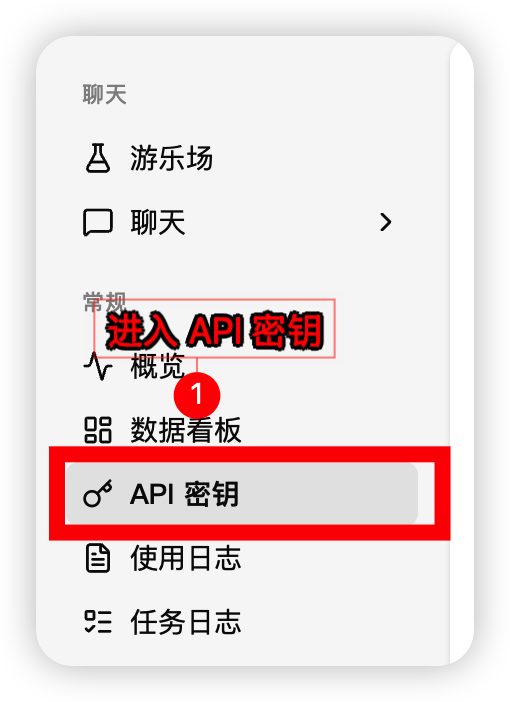 2. Select **DeepChat** from the token actions
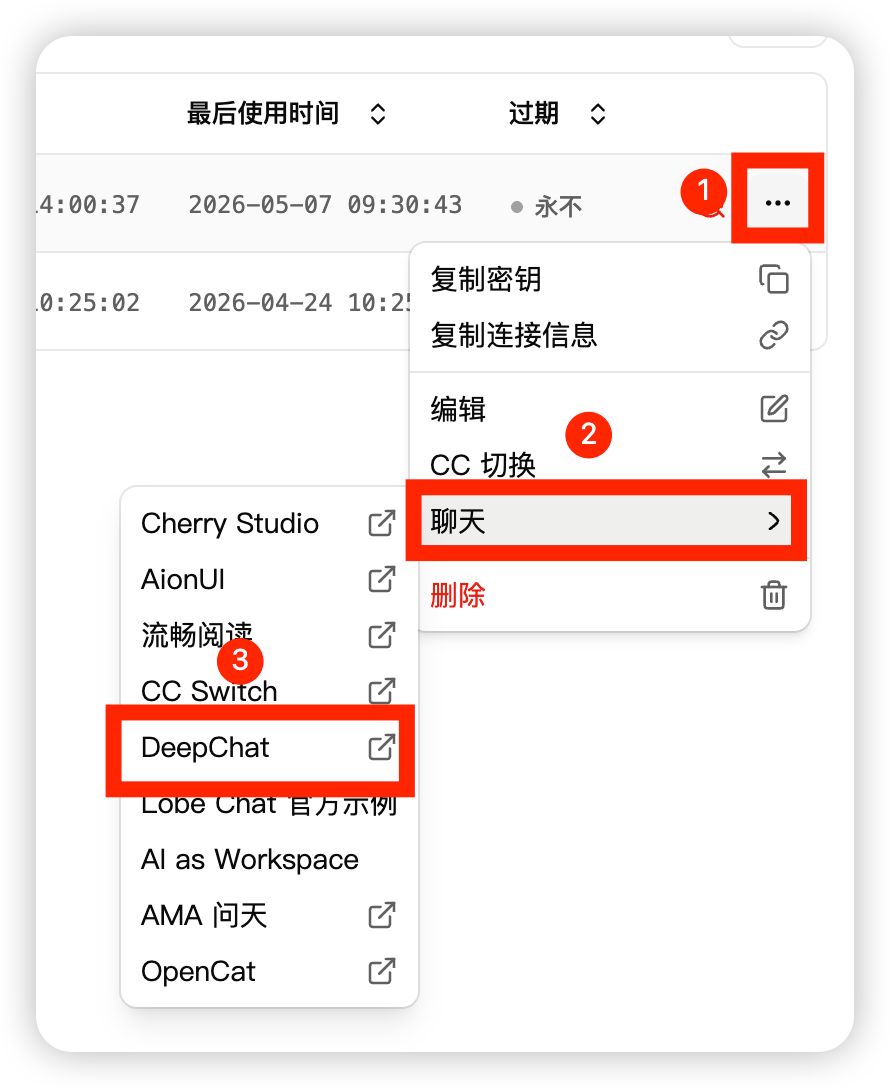 3. Let the browser launch DeepChat and confirm opening the app